Marketing Ideas for Masonry: 2026 Growth Strategies
Discover 12 proven marketing ideas for masonry businesses that drive leads, build trust, and outshine competitors. Digital strategies plus traditional tactics.
May 26, 2026



OpenClaw Telegram integration connects your personal AI assistant to Telegram via BotFather, enabling remote command execution, approval workflows, and chat-based agent control. Setup requires creating a bot token, configuring channels.telegram in your OpenClaw config, and pairing through clawd bot telegram pair. This integration supports inline approval buttons, forum topics, error policies, and multi-user access control.
Controlling your AI agent from anywhere sounds like science fiction. But OpenClaw makes it real through Telegram integration.
Once connected, you're issuing commands from your phone while OpenClaw executes tasks on your local machine or VPS. Browse the web, automate workflows, approve sensitive operations—all through chat messages.
Here's the thing though—setup isn't exactly plug-and-play. The official docs assume you know your way around config files and Telegram's Bot API. Most guides skip the gotchas that trip up first-timers.
This guide walks through the complete process. We'll cover bot creation with BotFather, OpenClaw configuration, pairing procedures, and the approval workflow that keeps dangerous commands in check.
OpenClaw runs as a local agent on your machine. Telegram becomes the remote control.
The integration creates a two-way channel. You send text commands to your Telegram bot. OpenClaw receives them, processes the request through its agent logic, and sends responses back to the same chat.
But it's not just text responses. OpenClaw can request approval for risky operations—like running shell commands or modifying files. According to the official OpenClaw documentation, when the prompt lands in a forum topic, OpenClaw preserves the topic for both the approval prompt and the post-approval follow-up.
The approval system uses inline keyboard buttons when channels.telegram.capabilities.inlineButtons is enabled. You get "Approve" and "Deny" buttons right in the message. No typing required.
Exec approvals expire after 30 minutes by default. That timeout prevents stale approval requests from executing hours later when you've forgotten the context.
OpenClaw treats Telegram as a "channel"—one of several messaging platforms it supports. Others include Discord, Slack, Signal, and even iMessage through BlueBubbles.
Each channel has its own config block. Telegram's config sits under channels.telegram in your OpenClaw configuration file.
The gateway handles routing between channels. When a message arrives via Telegram, the gateway identifies it, applies any access controls, and forwards it to the appropriate agent.

You can't integrate what isn't running. Make sure OpenClaw is installed and operational first.
Check the OpenClaw documentation for installation steps. Most users run the CLI version on macOS or Linux. Windows works through WSL.
You'll also need a Telegram account. Download the Telegram app for your phone or use the web version.
OpenClaw stores config in JSON or YAML files depending on your setup. Typical locations:
Find your config file before proceeding. You'll be editing it multiple times.
Telegram provides BotFather—a bot that creates other bots. Meta, right?
Open Telegram and search for @BotFather. Start a chat.
Type /newbot and send. BotFather asks for a display name. This is what users see in chats—like "My OpenClaw Assistant."
Next, it wants a username. This must end in "bot" and be unique across all Telegram. Try something like "yourname_openclaw_bot."
BotFather responds with your bot token. It's a long string like 123456789:ABCdefGHIjklMNOpqrSTUvwxYZ. Copy this immediately.
According to Telegram's official Bot API documentation, the Bot API is an HTTP-based interface created for developers keen on building bots for Telegram. That token is your authentication key for all API requests.
Store the token securely. Anyone with access can control your bot.
BotFather offers additional commands for customization:
These aren't required for integration, but they improve the user experience.
Now the config file comes into play.
Open your OpenClaw config file in a text editor. Look for the channels section. If it doesn't exist, create it.
Add the telegram block:
{
"channels": {
"telegram": {
"enabled": true,
"token": "YOUR_BOT_TOKEN_HERE",
"errorPolicy": "reply",
"capabilities": {
"inlineButtons": true
}
}
}
}
Replace YOUR_BOT_TOKEN_HERE with the token from BotFather.
The errorPolicy setting controls how OpenClaw handles errors. The "reply" option sends friendly error messages to the chat. Set it to "silent" if you want errors suppressed entirely—though that makes debugging harder.
Setting capabilities.inlineButtons to true enables approval buttons. Without this, approvals require typed responses.
The gateway routes messages between channels and agents. Most installations have sensible defaults, but check these settings:
{
"gateway": {
"enabled": true,
"channels": ["telegram"],
"defaultAgent": "assistant"
}
}
The channels array should include "telegram". The defaultAgent specifies which agent handles Telegram messages—usually "assistant" for general-purpose interaction.
Config is set. But OpenClaw doesn't know who's allowed to use the bot yet.
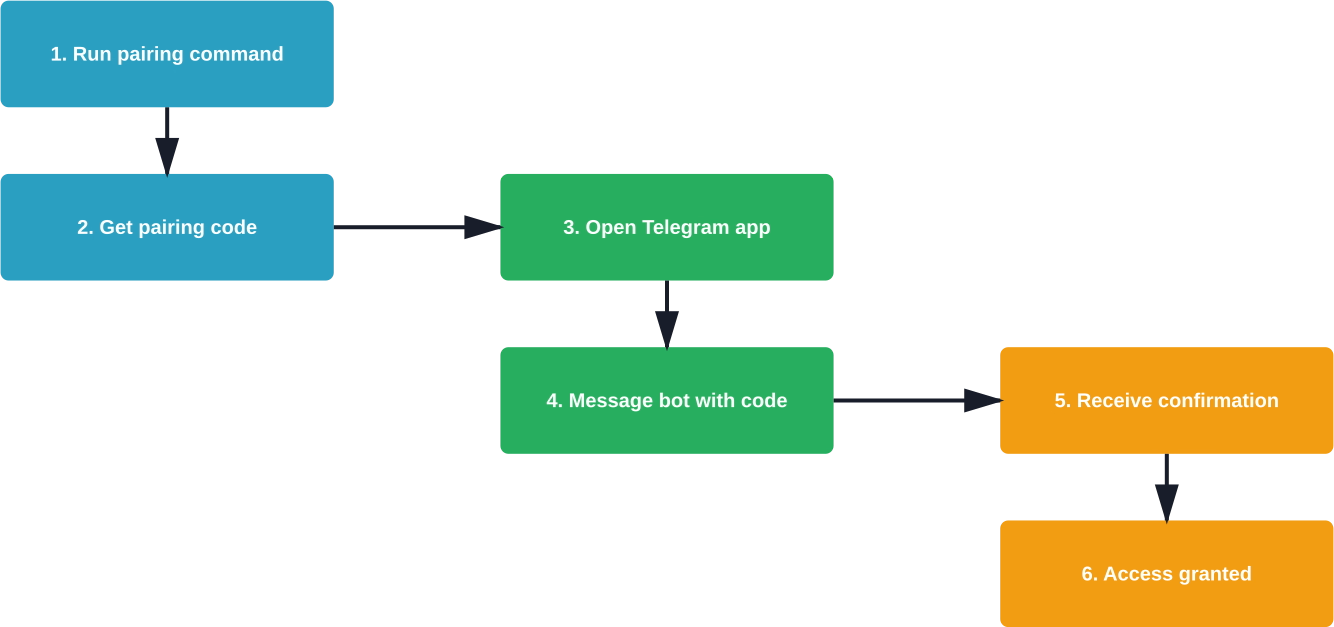
This is where pairing comes in. It links your Telegram user ID to OpenClaw's access control system.
Open your terminal and run:
clawd bot telegram pair
OpenClaw generates a pairing code—usually a short numeric sequence. It displays the code in the terminal.
Now open Telegram and message your bot. Send the pairing code exactly as shown.
If successful, OpenClaw replies with a confirmation. Your Telegram user ID is now authorized.
First, check that OpenClaw is running. The clawd process needs to be active for pairing to work.
Second, verify the bot token in your config. A single character error breaks the connection.
Third, make sure you're messaging the correct bot. Telegram usernames are case-sensitive and must match exactly.
Community discussions on Reddit mention firewall issues blocking Telegram's API servers. If you're on a VPS or corporate network, check firewall rules to allow HTTPS traffic to api.telegram.org.
OpenClaw won't blindly execute every command. Some operations require explicit approval.
When an agent wants to run a shell command, modify system files, or access sensitive data, it sends an approval request to Telegram.
The message includes the proposed action and context. Inline buttons appear below: "Approve" and "Deny."
Tap Approve and the agent proceeds. Tap Deny and the operation cancels.
This approval mechanism exists because AI agents make mistakes. They might misinterpret a request or hallucinate a dangerous command. The human-in-the-loop pattern prevents disasters.
Approvals don't wait forever. By default, they expire after 30 minutes.
If you don't respond within that window, the operation cancels automatically. OpenClaw sends a timeout notification to the chat.
This timeout prevents scenarios where you leave an approval hanging overnight, then accidentally tap it the next morning without remembering what it was for.
Telegram supports forum-style chats where conversations split into topics. OpenClaw respects these boundaries.
When an approval request originates from a specific forum topic, the inline buttons and follow-up messages stay in that same topic. Messages don't bleed into other discussions.
This makes managing multiple projects in one Telegram group chat cleaner. Each project gets its own topic thread.
The basic config gets you running. But Telegram integration supports deeper customization.
The errorPolicy setting has two values: "reply" and "silent."
According to OpenClaw's Telegram documentation, "reply" sends a friendly error message to the chat when something breaks. "silent" suppresses error replies entirely.
During initial setup, stick with "reply". Once everything works reliably, consider switching to "silent" if error messages clutter your chat.
By default, only paired users can interact with your bot. But you can expand access.
The access control config allows whitelisting specific Telegram user IDs or group chat IDs:
{
"channels": {
"telegram": {
"access": {
"allowedUsers": [123456789, 987654321],
"allowedGroups": [-1001234567890]
}
}
}
}
Find user IDs by enabling debug logging and checking what OpenClaw logs when someone messages the bot. Group IDs appear in logs when the bot joins a group chat.
Inline buttons depend on channels.telegram.capabilities.inlineButtons being true. This enables Telegram's callback query API.
Without inline buttons, approval workflows fall back to text-based responses. The agent asks "Type APPROVE or DENY" and waits for your reply.
Text-based approval works but feels clunky compared to tapping a button.
Config is done. Pairing succeeded. Time to test actual commands.
Open Telegram and message your bot with something simple:
"What's the current time?"
OpenClaw should respond with the time. If it does, the basic integration works.
Try a more complex request that doesn't require approval:
"Summarize the last 5 commits in my project repo."
Assuming OpenClaw has Git integration configured, it should fetch and summarize commits.
Now trigger an operation that requires approval:
"Run 'ls -la' in my home directory."
OpenClaw should send an approval request showing the command. Tap Approve.
The agent executes the command and returns the output to Telegram. If this works, approval workflows are functioning correctly.
Integrations break. Here's how to fix the usual suspects.
First, verify OpenClaw is running. Check the process:
ps aux | grep clawd
If no process appears, OpenClaw isn't running. Start it with the appropriate command for your installation method.
Second, check logs. OpenClaw writes detailed logs—usually to ~/.openclaw/logs/ or stdout if running in foreground mode.
Look for errors mentioning Telegram or the bot token. Common issues include malformed tokens or network connectivity problems.
This error means your Telegram user ID isn't authorized.
Re-run the pairing process. If pairing completes but the error persists, check the access control config. Make sure your user ID appears in allowedUsers.
Some users report success by manually adding their Telegram user ID to the config, then restarting OpenClaw.
Verify capabilities.inlineButtons is set to true in channels.telegram.
Restart OpenClaw after changing config. Some settings only apply on startup.
If buttons still don't appear, check Telegram's Bot API version. OpenClaw requires Bot API 4.5 or higher for inline keyboards. According to Telegram's recent changelog, Bot API 9.6 was released on April 3, 2026, adding managed bot capabilities—so API support isn't the issue for current installations.
Telegram uses long polling or webhooks for receiving messages. OpenClaw defaults to long polling.
Long polling has occasional delays—usually under a second. If messages take minutes to arrive, check network latency to api.telegram.org.
Running OpenClaw on a VPS with good connectivity typically solves delay issues. Local networks with restrictive firewalls or NAT configurations can introduce lag.
Giving an AI agent shell access through Telegram creates security risks.
Treat the bot token like a password. Anyone with the token can send messages as your bot and potentially bypass access controls if they exploit config weaknesses.
Never commit tokens to Git repos. Use environment variables or secret management tools instead.
If a token leaks, revoke it immediately through BotFather using /revoke and generate a new one with /token.
Don't skip pairing. The temptation to open bot access widely for convenience isn't worth the risk.
Community discussions mention incidents where poorly secured bots got spammed by strangers or had their approval workflows exploited. Strict access control prevents this.
For team use, create individual bots per user rather than sharing one bot with a long allowedUsers list. This improves audit trails.
Read approval requests carefully before tapping buttons. Agents can request dangerous operations.
If an approval request seems odd—like an unexpected file deletion or a command you didn't initiate—deny it and investigate.
According to a large-scale arXiv study on Telegram bots, while most bots are benign, researchers found an alarming number of bots with illicit operations such as fraud (4%) and underground activities (5%). That study focused on public bots, but it highlights the importance of securing private bot integrations.
What can you actually do with OpenClaw Telegram integration?
Developers running OpenClaw on a VPS use Telegram to manage their environment from anywhere. Start docker containers, tail logs, run builds—all from mobile.
Documentation describes controlling OpenClaw on a Hostinger VPS entirely through Telegram, executing commands and browsing the web from a phone.
Set up agents that monitor specific conditions and ping you via Telegram when action is needed. Server disk space low? Agent messages you. CI/CD pipeline fails? Notification arrives in Telegram.
The approval workflow ensures automated actions don't run wild. The agent proposes a fix, you approve or deny.
GitHub user timotme built openclaw-telegram-chat-file-browser—a plugin that lets users browse files through Telegram chat. Send a message like "show me PDFs in ~/Documents" and get a navigable file list.
This extends to document search, retrieval, and basic file operations without touching a keyboard.
Teams running shared OpenClaw instances use Telegram group chats as collaborative command centers. Multiple users interact with the same agent, approvals come to the group, and everyone sees the agent's actions.
Forum topics keep different projects organized within one group chat.
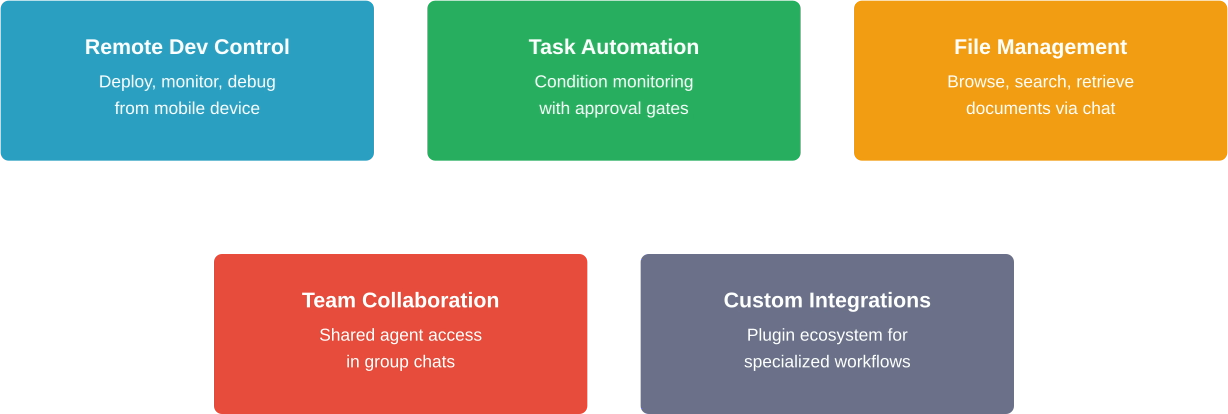
OpenClaw supports plugins that extend Telegram capabilities.
GitHub user JairFC maintains openclaw-telegram-approval-buttons—a plugin specifically for inline keyboard buttons in exec approval messages. It's seen active development with 27 commits and handles edge cases the core implementation might miss.
Installing plugins typically involves cloning the repo and adding the plugin path to OpenClaw's config.
GitHub user Tanmay1112004 published openclaw-telegram-agent—a secure proof-of-concept demonstrating containerized deployment with best security practices. This project shows how to run OpenClaw agents with Telegram in isolated Docker containers.
For production deployments handling sensitive data, containerization adds a security layer. The agent can't access the host system beyond what you explicitly mount.
NVIDIA's NemoClaw project integrates with OpenClaw for accelerated AI workloads. GitHub issue #391 in the NVIDIA NemoClaw repository discusses integration challenges when running NemoClaw alongside OpenClaw Telegram on the same host—specifically 403 proxy blocks due to missing policy binaries.
The issue got tagged "Integration: OpenClaw" and "Support for OpenClaw," indicating this combination is under active development but may hit edge cases.
Here's a consolidated reference for key Telegram config options.
OpenClaw supports multiple messaging platforms. How does Telegram stack up?
Telegram stands out for its generous file size limits and straightforward Bot API. According to Telegram's Bot API documentation, switching to a local Bot API server removes file size limits entirely, allowing uploads up to 2000 MB for standard users and 4000 MB (4GB) for Telegram Premium users.
Signal offers better privacy guarantees but lacks inline buttons and requires keeping a linked device online. Discord handles gaming communities well but has smaller file limits on free tiers. Slack dominates workplace chat but comes with enterprise pricing for advanced features.
OpenClaw and its Telegram integration continue evolving.
A February 2026 GitHub discussion (#176) in the Once Campfire repository asked about OpenClaw connector integration thoughts or plans. The discussion got 6 comments and 2 replies, indicating community interest in expanding OpenClaw's messaging platform support.
The centminmod/explain-openclaw repository on GitHub provides multi-AI documentation covering architecture, security audits, and deployment guides. It's reached 186 stars and 24 forks, with 247 commits of continuous updates.
This community-driven documentation supplements official docs and often addresses real-world deployment scenarios the official guides skip.
Telegram released Bot API 9.6 on April 3, 2026. The update added the field can_manage_bots to the User class and introduced KeyboardButtonRequestManagedBot for enhanced bot management capabilities.
OpenClaw will likely adopt these features in future releases, potentially enabling more sophisticated multi-bot coordination through Telegram.

OpenClaw Telegram integration is about setting up delivery – bots, triggers, and message flows that actually reach users. But more messages don’t automatically mean better results. Everything still comes down to what you send.
Extuitive covers that part on the ads side. It predicts which ad creatives are likely to perform before launch using your past data and simulated user response. So while OpenClaw handles how messages move through Telegram, Extuitive helps you filter what’s worth running before you put the budget behind it.
Telegram integration transforms OpenClaw from a desktop-bound assistant into something accessible from anywhere.
The setup takes maybe 30 minutes if everything goes smoothly. Create the bot, configure the channel, pair your account, and start issuing commands.
The approval workflow keeps things safe. Inline buttons make approvals feel natural instead of cumbersome.
But the real value emerges over time. Once you've got OpenClaw responding in Telegram, you start finding unexpected uses. Quickly checking server status while away from your desk. Automating routine tasks during commutes. Collaborating with teammates through shared bot access.
The combination of conversational AI and mobile messaging creates workflows that weren't practical before.
Ready to connect your OpenClaw instance? Start with BotFather, grab that token, and get your AI assistant in your pocket. The official OpenClaw documentation has additional config examples and troubleshooting tips if you hit snags.
Once it's running, you'll wonder how you managed without it.


