500+ Tattoo Shop Name Ideas & Naming Guide (2026)
Discover 500+ creative tattoo shop name ideas plus expert tips to choose a memorable brand name that attracts clients and builds your business in 2026.
Apr 10, 2026



Building your own AI assistant is accessible in 2026 through platforms like n8n, Lindy, or CustomGPT, requiring zero coding skills. Most solutions connect to APIs like OpenAI, integrate with tools like Gmail and Notion, and can be deployed for free or under $50/month. The process involves selecting a platform, connecting data sources, defining workflows, and testing automated responses.
The idea of having a personal AI assistant used to feel like something out of a science fiction movie. But here's the thing—it's not anymore.
In 2026, anyone can build a custom AI assistant that manages email, schedules meetings, searches the web, and handles repetitive tasks. And the best part? Technical skills are optional.
According to Medium, AI assistants can enable as much as 50% time savings on administrative work. That's hours of reclaimed time every single week.
This guide covers exactly how to build your own AI assistant from scratch. Real tools. Real workflows. Real results.
Before diving into the technical setup, it helps to understand what these assistants can handle.
A well-configured AI assistant manages tasks across multiple categories. Calendar management is one of the most common use cases—setting reminders instantly, creating detailed events, and checking availability without opening a calendar app.
Email handling is another major function. The assistant reads inboxes, sends messages on command, and even drafts responses based on context. Community discussions highlight users saying things like "Email Maya and tell her I'll be 15 minutes late to our meeting" and having it execute instantly.
Web searches, task management, and integration with productivity tools like Notion round out the core capabilities. Some advanced setups even handle multiple tasks per session without breaking a sweat.
The real value isn't in any single feature. It's in the aggregation—one interface that talks to all the tools already in use.
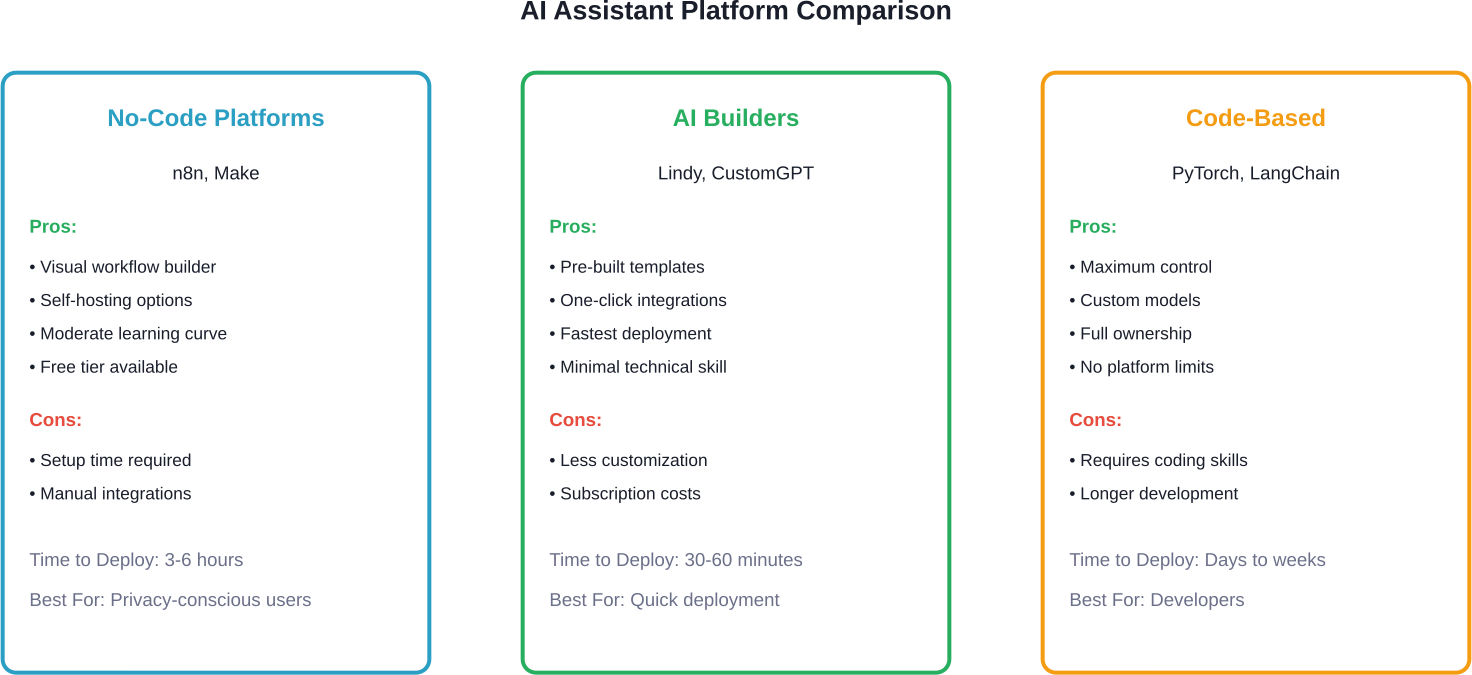
Three primary approaches exist for building a personal AI assistant in 2026, each with distinct trade-offs.
Tools like n8n and Make (formerly Integromat) let users build assistants through visual workflow builders. Drag-and-drop nodes represent different services—OpenAI for language processing, Gmail for email, Google Calendar for scheduling.
n8n is particularly popular in community discussions because it offers a self-hosted option. That means the assistant runs on personal infrastructure rather than a third-party server. For anyone concerned about data privacy, this matters.
The learning curve is moderate. Non-technical users report getting basic assistants running within a few hours of experimentation.
Platforms like Lindy and CustomGPT.ai abstract away even more complexity. These services provide pre-built templates for common assistant tasks.
Lindy, for instance, offers one-click integrations with dozens of services. The setup process resembles filling out a form more than building software. Users describe their desired workflows in plain language, and the platform generates the underlying logic.
The trade-off is flexibility. Pre-built platforms are faster to deploy but harder to customize for niche requirements.
Developers comfortable with Python or JavaScript can build assistants using frameworks like PyTorch or LangChain. A standard Llama 3 8B model (FP16) requires approximately 15-16GB of storage for weights; however, quantized versions (like 4-bit) can require as little as 5GB. The entire export process takes a few hours.
This approach offers maximum control but demands technical expertise. Users going this route typically have specific requirements that off-the-shelf solutions can't meet.
This walkthrough uses n8n because it balances power and accessibility. The setup works on Mac, Windows, or Linux.
n8n runs as a local application or on cloud infrastructure. For testing purposes, the desktop app is simplest.
Download the installer from n8n's official site. The installation process is standard—double-click, follow prompts, launch the application.
Once running, n8n opens a web interface at localhost:5678. This is the workflow editor.
The language understanding component requires an API connection to a large language model. OpenAI's GPT-4 is the most common choice, though alternatives like Anthropic's Claude work similarly.
In n8n, add an "OpenAI" node to the workflow canvas. The node asks for an API key, which comes from OpenAI's developer dashboard. Check the official OpenAI site for current pricing—API costs typically run a few cents per conversation.
Configure the model parameter to "gpt-4" or "gpt-3.5-turbo" depending on performance needs and budget.
Triggers define how the assistant receives input. Common options include:
For a Telegram-based assistant, add a "Telegram Trigger" node. This requires creating a Telegram bot through BotFather and copying the authentication token into n8n.
Now any message sent to the Telegram bot flows into the n8n workflow.
The assistant becomes useful when it can act on requests, not just understand them. This means connecting services like Gmail, Google Calendar, Notion, and others.
Each service requires OAuth authentication. n8n handles most of the complexity—click "Add Credential," log in to the service, and authorize access.
For email handling, add a Gmail node configured to send messages. Connect it to the OpenAI node so the assistant can draft email content based on natural language requests.
For calendar management, add a Google Calendar node that can create events, check availability, and set reminders.
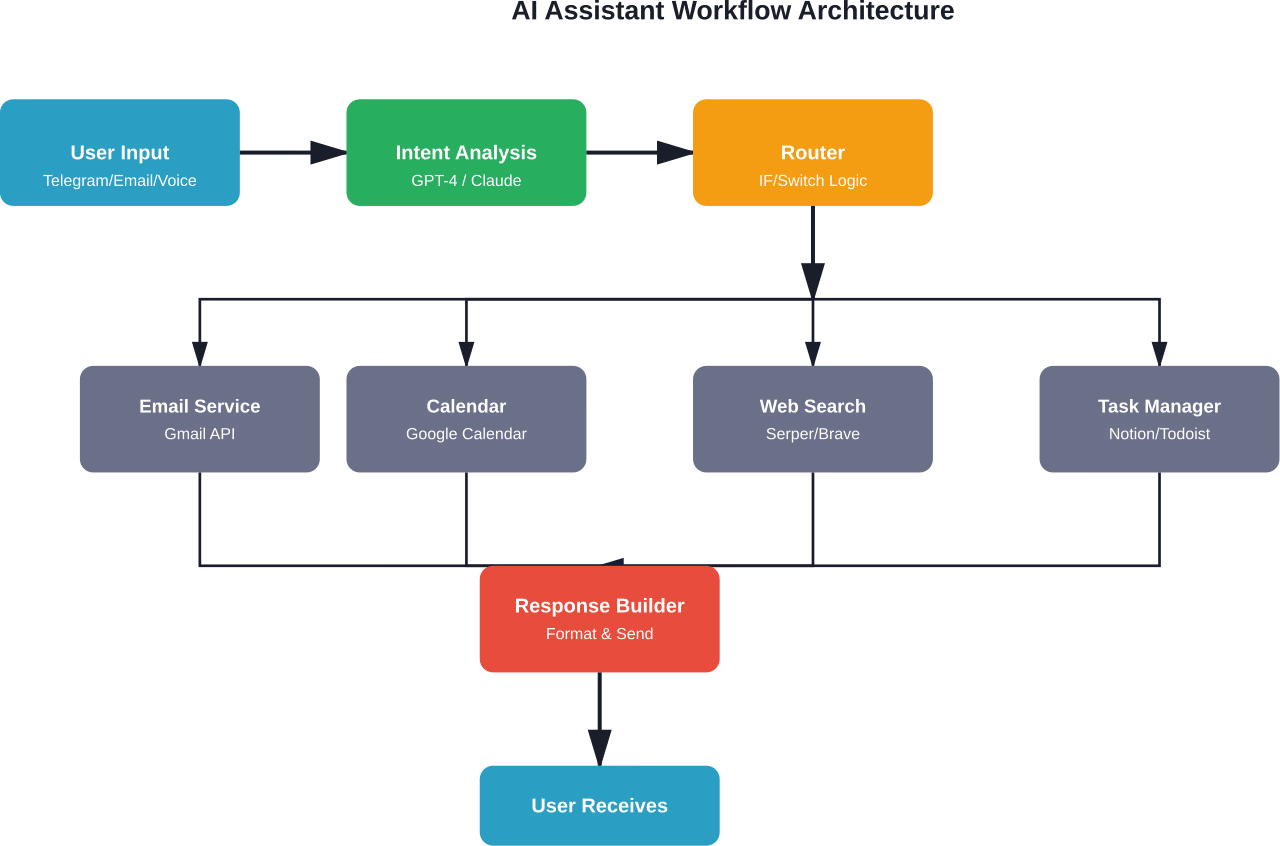
Here's where workflow design matters. The assistant needs to interpret intent and route to the correct action.
A basic flow looks like this:
More sophisticated setups use function calling, where the AI automatically selects from available tools without explicit routing logic.
Activate the workflow and send test commands. Start simple: "What's on my calendar tomorrow?" or "Send an email to john@example.com saying I'll be there at 3pm."
Most users report needing 5-10 test iterations to refine prompt engineering and error handling. That's normal.
Pay attention to edge cases. What happens if the calendar API is down? What if the assistant misinterprets a command? Adding error nodes that log issues or notify when something breaks prevents silent failures.
Not everyone wants to configure workflows manually. For those prioritizing speed over customization, Lindy offers a faster path.
The platform uses a conversational interface to build assistants. Users describe what they want in plain English: "I need an assistant that reads my emails every morning, summarizes unread messages, and sends me a digest."
Lindy generates the workflow automatically. Behind the scenes, it's doing similar integration work as manual n8n configuration, but the abstraction layer hides the complexity.
The downside is cost. While n8n offers a free self-hosted option, Lindy requires a subscription. Check their official site for current pricing—plans typically start around $30-50 per month.
For anyone who values time over money, this trade-off makes sense. The assistant is operational in under an hour.
Building an AI assistant isn't free, but it's cheaper than most people expect.
The biggest variable is AI API usage. Light users (50-100 requests per day) typically spend under $10 monthly. Heavy automation with hundreds of daily interactions can push costs toward $30-50.
Once the foundation is working, several advanced features become accessible.
Basic assistants treat each interaction independently. More sophisticated setups maintain conversation history and user preferences.
Implementing this requires a database—Redis, Postgres, or even a simple JSON file. The workflow stores previous messages and injects them into each API call, giving the AI context about past interactions.
This enables commands like "Add that to my calendar" where "that" refers to something mentioned earlier in the conversation.
According to Snorkel AI, a fine-tuned model achieved the same quality as GPT-3 while being 1,400 times smaller and requiring less than 1% of the ground truth labels.
For most users, this level of optimization is overkill. But professionals who rely heavily on their assistant—managing hundreds of emails daily or coordinating complex schedules—report measurable improvements after fine-tuning.
The process involves collecting examples of desired behavior, formatting them as training data, and using tools like Hugging Face's TRL library to update model weights. According to PyTorch documentation, fine-tuning Llama 3 8B requires a host machine with more than 100GB of memory (RAM + swap space), and the entire process takes a few hours.
Text isn't the only input method. Some setups accept voice commands through Whisper (OpenAI's speech recognition API) or even images.
A workflow might look like: voice message → Whisper transcription → GPT-4 processing → action execution → text response.
This requires chaining additional nodes but follows the same basic pattern as text-based workflows.
Building an AI assistant is straightforward, but a few common mistakes slow progress.
The temptation to build every possible feature on day one is strong. Resist it.
Start with one task—say, email management. Get that working perfectly. Then add calendar integration. Then web search. Incremental expansion prevents overwhelming complexity.
APIs fail. Networks drop. Services go down temporarily.
Workflows without error handling silently break, leaving users wondering why commands stop working. Adding try-catch nodes that log failures or send error notifications makes debugging infinitely easier.
The quality of AI responses depends heavily on prompt design. Vague system prompts produce inconsistent behavior.
Be explicit. Instead of "You are a helpful assistant," try "You are an assistant that manages email and calendar. When a user requests an email be sent, extract the recipient, subject, and body. Return these as structured JSON for the workflow to process."
Specificity improves reliability.
An AI assistant with access to email and calendar is powerful. It's also a security risk if credentials leak.
Use environment variables for API keys. Enable two-factor authentication on connected services. If self-hosting, restrict network access to prevent unauthorized usage.
According to NIST's AI Risk Management Framework, security and privacy considerations should be baked into AI systems from the start, not added as an afterthought.
Building AI systems responsibly means designing for fairness, safety, and transparency. PyTorch documentation highlights an approach called Yellow Teaming—proactively testing AI systems for potential harms before deployment.
For personal assistants, this might mean testing for data leakage (ensuring the assistant doesn't accidentally send confidential information to the wrong recipient) or bias in language generation (checking that calendar invites use appropriate tone regardless of recipient).
Generally speaking, smaller-scale personal projects face lower risk than production systems used by thousands. But the principles still apply. Test edge cases. Monitor outputs. Iterate based on actual behavior, not just intended design.
How well do these assistants actually work once deployed?
According to research on conversational AI systems, study sessions averaged 23 messages and 4.13 minutes per session with a 100% completion rate across 150 sessions.
Response accuracy depends on model choice and prompt engineering. GPT-4-based assistants typically achieve 90%+ intent recognition on well-defined tasks. GPT-3.5 is faster and cheaper but slightly less accurate.
Latency is usually under 3 seconds for simple tasks, longer for complex multi-step workflows that chain multiple API calls.
The biggest wins come from time savings. Reclaiming even 30 minutes daily adds up to 180+ hours annually—more than four full work weeks.
AI technology evolves fast. Building with modularity in mind prevents obsolescence.
Use abstraction layers. Instead of hardcoding "gpt-4" everywhere, define a model parameter that can be swapped when GPT-5 or a better alternative launches.
Keep integrations loosely coupled. If the calendar service changes its API, only one node should need updating—not the entire workflow.
Document customizations. Future-you (or anyone maintaining the system) will appreciate notes explaining why certain logic exists.
The difference between reading about AI assistants and actually having one is a few hours of focused work.
Start small. Pick one task—maybe email summarization or calendar management. Choose a platform that matches your technical comfort level. n8n for hands-on customization, Lindy for speed, or code-based solutions for maximum control.
Build the simplest possible version. Test it. Break it. Fix it. Add features incrementally.
Within a week, there's a functional AI assistant handling real tasks. Within a month, it becomes indispensable.
The tools exist. The cost is manageable. The time investment pays dividends immediately. The only remaining question is whether to start today or keep postponing.
And honestly? Today is better.


