How Does Shopify Handle Sales Tax: A Clear Guide
A clear explanation of how Shopify calculates, collects, and reports sales tax, and what store owners are still responsible for.
Feb 10, 2026



Let’s be real for a second: we all read product reviews before buying something online. On Shopify, it’s no different. Whether you sell handmade candles or dropship sneakers, reviews build trust. They also help people decide faster and keep them from bouncing to another store. So if your store looks great but feels a little too quiet, adding reviews might just fill that gap.
In this guide, I’ll walk you through the main ways to show reviews in your Shopify store, explain where they show up, and give you a few things to watch out for as you build trust with real feedback.
Before getting into the how, it’s worth pausing on the why. Customer reviews aren’t just there to fill space on a product page. They shape buying decisions, add fresh content that search engines pick up on, and often help reduce returns by setting clearer expectations. Even a couple of short, honest comments can make a store feel more real and lived-in.
Reviews act as social proof, showing new shoppers that real people have already taken the leap. They give you direct feedback you can actually use to improve your products or descriptions. They also add natural product content that helps with visibility in search, and they take some of the pressure off your marketing by letting customers do part of the talking for you. In other words, when used well, reviews quietly handle a lot of work in the background.
Shopify gives you some flexibility when it comes to where reviews appear. Here's where most stores display them:
You don’t need to use all of these, but knowing your options makes planning easier.
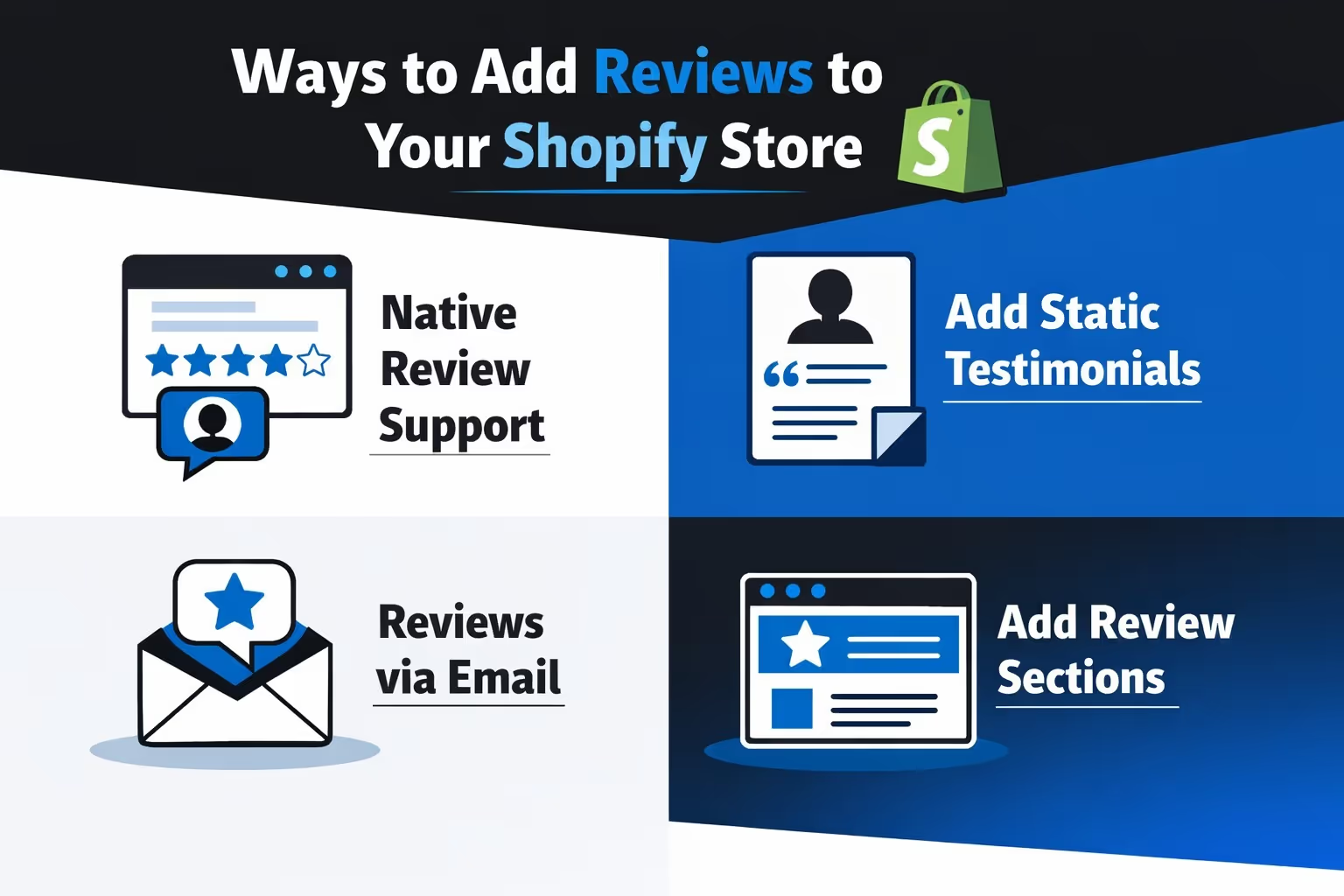
There’s no one-size-fits-all approach when it comes to reviews. Some stores need full automation, others just want a place to show a few good words. Below are the most practical and flexible ways to add reviews in Shopify, whether you're just getting started or looking to improve what you already have.
Shopify doesn’t come with a built-in review system, but it offers a free official app called ‘Product Reviews’ that covers the basics. It’s straightforward and does the basics:
If you're starting out, this can be a good way to dip your toes in. It also integrates well with the default themes, so you won't need to tweak much code.
How to set it up:
Once it's in, you can customize the review block style and manage incoming reviews from your admin panel.
Let’s say you don’t want to deal with apps at all. You can also add reviews manually by treating them like testimonials. It’s more old-school, but still effective.
Here’s how it works:
This method gives you full control over the format, but there’s no automatic collection or star ratings. It works best for service-based stores, or when you're just starting out.
You can use Shopify's "Rich Text" blocks, or customize a new section in the theme editor.
If you're not ready to install an app but want something more dynamic than copy-pasting, email is your friend. After a customer gets their order, send a follow-up email asking for feedback. This could be as simple as:
"Hey [First Name],
Hope your order arrived safely. Got a second to tell us what you thought?"
You can either ask them to reply directly or drop a link to a Google Form or a contact page. Later, you can take those reviews and manually add them to your store.
It’s not flashy, but it gets the job done.
Some Shopify themes may include built-in blocks for testimonials or featured quotes, depending on the theme design. These are different from star-rating systems, but still let you show quotes from real people in a clean layout.
You’ll usually find them under:
You can fill these out manually, and they’ll look fully native to your theme.
Pro tip: If your theme doesn’t support it, you can create a custom HTML section and drop in whatever layout you like.
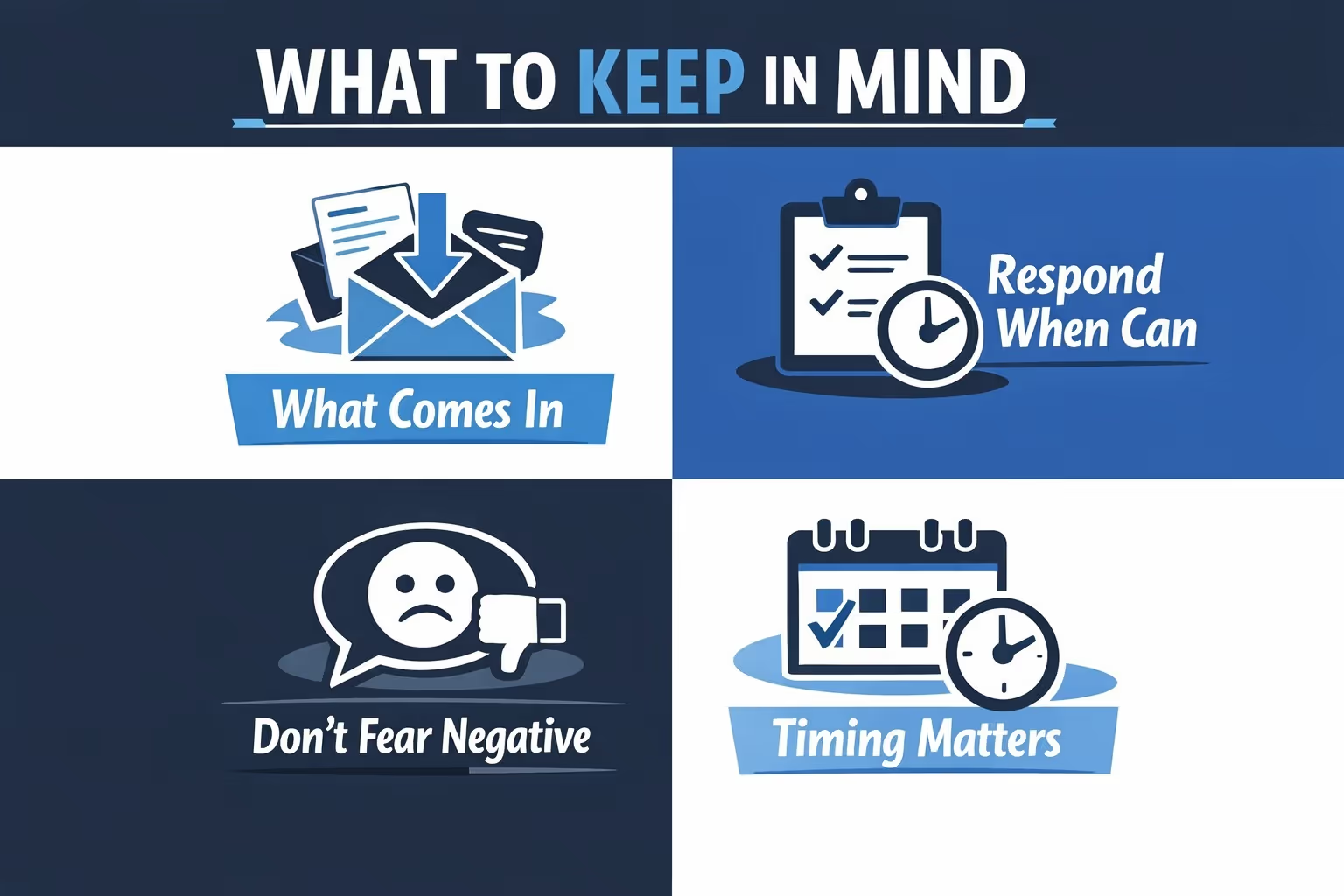
Even simple setups can create headaches if you don’t plan ahead. Here are a few things worth thinking about:
If you’re letting customers leave reviews freely, make sure someone’s checking them regularly. Spam and irrelevant comments can slip through, and you don’t want your product pages getting cluttered with nonsense.
Even a quick “thanks for the feedback” goes a long way. It lets customers know you’re paying attention, and it encourages others to chime in too. You don’t have to reply to every single review, but try to show up often enough that it feels like there’s someone on the other end.
Unless a review crosses the line into abuse or spam, it’s better to leave it up. A mix of good and not-so-good feedback makes your store feel more real. In fact, a few mild complaints can help highlight your great reviews even more.
Asking for a review right after someone checks out is too soon. They haven’t seen the product yet. A better window is about 5 to 7 days after delivery – enough time for the customer to try it out and share something honest.
And make sure the tone of the review request matches your brand voice. A store selling outdoor gear should sound different from one selling minimalist jewelry.

While reviews show you what customers think after they’ve bought, we’re focused on the step before that. At Extuitive, we help Shopify merchants understand how potential customers are likely to respond to their offers, ads, and messaging before launching anything live.
Using AI agents trained on behavior data from over 150,000 real consumers, we simulate how different types of buyers react to your product pitches. Instead of testing on live traffic, you can validate ad ideas, messaging angles, and even creative formats in minutes. The result? Fewer wasted ad dollars and campaigns that feel more aligned with what your audience actually wants.
We’ve seen merchants use these early insights to not only improve conversion rates but also inform how they collect and frame reviews. If you know what your audience values before they buy, it’s easier to ask the right questions after they do.
Adding reviews to your Shopify store doesn’t need to be a big technical project. Even without using apps, you’ve still got solid options. Shopify’s official Product Reviews app is a simple way to get started, though it needs to be installed separately. For smaller shops, adding a few customer quotes manually can still do the job. Reaching out through email works surprisingly well too – people are often willing to leave a quick comment if you ask them directly. And sometimes your theme already includes a review section, so it’s worth checking what’s built in. The key is to start with what makes sense for where your store is right now. Once you’ve got a few reviews coming in, it’s easier to build from there.


