How Many Users Does Shopify Have and What That Number Really Means
Shopify’s user base explained: how many people use Shopify, who they are, and how the numbers are counted in 2026.
Feb 4, 2026



Keeping your Shopify account secure doesn’t need to be complicated. Whether you’ve forgotten your password or just feel like it’s time for a refresh, updating it takes only a few minutes. In this guide, we’ll walk through the steps to change or reset your Shopify password, whether you’re already logged in or trying to get back in. It’s quick, simple, and totally doable, even if you haven’t touched your account settings in months.

Let’s face it – passwords aren’t the most exciting part of running an online store. But they’re one of the easiest ways to keep your Shopify account secure. Whether you’re logging in every day or popping in once a week to check orders, having a strong, unique password keeps your store safe from unwanted access.
If you're wondering when to change your password, here are a few common triggers:
It happens to everyone at some point. If your password just won’t come to mind and you're locked out, that's your cue to reset it.
If you’re having trouble logging in, it might be due to too many failed attempts or an account security check. In that case, just follow the reset steps to regain access.
Maybe you’re working on better digital hygiene or tightening things up after reading about a new breach online. Updating your password regularly is one of the easiest ways to stay ahead.
If you’ve shared your login or even just suspect someone else might’ve seen your password, don’t wait. Change it right away to take back control of your account.
Even if nothing's gone wrong, it's still smart to change your password every now and then. Think of it like updating your smoke detector batteries – not urgent, but worth doing before it becomes a problem.
Whatever the reason, changing your Shopify password is quick once you know where to go. The process is slightly different depending on whether you're already logged in or not, and what device you’re using. So let’s break it down.
Changing your password while you're still logged in is the smoothest route. You’ll go through your account settings from the admin dashboard.
That’s it. You’re all set with a new login.
Here are a few more password tips. Avoid reusing passwords across different tools or platforms. Make sure your new password is at least 8 characters (Shopify’s minimum). Don’t start or end the password with a space. Shopify won’t allow it.
Simple, whether you’re at your desk or on the go.
Getting locked out of your account is never fun, but Shopify’s reset process is pretty user-friendly. You’ll just need access to the email tied to your account.
If you use two-step authentication, you’ll also need to verify through your second method (like an authenticator app or text).
If you can't access the email address, you can manually enter a different one during the reset process.
There’s a small detail that’s easy to overlook. When you reset your password (not just change it from inside your account), any third-party login connections you’ve set up are removed. That includes sign-in with Google and sign-in with Apple.
You’ll still have your account, of course, but those login methods are disconnected until you set them up again. If you're in the habit of using Google to log in, you’ll need to re-enable it afterward.
Not quite. The password change process only applies to your Shopify account login.
If you’re using Shopify POS, it requires a separate PIN. To update a POS PIN, go to your Shopify admin and click Settings > Users. Select the staff member, then scroll to the Point of Sale section and either generate a new PIN or enter one manually.
You can also update the PIN from the POS app or the Point of Sale channel in your admin, as long as you have the right permissions. The POS PIN is independent from your main Shopify password, so changing one won’t affect the other.
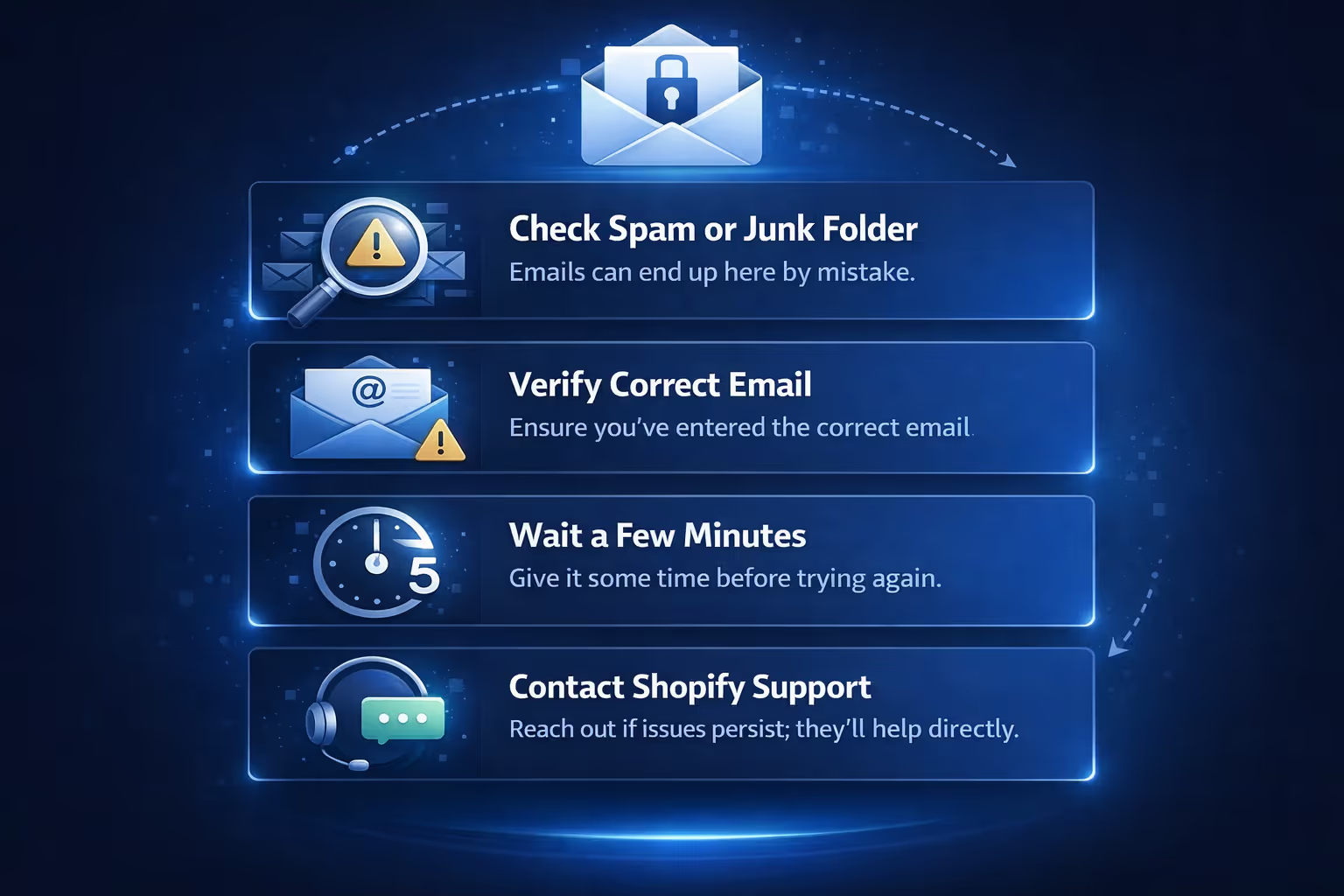
Sometimes password reset emails don’t show up right away. Here are a few things to try if that happens:
Also, if your store uses a Shopify-managed email domain, there’s a chance it may route messages differently. Always make sure your contact email is current.
Once you've changed your password, you can always head back to your Security settings in the admin panel. That’s where you can update it again if needed, or double-check that everything’s current.
Just remember to use a secure and unique password, update it regularly if you manage multiple stores or teams, and don’t share it, even with trusted staff. Use staff accounts instead.

At Extuitive, we focus on something just as important as protecting your store: making sure your ads actually work before you spend a cent. We know how frustrating it is to launch a campaign and cross your fingers. That’s why we built a prediction engine that tells you clearly and accurately how your ads will perform before they go live.
Our platform is built for Shopify brands that move fast and don’t have time for trial and error. Using AI models trained on real campaign data, we help you forecast winners and skip the ads that would’ve flopped. You can test a single creative or run predictions at scale, all without leaving your workflow. Better targeting, higher click-through rates, and stronger ROAS start with knowing what to expect. And we’re here to make that part a whole lot easier.
Changing your Shopify password is one of those things that only takes a minute but goes a long way in keeping your business safe. Whether you’re doing a quick update from your admin panel or resetting after forgetting, the process is straightforward on both desktop and mobile.
It’s also a good reminder to stay on top of account security in general. Use strong passwords. Enable two-step verification. Make sure each team member has their own login with the right permissions.
And if you ever feel unsure about anything, Shopify’s help center or support team is a good backup.


