Is Shopify Profitable? The Real Answer
Shopify can be profitable, but not for everyone. Here’s what affects margins, where sellers succeed, and what to consider before investing.
Jan 27, 2026



An AI file (.ai) is Adobe Illustrator's native vector graphics format used to store scalable artwork, logos, and illustrations. Unlike raster images, AI files use mathematical paths that maintain perfect quality at any size. They can contain both vector paths and embedded raster images, making them the industry standard for professional design work.
Walk into any professional design studio and chances are someone's working with an AI file. These files power everything from corporate logos to magazine layouts, but what exactly are they?
The short answer? AI files are Adobe Illustrator's proprietary vector format. But there's a lot more to the story.
According to Adobe's official documentation, AI files are the native vector file type for Adobe Illustrator. They're built to preserve every design element — from brushes and effects to typography and gradients — in a format that's infinitely scalable without quality loss.
Here's the thing though — AI files aren't just simple image containers. They're actually sophisticated vector graphics files with a unique structure.
Based on Adobe's file format specifications, AI files are essentially enriched PDF files. The format uses mathematical paths and anchor points rather than pixels. This fundamental difference separates vector graphics from bitmap images.
What does that mean in practice? A logo saved as an AI file can scale from business card size to billboard dimensions without losing sharpness. Try that with a JPEG and watch it pixelate.
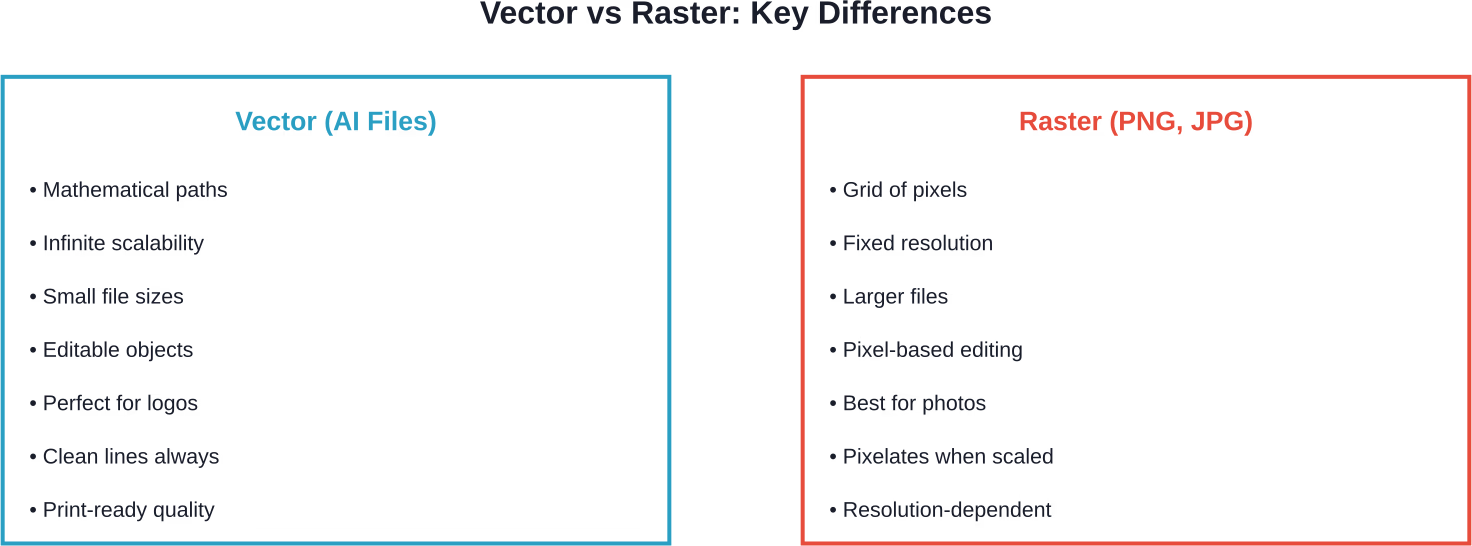
According to FileFormat.Info documentation, AI files use procedure set definitions and can contain both vector and bitmap image data. This hybrid capability makes them incredibly versatile.
The technical architecture is fascinating. AI files use a header system similar to PostScript with creator information, bounding box coordinates, and document resources.
As documented by Adobe Help Center, the format supports multiple Illustrator versions, though compatibility varies. AI version 3 and AI version 8 remain widely supported across different software tools.
Real talk: AI files dominate certain design workflows for good reason.
Adobe's official documentation confirms designers use AI files primarily for logos, print media, and scalable artwork. The vector foundation makes them perfect for brand identity work where consistency across sizes matters.
Industry applications include:
The format preserves proprietary Illustrator objects — brushes, effects, appearance attributes — that would be lost in conversion. For professional workflows moving between design and production, that's critical.
Now, this is where it gets interesting. Opening an AI file doesn't require Adobe Illustrator, though that's obviously the intended software.
Adobe Illustrator remains the gold standard. It opens AI files natively with full editing capabilities and effect preservation.
Adobe offers Illustrator and other Creative Cloud applications that can open AI files natively.
Several free options exist, though with varying degrees of compatibility.
Inkscape can open and work with AI files, though some features may not translate perfectly.
Other options include:
PaintShop Pro offers a 30-day free trial and can open AI files.
Here's where things get tricky. Opening a file and actually editing it are two different challenges.
Inkscape represents the strongest free alternative for editing. Community discussions on InkscapeForum.com confirm users successfully edit AI files, though conversions aren't always 100% accurate.
The problems? Effects and features unique to Illustrator may not translate. Gradients sometimes shift. Custom brushes might disappear. Typography can reflow unexpectedly.
When working across different software, these strategies help:
Exporting AI files to EPS format can improve cross-software compatibility, though EPS brings its own limitations.
The vector graphics landscape includes several competing formats. How does AI compare?
According to Adobe's comparison documentation, both EPS and AI support vector graphics, but EPS also handles bitmap images. The key difference? AI preserves Illustrator-specific features while EPS prioritizes cross-application compatibility.
Sound familiar? It's the classic trade-off between proprietary power and universal compatibility.
AI files make sense when:
For web delivery or universal sharing, SVG or PDF often works better. For archival or broad compatibility, EPS used to be the choice, though it's declining in relevance.
Conversion scenarios happen constantly in design workflows. The process varies based on target format.
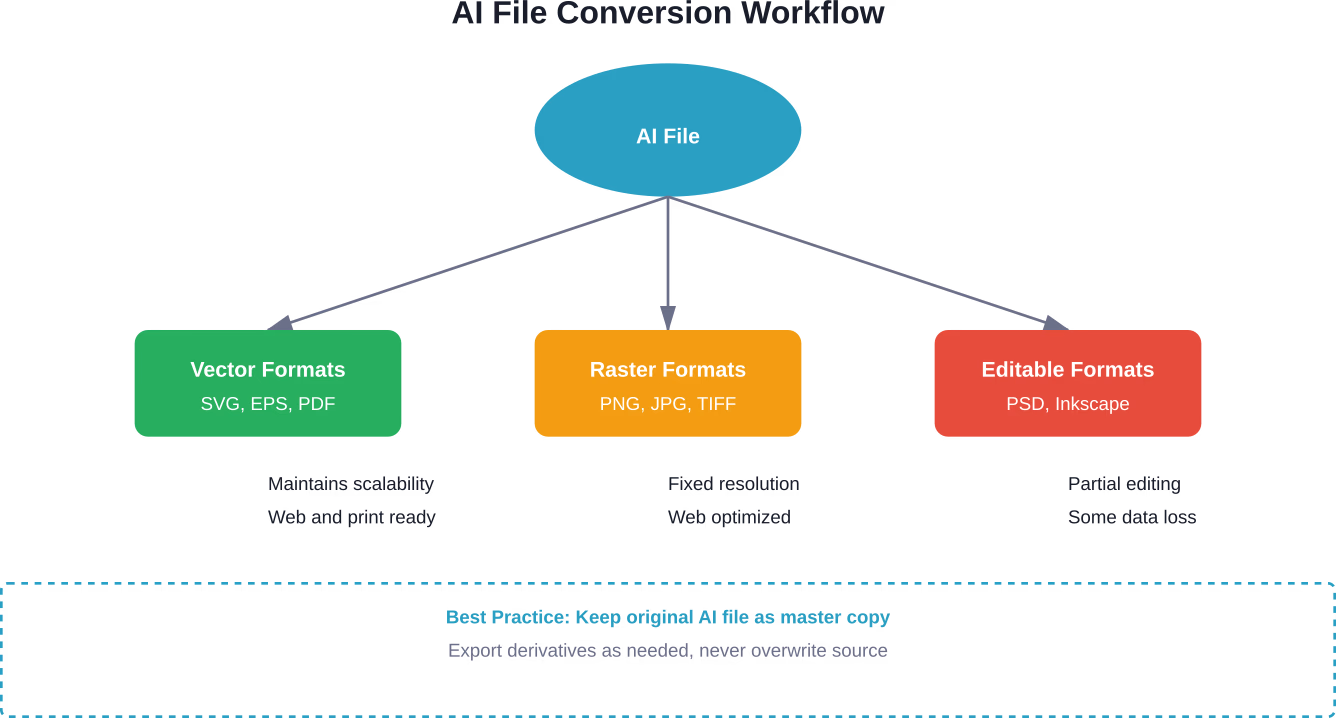
Exporting to SVG maintains vector properties while increasing web compatibility. Most vector editing software handles this export natively.
PDF conversion preserves quality and provides universal viewing capability. According to Adobe documentation, AI files can be saved as PDF directly from Illustrator with various compatibility settings.
PNG and JPG conversions require rasterization. The process converts mathematical paths to pixels at a specified resolution.
Critical consideration: choose the output resolution before converting. Standard web graphics use 72-150 DPI, while print typically requires 300 DPI or higher.
Problems happen. Here are the most frequent AI file headaches and solutions.
Version incompatibility causes most opening failures. Newer AI files won't open in older Illustrator versions.
Solution? Ask the file creator to save backwards-compatible versions. According to Adobe support documentation, Illustrator can export to legacy AI formats for broader compatibility.
When fonts aren't installed on the system, text displays incorrectly or gets substituted.
Effects unique to Illustrator may disappear entirely when opening in alternative software. This is expected behavior based on software limitations.
Color space differences cause shifts. AI files typically use CMYK for print, while web formats use RGB.
The fix requires manual color mode conversion and verification before final export.
Understanding where AI files fit in production pipelines helps optimize their use.
Design studios typically maintain AI files as master artwork. According to Adobe's workflow documentation, designers create in AI format, then export derivatives for specific applications.
Print production houses prefer AI files because they preserve spot colors, bleeds, and other print-specific attributes. Web developers want SVG or PNG exports instead.
The workflow looks like this: design and iterate in AI format, export to appropriate formats for delivery, archive the AI master for future edits.
Every format has trade-offs. Let's be honest about both sides.
According to Adobe's official documentation, AI files excel at preserving design fidelity through production workflows. That's their superpower.
The limitation? They're locked into the Adobe ecosystem. Cross-platform collaboration requires conversion or alternative tools.
Adobe continues developing Illustrator and its native format. Recent updates focus on cloud collaboration and cross-device workflows.
But wait. The rise of open standards like SVG challenges proprietary formats. Web-based design tools prefer universal formats over software-specific ones.
That said, AI files aren't disappearing. The format serves specific professional needs that open standards don't fully address yet. Print production, in particular, relies heavily on AI file capabilities.
AI files represent the professional standard for vector graphics work. Their scalability, editability, and feature preservation make them indispensable for serious design projects.
The format's proprietary nature creates barriers, sure. Not everyone has Illustrator access, and cross-platform collaboration requires workarounds. But for design workflows prioritizing quality and editability, AI files deliver.
Whether creating logos, preparing print layouts, or building scalable illustrations, understanding AI files opens doors to professional-grade design capabilities. The format isn't perfect, but it's remained relevant for decades by evolving alongside design industry needs.
Ready to work with AI files? Start by exploring free alternatives like Inkscape, or check Adobe's official website for current Illustrator pricing and trial availability. The learning curve exists, but the capability payoff makes it worthwhile for anyone serious about vector design.


