The Top Free AI-Powered Platforms Every Digital Marketer Should Be Using
Discover the best free AI tools and platforms for digital marketing in 2026. Save time on content and SEO insights with these top-rated free options.
Mar 24, 2026



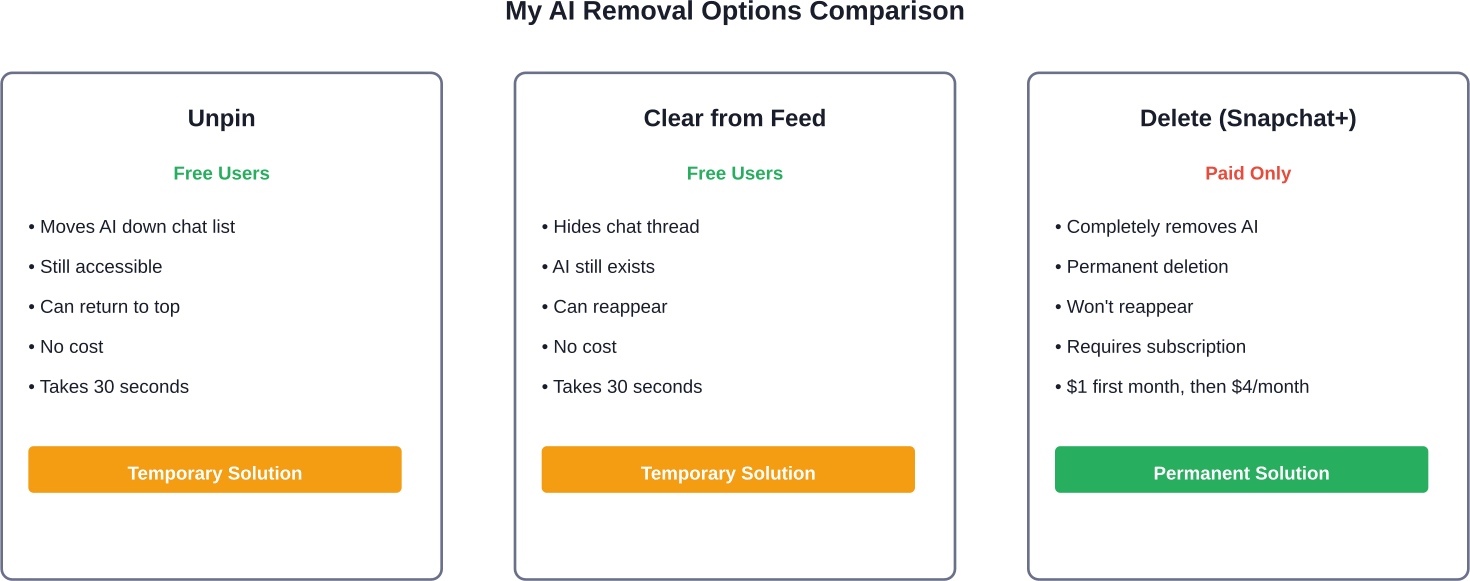
Snapchat's My AI can be unpinned or removed from your chat feed through the Chat and Notification Settings menu. Free users can unpin or clear the conversation, while Snapchat+ subscribers can delete My AI entirely. You can also block My AI from viewing your Stories and delete your data from its memory.
Snapchat's My AI chatbot appeared at the top of millions of users' chat feeds without warning. Many found it intrusive, and the fact that it couldn't be completely removed without a paid subscription didn't help.
The good news? There are several ways to minimize or eliminate My AI's presence on your account. Some methods work for everyone. Others require a Snapchat+ subscription.
Here's everything you need to know about managing, hiding, or completely removing My AI from Snapchat.
According to the official Snapchat Support documentation, My AI is a chatbot currently available to all Snapchatters. The feature can answer trivia questions, suggest gift ideas, help plan trips, or recommend recipes.
But here's the thing—My AI is also learning from user interactions. The bot processes messages, snaps, and other data to improve its responses. For users concerned about privacy, that's precisely the problem.
Snapchat acknowledges that My AI's responses may include biased, incorrect, harmful, or misleading content. The company warns users not to share confidential or sensitive information with the chatbot.
The simplest method doesn't remove My AI entirely, but it does push the chatbot down your chat list so it's not constantly staring at you from the top position.
According to Snapchat's official support page, here's the process:
Once unpinned, My AI will move down your chat feed based on when you last interacted with it. If you never message it, the conversation will eventually sink to the bottom of your list.
This method works for all users, regardless of subscription status. No Snapchat+ membership required.
Want to go further than just unpinning? You can clear the entire conversation thread from your chat feed.
The official Snapchat documentation provides these steps:
Clearing removes the conversation thread from your visible chat list. But—and this matters—it doesn't delete My AI from your account. The chatbot can still reappear if you search for it or if Snapchat decides to re-pin it.
Think of this as hiding My AI rather than removing it permanently.
Even if My AI remains in your chat feed, you can prevent it from seeing your Snapchat Stories. This limits what data the chatbot can access about your activities.
Here's the process:
This setting ensures My AI can't see what you're posting. It's a privacy measure that works for all users, not just Snapchat+ subscribers.
Concerned about what My AI has already learned from your conversations? Snapchat allows users to request deletion of their data from the chatbot's memory.
The process involves:
On iOS:
On Android:
Keep in mind that Snapchat's generative AI features may still use anonymized data for improvement purposes. Complete data isolation isn't guaranteed, but deletion requests do clear personalized conversation history.
If My AI keeps sending notifications that distract you, muting is an option. According to Snapchat Support documentation:
This silences notifications without removing the chatbot from your feed. It's useful if you want My AI available but don't want constant interruptions.
Snapchat uses generative AI in multiple features beyond My AI. Community discussions highlight a setting called 'Generative AI' in the privacy menu.
To disable these features:
Parents concerned about their teens interacting with My AI have options through Snapchat's Family Center feature.
According to official Snapchat Support documentation, parents enrolled in Family Center can disable My AI for their teen:
When enabled, My AI won't store or process the teen's queries and won't reply to messages. This provides a complete shutoff for younger users whose parents manage their account settings.
Snapchat's My AI feature arrived without much warning, and for many users, it felt like an unwelcome addition to their chat feed. The fact that complete removal requires a paid subscription adds frustration.
But the free options—unpinning, clearing from chat feed, blocking from Stories, and muting notifications—give users meaningful control without spending money. These methods won't delete My AI entirely, but they significantly reduce its presence and impact on your Snapchat experience.
For those who want the chatbot gone completely, Snapchat+ offers permanent deletion. Whether that's worth $1 for the first month and then $4 monthly depends on how much the AI bothers you and whether you value other Snapchat+ features.
Take control of your chat feed today using the methods outlined above. Your Snapchat experience should work for you, not the other way around.


