Marketing Ideas for Accounting Firms: 2026 Growth Guide
Discover proven marketing strategies for accounting firms. Learn how to attract clients through SEO, content, and digital tactics that drive measurable growth.
May 15, 2026



If you have ever wondered where an order is after checkout, you are not alone. Order tracking should feel simple, but links get lost, emails are ignored, and things start to feel unclear fast. The good news is that Shopify already gives you everything you need to follow an order from payment to delivery.
This guide walks through the real ways people actually track Shopify orders. No tricks, no apps you do not need. Just the tools that already exist and how to use them without frustration.
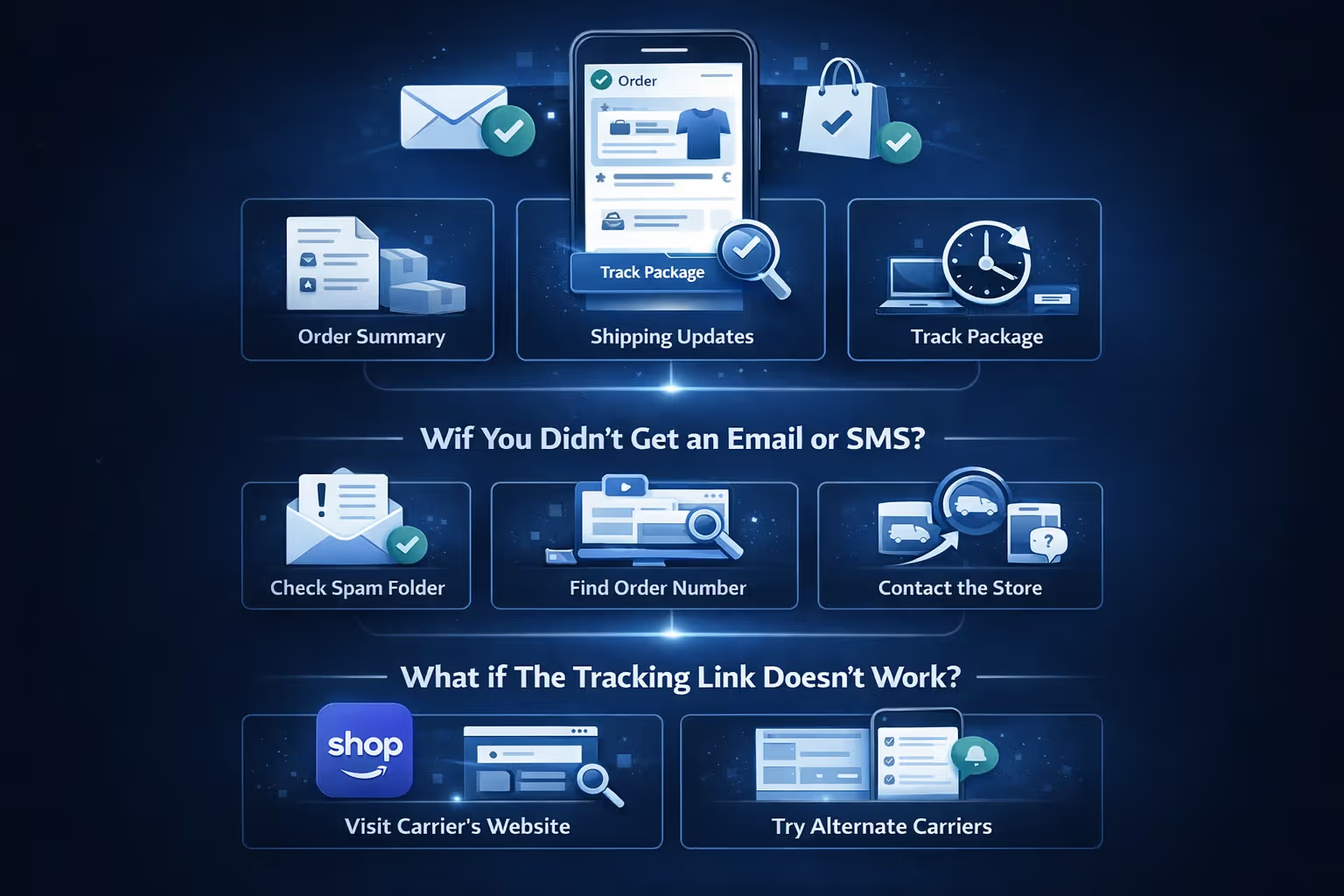
Once you’ve checked out, Shopify stores automatically send a confirmation email or text. That message includes a “View your order” link. This is your best friend – it leads you to a live status page where most tracking magic happens.
On that page, you’ll typically see:
If you didn’t get an email or SMS, don’t assume it was never sent. Start by checking your spam or junk folder, since order updates often end up there without warning. If you can find your order number, that helps a lot, as most stores can quickly pull up your purchase using it. When in doubt, reach out to the store directly and ask them to resend the tracking link. In most cases, all they need is the email or phone number you used at checkout to send it again.
That usually means:
In that case:
If you’ve used the same email across multiple Shopify purchases, the Shop app can automatically pull your orders into one feed.
Why it’s useful:
If the stores support Shop app and you've used the same email, it can automatically track orders from multiple Shopify stores in one place.
Now let’s flip the script. If you're running a Shopify store, here's how to make sure your customers never have to email you with a vague “where is my order?”
When you fulfill an order:
This instantly adds a “Track Package” button to the customer’s order status page.
If the carrier isn’t listed, choose “Other” and paste the full tracking URL manually. Always test the link before sending it.
Inside each order timeline in your Shopify admin, there’s an option to resend notification. Use this when a customer didn’t get their shipping email, they deleted it by accident, or you updated tracking details (like after a handoff).
You can also copy the public status URL and send it directly in a support message.

At Extuitive, we help Shopify brands move fast where it matters. If you’re spending too much time guessing what kind of ads will work – or worse, running ads that flop – we offer a different path. Our platform connects directly to your Shopify store and uses AI-powered agents modeled on real shoppers. In a few clicks, you can generate ad concepts, validate them for purchase intent, and launch with confidence.
Why does this matter for order tracking? Because it’s all connected. Clear ads attract the right customers, and when expectations match what shows up at their door, support requests drop. Our tools aren’t just about performance – they help build trust early, so customers are already feeling good by the time they hit that “Track My Order” button. Fewer surprises, fewer abandoned carts, and fewer “where’s my package?” emails later.
If you're looking to tighten up your ad-to-order pipeline and reduce friction across the entire buying journey, we’re here for it. Fast setup, transparent testing, and results you can actually track. That’s how we approach ecommerce growth.
Shopify can send out automatic emails and texts at key points:
To activate or customize these:
Tip: Keep the copy short and clear. Example: “Your order’s on the move!” works better than “Shipping Confirmation Email #5822.”
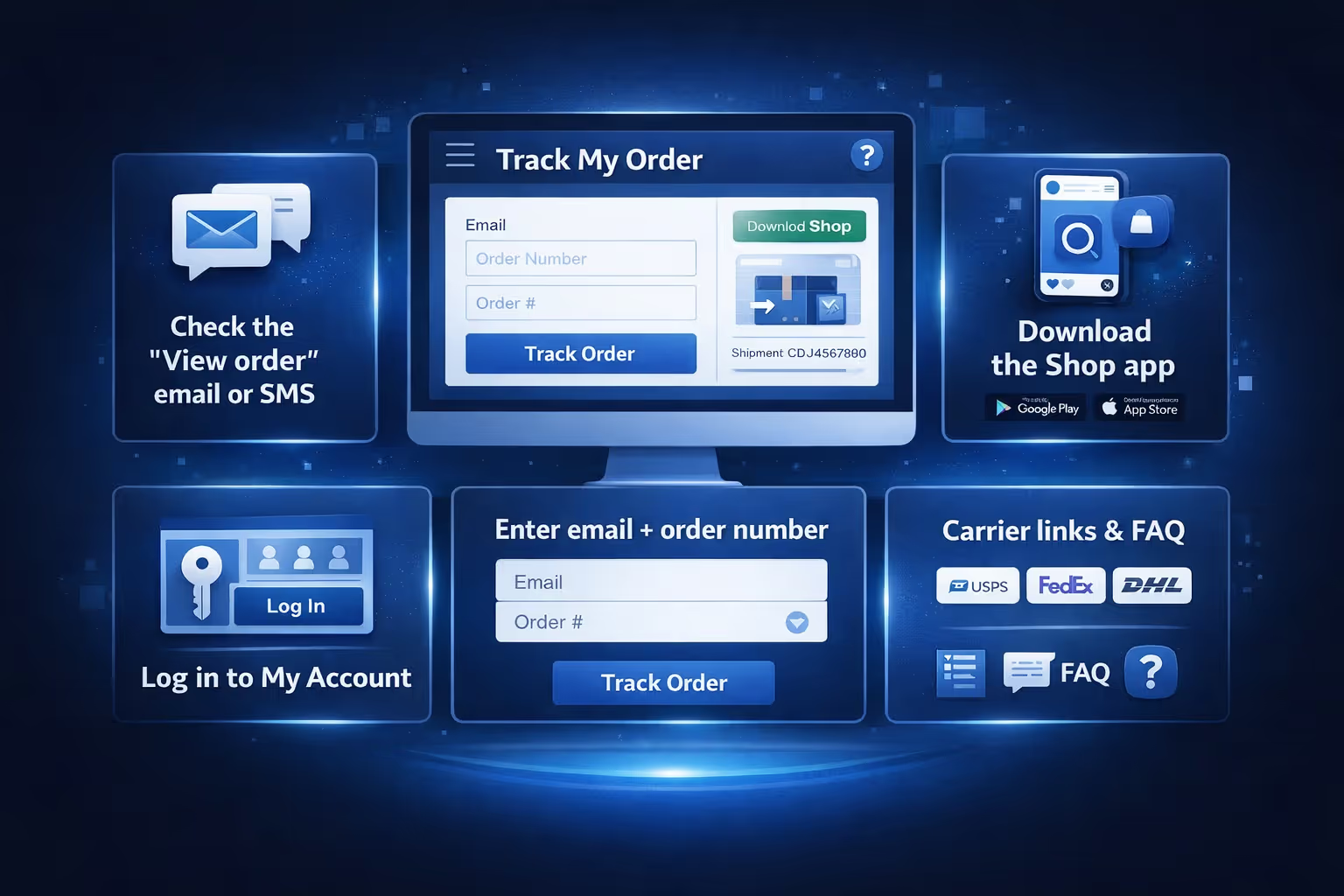
This is a smart addition if you’re trying to reduce support tickets.
Here’s what to include:
Optional but useful: a section with links to common carriers (USPS, FedEx, DHL, etc.) and a short FAQ for what to do if tracking hasn’t updated.
If you’re using print-on-demand or fulfillment tools, make sure you’re not just assuming things are syncing correctly. The app should return both the tracking number and the carrier to your Shopify order. That way, when the order is marked as fulfilled, your customer sees a working tracking link. If your automation kicks in before that information gets synced, the result is usually a confused buyer and extra support work on your end. It’s a good habit to test those links every now and then, just to catch errors before customers do.
And if you're working with AliExpress-based tools, where sync delays are common, it's smart to build a rule into your process: don't fulfill anything until a valid tracking number is in place. It'll save you headaches later.
Sometimes, a package starts with one shipping service and ends with another. For example:
In these cases:
If you skip this step, your customer may click “Track Package” and land on a broken page.
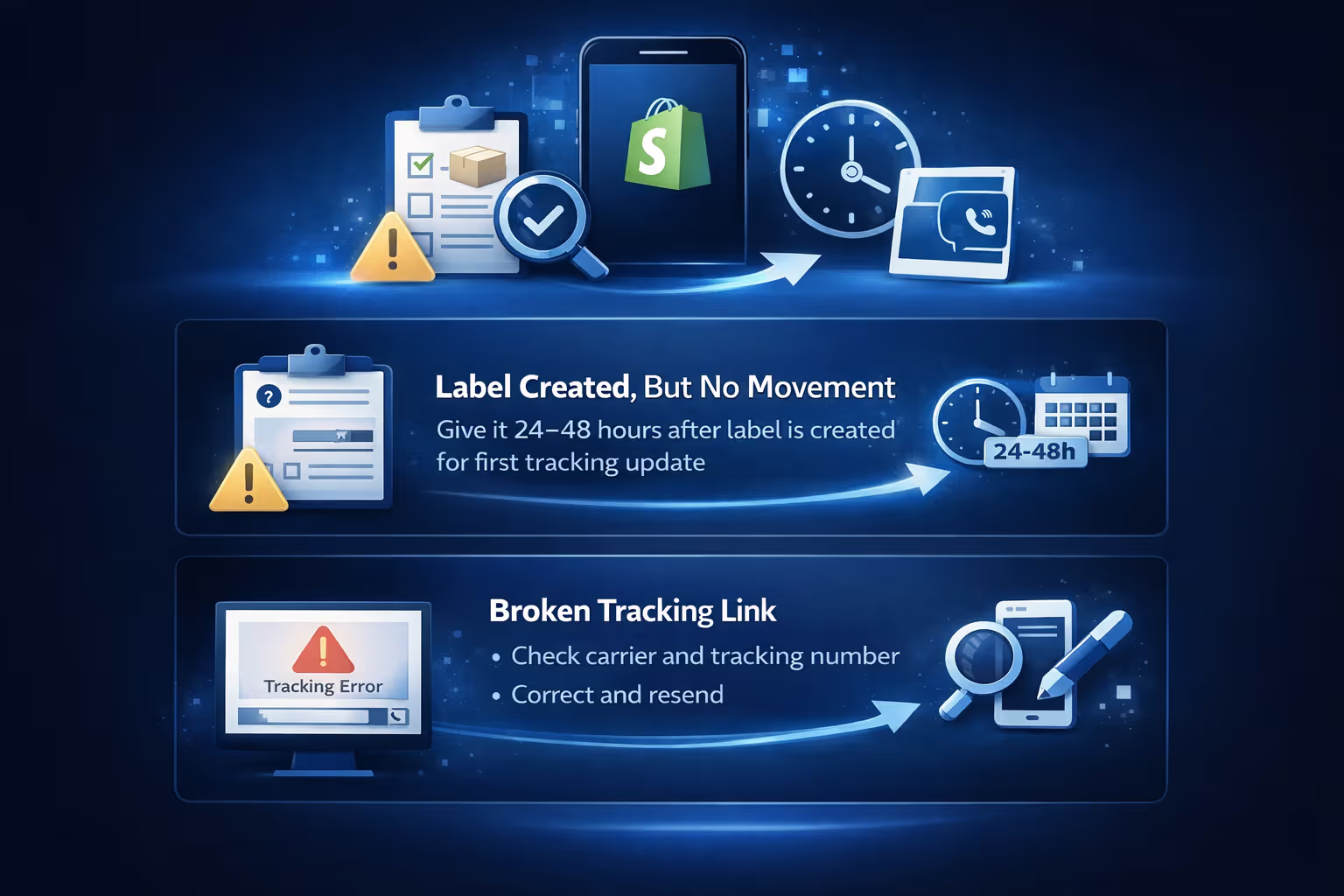
Even when you’ve done everything right, things can still go sideways. Tracking data doesn’t always sync instantly. Carriers might lag. And sometimes, simple mistakes like a typo can throw the whole experience off. Here’s how to handle the most common tracking hiccups without letting them turn into support nightmares.
It’s a familiar scene: the label exists, the order is marked as fulfilled, but the tracking page looks frozen. Nine times out of ten, the issue is that the carrier hasn’t scanned the package yet. There’s no need to panic right away – give it 24 to 48 hours for that first scan to hit their system. If nothing shows up after that window, it’s worth reaching out to your supplier or the carrier directly to confirm whether the parcel was picked up.
Once activity starts showing, go ahead and resend the tracking info to your customer so they’re not left wondering. Shopify Flow (available on certain plans like Shopify Plus) can help you create rules, such as flagging unscanned orders after 48 hours and automatically notifying your support team.
When a customer clicks “Track Package” and lands on an error page, the most common culprits are a mismatched carrier or a tracking number that was mistyped. It happens. To fix it, head back into the order in your Shopify admin and double-check the tracking details. If the original carrier was selected incorrectly, swap it out for the right one.
And if the number itself looks off, correct it or replace it entirely. In cases where the carrier isn’t supported directly in Shopify, you can choose “Other” and paste the full tracking URL instead. Always test the link before resending it – nothing’s worse than thinking you fixed the problem only to break it again.
Here’s a fast reminder of how to keep order tracking smooth:
You don’t need a fancy app or a complicated system to keep tracking under control. Shopify already gives you the pieces – status pages, carrier integrations, and automated messages. It’s all about using them intentionally.
For customers, just remember: check your email or SMS, use the “View your order” link, or grab the Shop app if you want a one-stop tracker.
For store owners, keeping your tracking clean is one of the easiest ways to reduce customer support volume. That, and sending things on time.
Because at the end of the day, people don’t just want to know what they bought. They want to know it’s on its way.


