Meta Marketing Agencies Helping Brands Grow on Facebook and Instagram
Explore meta marketing agencies that help brands plan, launch, and optimize Facebook and Instagram advertising for measurable growth.
Mar 20, 2026



Running out of stock or launching something new? Pre-orders can save you from missed sales and messy inventory planning. Instead of waiting until everything’s ready to ship, you can keep the momentum going by letting customers reserve items ahead of time.
Whether you're dealing with made-to-order products, testing a new release, or just trying to manage demand, setting up pre-orders on Shopify is easier than it sounds. In this guide, we’ll walk through both app-based and manual methods, with real-world tips along the way. No fluff, no filler – just a practical approach that fits how stores actually operate.
Pre-orders aren’t just something big brands use for hype-driven launches. They actually solve real, everyday problems for regular stores. When inventory runs low or shipments are delayed, pre-orders let you keep selling instead of turning customers away. If you’re testing a new product, they help you gauge demand without the pressure of stocking up too early. They’re also a solid option for made-to-order or personalized products where you don’t want to commit to production until you know there’s a buyer.
There’s also the cash flow angle. Taking payment upfront, or even just a deposit, can ease the financial hit of manufacturing or sourcing. Plus, pre-orders give you a way to create urgency around a product without falling back on limited-time sales or gimmicky countdowns. The real win here is flexibility. You can charge full price, split payments, or let people reserve without paying upfront at all. It all depends on how you want to run things.
Setting up pre-orders on Shopify isn’t difficult, but there are some rules and limitations you should know before jumping in:
Also, Shopify expects you to be transparent. If you’re collecting money for something that won’t ship immediately, you should have a good reason to believe it will ship within 30 days. If delays happen, you’re expected to inform the customer and offer a refund or cancellation.
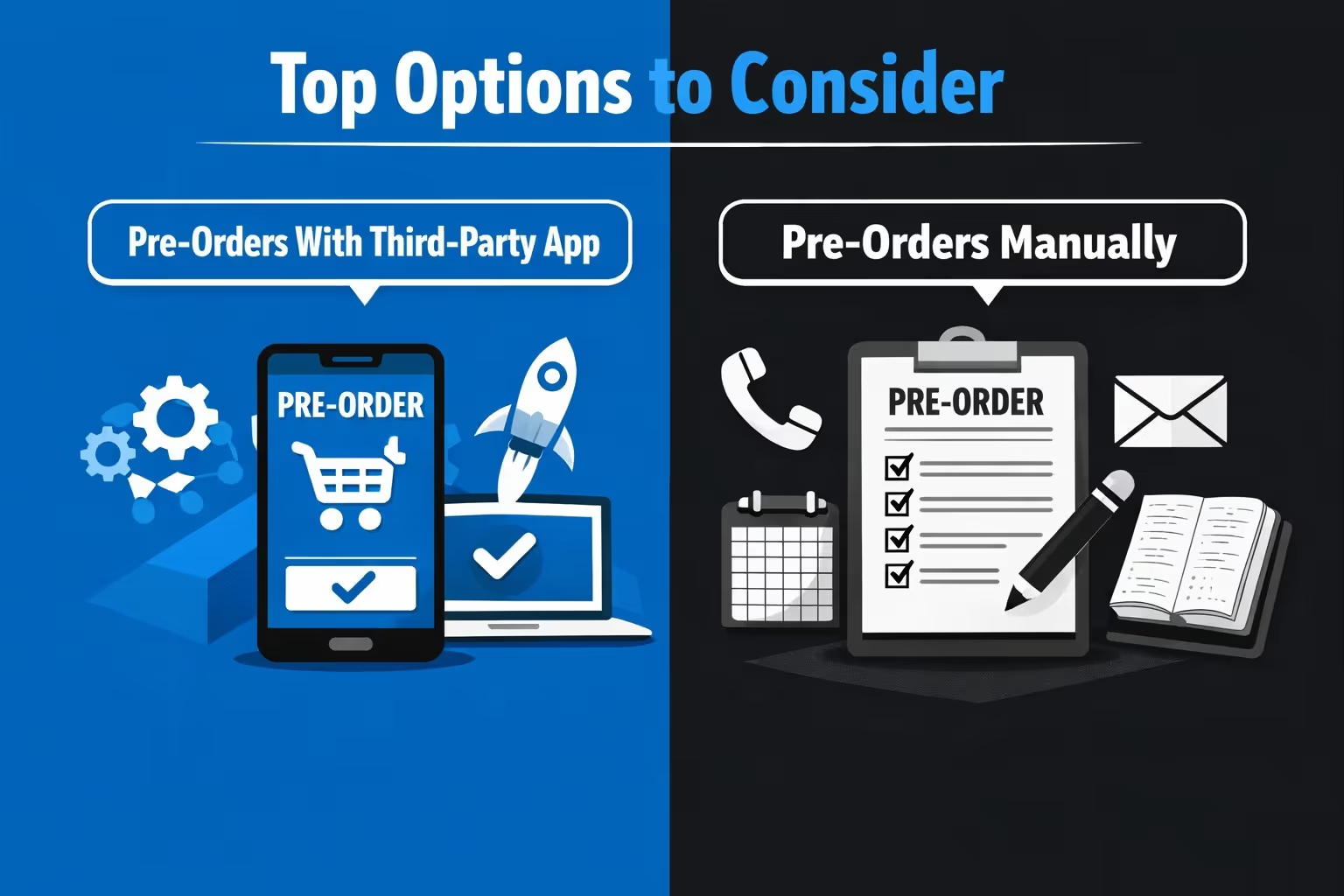
Before diving into setup, it’s worth understanding the two main ways to run pre-orders on Shopify. You can use a third-party app that handles most of the heavy lifting, or go the manual route if you prefer more control and don’t mind tweaking some code. Both approaches get the job done, but they come with different trade-offs around flexibility, effort, and how much time you want to spend managing it all.
The fastest and most flexible way to handle pre-orders is by using an app from the Shopify App Store.
How it works (the process may vary slightly depending on the app):
With this approach, the preorder button automatically replaces the usual “Add to Cart” option, so customers clearly understand what they’re buying. You also get built-in tools for setting quantity limits and scheduling when the preorder runs, along with support for partial payments or deposits. All of this is handled without needing to touch your theme code, which gives you more control while keeping setup simple. If you plan to run pre-orders often or across multiple products, this setup can save time and help cut down on avoidable mistakes.
If you’re not a fan of apps or just want to run a one-off pre-order campaign, you can do it manually. This method takes more setup and a bit of Liquid/JSON theme editing, but it works well once it’s in place. Here’s the manual setup process:
Go to Settings → Payments. Scroll down to “Payment Capture Method” and choose Manually. This ensures payment is not automatically collected before you're ready.
Under Products, pick the item you want to sell as a pre-order. In the Inventory section, make sure “Track Quantity” is enabled and check “Continue selling when out of stock.”
Go to Online Store → Themes → Edit Code. Add a new template file under Templates using the format: product.preorder.json
Inside your new file, you can add a simple block like:
"pre_order_note": {
"type": "text",
"settings": {
"text": "This item is available for pre-order. Estimated shipping: mid-March.",
"text_style": "italic"
}
}
Back in the product settings, scroll down to “Theme template” and assign your new product.preorder template.
If you want the button to say “Preorder Now” instead of “Buy Now,” you’ll need to find and edit the relevant language file or block in your theme code.
Regardless of the method you use, clarity is everything. You want customers to understand:
Even a short message can go a long way:
“This product is currently available for pre-order. Estimated shipping: late April. Your card will be charged at checkout. You can cancel anytime before shipment for a full refund.”
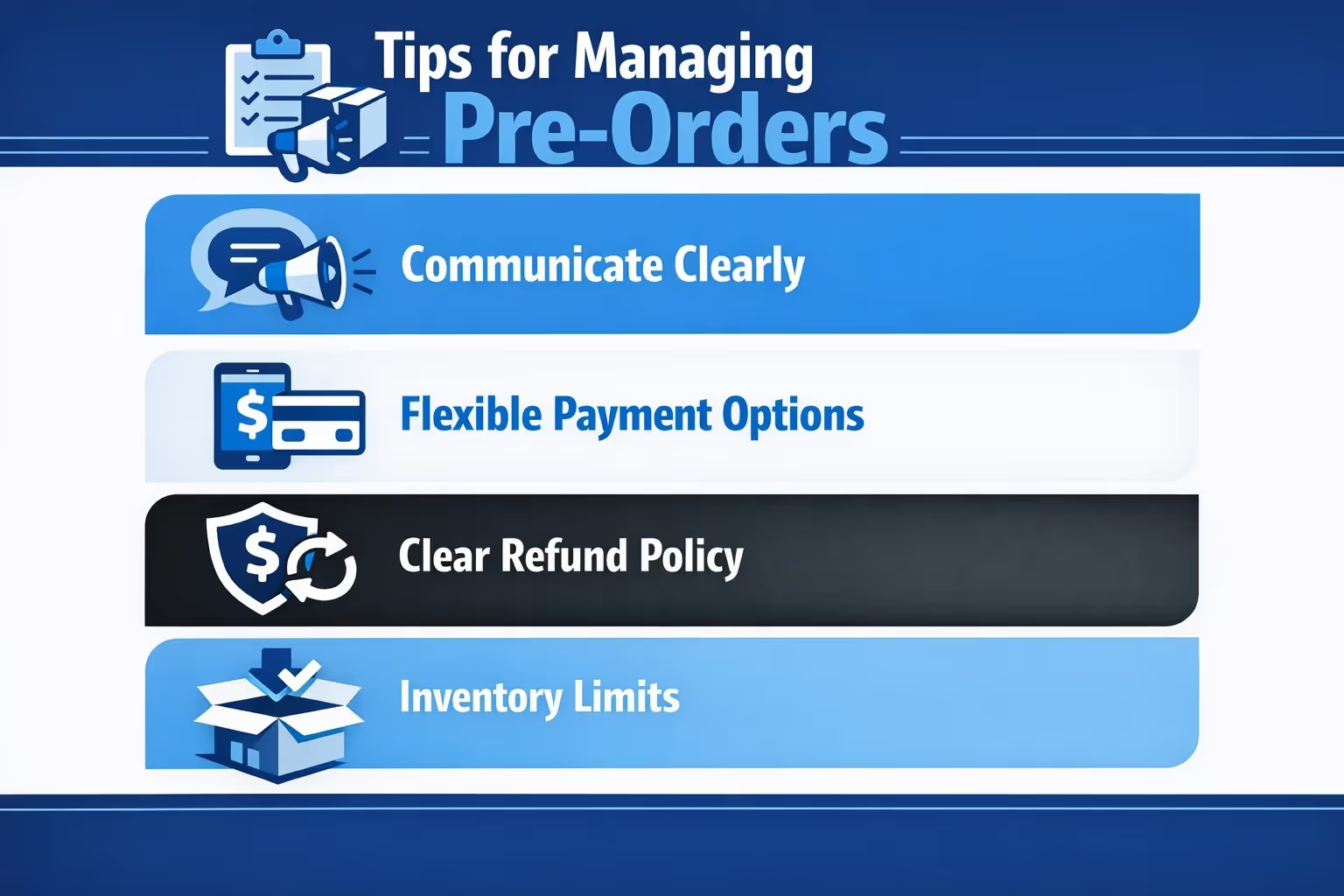
You don’t want to turn your pre-order into a customer service nightmare. Here are a few best practices that can help:
Use product badges and adjust CTA buttons to show that the item is a pre-order. Be upfront about shipping timelines. Send reminder emails as the shipping date approaches.
Let customers choose between paying in full or a small deposit. Offer a discount for prepaying, if it makes sense for your business. Make sure customers are aware of when the remaining balance is due (if applicable).
Can customers cancel their pre-order? Under what conditions? What happens if there's a delay? Spell this out clearly on the product page or in your store policy.
Apps let you set exact quantity caps. If you’re doing this manually, keep a close eye on order volume. Once you hit your limit, switch the product back to “Sold Out” or disable further purchases.
Manufacturing issues, supply chain slowdowns, or platform bugs happen. Always have a plan for delays, and communicate quickly. Offer store credit or small perks to make up for delays if needed.

When you're launching a product through pre-orders, there's a lot riding on your marketing. You don’t have customer reviews yet. Inventory might be limited. And your ad spend needs to count from day one. That's where we come in.
At Extuitive, we’ve built an AI-powered prediction engine designed to help Shopify stores figure out which ads are worth launching. Before you even publish a campaign, we simulate performance using data-backed models trained on real-world outcomes. In short, we help you stop guessing and start scaling faster. No need to wait for post-launch metrics or burn budget on unproven creatives.
Our system connects directly to your Shopify store, so we can automatically analyze your products, audiences, and creative ideas. If you’re prepping a preorder launch, we’ll help you test concepts, refine messaging, and get clarity on what’s likely to perform. Whether you manage ads in-house or work with an agency, we’re here to give you a faster, smarter way to get ahead of the curve.
Pre-orders aren’t a gimmick. They’re a real tool to help you manage inventory, cash flow, and customer demand in a way that fits how real businesses operate. Shopify’s Purchase Options API supports multiple models including subscriptions, pre-orders, and try-before-you-buy, but full pre-order functionality may still require apps for easier implementation.
The key is to start simple, communicate clearly, and keep your backend organized. Whether you’re gearing up for a product launch or just buying time while you restock, pre-orders can keep your store moving forward.
If you're just getting started, try it on one product. Learn how your customers respond. Tweak the messaging. Build the habit of checking in on orders. Then scale from there.
Got your product ready to go? Prepping for your next launch? Either way, now you know how to keep the doors open, even when the shelves aren’t full yet.


