What Is an AI Marketing Agency? 2026 Guide
Discover what an AI marketing agency does, how AI agents transform campaigns, and why 90% of marketers now use AI. Learn the business model and benefits.
Apr 13, 2026



Ever had a customer order three things, but one’s on backorder or stuck in another warehouse? You don’t have to keep them waiting for the entire package to come together. Shopify lets you ship what’s ready now and handle the rest later. It’s called partial fulfillment, and once you know how it works, it’s surprisingly simple.
This guide walks through the exact steps to fulfill part of an order without creating confusion for you or your customers. Whether you’re dealing with inventory delays, pre-orders, or multi-location setups, partial fulfillment can save time and trust. Let’s break it down, one click at a time.
Partial fulfillment is when you ship just part of a customer’s order instead of waiting until everything is ready. Let’s say someone orders four items, but only two are in stock. Rather than holding up the entire shipment, you send what you have now and fulfill the rest later when it becomes available.
It’s a flexible way to keep orders moving, avoid delays, and give customers a better experience, especially when you’re working with multiple locations, backorders, or pre-order items. Shopify tracks everything behind the scenes, so both you and your customer know what’s been sent and what’s still on the way.
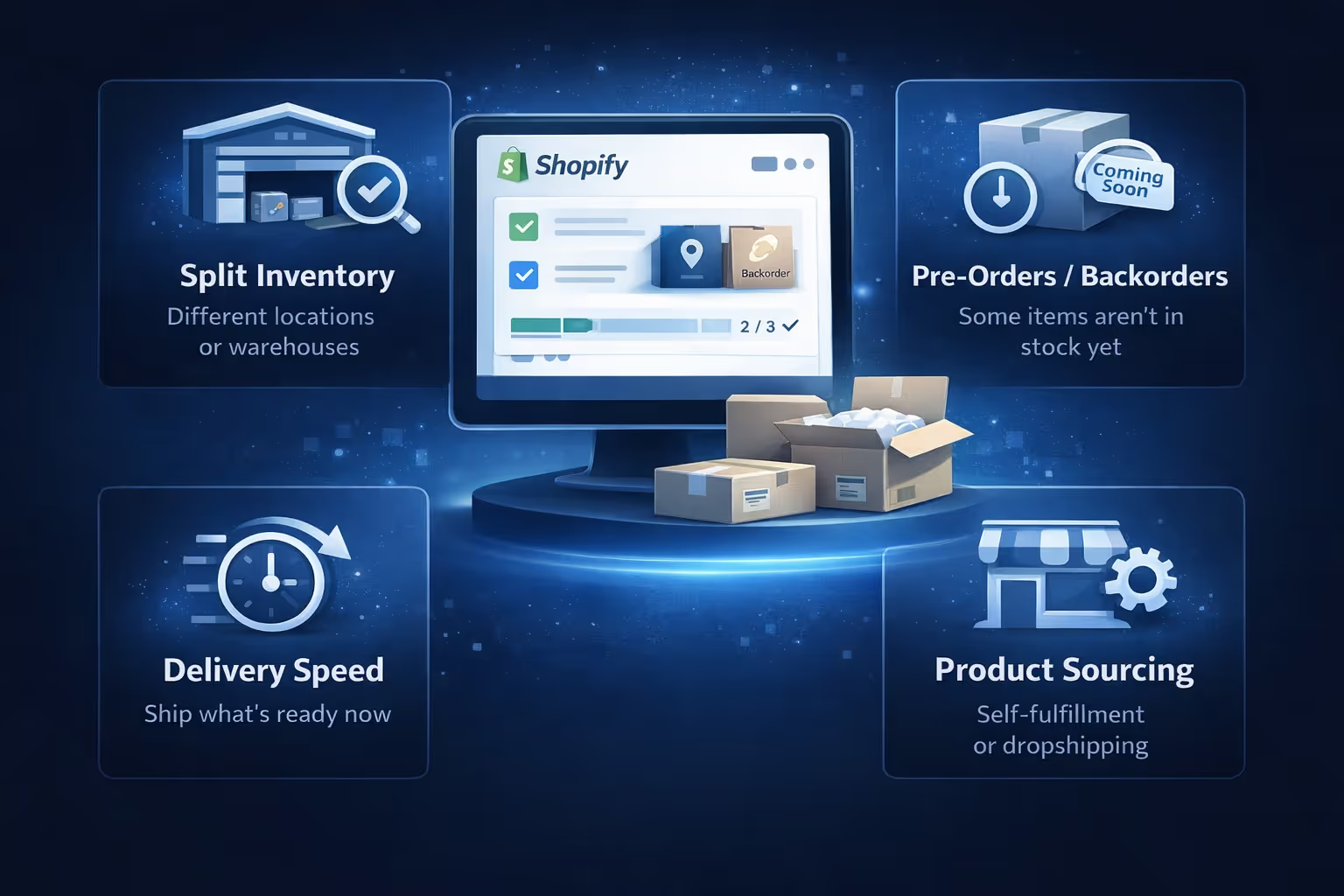
This feature isn’t just for emergencies. It’s a practical option in several everyday scenarios, like:
Partial fulfillment gives you flexibility without breaking the customer experience. And in an e-commerce world where delivery speed affects loyalty, being able to move fast can make all the difference.
Let’s say someone orders four items. You have two ready to ship now, and the other two will be available next week.
When you manually fulfill part of the items:
Shopify tracks all this for you, and customers see updates that reflect exactly what’s been sent and what’s still coming.
If you’re selling physical products and want control over how each order is fulfilled, automatic fulfillment should be turned off. It’s mainly useful for digital goods or 100% automated warehouses.
To check your settings, go to Settings → Checkout, then look under the Order Processing section/ Finally, make sure “Automatically fulfill the order’s line items” is not checked.
This gives you full control over what gets shipped and when.
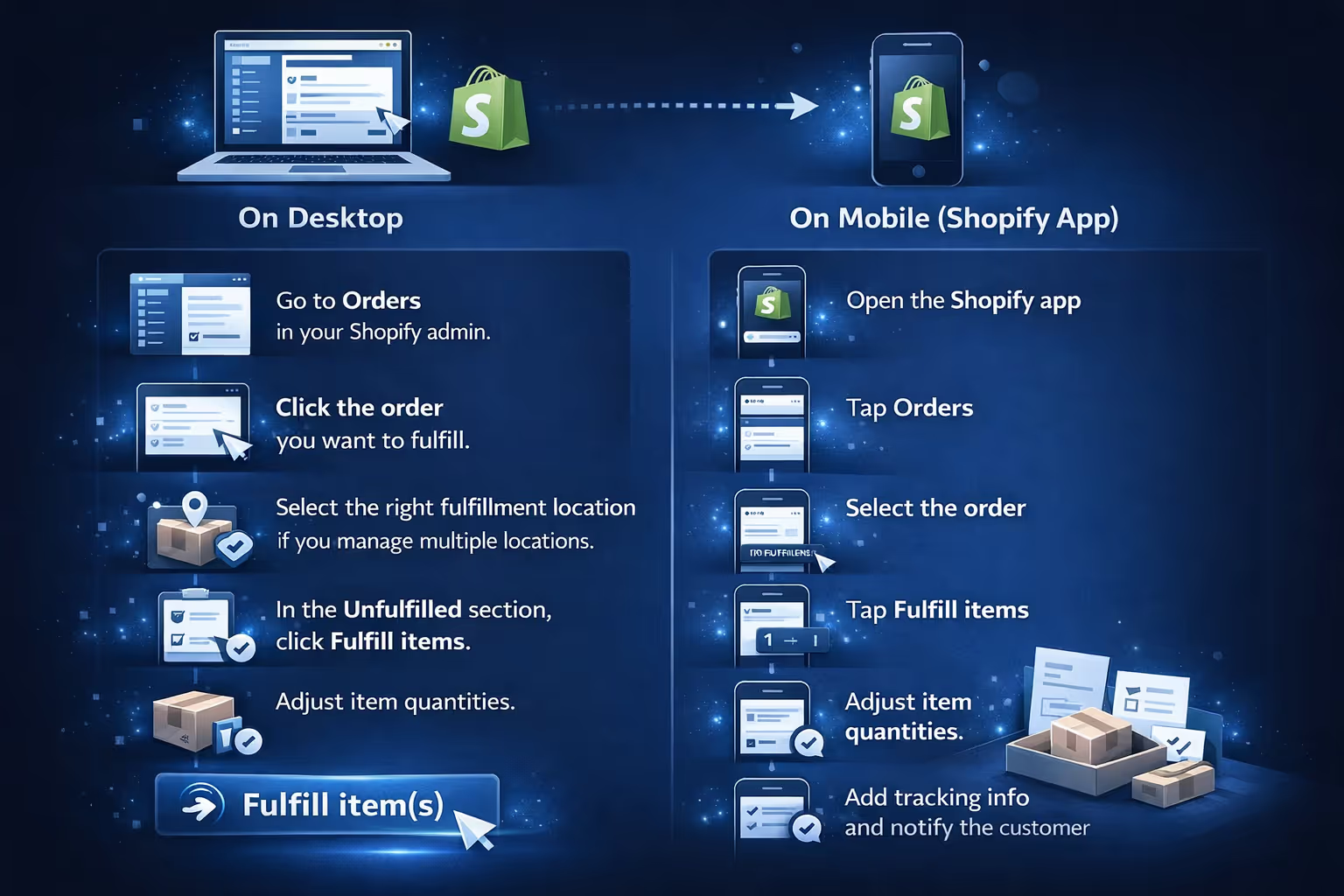
Once automatic fulfillment is off, here’s how to handle partial fulfillment manually:
The system will now show those specific items as fulfilled and leave the rest open.
Whether you’re at your desk or working from your phone, the process is nearly identical.
Partial fulfillment doesn’t always mean shipping through a carrier. Shopify also supports local delivery and in-store pickup in a split workflow.
If you're offering pickup or delivery options, you can fulfill the ready items under the selected method or for unready items, you can fulfill them later with a different method or the same one.
Just make sure your customer is updated if the fulfillment method changes. Clarity goes a long way when packages are showing up in different ways.
If you have inventory stored at multiple locations (like warehouses or retail stores), Shopify will automatically suggest the best fulfillment location based on availability and your location priority settings.
But you can override this manually when needed:
This is especially helpful for stores running hybrid setups, like one warehouse for everyday stock and a separate location for specialty items.
Dealing with several partially ready orders at once? You don’t have to go through them one by one.
Here’s how to handle bulk fulfillment:
It’s not fully automated, but it speeds things up when you’re trying to clear a pile of orders with mixed availability.
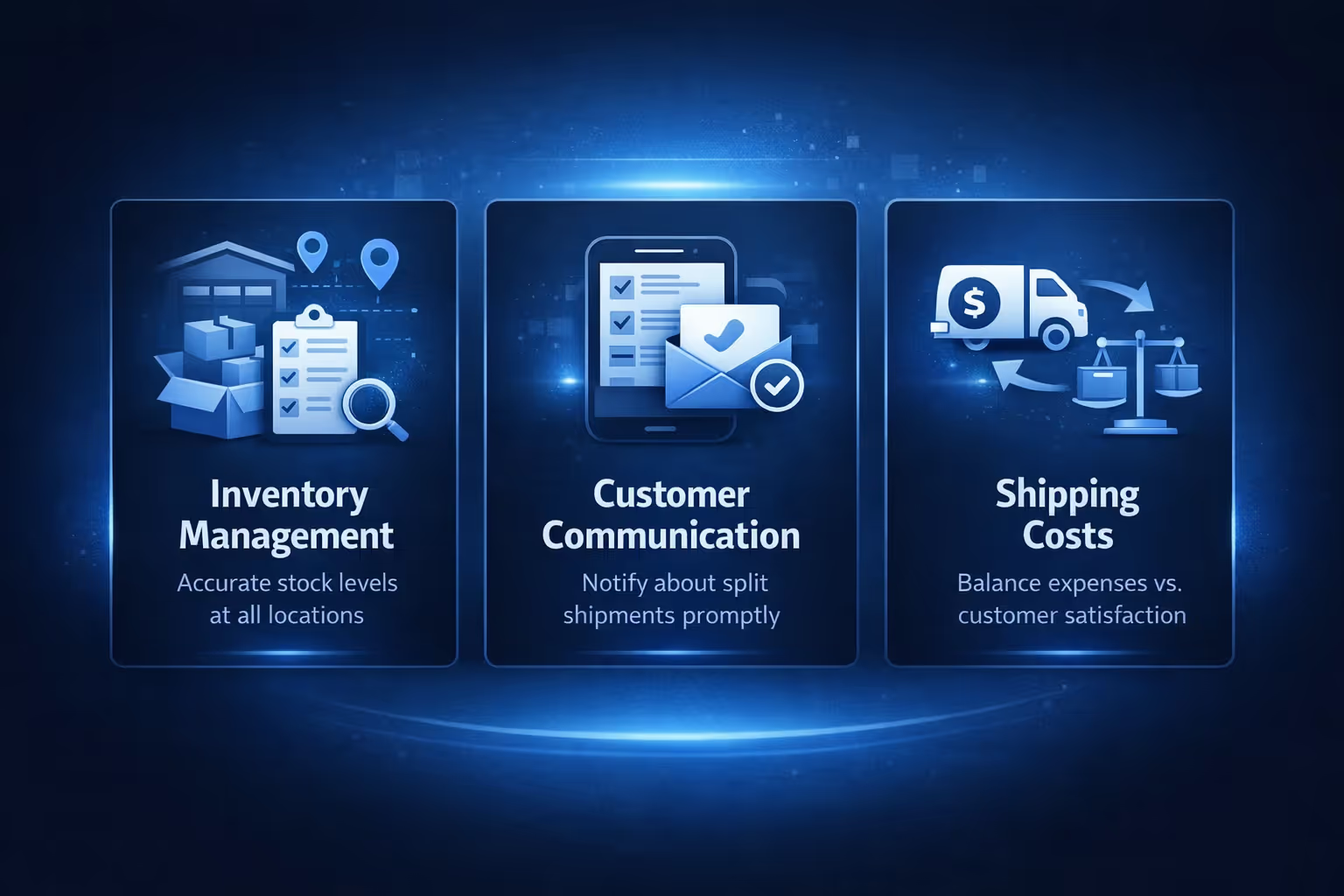
Partial fulfillment is simple once you’ve done it a few times, but there are a few areas where things can get messy if you’re not careful.
If you’re going to rely on partial fulfillment, keeping your inventory accurate is non-negotiable. That’s especially true if you're pulling stock from multiple locations or restocking items manually. The moment your system is even slightly out of sync, the risk of overselling jumps. Shopify does a decent job tracking inventory per location, but only if everything is set up correctly on your end. It’s worth checking that your location priorities and stock levels reflect what’s actually available in real time.
Letting customers know what’s going on makes a big difference. If you’re only sending part of their order, give them a heads-up. Shopify gives you the option to send a shipment notification during fulfillment – use it. Even better, if you run into this often, consider tweaking your order confirmation or shipping email templates to clarify that items may arrive in multiple packages. It saves your support team from having to answer, “Where’s the rest of my order?” five times a day.
Splitting shipments usually means paying more for delivery, and you’ll need to decide who’s covering that. If you’re offering free shipping, it might eat into your margins. Some stores factor the extra cost into their pricing from the start, while others only allow partial fulfillment if the customer specifically asks for it. Either way, you’ll want a policy that balances customer satisfaction with what makes sense financially.
Sometimes it’s better to wait and ship everything together, even if you technically could split it.
Consider holding off on partial fulfillment when:
There’s no rule that says partial fulfillment is always the best move. Use it when it genuinely improves the experience or solves a logistical problem.
If partial fulfillment becomes a regular part of your workflow, you might want to explore tools from the Shopify App Store to speed things up.
A few features to look for:
While these aren’t required, they can reduce the friction if you’re scaling up.

We know that fulfillment is just one part of the customer journey. Before anyone places an order, there’s an ad that caught their attention. That’s where we come in.
At Extuitive, we help Shopify brands create and test ad concepts before a single dollar is spent. Our platform connects directly to your Shopify store and uses AI agents modeled on real consumer profiles. In just a few clicks, we generate ad copy, visuals, and targeting suggestions designed to match real purchase intent. It’s like having a built-in focus group, without the lag time or the high cost.
Why does this matter for fulfillment? Because the better your ads match what people actually want, the more predictable your orders become. That means fewer surprises, fewer backorders, and fewer partial shipments you weren’t prepared for. When you can validate campaigns ahead of time, you avoid promoting products you can’t consistently fulfill. It’s not just about conversion rates – it’s about operational flow, too.
Partial fulfillment in Shopify is one of those features you don’t think much about until you need it. And when you do, it can save a sale, improve your customer experience, and reduce the pressure of waiting on inventory hiccups to clear.
It’s not just about shipping faster. It’s about staying flexible, building trust with your customers, and keeping your operations moving, even when the supply chain plays rough.
Mastering this process takes a little practice, but once you’ve got it down, it becomes second nature.


