The Best AI Tools for Creating Ads Without Sounding Like AI
Looking for the best AI tools for creating ads? Discover how modern AI helps write, design, and optimize ads faster while maintaining a human touch.
Jan 6, 2026



Order fulfillment in Shopify looks simple on the surface. Someone places an order, you ship it, job done. In reality, this is where many stores slow down or make small mistakes that turn into bigger problems later.
Some merchants fulfill everything by hand. Others rely on automation, dropshipping partners, or third-party warehouses. Shopify supports all of these paths, but it does not always explain how they fit together in real life. That gap is where confusion usually starts.
This guide walks through how Shopify order fulfillment actually works, step by step. No theory overload. Just clear explanations, practical choices, and what to pay attention to so orders move out the door smoothly and customers stay informed.
Order fulfillment in Shopify is not the same thing as delivery. This distinction matters more than most people realize.
When you fulfill an order in Shopify, you are telling the system that the items have left your control and are now in the hands of a carrier or fulfillment service. Shopify does not check whether the package is physically shipped. It only tracks the status you set and the information you attach to it.
This means fulfillment is primarily a status change, supported by optional details like tracking numbers and shipping carriers. Understanding that difference helps avoid one of the most common mistakes: marking orders as fulfilled too early.
At a basic level, Shopify fulfillment includes:
Everything else builds on top of these steps.

Before orders move into picking, packing, and shipping, there is another part of the process that often gets overlooked. Clear fulfillment starts with clear demand, and that begins long before an order appears in your Shopify admin.
At Extuitive, we help Shopify stores remove guesswork on the front end of growth. We create and validate ads using AI agents modeled after more than 150,000 real personas, so merchants can test messaging, creatives, and audiences before spending heavily on traffic. Instead of learning what works after campaigns go live, we help predict purchase intent upfront and filter out weak ads early.
We connect directly to Shopify, generate ad concepts tailored to your products, and validate them through large-scale consumer simulations in minutes. When ads are aligned with real buyer expectations, the result is cleaner traffic, fewer mismatched orders, and smoother fulfillment downstream. Better marketing decisions make fulfillment easier, because customers already understand what they are buying and why before they ever reach checkout.
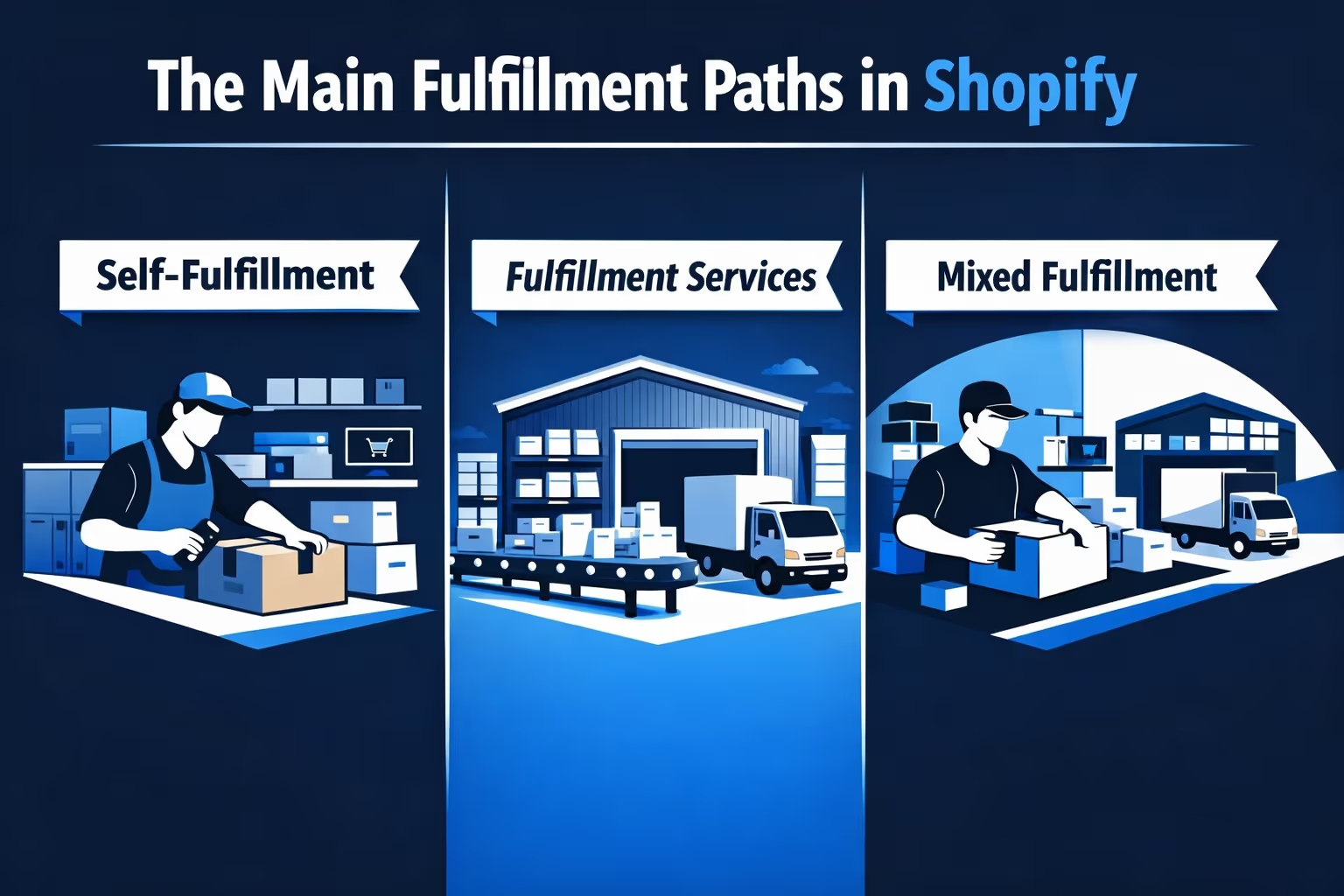
There is no single right way to fulfill orders on Shopify. The platform supports several workflows, and the best one depends on how your business operates.
This is the most common setup for new and small stores. You store inventory yourself, pack orders, and ship them using your preferred carrier.
Shopify supports this flow very well. You can:
Self-fulfillment gives you full control, but it also means every mistake is yours to fix.
If products are assigned to a fulfillment service, Shopify changes how orders behave.
Instead of a “Fulfill item” button, you see “Request fulfillment.” Once requested, the fulfillment service controls the status. You cannot manually mark those items as fulfilled or in progress.
This applies to:
The key rule is simple: if a third party owns fulfillment, Shopify locks manual controls.
Many stores use a combination of both. Some products are fulfilled manually, others by partners.
In these cases, a single order can be split into multiple fulfillments automatically. Each fulfillment follows its own path, and each must be completed separately.
This is where clarity matters most.
Before clicking anything in the Orders screen, there are a few things worth checking every time. Skipping these steps is how confusion usually starts, especially once order volume grows.
Always make sure the order is marked as Paid. Shopify allows unpaid, pending, and refunded orders to sit in the system, and it is easy to miss the difference when you are moving quickly. Fulfilling an unpaid order means shipping products without guaranteed payment, which is rarely something you want to deal with later.
Take a moment to see how the product is assigned for fulfillment. Some items are set up for manual fulfillment, others are handled by a fulfillment service, and some orders are meant for local delivery or in-store pickup. Each of these follows different rules inside Shopify. For example, in-store pickup and local delivery orders cannot be marked as in progress, even if you are actively preparing them.
If an order or fulfillment is on hold, its status cannot be changed. Holds can be applied automatically by Shopify or manually by someone on your team. Before trying to fulfill anything, release all active holds so the system allows you to proceed.
If an order does not have a shipping address, you will not be able to add tracking information later. This situation comes up more often than expected with digital products, draft orders, or manually created orders. Catching it early avoids unnecessary back-and-forth once the order is already marked as fulfilled.
These checks take only a few seconds, but they prevent the kind of small mistakes that turn into time-consuming fixes later.
Shopify does not think in terms of “orders” once fulfillment starts. It thinks in terms of fulfillments.
A fulfillment is a group of items that:
If all items can ship from one location, you see a single Unfulfilled section. If not, Shopify automatically splits the order.
This matters because:
Understanding this model removes a lot of confusion.
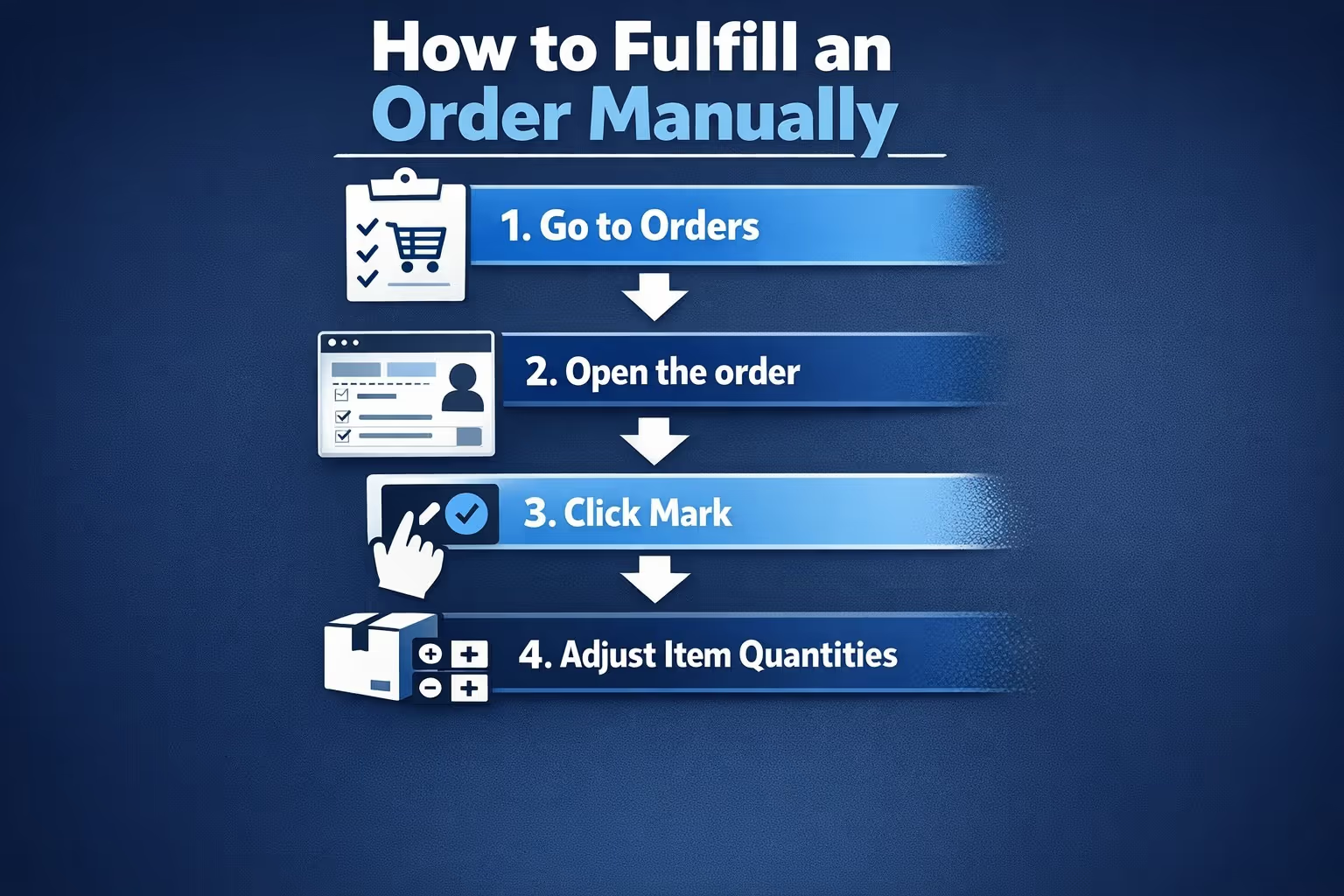
Manual fulfillment is straightforward when you follow the sequence properly.
Once completed, Shopify marks the items as Fulfilled and updates the order timeline.
A small but important detail: Shopify allows you to fulfill items without tracking. That is allowed, but not always smart. Tracking reduces customer questions and gives you a clear delivery trail.
Partial fulfillment is one of the most useful features in Shopify, and also one of the most misunderstood. It exists to help you move orders forward even when everything is not ready at the same time.
You would typically use partial fulfillment when some items are out of stock, when part of the order consists of preorder products, when items ship from different locations, or when you want to send available products immediately instead of making the customer wait for the entire order.
When fulfilling an order partially, the process itself stays simple. You reduce the quantity of items being fulfilled and confirm the shipment. Shopify automatically keeps the remaining items in an unfulfilled state, without you needing to create a separate order or make manual adjustments.
At this point, a single order holds two states at once. Some items are marked as fulfilled and others remain unfulfilled. You can treat these as separate shipments, each with its own timing, tracking details, and customer communication.
Once the remaining items are ready to ship, you fulfill them the same way you would any other unfulfilled items. After that final step, Shopify updates the order status from Partially fulfilled to Fulfilled, keeping the entire history clear and easy to follow.
The In progress status is not required, but it can be very useful for teams that handle orders together. It acts as a signal that picking and packing has already started, even if the order has not been shipped yet.
When you mark an order as in progress, Shopify locks certain edits to prevent accidental changes that could disrupt the fulfillment process. This helps keep inventory counts, locations, and shipment details aligned while the order is being prepared.
This status is especially helpful when multiple people are handling orders, when orders are prepared in batches rather than one at a time, or when fulfillment takes some time before shipping actually happens.
It helps to think of In progress as an internal workflow marker rather than something meant for customers. It keeps your team organized without creating confusion on the customer side.
Shopify allows you to change the fulfillment location for items as long as they have not been fulfilled yet. This gives you flexibility when inventory or shipping conditions change after an order is placed, which is a common situation for growing stores.
You might need to change the fulfillment location when:
When you change the location, Shopify moves the responsibility for that fulfillment to a different inventory source. The items are no longer tied to the original location, and the new location becomes the source for picking, packing, and shipping. If you have order routing enabled, Shopify may recommend the next best location automatically based on your delivery and shipping settings.
It is important to note that fulfillment locations cannot be changed for local delivery or in-store pickup orders. These are locked to their original location by design, so any adjustments need to happen before the order is placed or through a different workflow.
Sometimes Shopify’s automatic grouping of items into fulfillments does not match how you actually want to ship an order. In those situations, Shopify gives you the option to manually split or merge fulfillments before anything is shipped.
Splitting a fulfillment creates two separate fulfillments from one. This is useful when one item is delayed, when part of an order needs to ship later, or when you intentionally want to separate shipments for operational or customer-related reasons.
Once a fulfillment is split, each new fulfillment behaves independently. They can be fulfilled at different times, assigned different tracking numbers, and managed as separate shipments within the same order. This gives you more control without requiring you to cancel or recreate the order.
Merging fulfillments allows you to combine multiple unfulfilled fulfillments into a single shipment. This is often done to reduce shipping costs or to simplify tracking when items are coming from the same place.
To merge fulfillments, the items must come from the same location, remain unfulfilled, and use the same fulfillment method. If those conditions are met, Shopify lets you group them into one fulfillment and handle them together.
While managing complex orders is often easier on a larger screen, Shopify has updated its mobile app to support splitting and merging fulfillments directly from your smartphone.
Sometimes tracking information does not arrive at the exact moment an order is fulfilled. This is normal, especially when labels are created outside Shopify or when carriers provide tracking details later. Shopify allows you to add tracking numbers after an order has already been marked as fulfilled, so you do not need to delay fulfillment just because tracking is not ready yet.
You can add one or multiple tracking numbers to the same fulfillment, and you can decide whether or not the customer should receive an update email. If your shipping carrier is not listed, Shopify lets you enter a full tracking URL manually so customers can still follow their shipment. Once added, tracking details appear on the order status page, which helps customers stay informed and significantly reduces follow-up support questions.
Canceling a fulfillment in Shopify only changes the order status. It does not stop a package that has already been shipped or picked up by a carrier. This is an important distinction, because canceling a fulfillment without checking the real-world shipment status can create confusion both internally and for the customer.
Before canceling, you should void any purchased shipping labels and confirm that the package has not left your possession. If the order is handled by a fulfillment service, you will need to contact that service directly, as Shopify cannot interrupt third-party workflows once they begin. After a fulfillment is canceled, the items return to an Unfulfilled state and can be fulfilled again properly using the correct details.
When order volume grows, fulfilling orders one by one becomes inefficient.
Shopify allows bulk fulfillment directly from the Orders screen. You can select multiple orders and mark them as fulfilled together.
This works best when:
Bulk fulfillment saves time but requires discipline. Always confirm what you are marking as fulfilled.
For stores that make delivery promises to customers, the Fulfill by date feature helps bring order to daily fulfillment work. This date represents the latest day an order can be shipped while still meeting the estimated delivery window shown at checkout or in the sales channel.
Sorting orders by this field makes it easier to avoid late shipments, plan packing and shipping schedules, and quickly identify which orders need attention first. Instead of guessing which order is most urgent, the system provides a clear priority based on delivery expectations. This feature is still rolling out and may not be available to all merchants, but when it is, it can make fulfillment planning far more predictable.
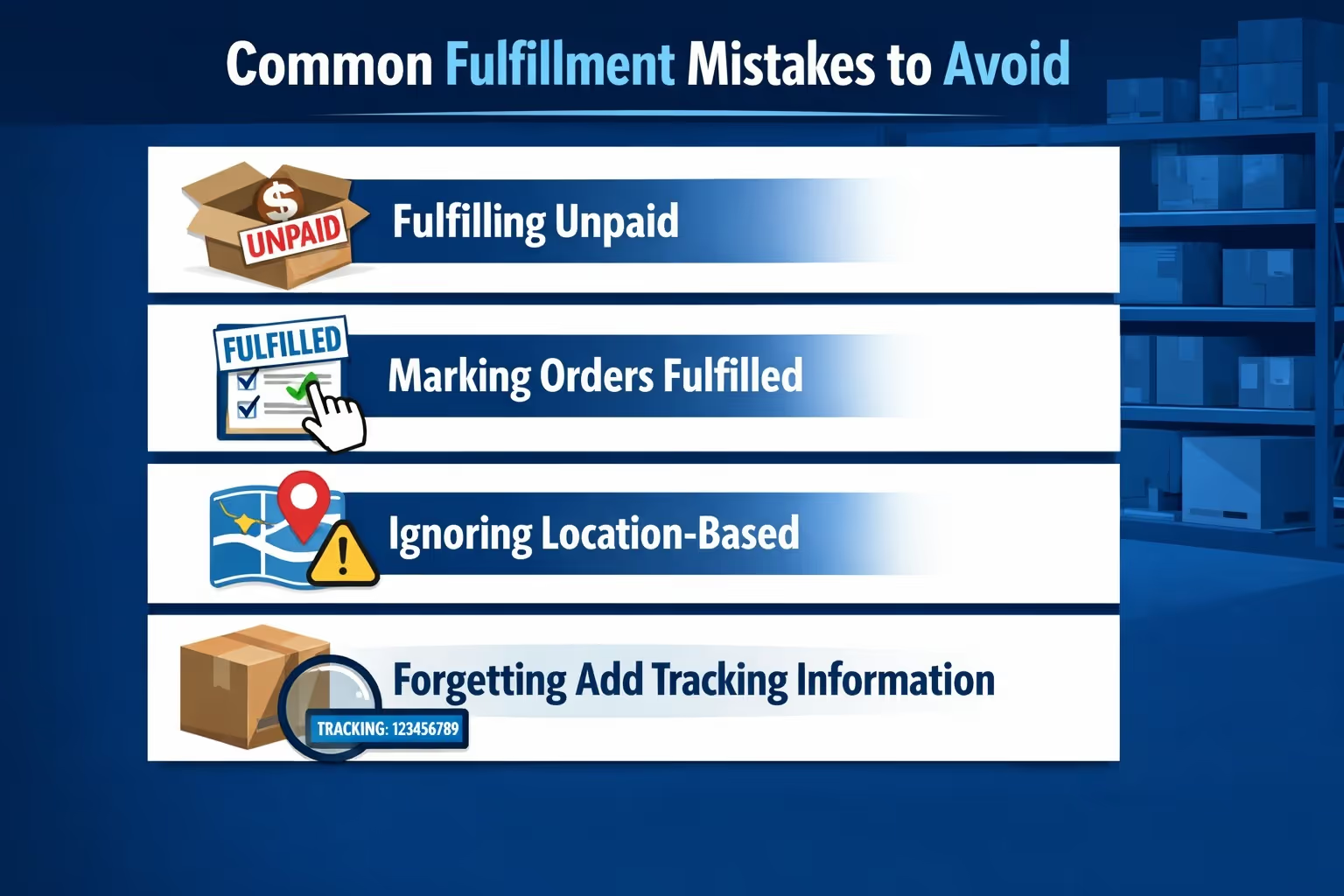
Even experienced store owners fall into the same fulfillment traps from time to time. These issues rarely come from not knowing how Shopify works, but from moving too quickly or assuming the system will correct small oversights automatically.
The most common mistakes include:
Most of these problems are the result of rushing through fulfillment during busy periods. Slowing down just enough to follow a consistent process usually leads to fewer errors, clearer order histories, and a better experience for both your team and your customers.
There is no single fulfillment setup that works for every store. What matters is choosing the option that fits your current situation and adjusting it as your business grows.
Self-fulfillment tends to work well when order volume is still manageable and products are straightforward to pack and ship. It is also a good choice if you want full control over inventory, packaging, and shipping decisions. Many store owners start here because it allows them to stay closely involved in every part of the order process.
Fulfillment services usually become more appealing as order volume increases or when storage and packing start taking up too much time and space. They also make sense when delivery speed matters more than hands-on control, especially if customers expect fast shipping across different regions. Offloading fulfillment can free up time to focus on marketing, product development, or customer support.
Most stores move through both approaches at different stages. Shopify is flexible enough to support that transition, as long as you work with the system and understand how fulfillment methods, locations, and services interact.
Fulfilling orders on Shopify does not have to feel complicated. Most confusion comes from treating fulfillment as a single action instead of a process made up of clear steps and rules.
Once you understand how Shopify thinks about fulfillments, locations, and statuses, the workflow becomes predictable. Predictability is what allows you to scale without stress.
If you ever feel unsure, slow down, read the order details, and let the system guide you. Shopify is strict, but it is also consistent. That consistency is what keeps everything working when orders start coming in faster than expected.


