What Are the Best Alternatives to Shopify in 2026?
Looking for Shopify alternatives? Compare top platforms for design flexibility, eCommerce tools, pricing, and control in this updated 2026 guide.
Feb 10, 2026



If you’ve ever been asked to share your Shopify store link and suddenly realized you’re not sure which URL is the right one, you’re not alone. Between admin links, custom domains, and the original .myshopify.com address, it’s easy to get confused, especially if you haven’t touched these settings in a while.
The good news is that your Shopify store URL is always there, even if you’re using a custom domain or haven’t thought about it since day one. Once you know where to look, finding it takes less than a minute. This guide walks through the simplest ways to locate your Shopify store URL and explains which version you actually need, depending on the situation.
Before jumping into steps, it helps to clear up one basic point. When someone asks for your Shopify store URL, they might mean different things depending on context.
There are three main URLs tied to every Shopify store:
Only one of these is usually correct for apps and integrations. Another is best for sharing with customers. The third should almost never be shared at all.
Understanding this distinction saves time and avoids back-and-forth emails later.
Every Shopify store gets a default domain the moment it is created. This domain follows the format:
storename.myshopify.com
This URL is permanent. It does not change if you rename your store. It does not disappear if you connect a custom domain. And it cannot be edited or replaced.
Many store owners forget this URL exists because customers rarely see it. But behind the scenes, Shopify uses it as the main identifier for your store. Most apps, integrations, and external tools rely on this exact domain.
If a tool asks for your Shopify URL during setup, it almost always wants the .myshopify.com version.
Apps and third-party tools rely on your default Shopify store URL because it gives them a stable, predictable way to recognize your store. Unlike customer-facing domains, this address does not change.
If an app fails to connect or keeps asking you to confirm your store URL, the issue is often simple. A custom domain was entered instead of the .myshopify.com address. Switching to the default Shopify URL usually resolves the problem immediately.
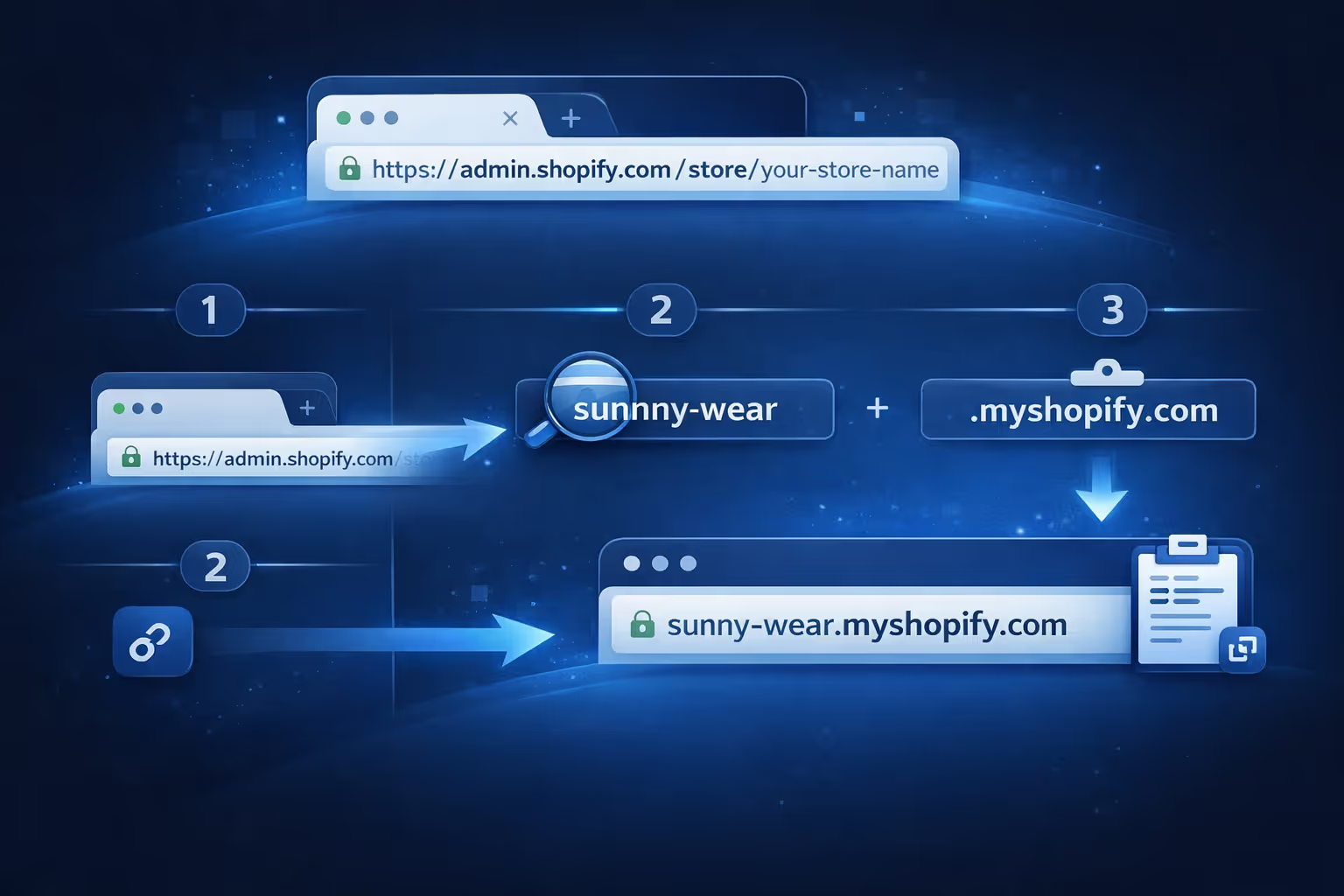
The quickest method works if you can log into your Shopify admin.
Once you are logged in, look at your browser address bar. You will see something like this:
https://admin.shopify.com/store/your-store-nam
The part after /store/ is your Shopify store identifier.
To get your full store URL, simply add .myshopify.com to that name.
For example, if your admin URL shows /store/sunnny-wear, your Shopify store URL is:
sunnny-wear.myshopify.com
You do not need to click anything. You do not need to open settings. This method works every time.
If you prefer to see it listed clearly inside Shopify, there is another reliable path.
From your Shopify admin:
You will see a list of domains connected to your store. One of them ends with .myshopify.com. That is the default Shopify store URL.
Even if you have multiple custom domains, this one will always be there.
A common mistake is copying the URL from the admin dashboard and pasting it directly into a form or email. This usually looks like:
storename.myshopify.com/admin
When someone opens this link, they may see a login page, an error, or nothing useful at all.
The /admin part only works for store owners and staff who are logged in. Customers, partners, and external services cannot access it.
If you see /admin in the link you copied, remove it. The base domain is what matters.
Another confusing moment happens when you open your own store link and see an edit button or admin toolbar at the bottom. This makes people think they copied the wrong URL.
In reality, this happens because you are logged into your Shopify account.
To see your store the same way a customer does:
Once you do this, the edit options disappear, and you see the storefront normally.
Many stores use a custom domain like yourbrand.com. This is great for branding and customer trust. It is also the right link to share publicly.
However, this does not replace your Shopify store URL. It sits on top of it.
Behind the scenes, Shopify still uses the .myshopify.com domain to manage your store. That is why apps and services continue to ask for it, even if your store looks completely different on the front end.
Both URLs are valid. They are just used for different purposes.
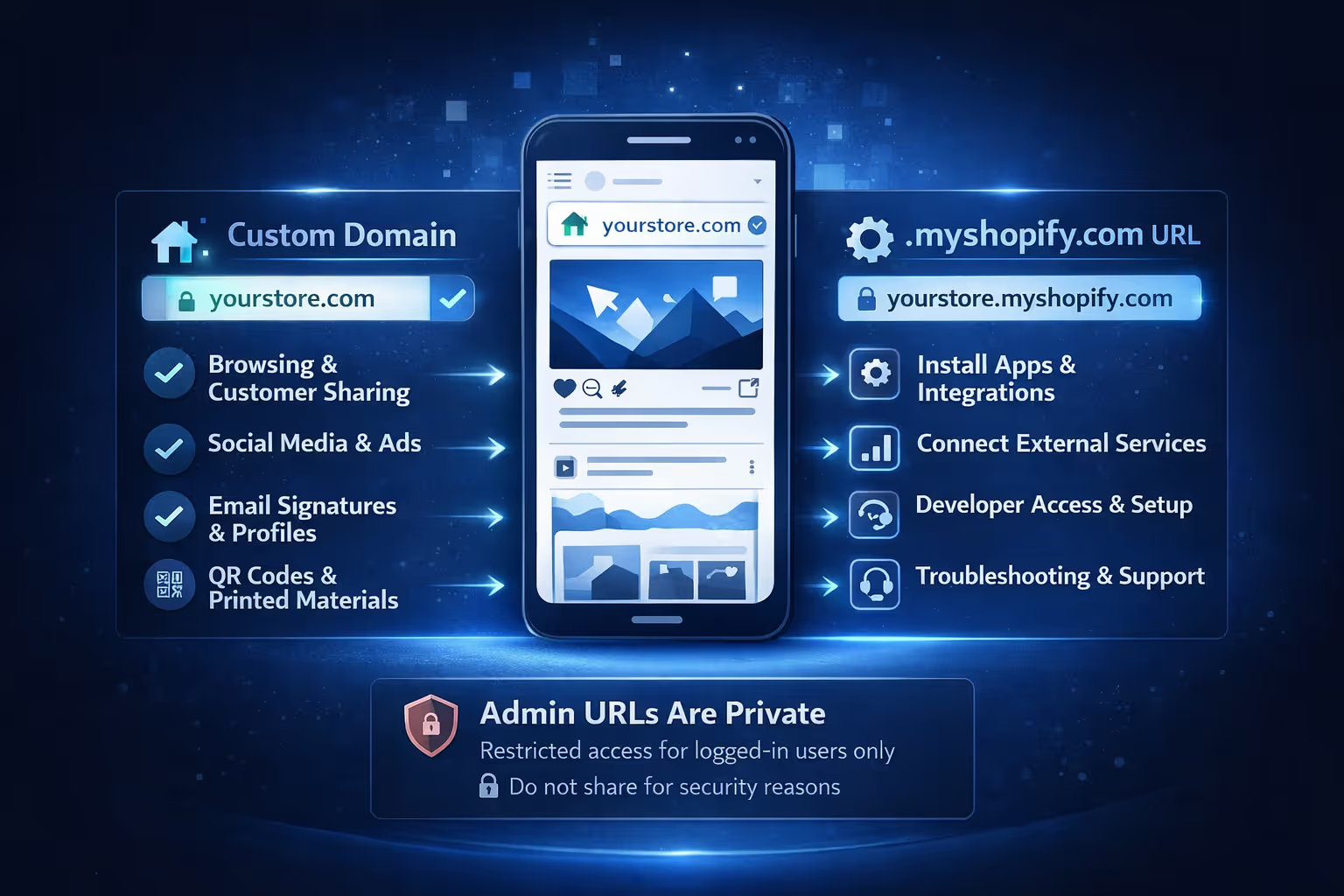
Not every Shopify link serves the same purpose. Using the right one depends on who you are sharing it with and why they need it. Mixing them up is common, but once you understand the difference, it becomes straightforward.
This is the public-facing version of your store. It reflects your brand and is the link customers expect to see.
This version acts as the technical identifier for your store and is the one most tools rely on behind the scenes.
Admin URLs should never be shared. They only work for logged-in users and can cause confusion or access issues for anyone else.

When you connect your Shopify store URL to Extuitive, it becomes the foundation for creating ads that are built specifically for your store.
At Extuitive, we use that connection to generate ad creatives and test them against AI agents modeled after more than 150,000 real consumer profiles. Instead of guessing which message or visual might work, we simulate how different audiences respond and surface clear signals around purchase intent before any budget is spent.
From there, we help launch ads with confidence. Creative, audience fit, and messaging are already tested, so you are not starting blind. What used to take weeks of manual testing or expensive research can now happen in minutes, at a fraction of the cost.
Extuitive is built for Shopify teams that want to move fast without burning budget. Connect your store, create ads, test them with real-world simulations, and launch what works.
That is it. No guesswork. Just a faster path from idea to performance.
Sometimes you need to identify a Shopify store URL without logging in. This might happen when researching a store, auditing integrations, or working with a client.
There is a simple workaround.
Open any page on the Shopify store. Right-click and choose View Page Source.
Once the code opens, search for myshopify.com. You will usually find it listed in the page metadata or Shopify variables.
This method is not meant for everyday use, but it can be helpful when admin access is unavailable.
Many store owners wonder why Shopify does not make this URL more visible.
The reason is simple. Shopify is built around customer experience. The platform encourages custom domains and clean branding. The default Shopify URL is more of a technical backbone than a public-facing feature.
Because of that, it lives quietly in settings and admin URLs rather than being promoted in the interface.
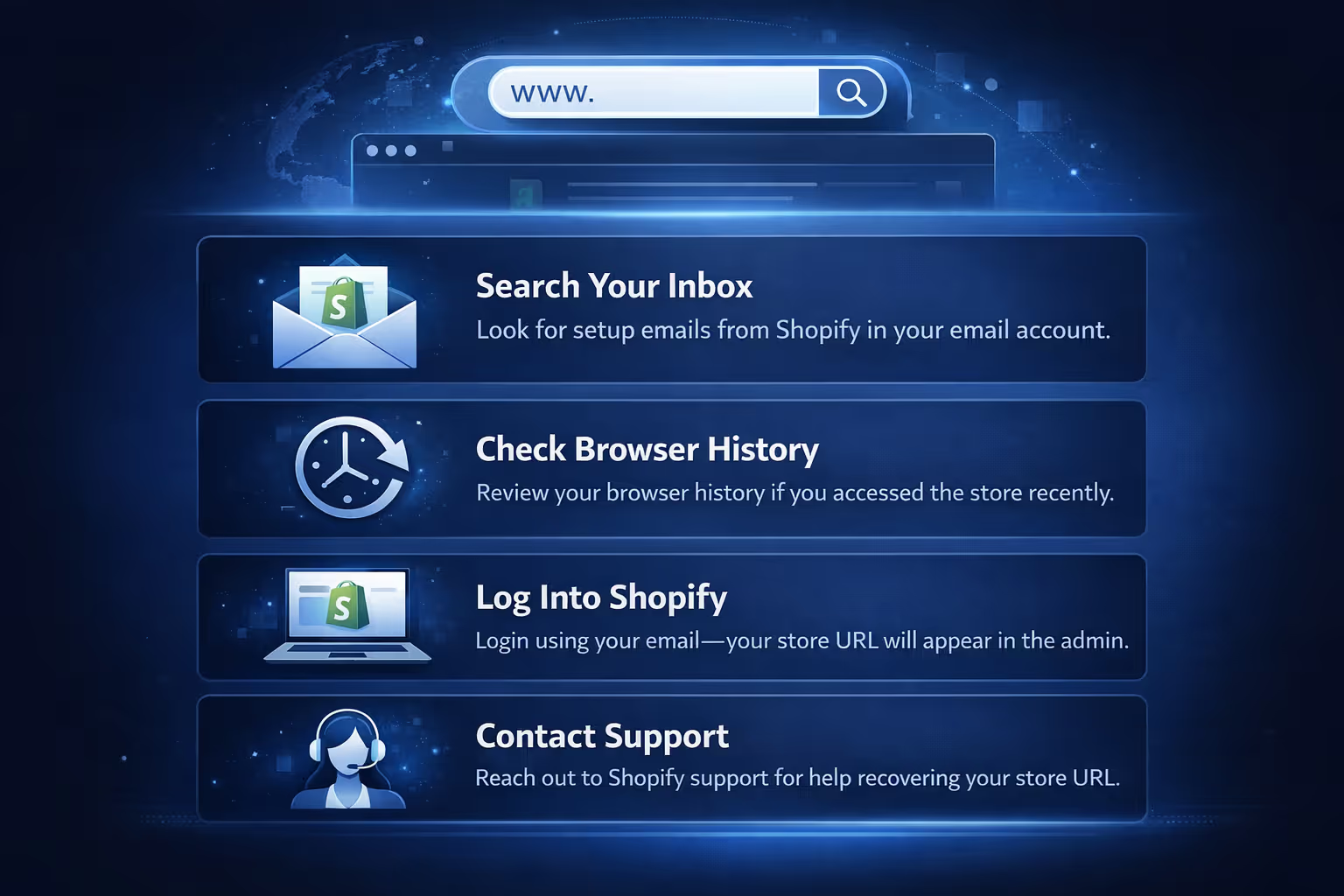
If you have not logged into your store in a long time and cannot remember the URL, there are still a few ways to recover it.
If all else fails, Shopify support can help confirm your store identity.
If there is one thing to remember, it is this: your Shopify store always has a .myshopify.com address, even if you never use it publicly. That address is the one apps care about. Customers care about your branded domain. And the admin URL is just for you.
Knowing which is which puts you back in control.
The next time someone asks for your Shopify store URL, you will know exactly what to send.


