Best AI Tool for Creating Ads Without Losing the Human Touch
A practical look at AI tools for creating ads that sound natural, test ideas faster, and help teams make smarter creative decisions.
Jan 8, 2026



Before customers trust your store with their money, it’s worth walking through the checkout yourself. Not just once, but properly. A test order lets you see what shoppers actually experience, from the cart to the confirmation email, without processing a real payment.
This isn’t about ticking a box or following a setup checklist. It’s about catching the small things that quietly break conversions. A missing email. A shipping rate that looks wrong. A payment step that feels off. Shopify gives you a few safe ways to test all of this, and once you know how they work, the process is quick and repeatable.
In this guide, we’ll walk through how to place a test order on Shopify, when to use each method, and what to check before you open the doors to real customers.
A Shopify test order is a simulated purchase that runs through your store’s checkout without moving real money. It behaves like a real order in your admin, triggers most of the same logic, and lets you verify that everything works before customers arrive.
Think of it as a dress rehearsal. The stage, the lights, and the cues all work. The money stays imaginary.
Some merchants treat test orders as a one-time setup step. That is a mistake.
You should place test orders:
Any change that touches checkout deserves a test order. Small changes break things quietly.
Shopify supports three realistic approaches. Two are fully simulated. One uses a real transaction but avoids permanent charges.
We will focus first on the methods that do not charge a card at all.
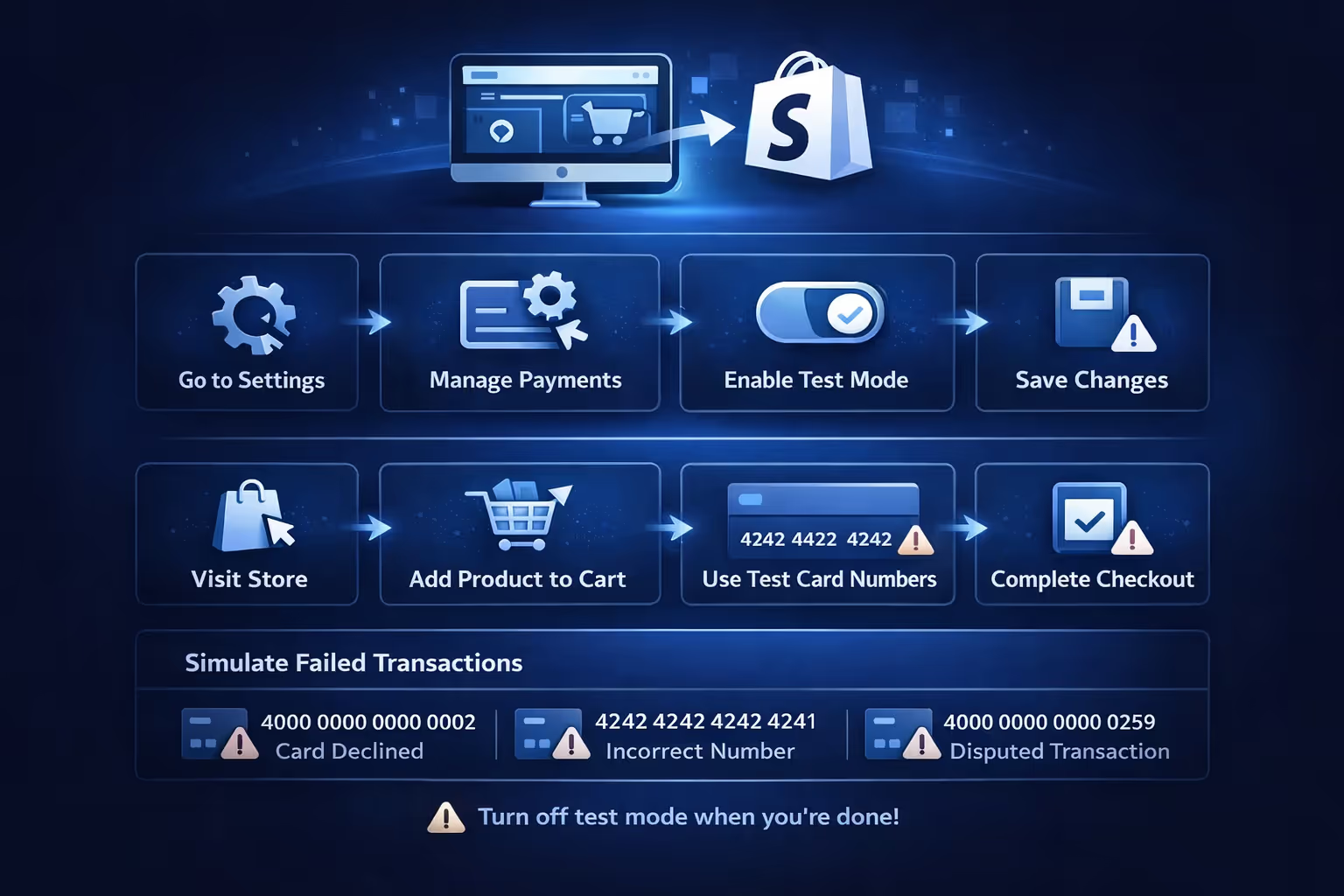
If your store uses Shopify Payments, this is the cleanest and most accurate way to test checkout without charging a card.
Test mode tells Shopify to accept special test card numbers instead of real cards. The checkout behaves like a live transaction, but no money moves.
While test mode is enabled:
That is important. Do not leave test mode on accidentally.
Your store is now ready to accept test card numbers.
Use these values:
Use one of these card numbers to simulate a successful payment:
Complete checkout.
You should land on the order confirmation page. The order will appear in your admin marked as a test.
Testing success is not enough. You should also test failure states.
Use these card numbers to simulate errors:
You can also force errors by entering:
Watch how Shopify displays errors. This is exactly what customers will see.
Use this method when:
This is the most complete testing method Shopify offers.
Once you’re done testing, make sure to return to your payment settings and turn off test mode. Save the changes before moving on. Leaving test mode enabled will prevent real customers from completing purchases, which can quietly block sales without any obvious warning.
The Bogus Gateway is Shopify’s built-in fake payment provider. It works on any store, including development and client transfer stores.
This method does not require Shopify Payments.
It is less realistic than Shopify Payments test mode, but very reliable.
Your store now accepts Bogus Gateway payments.
Enter:
For the card number:
Complete checkout.
The order will appear in your admin as a test.
This method works best when Shopify Payments isn’t available in your country, when you’re working in a development store, or when you need to place unlimited test orders without restrictions. It’s also a solid choice for checking basic checkout logic before moving on to more advanced testing.
Once testing is finished:
Leaving it active prevents real payments.
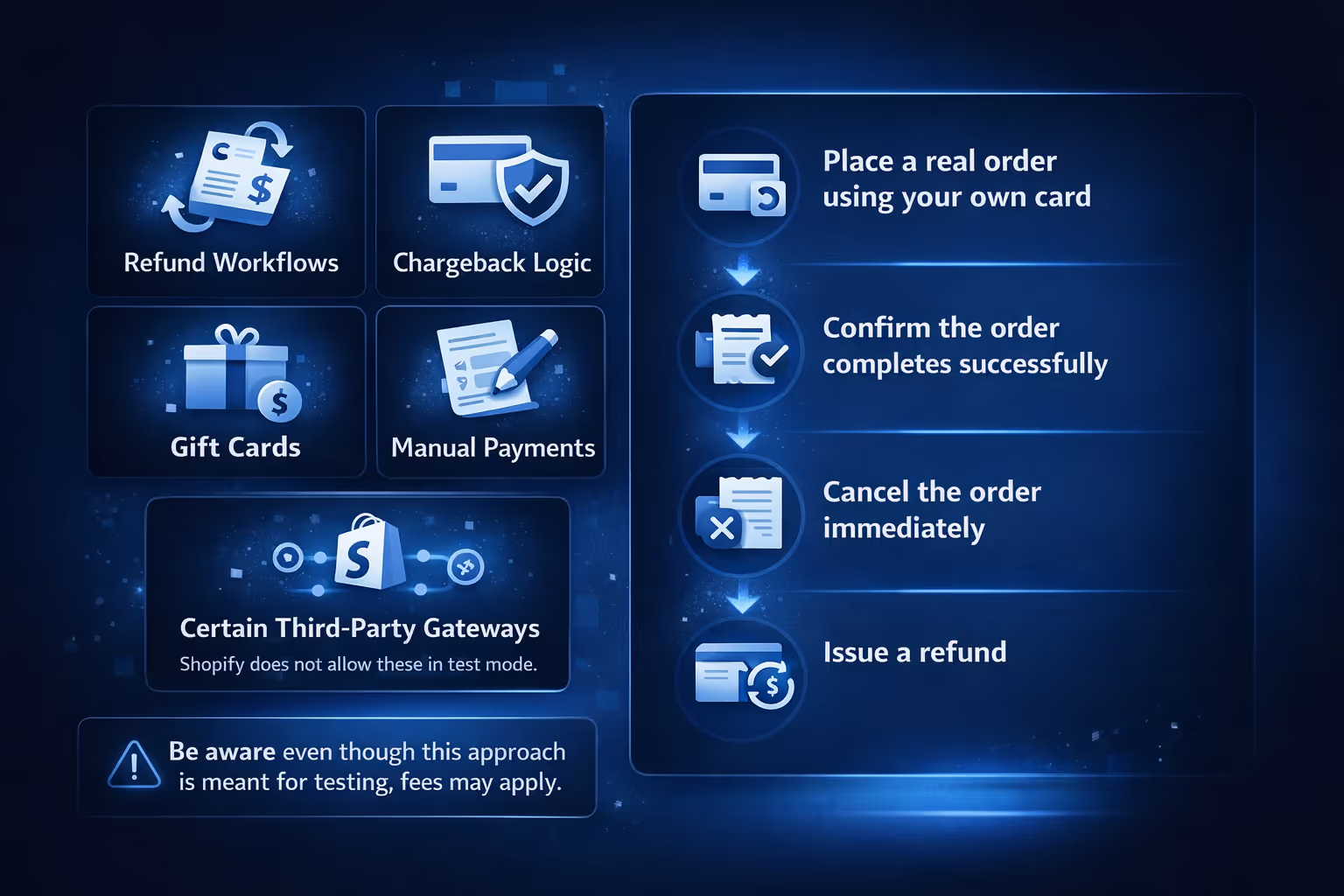
This method technically charges a card, but it avoids permanent charges. It is included here because some scenarios cannot be tested otherwise.
You might need a real transaction to test:
Shopify does not allow these in test mode.
Be aware that even though this approach is meant for testing, payment processors may still apply transaction fees. It also cannot be used in development or client transfer stores. Because of that, this method should be used sparingly and only when a real transaction is absolutely necessary.
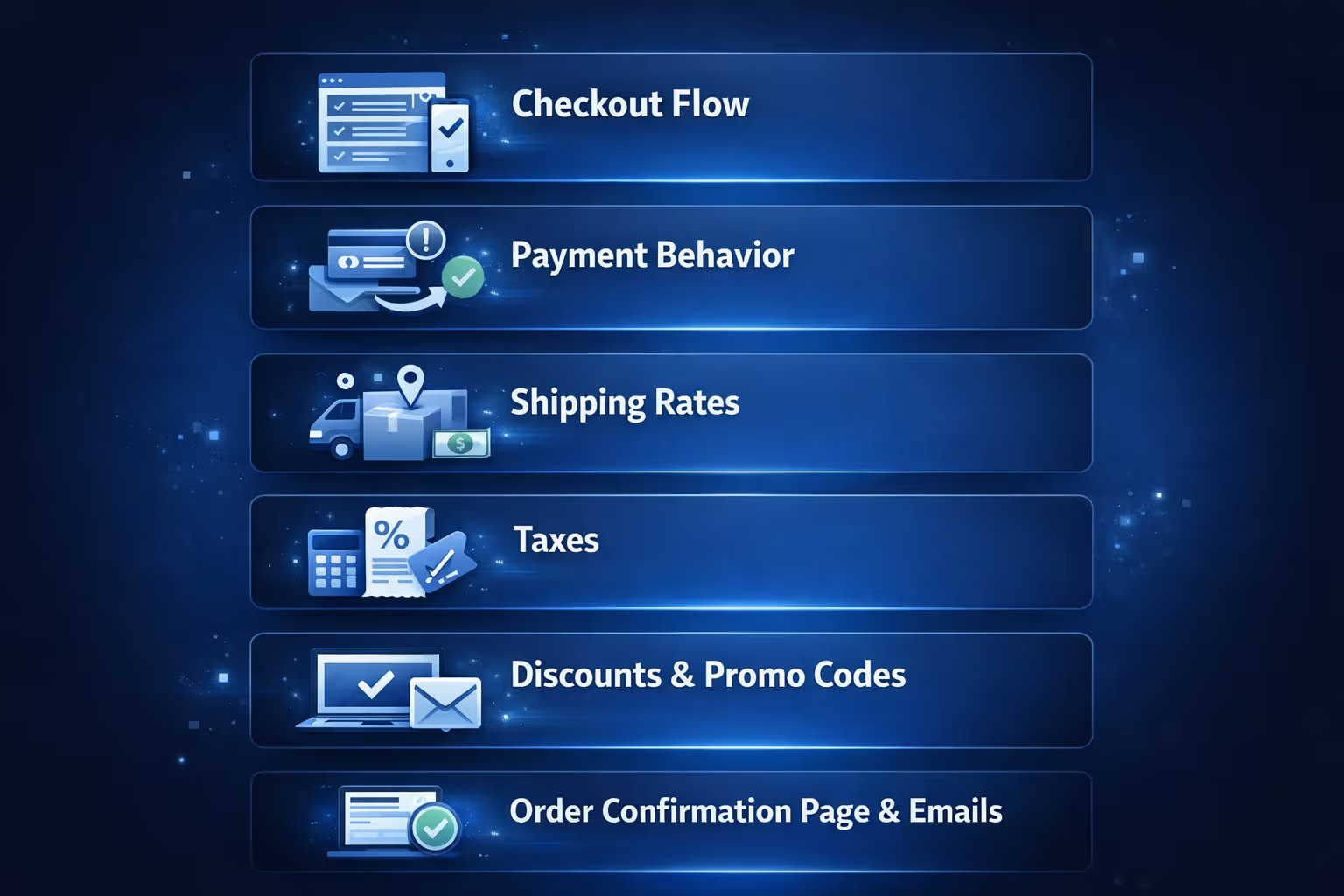
Placing a test order only helps if you slow down and actually review what happens. The goal is not just to see the order appear in your admin, but to notice how the experience feels from start to finish.
Start with the basics. Make sure the checkout loads properly on both desktop and mobile. All required fields should be clear, easy to understand, and work as expected. Pay attention to how the process feels overall. If anything feels awkward or confusing to you, it will feel worse to a first-time customer. Small friction points matter more than most people realize.
The payment step deserves extra attention. Confirm that the payment behaves the way you expect and that error messages are clear when something goes wrong. If you simulate a failed transaction, the message should explain the issue without sounding alarming or vague. After a successful payment, checkout should redirect cleanly to the confirmation page. Confusing payment errors quickly erode trust.
Shipping is one of the most common sources of checkout issues. Verify that the correct rates are displayed and that free shipping thresholds apply when they should. Location-based rules need special care, so test with more than one address to make sure regional logic holds up.
Taxes can break quietly. Check that tax amounts are calculated correctly and that regional tax rules apply as expected. Look at how taxes are labeled in the order summary as well. If something looks unclear or inconsistent, customers will notice. Tax errors show up fast and often lead to support tickets.
If you use discounts, test them thoroughly. Make sure codes apply correctly and that conditions like minimum spend or product restrictions work as intended. Automatic discounts should trigger at the right moment without forcing customers to guess what happened. Testing different combinations helps catch edge cases early.
Once checkout is complete, review the confirmation page carefully. It should load without delay, clearly display the order number, and explain what happens next. This page plays a bigger role than it seems. It reassures customers that everything went through successfully.
Finally, check the order confirmation email. Confirm that it is sent, that all order details are accurate, and that the layout looks good on mobile devices. Many checkout issues hide in email templates, especially after customization, so this step is worth the time.
This situation causes a lot of panic. You complete a checkout, expect to see an order, and nothing shows up in the admin. In most cases, the issue is simple and not a system failure.
Common reasons include:
Before assuming something is broken, always check your order filters first. It’s the fastest way to find missing test orders and resolves the issue more often than anything else.
The biggest mistake store owners make is testing once and forgetting about it.
Every checkout-related change deserves another test order.
Themes, apps, taxes, shipping rules, email templates, payment settings all interact in ways that are hard to predict.
A five-minute test order can save weeks of lost conversions.

Testing checkout flows is about removing uncertainty before real customers get involved. We built Extuitive around that same idea, but applied it to ads instead of payments.
When Shopify merchants launch campaigns, the risk often shifts from checkout mechanics to messaging. Which creative works? Which audience responds? Which angle converts before the budget is gone? That’s where our platform fits. We connect directly to Shopify stores and help merchants generate and validate ad creatives using AI agents modeled after real consumer behavior. Instead of guessing or waiting weeks for results, ads are tested against thousands of simulated buyers before a dollar is spent.
What this means in practice is faster launches and fewer false starts. We help identify which messages resonate, which visuals attract attention, and which combinations are most likely to drive conversions. The goal isn’t to replace ad platforms or automate everything. It’s to reduce uncertainty at the creative and positioning stage, so when campaigns go live, they’re already grounded in evidence rather than assumptions.
For Shopify teams that already understand the value of testing orders, Extuitive is a natural next step. The same mindset applies: validate early, learn quickly, and avoid paying for mistakes that could have been caught upfront.
A Shopify store can look perfect and still fail at checkout. Test orders are how you catch those failures before customers do.
Whether you use Shopify Payments test mode or the Bogus Gateway, the goal is the same. Walk the path your customer will take. Notice what feels smooth and what feels wrong. Fix it early.
If you treat test orders as part of your regular workflow instead of a setup chore, your store will be more stable, more trustworthy, and far easier to scale.
That is the real value of testing.


