AI Agents for Businesses: Drive Real Change Today
Discover how leading AI agent platforms are helping businesses automate marketing, validate ideas, streamline operations, and drive real growth-faster and cheaper than ever before.
Apr 10, 2026



Connecting Printify to Shopify is one of those things that sounds more technical than it actually is. In reality, it’s a straightforward setup that can save you a lot of time once it’s done right.
If you want to sell custom products without dealing with inventory, printing, or shipping, this connection is what makes the whole print on demand model work. Shopify handles the storefront and payments. Printify takes care of production and delivery. Your job is mostly choosing products, designing them, and making sure the setup doesn’t get in your way later.
In this guide, we’ll walk through how the connection works, what you actually need to do, and a few things worth checking before you hit publish so you don’t have to fix problems after orders start coming in.
If Shopify is your digital storefront, Printify is the silent partner handling your inventory, printing, and shipping behind the scenes.
Here’s the simplest way to think about it:
When connected properly, Printify automatically receives order info from Shopify, processes it with one of their print partners, and ships it out without you lifting a finger.
That’s the beauty of automation. But it only works well if the setup is done right.
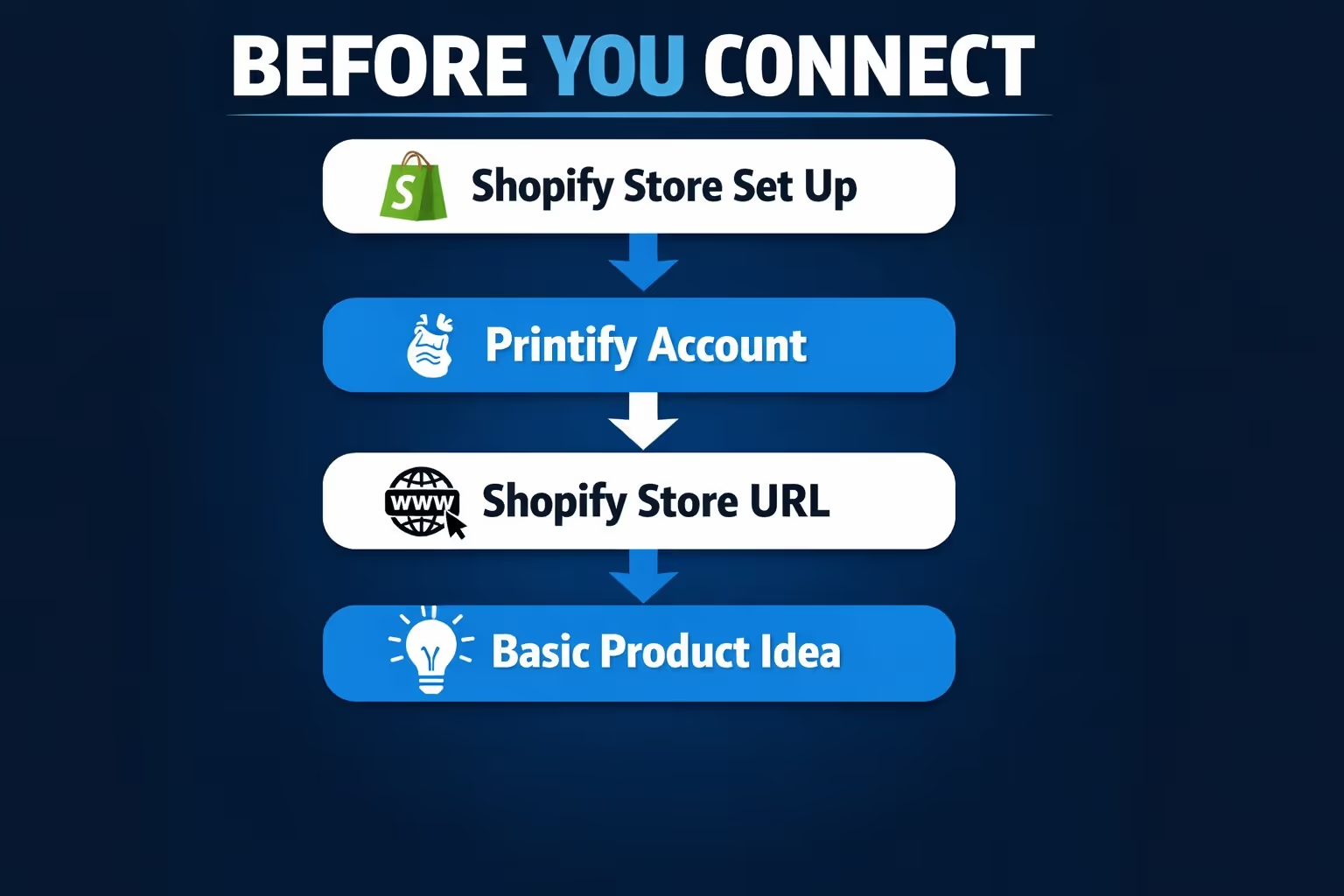
You’ll need working accounts on both sides. Here’s your quick pre-flight checklist:
You’ll need an active Shopify account. A free trial works fine at the beginning, but to process real orders later, you’ll need to pick a paid plan. If your store is already up and running, you’re good to go.
Head over to Printify and create a free account. There’s no charge to sign up, and you don’t need to add a payment method until you’re ready to start fulfilling orders.
You’ll need to know your store’s full URL. It usually looks something like this: yourstorename.myshopify.com. You’ll be asked to enter it during the connection process.
You don’t need final artwork or a polished product catalog, but it helps to have a general idea of what kind of items you want to sell. T-shirts? Mugs? Phone cases? Knowing that upfront will save time when you start browsing Printify’s product catalog.
Once that’s sorted, you can connect either from Printify’s dashboard or from the Shopify App Store.
There’s more than one way to make the connection, and both get you to the same place. It just depends where you’re starting from and what feels more intuitive for you.
This method starts inside your Printify account.
Step-by-step:
That’s it. The two platforms are now linked.
You can also start from Shopify itself.
Here’s how:
The Printify app now lives inside your Shopify dashboard. From here, you can:
It’s smooth once you get the hang of it, but there are a few things worth pointing out.

Once your Printify products are live and connected to Shopify, the next big move is getting them in front of the right people. That’s where we come in.
At Extuitive, we help Shopify store owners create and test ads that actually convert – without guessing, overspending, or running blind campaigns. You don’t need to be a marketer or dig through spreadsheets. Once your store is connected, our platform uses AI agents modeled after real consumer behavior to generate ad creatives, test them with virtual focus groups, and predict what will perform before you spend a dollar on live ads.
We built Extuitive to give growing eCommerce brands a faster way to go from idea to validated campaign. It’s ad creation, testing, and optimization rolled into one, built specifically for Shopify. So once you’ve got your Printify designs up and ready to sell, we’ll help you reach the people most likely to click, buy, and come back for more.
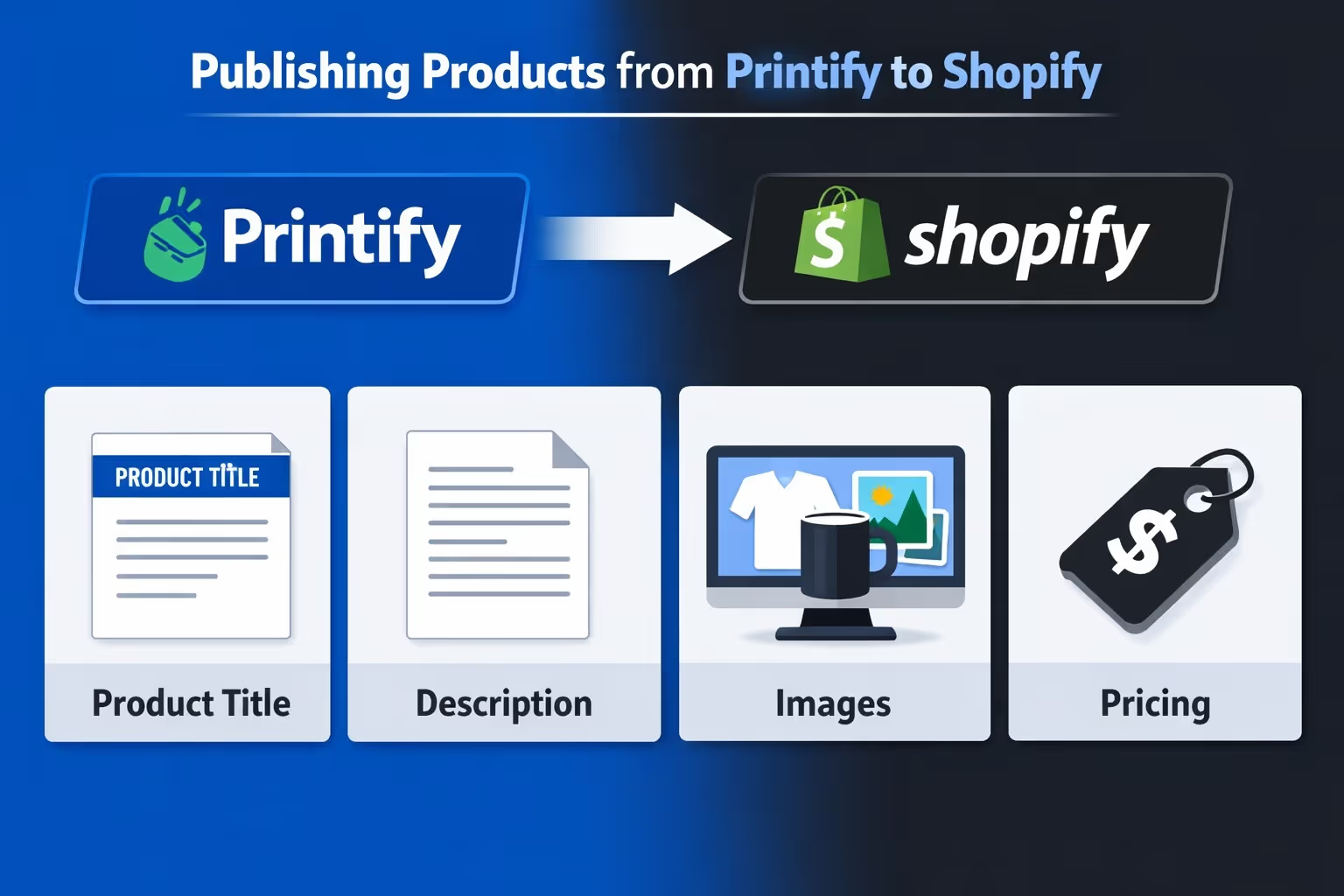
When you add a product in Printify and hit “Publish,” it goes straight into your Shopify catalog. But don’t treat that button like a final step. There’s usually some cleanup needed.
Here’s what to double-check:
Once everything looks good, publish the product and make sure it’s active on your storefront.
After you’ve connected Printify to Shopify and published your products, the process mostly runs on autopilot. When someone places an order through your store, Shopify instantly sends the order details over to Printify. From there, Printify forwards the job to the print provider you selected – or the default one based on your settings. They handle the printing, packaging, and shipping straight to your customer. Once it’s on the way, tracking info gets sent back to Shopify so your customer can stay updated.
You won’t need to step in unless something unusual happens. Just keep in mind, all of this smooth automation only works if your fulfillment settings are set up properly from the start.
Setting things up is only half the battle. To make sure orders move smoothly and your customers aren’t left wondering what’s going on, it’s worth taking a few minutes to check your backend settings. These aren’t complicated, but skipping them can lead to delays, missed orders, or awkward refund emails. Here's what to look at once the connection is live.
In Printify:
In Shopify:
Even though the connection process is simple, here are a few traps people run into:
It’s easy to hit “publish” before cleaning up the default text, but don’t skip this step. A product page with generic or placeholder copy doesn’t inspire trust. Take a few extra minutes to write something that actually makes sense for your customer.
If your store uses collections for navigation (like menus or filters), forgetting to assign a product means it might not show up where it should. That’s an easy fix, but also an easy one to miss.
Printify gives you a base cost, but it’s on you to set the retail price. Make sure you’ve factored in shipping, platform fees, and your profit margin. A pricing mistake might not show up until after someone places an order – when it’s already too late to fix.
Order a sample product before you start running ads or announcing your launch. You’ll learn more from seeing, touching, and even unboxing the item than from any mockup or product page preview. Plus, it's the best way to spot any quality issues before your customers do.
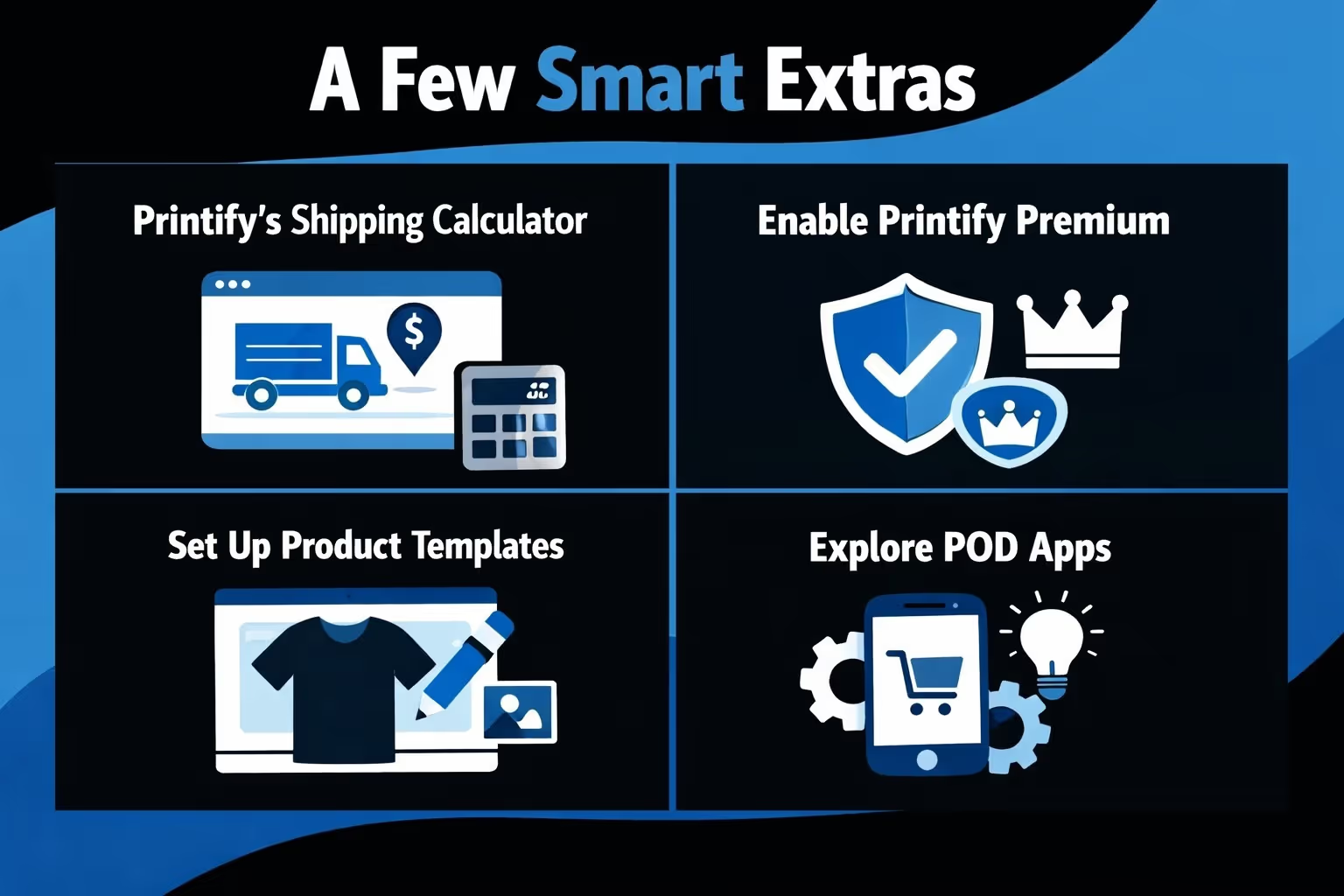
Once your store is up and running, here are a few more things you can do to optimize the experience:
Printify and Shopify were practically made for each other. One handles the selling and payments. The other takes care of production and fulfillment. You get to focus on creative direction, marketing, and customer relationships.
Yes, the integration only takes a few minutes to set up. But the real value is in how you manage it over time: pricing smart, keeping your product listings fresh, and making sure the customer experience is smooth.
It’s not magic, but it’s close. And if you get the connection right from the start, the rest gets a lot easier.


