How to Uninstall OpenClaw Completely (2026 Guide)
Step-by-step guide to fully uninstall OpenClaw on macOS, Linux, and Windows. Remove gateway services, config files, and all traces. Complete cleanup in minutes.
Apr 8, 2026



Canceling an order in Shopify shouldn’t feel like you’re breaking something. Whether it’s a customer who changed their mind or a product that’s out of stock, the goal is to act fast, keep your records clean, and avoid refund drama later. But if you’ve ever clicked into the admin and hesitated – “Wait, do I refund now or later?” – you’re not alone. This guide breaks it down clearly, so you don’t get tripped up by small details or make mistakes that cost you time (or worse, chargebacks). Let’s walk through the process in plain English.
Let’s start with the basics. Not every order can be canceled the same way or at all. It depends on how far along the order is and how it was processed.
Before canceling an order, it helps to pause for a moment and think it through. Check whether the payment has already been captured, if the order has been fulfilled or even partially fulfilled, and how the order was created in the first place. Also consider whether any third-party fulfillment services are involved, since that can change what actions are available to you.
The answers will shape what you can and can't do. For example, you can’t cancel an order that’s already been deleted. And if it's been partially fulfilled, cancellation isn't an option unless you roll back the fulfillment first.
When you cancel an order in Shopify, a few things happen under the hood:
Shopify tracks everything in the order’s timeline so you can see what got refunded, what was restocked, and what needs a follow-up.
Sounds clean, right? Well, it mostly is, as long as you know which refund button to press and what each one does.
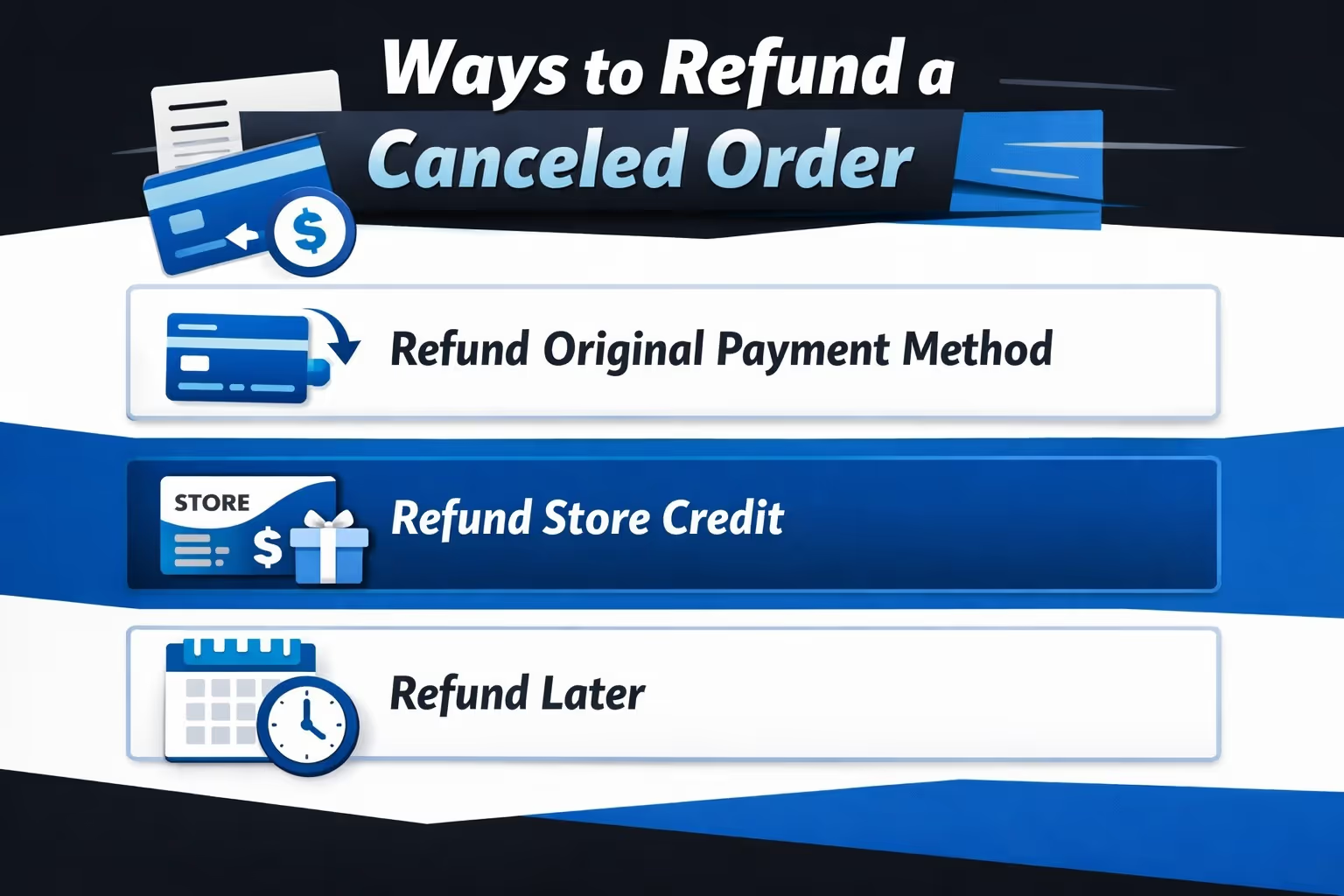
This is where most people get nervous: the refund. Shopify gives you three options, and choosing the wrong one can throw off your books or confuse the customer.
This is the most straightforward option. When you cancel the order, the full amount goes right back to the customer’s original payment method. It’s quick, clean, and usually what you’ll choose by default.
Instead of returning the money to their card or account, you can issue store credit. It’s a solid choice if the customer plans to shop again soon. Just note that Shopify doesn't offer a direct 'refund to store credit' option by default. To do this, you’ll need to manually issue a gift card for the refund amount.
This option pauses the refund for now. It gives you time to figure things out, especially if you’re issuing a partial refund, splitting it between methods, or still looking into the situation. Just make sure you follow up – Shopify won’t remind you.
If you choose "Later," make sure you track it. Unrefunded canceled orders are an easy way to earn customer complaints or even chargebacks if you forget.
Canceling one order manually is straightforward once you know where to click. Here’s the process:
Once that’s done, the order is updated, and everything’s tracked in the order timeline.
You can cancel up to 250 orders at once using Shopify’s bulk tools, but there’s a catch: you won’t always see the refund options when doing this. Shopify might process refunds automatically, which removes your chance to hit “Refund Later.”
So if you need control over how and when refunds happen, skip the bulk option and cancel orders one by one.
But if speed is your goal and you’re ok with full, immediate refunds, here’s how bulk canceling works:
Keep in mind: Shopify will only let you bulk cancel 250 at a time. If you’ve got a larger list, you’ll need to break it up into smaller chunks.
Sometimes the “Cancel Order” button just... isn't there. Here are some common reasons:
What now? Depending on the case, your options might include:
It’s frustrating, but Shopify limits cancellation rights for good reason: to prevent users from breaking workflows handled outside the platform.
By default, Shopify doesn’t include a built-in way for customers to cancel their own orders after checkout. In most cases, merchants handle cancellations manually from the admin. More advanced setups are possible, but they usually require additional tools or custom configuration.
If you want to offer self-cancellation, there are a few practical approaches. Some third-party apps allow customers to cancel within a limited time window after placing an order. Another option is building cancellation logic into a customer account area, where rules control when and how an order can be canceled. For stores using automation, it’s also possible to connect custom workflows through Shopify Flow or custom development.
Allowing customers to cancel on their own can lower support volume, but it needs clear boundaries. Without limits, it can lead to last-minute changes or misuse. A common middle ground is a short self-cancellation window, such as an hour after checkout, before fulfillment starts.
One small detail that often catches new store owners off guard: Shopify doesn't refund transaction fees when you issue a refund.
So yes, you’ll be out those processing costs if the order is canceled after payment is captured. It's a small hit, but it can add up over time, especially with high-value or frequent cancellations.
Also, if you printed a shipping label, remember to avoid it. Otherwise, you could end up paying for postage that was never used.
After canceling an order, you might want to move it out of your main view. Shopify gives you two ways to do that: archiving and deleting, but they serve very different purposes.
Archiving moves the order to a “closed” state while keeping it in your system. It remains available for reports, filters, and future reference. Shopify often archives completed orders automatically, but you can archive them manually anytime from the order page.
Deleting, on the other hand, is limited. Shopify doesn’t allow most orders to be deleted through the admin interface. Only a few specific types of orders can be deleted, and usually only via the API. These include test orders, unpaid drafts, and some manually created orders that haven’t been processed. Orders involving real payments or gift cards generally can’t be deleted and should be archived instead.
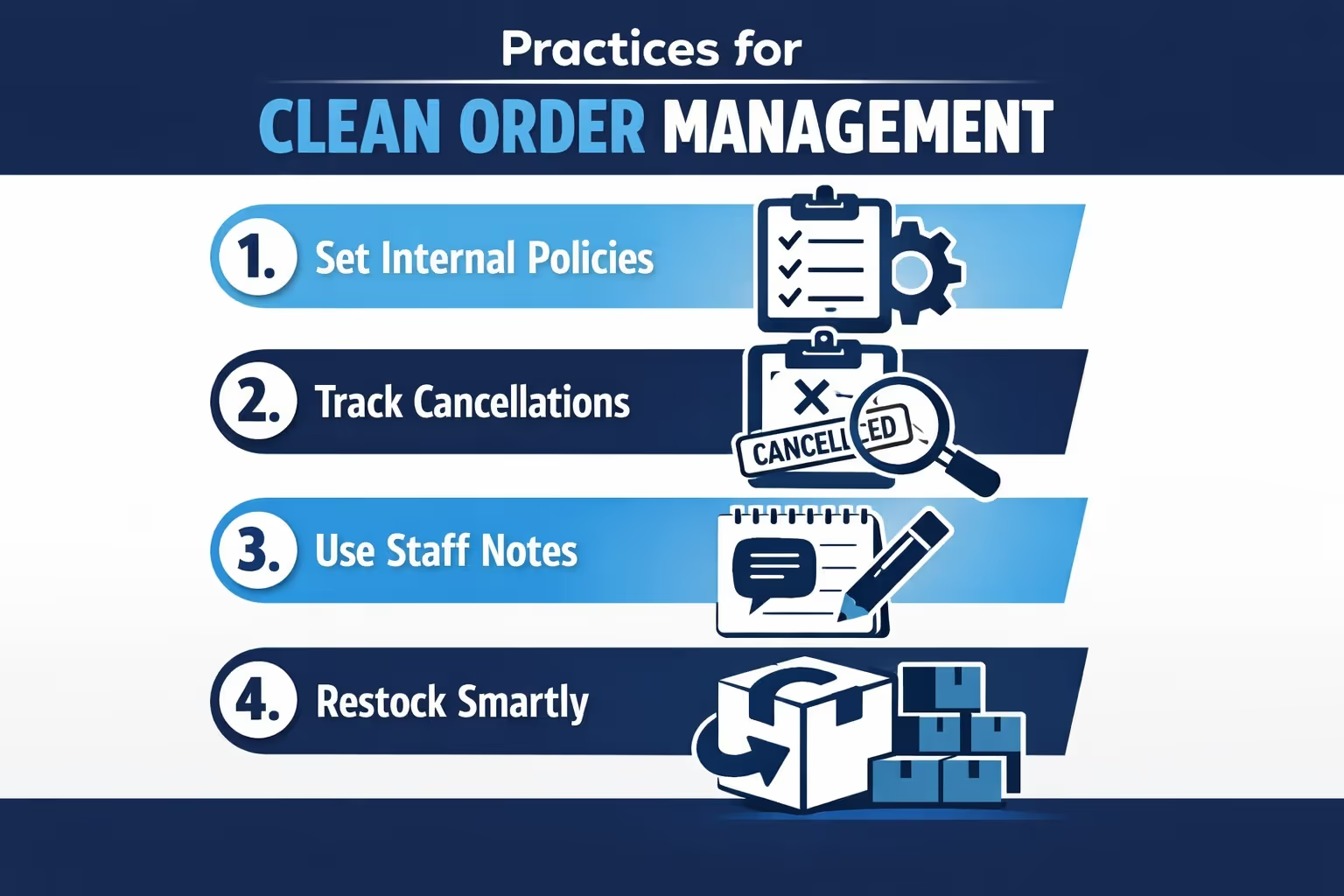
Here are a few quick-fire tips to keep your Shopify order process tidy and stress-free:

Let’s be honest. A lot of order cancellations come down to mismatched expectations. A customer clicks on an ad, thinks they’re getting one thing, and then realizes too late it wasn’t what they wanted. That’s where we come in.
At Extuitive, we help Shopify stores like yours skip the guesswork when it comes to ad creative. Using AI agents modeled after real consumers, we test ad ideas before you even spend a dollar. You connect your store, and we instantly identify your target audience, generate ad concepts, and predict purchase intent. The end result? Fewer misleading ads, fewer confused customers, and fewer orders you have to cancel after the fact.
We’ve built Extuitive to take the friction out of ad testing and help you run campaigns that convert the right people from the start. No more “what went wrong?” moments after a refund. Just clearer messaging, smarter targeting, and ads that actually match what you’re selling. It’s faster, more affordable, and a lot easier to scale.
Canceling orders is part of the job. It doesn’t mean something went wrong – it means you’re adapting. And that’s what running an online store is all about.
If you take a few minutes to understand the mechanics, use the right refund option, and stay on top of your order flow, cancellations don’t have to be stressful. Just part of the rhythm of keeping your store running smoothly.
And hey, if you ever second-guess which button to hit, you're not alone. It’s better to pause and double-check than to click too fast and spend an hour cleaning up.


