A Practical Guide on How to Add Instagram Feed to Your Shopify Store
Bringing your Instagram feed onto your Shopify store isn’t just about showing off nice photos. It’s a way to make your store feel more alive, more trusted, and honestly, more human. Shoppers get to see real posts, real products, and often, real customers using them. The good news? You don’t need to be a developer to make it happen. Whether you want something fast and simple or more tailored, there’s an approach that fits. In this guide, we’ll break down your options so you can get your feed running without overthinking it.
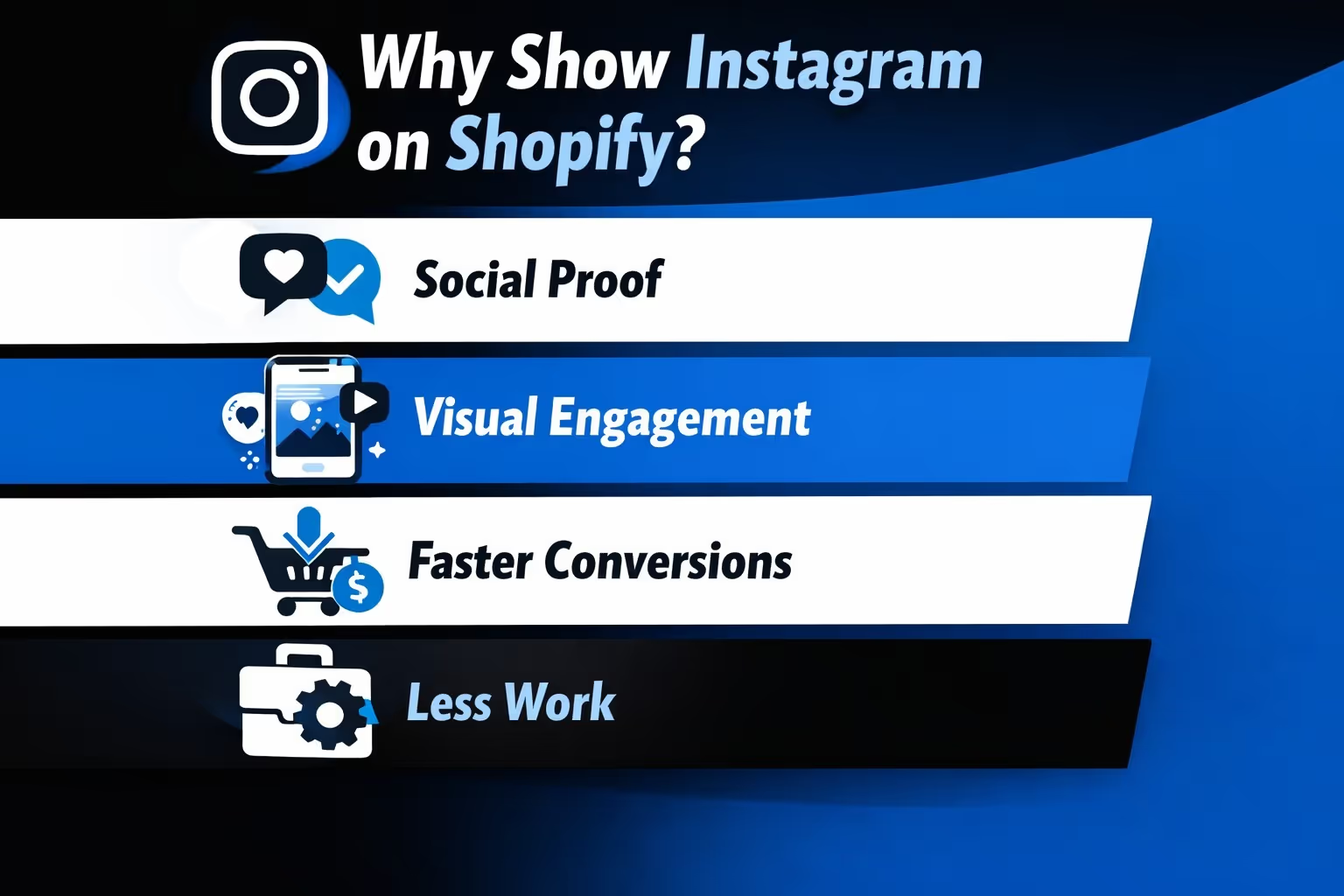
Why Show Instagram on Shopify in the First Place?
Let’s be honest – most Shopify product pages can start to feel a bit too clean. Too perfect. Instagram content brings some realness into the mix. It shows off your products in everyday settings, mixed with customer photos, behind-the-scenes moments, and those “this is how it actually looks” posts.
Some real benefits to keep in mind:
Social proof: Visitors see that others are actually using your stuff.
Visual engagement: It breaks up the product grid with something more dynamic.
Faster conversions: Seeing real posts often builds trust way faster than reading product copy.
Less work: You’re already posting to Instagram anyway, right?.
So, how do you get those posts onto your Shopify site? Let’s go through your options.
The Main Ways to Add Instagram to Shopify
There’s no one-size-fits-all method here, which is a good thing. Depending on how much control you want and how comfortable you are with setup, there are a few solid ways to bring your Instagram feed into your store. Here’s a look at the top options and what each one involves.
Option 1: Use an Instagram Feed App from the Shopify App Store
This is the easiest route, hands down. You pick an app, install it, link your Instagram account, and you’re good to go.
What You’ll Need to Do:
Go to the Shopify App Store and search for “Instagram feed”.
Choose a well-reviewed app.
Click “Install” and follow the prompts.
Log into your Instagram account through Meta’s authorization flow to connect your feed.
Customize how your feed will look (grid, number of posts, image size, etc.).
Decide where to display the feed on your site – homepage, product pages, or its own section.
Hit “Save” and preview your site.
Things to Consider:
Most apps offer free plans, but you might need to upgrade for fancier layouts or shoppable features. You can usually use drag-and-drop in Shopify’s theme editor to place the feed where you want it. These apps automatically keep your feed updated with your latest Instagram posts
Pros:
No coding usually needed
Setup often takes minutes
Easy to maintain
Cons:
Customization can be limited unless you’re on a paid plan
If the app breaks, your feed might disappear
You’re relying on a third-party for functionality
Option 2: Embed Instagram Posts Manually (No App Needed)
If you don’t want to deal with apps or subscriptions, you can embed posts manually. This method isn’t for a full Instagram feed, but works great if you want to highlight specific posts on certain pages.
Here’s How:
Open Instagram on your browser (not the app).
Go to the post you want to embed.
Click the three dots in the top right corner of the post.
Select “Embed”.
Copy the embed code Instagram gives you.
Head over to your Shopify admin.
Go to Online Store > Themes > Customize.
Add a new section or block using “Custom HTML”.
Paste the embed code where you want the post to show.
Save and preview.
Why You Might Like This:
You get full control over which posts are displayed
No ongoing costs
No need to install anything
But Be Aware:
You’ll have to manually update or swap out posts yourself
Not ideal if you want a full feed or automated updates
Basic knowledge of Shopify’s theme editor helps here
This route works well for small stores or product launches where you just want to feature a couple of key posts.
Option 3: Use a Third-Party Instagram Widget Tool
Third-party widget generators are somewhere between using an app and doing it yourself. They’re not on the Shopify App Store, but they do integrate with Shopify by generating HTML widgets you can embed.
How It Usually Works:
Sign up on the tool’s website.
Connect your Instagram account.
Choose your layout and customization settings.
Copy the embed code for your feed.
Log into Shopify and go to Online Store > Themes > Customize.
Add a Custom HTML block or section.
Paste the code.
Save and preview.
Features You Might Get:
Filter posts by hashtag or type (like Videos or Grid)
Show multiple feeds (like UGC and brand posts separately)
Make the feed shoppable
Access to analytics and performance data
Pros:
More control over how things look
Often more flexible than native Shopify apps
Can be used on multiple platforms, not just Shopify
Cons:
Most good features are behind a paywall
You’re dependent on a third-party service, not Shopify
Setup can take a bit longer if the tool is complex
This is a good fit if you want something highly visual or need a branded experience that goes beyond the basics.
Quick Comparison: Which Method Fits You Best?
Method
Best For
Automation
Skill Needed
Cost
Shopify App
Beginners, plug-and-play users
Yes
Low
Free/premium tiers
Manual Embed
Highlighting specific posts
No
Medium
Free
Third-Party Tool
Advanced layouts, multi-feeds
Yes
Medium
Often paid
Where Should You Place the Instagram Feed?
It’s not just what you show, but where you show it. Here are some solid placement ideas:
Homepage Placement
Adding your Instagram feed to the homepage works best when it sits just below your main product grid. It breaks up the layout and adds a more social, lived-in feel without pulling attention away from shopping.
Product Page Integration
Showing Instagram posts on product pages helps customers see how items look in real life. This is especially effective when the content comes from customers who’ve tagged your brand.
Dedicated Instagram Gallery
A separate gallery page makes sense if your feed is carefully styled or heavily curated. It gives you space to tell a visual story without crowding other pages.
Blog or About Page Use
Placing your feed on a blog or About page keeps those sections feeling current and visually interesting. It also gives visitors a better sense of your brand beyond products alone.
No matter where you put it, make sure it doesn’t distract from your store’s main goal - helping people make a purchase.
Bonus: Want to Make the Feed Shoppable?
If you want your Instagram feed to actually drive sales, you can go a step further and make it shoppable.
Here’s What You Need:
A business Instagram account.
A Facebook product catalog connected to Instagram.
Instagram Shopping approved and enabled.
Steps:
Link your Shopify product catalog to your Facebook Business account.
Connect your Instagram business profile to that same Facebook account.
Go to Meta Commerce Manager to set up Instagram Shopping. After approval, product tagging can be done from the Instagram app.
Tag products in your Instagram posts like you would tag a person.
When users tap the post, they’ll see the product and can click through to your store.
This method bridges the gap between discovery and checkout. Customers see a product, tap it, and land on the right product page. No digging around.
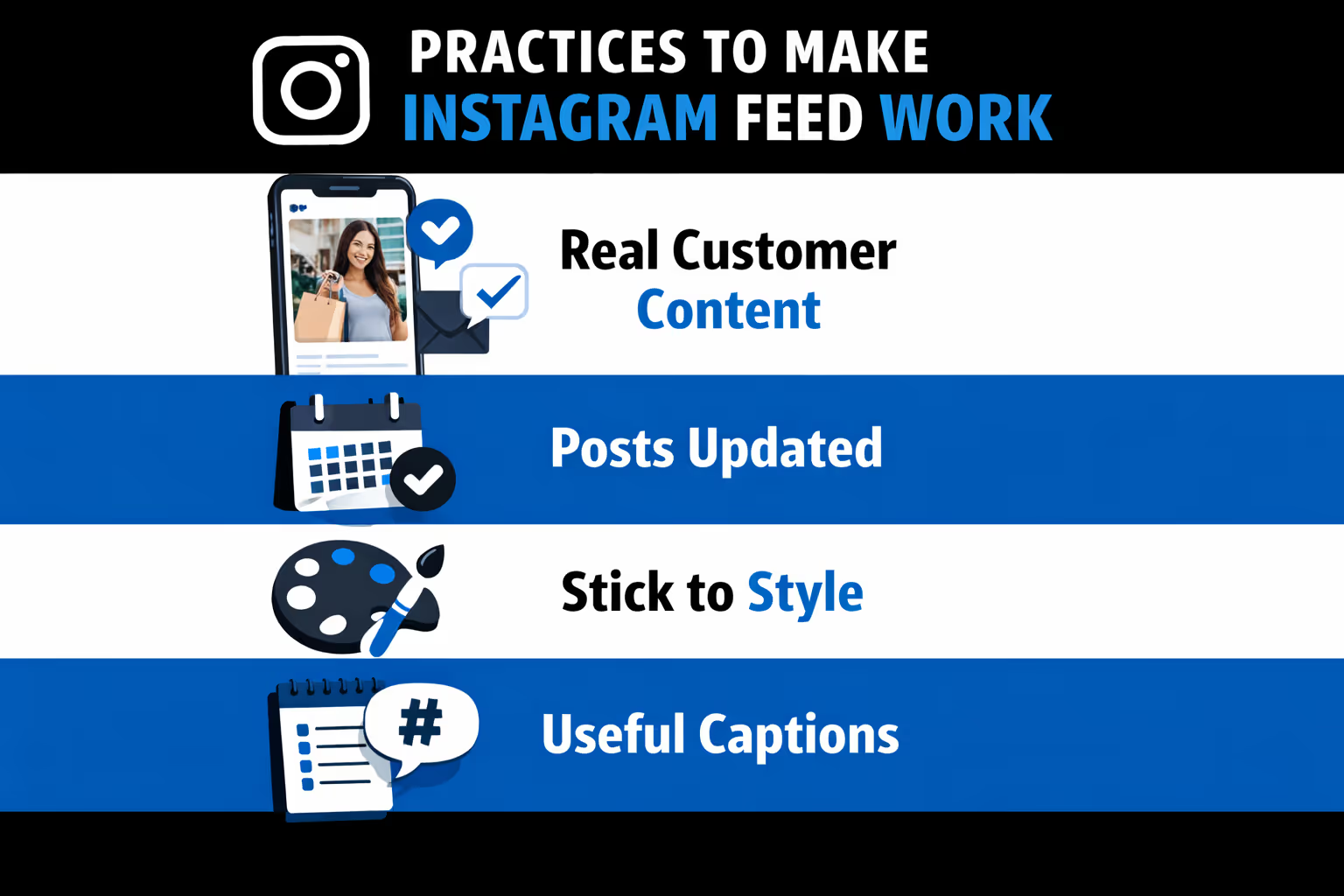
Best Practices to Make Your Instagram Feed Actually Work
Just throwing your feed on the homepage won’t do much if the content doesn’t hit. A few tips to make sure your Instagram strategy delivers:
Use real customer content: People trust people. UGC wins.
Keep your posts updated: Don’t let your feed look stale or abandoned
Stick to a style: Your grid should feel intentional, not random
Write useful captions: Even short text helps tell the story
Mix in product shots: Lifestyle + product = better conversion
Also, keep an eye on how the feed performs. Some apps and tools offer analytics. If people aren’t clicking, it might be time to test different placements or content types.
How We Help Shopify Brands Turn Instagram Content Into Predictable Performance
At Extuitive, we sit right next to your creative workflow. Once you’ve got your Instagram feed showing on your Shopify store, the next question is: which of these posts are actually going to convert? That’s where we come in. Our prediction engine tests ad concepts before you launch them, using AI models built from real campaign results. We help you figure out what to run and what to skip – fast.
If you're using Instagram content in ads or thinking about turning those shoppable posts into paid campaigns, we give you the signal you need before spending budget. Our platform connects directly with your Shopify store, so you can automatically analyze product data, ad ideas, and customer behavior in one place. It’s not about watching what competitors are doing. It’s about knowing which of your own ideas are ready to go live, and which ones need work.
Final Thoughts
Integrating your Instagram feed into Shopify isn’t a luxury add-on anymore. It’s a simple, effective way to make your store more personal, more visual, and more trusted. Whether you’re using a drag-and-drop app, a bit of HTML, or a polished third-party tool, the point is to keep shoppers engaged and move them closer to a purchase.
Pick the method that fits your skill level and how much control you want. Keep your feed fresh. Show real content. And let Instagram do a little bit of selling for you.
FAQ
1. Do I need a business Instagram account to add the feed to Shopify?
Technically, no. If you’re just displaying a regular feed using an app or embed code, a personal account will work. But if you want to make it shoppable or connect it to Meta’s product catalog, then yes, you’ll need to switch to a business profile.
2. Will my Instagram feed update automatically once it's added?
If you're using a Shopify app or a third-party tool, many of them can refresh your feed automatically, but some may require reauthorization after a period. But if you're embedding posts manually, you're in charge of updating it yourself. No auto-magic in that case.
3. Can I choose where the feed appears on my site?
Yes, placement is totally up to you. Most apps and embed tools let you pick the exact section – homepage, product pages, footer, wherever. Just make sure it’s not buried where nobody scrolls.
4. Is it possible to only show posts with a specific hashtag?
Some third-party tools let you filter your feed by hashtag, which is useful if you’re running a campaign or just want to display UGC. You won’t get that kind of filtering with manual embedding or most free apps.
5. Will adding an Instagram feed slow down my site?
A little, maybe, but nothing drastic if the app or tool you’re using is well-built. Try to keep the feed lean (not 30 posts wide) and don’t overload your homepage with too many widgets at once.
6. Can I make Instagram posts shoppable directly from the feed on Shopify?
You can, but it takes a few extra steps. You'll need to get approved for Instagram Shopping, connect your product catalog, and use a tool that supports shoppable feeds. It’s a bit of setup, but it’s doable.
7. What if I don’t want to use an app, can I still do this myself?
Absolutely. If you’re comfortable poking around in Shopify’s theme editor, embedding individual posts using Instagram’s embed code is totally fair game. You’ll just trade ease-of-use for more control (and more manual work).
How much are you wasting on Meta ads? Connect your ad account. See your ad efficiency.