AI Tools for Ecommerce That Make a Real Difference
A practical list of AI tools for ecommerce - from ads to content and analytics - with real use cases and no fluff.
Apr 13, 2026



There are moments when your online store just isn’t ready for the world yet. Maybe you’re still setting things up, redesigning your theme, or planning a quiet launch for a small group of people.
That’s where password protection comes in.
With Shopify, you don’t need apps, code, or workarounds to lock your store. A built-in setting lets you hide your storefront behind a password in a few clicks. Simple, clean, and reversible whenever you’re ready to go live.
In this guide, I’ll show you exactly how to put a password on your Shopify store, plus what to keep in mind so it works smoothly for you and your visitors.
There are plenty of reasons why you might not want everyone seeing your online store right away. Maybe you are still building product pages. Maybe you are testing a new theme. Or maybe you are planning a private launch and only want a small group of people inside.
Whatever the reason, putting a password on your store is one of the simplest and most practical things you can do as a Shopify merchant.
The good news is that Shopify already includes this feature out of the box. You do not need an app. You do not need to write code. And you can turn it on or off whenever you want.
In this guide, I will walk you through how Shopify password protection works, how to enable it properly, how to manage access for your team, and what to think about before and after you lock your store. The goal is not just to show you the steps, but to help you use this feature in a smart, intentional way.
Before jumping into settings, it helps to understand what Shopify password protection actually is and what it is not. When you enable a password on your Shopify store, you are placing a lock on your entire storefront. Anyone who visits your store URL will see a password page instead of your homepage. They cannot browse products, collections, or content unless they enter the correct password.
This feature is designed mainly for temporary use. It is ideal for pre-launch periods, maintenance windows, or exclusive access scenarios. It is not meant to replace customer accounts or paid memberships.
Understanding these basics helps avoid confusion later, especially if you are working with a team or external partners.
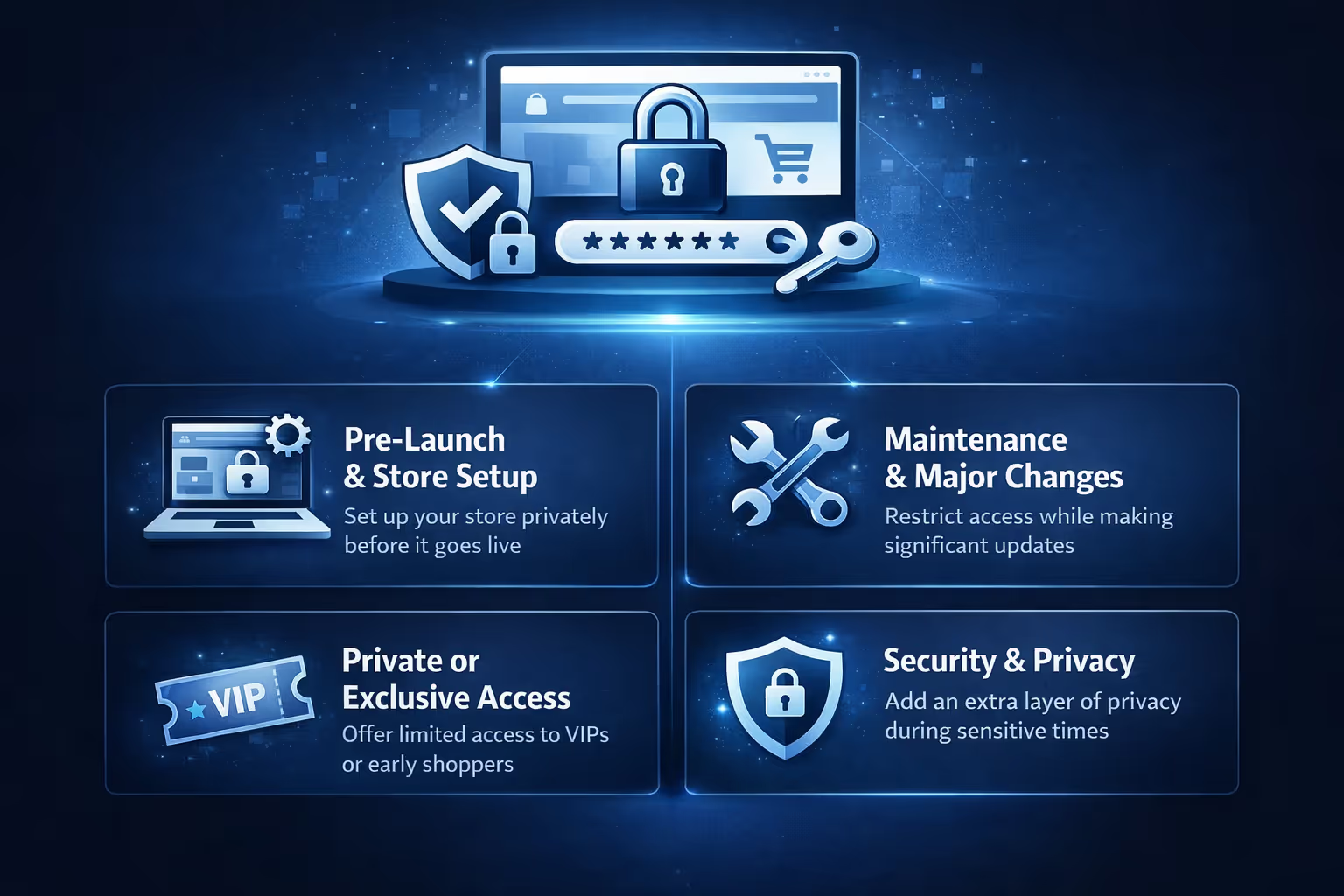
Password protection is not just a technical setting. It is a business tool. When used intentionally, it gives you control over timing, visibility, and first impressions. Here are some of the most common and practical reasons merchants use it.
This is the most common use case. When you are still setting up products, pricing, shipping rules, or design elements, the last thing you want is random visitors stumbling into an unfinished store. A password gives you breathing room. You can work without pressure, test things properly, and launch when everything feels ready.
If you are making big changes like switching themes, restructuring collections, or testing new checkout flows, a password can act like a temporary maintenance mode. Instead of confusing customers with broken layouts or half-finished updates, you pause public access until everything is stable again.
Some brands use passwords to create a sense of exclusivity. This might be for:
In these cases, the password is part of the experience, not just a barrier.
While password protection is not a replacement for full security practices, it does add an extra layer of privacy. It prevents competitors, scrapers, or casual browsers from seeing pricing strategies, product ideas, or unreleased content.

Extuitive becomes most useful when we treat the pre-launch phase as a moment for real validation, not just preparation. Before traffic ever hits the store, we can generate ad concepts, test visuals and copy, and see how different audiences are likely to respond. Instead of relying on instinct or expensive research, we get fast feedback powered by AI models trained on real consumer behavior. That shifts early decisions from guesswork to something far more grounded.
What makes this especially relevant for Shopify stores is how naturally Extuitive fits into the workflow. We connect the store, generate creative tailored to actual products, validate it against hundreds of thousands of simulated consumers, and only then move forward. Ads can be launched and tracked without rebuilding everything from scratch, which saves both time and budget. For teams that want to launch confidently, not experimentally, this approach changes the entire rhythm of go-to-market planning.
Enabling password protection takes only a few minutes. The steps are straightforward, but it helps to know exactly where to look.
Start by logging into your Shopify admin dashboard using your store owner credentials. You must have permission to manage store preferences.
In the left-hand menu, click on Online Store. From the dropdown, select Preferences. This is where Shopify stores global settings related to your storefront, including password protection.
Scroll down until you see the Password protection section. Depending on your screen size, this may be near the middle or lower part of the page. You will see options to enable the password and set a message for visitors.
Check the box or toggle that enables password protection.
Then:
This message matters more than people think. It is your only chance to explain why the store is locked and what visitors should expect next.
Click Save. That is it.
Your store is now password-protected. If you open your store URL in an incognito window, you should see the password page immediately.
The default password page message is basic. While it works, it does not say much about your brand or your intentions. A well-written message can reduce confusion, set expectations, and even build anticipation.
When writing your password page message:
For example, instead of saying “Store is locked”, you might say:
“We are putting the finishing touches on our store. We will be live soon. Thanks for your patience.”
Small details like this make the experience feel intentional instead of accidental.
It might be tempting to use something obvious like “1234” or “shop”, especially if the store is only closed temporarily. This is not a good idea. A weak password can be guessed easily, particularly if it is shared publicly or with a large group.
When choosing a password:
If you are running an exclusive event, consider using a password specific to that event and changing it afterward.
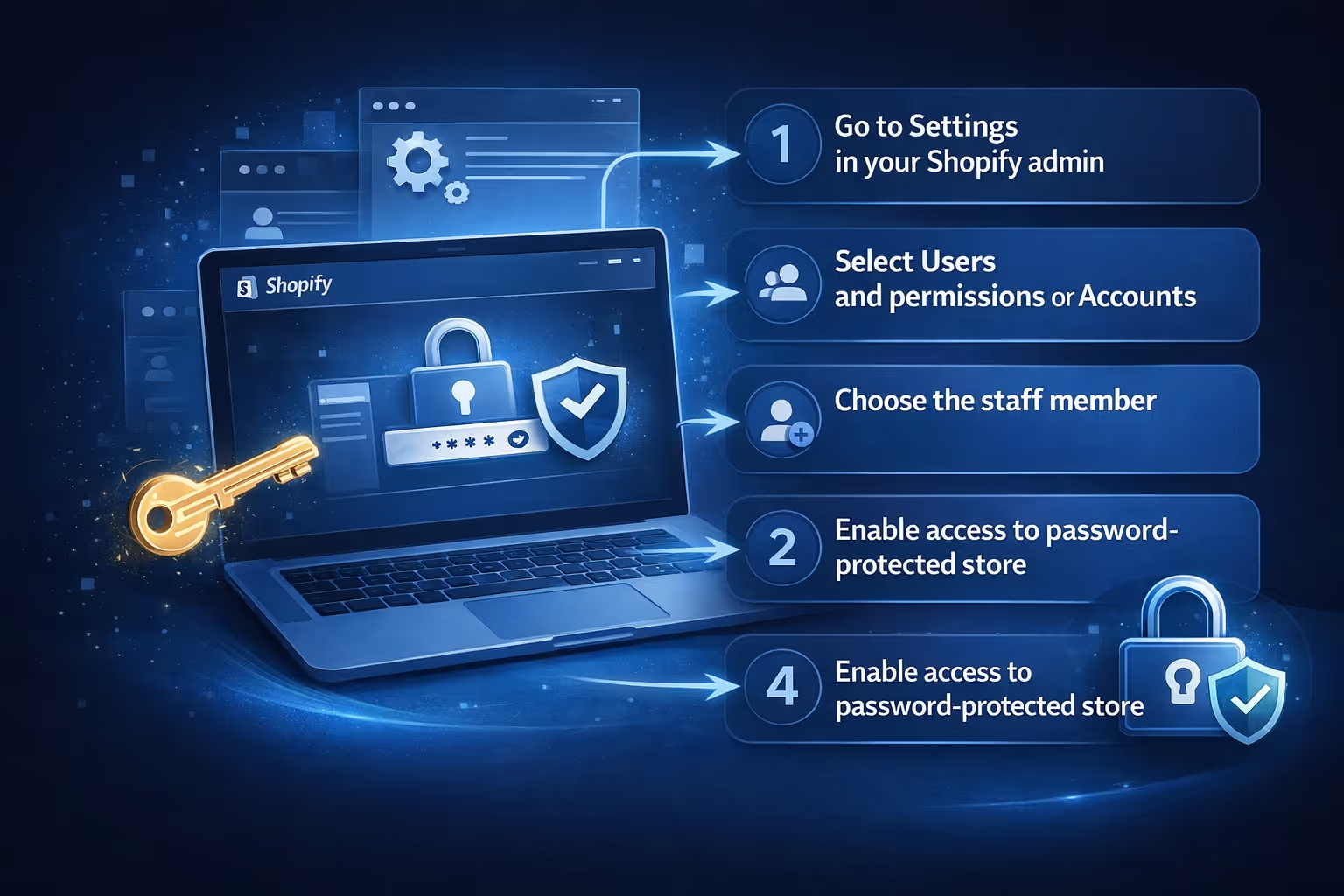
One common concern is whether staff members can still work on the store when password protection is enabled. The answer is yes, but permissions matter.
Staff members who have access to the Shopify admin can log in and work normally. However, if they need to view the storefront itself while it is locked, there is a specific permission to check.
To manage this properly:
This ensures your team can test changes, preview layouts, and check functionality without running into access issues. Also, be careful about how you share the password with staff. Avoid sending it in plain text emails. Use secure messaging tools or password managers when possible.
Removing password protection is just as easy as enabling it.
Here is how to do it cleanly.
Once saved, your store becomes publicly accessible immediately. It is a good idea to test this in an incognito window to confirm everything is live.
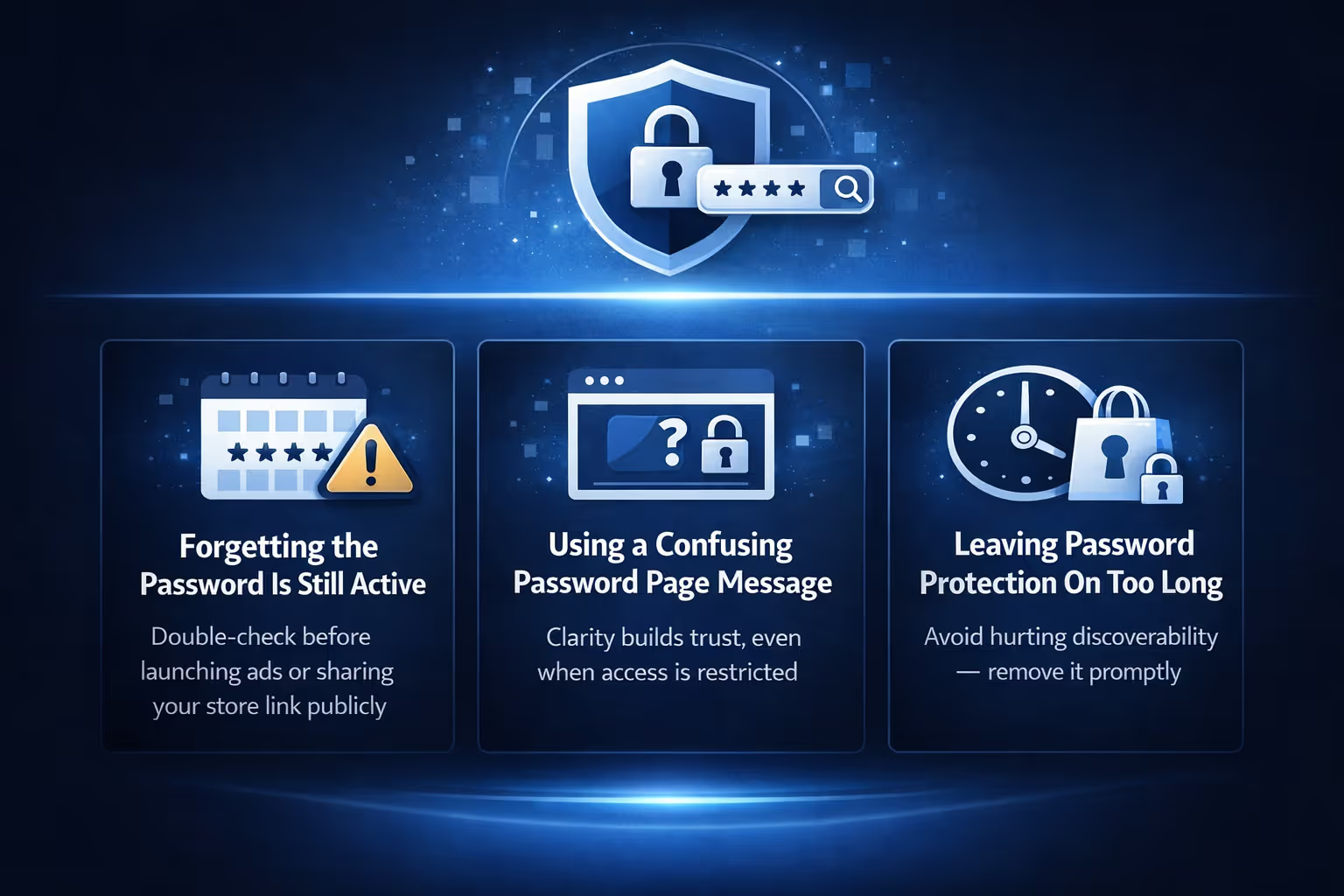
Even though this feature is simple, there are a few common mistakes that can cause frustration.
It happens more often than you would think. Merchants finish setup, start marketing, and forget to remove the password.
Always double-check before launching ads or sharing your store link publicly.
If visitors land on a password page with no explanation, they may assume the site is broken or untrustworthy.
Clarity builds trust, even when access is restricted.
As mentioned earlier, long-term password protection can hurt discoverability and momentum. Use it intentionally and remove it promptly.
Adding a password to a Shopify store is one of those simple moves that can save a lot of stress later. It lets us slow things down when we need to, keep unfinished work out of public view, and choose the right moment to open the doors. Most importantly, it gives us control. Control over timing, over visibility, and over how people first experience the store.
When we use password protection intentionally, it stops being a panic button and starts becoming part of a smarter workflow. We can build, test, adjust, and even experiment without feeling rushed. Then, when everything looks right and feels ready, removing the password is easy. The store goes live cleanly, with confidence behind it, not crossed fingers.


