Marketing Ideas for Aviation Professionals (2026 Guide)
Discover proven marketing ideas for aviation professionals. Learn strategies, data-driven tactics, and real-world examples to grow your aviation business.
Jun 6, 2026



If you’ve ever browsed a Shopify store and thought, “This looks clean,” or “I like how this is laid out,” that’s the theme doing the heavy lifting. A Shopify theme controls how your store looks, feels, and behaves – from the homepage to the product pages to the cart. It's not just about pretty colors. It shapes the entire customer experience, and choosing or customizing the right one can make a real difference in how your brand is perceived.
If you're planning to sell online through Shopify, understanding themes is essential. Whether you're a DIY merchant, a developer, or somewhere in between, in this guide, we’ll discuss everything about Shopify themes you may need to know.
A Shopify theme is the design framework that controls how your online store looks and feels. It sets the layout of your pages, the structure of your content, and the way your customers interact with your products. From fonts and colors to navigation and checkout flow, your theme shapes the entire shopping experience.
Every Shopify store starts with a default theme, but you’re not stuck with it. You can pick from free or paid options, tweak layouts using Shopify’s theme editor, or even build your own from scratch. Whether you’re going for clean and minimal or bold and packed with features, the theme is where it all begins.
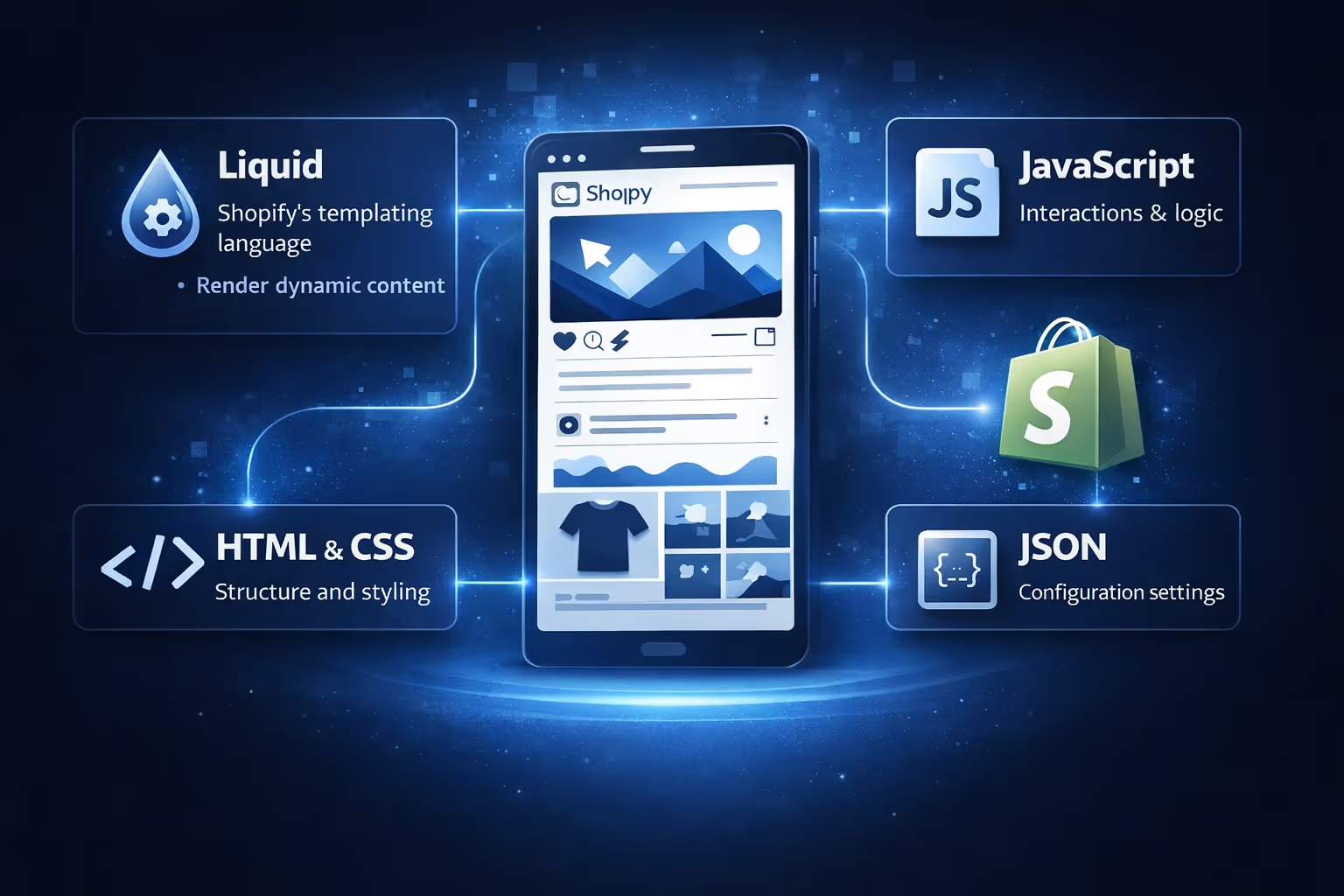
Let’s clear something up right away: a Shopify theme is not just a bunch of colors and fonts. It’s a structured system of layout templates, reusable components, and styling that collectively make your store work the way it does.
Under the hood, themes are built using:
But unless you’re developing a custom theme from scratch, you won’t need to mess with that. Most merchants use Shopify’s theme editor or start with an existing theme and tweak what’s needed.
Shopify themes use a modular system made up of templates, sections, and blocks. This setup gives merchants the flexibility to rearrange or replace content without touching code.
Templates control the structure of individual pages – product pages, collection pages, blogs, etc. Each one defines how the content on that page is arranged. They act as the foundation, telling Shopify which sections to load and in what order, depending on the page type.
Sections sit within templates. Think of these as customizable areas – banners, product info panels, featured collections, and so on. You can mix and match sections, adjust their order, and even use different ones for different templates to create unique layouts across your store.
Blocks live inside sections. They’re the smallest unit – like a text field, image, or button. Merchants can add, remove, and rearrange them to customize layouts, giving them fine-tuned control over specific pieces of content without editing any code.
You can have:
This makes Shopify themes highly flexible, even if you’re not a developer.

When you're ready to pick a theme, Shopify gives you three main options:
You can preview any theme before committing, and even test multiple ones at once. That said, only one theme can be live at any given time.
Depending on your needs, you can add themes to your store in a few different ways:
Each added theme goes to your Theme Library. You can switch between them, test seasonal variations, or keep copies to try changes without touching your live store.
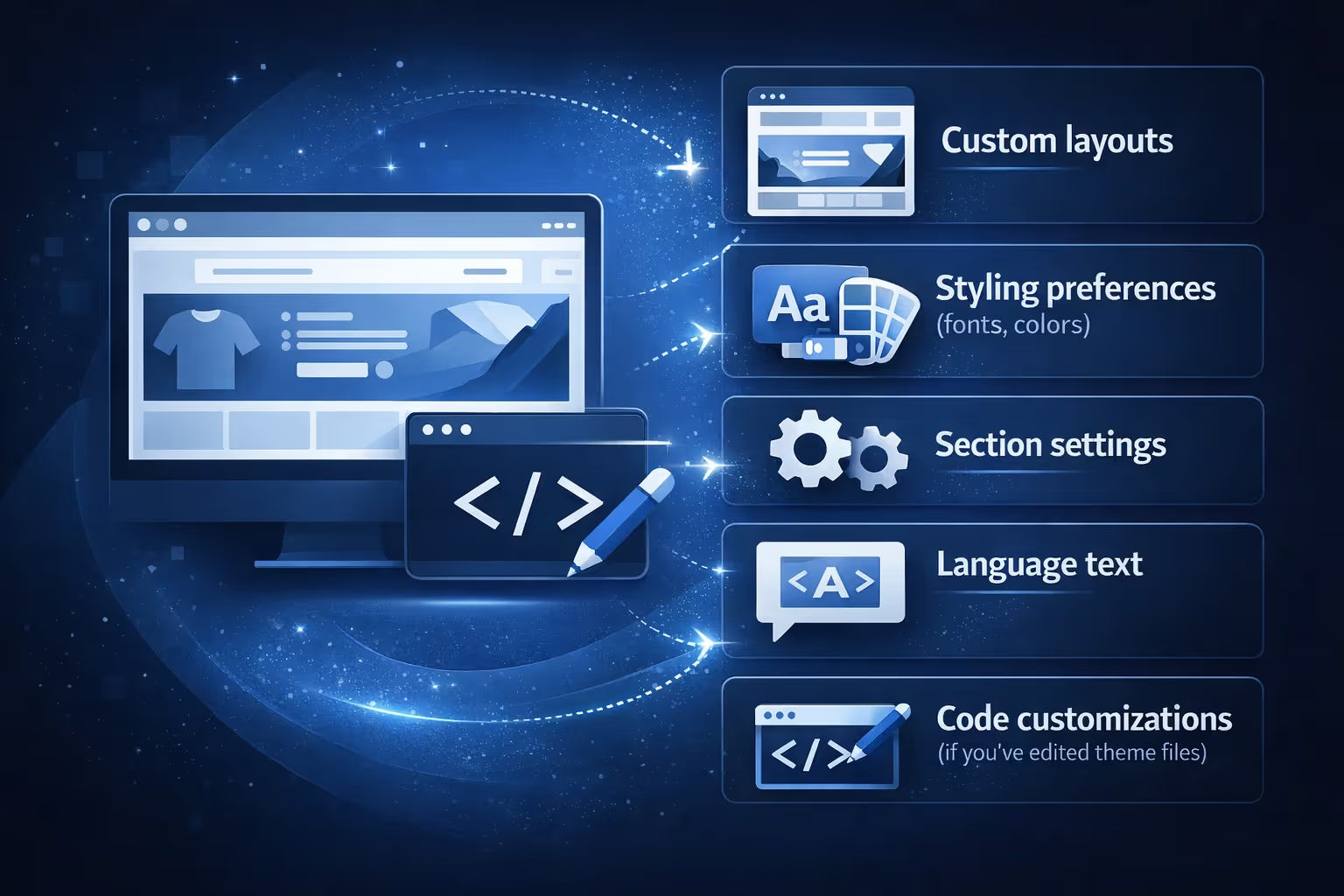
Switching themes doesn’t delete your store’s content. Products, pages, blogs, and collections are all stored separately in your Shopify admin. But themes carry their own:
If you publish a new theme, these don’t automatically transfer from the old one. That’s why it’s smart to customize and preview a new theme thoroughly before going live.
Before you commit to publishing a theme, Shopify lets you preview how it looks. You can even share the preview link with your team or clients for feedback.
There are two types of theme preview. Visitor preview doesn’t require login and expires in 2 days. Merchant preview is admin-only and it stays active for 30 days.
It’s a good way to test how a theme feels with your actual content before pushing it live.
The Shopify Theme Store has dozens of options. Instead of getting overwhelmed, focus on what your business actually needs.
Here are some questions to guide you:
Shopify’s theme store lets you search by feature (like “FAQ page” or “sticky navigation”) and by industry (fashion, electronics, etc.). You can use these filters to find something close to what you need and tweak from there.

Once you've settled on a Shopify theme and your store starts taking shape, the next big question becomes: will your ads actually perform? That’s where we come in.
At Extuitive, we help Shopify brands stop guessing and start predicting. Our AI-powered engine forecasts how your ads are likely to perform before you spend money pushing them live. Whether you're testing a fresh layout, launching new product pages, or tweaking your homepage design, we give you insight into how those changes may impact your campaign results. No guesswork. No wasted spend.
We’ve built Extuitive to run fast, analyze at scale, and give you real-world predictions based on actual outcomes. If you’re investing time and effort into building the right store experience, your ads should be just as smart.
When you buy a paid theme, the license is tied to the store you purchased it for. If you try to use it on another store, you’ll run into issues with updates and support.
Also:
So, try before you buy.
Let’s say you're a jewelry brand. You want elegance, big product photos, and minimal distraction. A theme like “Dawn” or a minimalist paid option might work perfectly.
But if you're running a high-SKU electronics store with lots of filters and variants, you’ll need something more structured, maybe with advanced navigation and search built in.
Themes set the tone for product discovery, trust, professionalism, mobile responsiveness, speed, and SEO.
Your theme isn’t just decoration. It shapes how people shop in your store.

Even with all the tools and guidance, it's easy to make a few missteps when picking or working with a Shopify theme. Here are some of the more common ones we’ve seen store owners run into, and how to steer clear of them:
If your Shopify store is your digital storefront, the theme is the layout, the lighting, and the customer flow all in one. It’s what makes your products easy to find, your brand feel consistent, and your checkout smooth.
You don’t have to be a developer to get it right, but you do need to spend time exploring your options and understanding how themes work.
Start small. Preview a few. Test what fits your products. And when in doubt, go with what feels easiest to manage day to day. Because a great theme isn’t the flashiest one – it’s the one that works quietly in the background while you focus on growing your business.


