Top Shopify Marketing Agencies in San Jose- Honest Overview 2026
Discover leading Shopify marketing agencies in San Jose. Expert paid ads, SEO, and growth strategies for brands looking to scale their stores fast.
Mar 24, 2026



Shopify promises a fast path from idea to online store. And in many ways, that promise is real. You can sign up, click around for an hour, and already see something that looks like a store. The problem is not getting started. The problem is knowing what to do next, and why.
Most first-time store owners get stuck in the same places. They tweak design too early. They add apps without a plan. They rush into marketing before the basics are solid. Shopify itself does not stop you from doing any of that, which is both its strength and its weakness.
This guide is written for people who want clarity. Not just how to click buttons, but how to think about using Shopify in a way that stays manageable as your store grows. We will move step by step, from account setup to launch, focusing on the parts that actually matter when you are new.
Before touching the dashboard, it helps to understand what Shopify does and what it does not do.
Shopify is a hosted commerce platform. That means it handles the technical foundation for you. Hosting, security, checkout infrastructure, updates, and payments are all built in. You are not managing servers or installing software. You log in through a browser and run everything from there.
What Shopify does not do is run your business for you. It does not choose products, set prices, write copy, or decide your strategy. The platform gives you tools. How well your store works depends on how you use them.
This distinction matters. Many frustrations come from expecting Shopify to make decisions that are still yours to make.
The first step is straightforward. You create a Shopify account using an email address and a store name. Shopify starts you on a short free trial, followed by a low-cost introductory period. During this time, you can explore almost everything without committing long term.
When Shopify asks questions during signup, such as what you plan to sell or your current revenue, do not overthink it. These answers mostly affect onboarding tips and defaults. You can change everything later.
Once your account is created, you land in the Shopify admin. This is your control center. Every store, no matter how large, runs through this same interface.
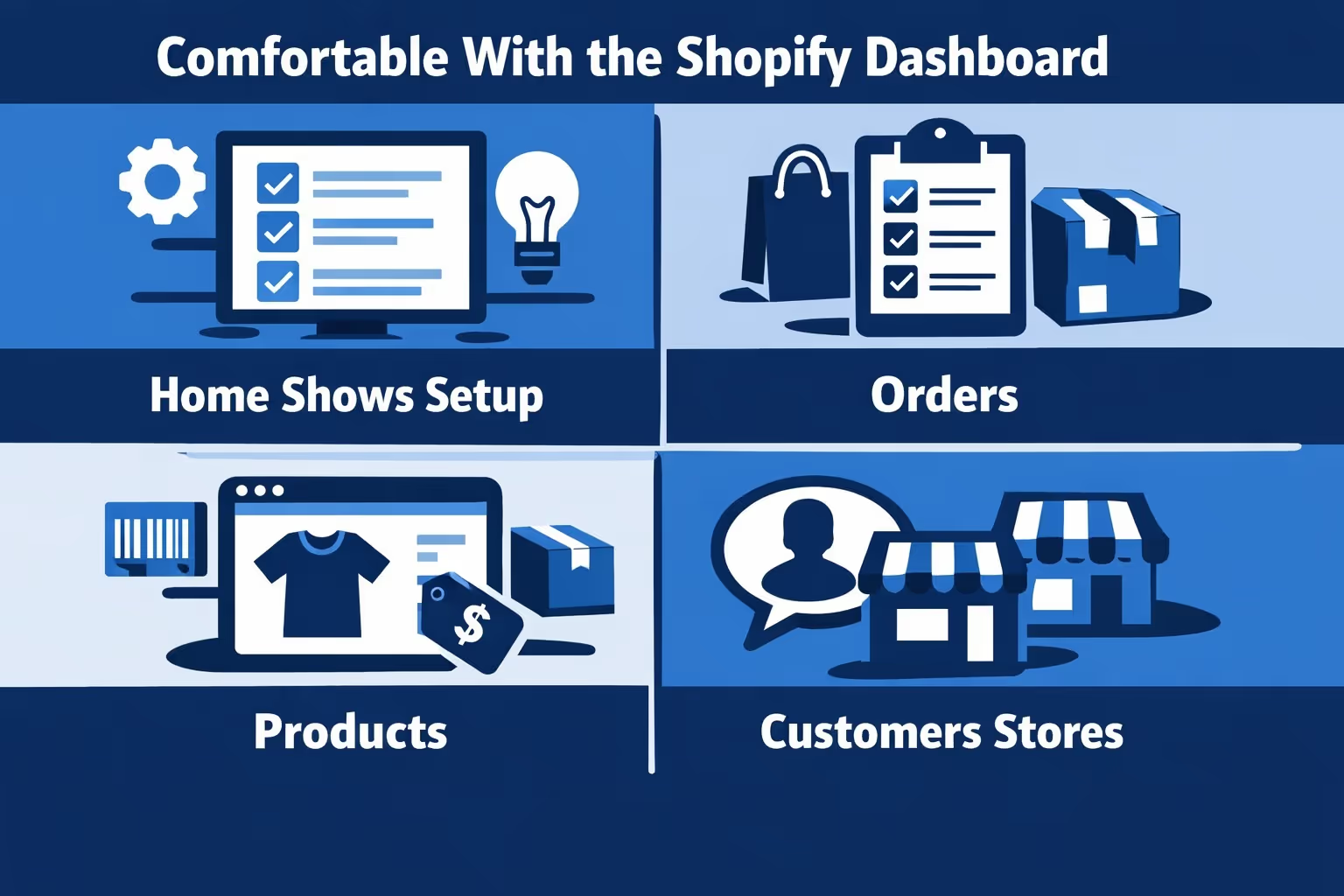
The dashboard can feel busy at first. It has many sections, but each one serves a clear purpose.
You do not need to master everything at once. In the early stage, most of your time will be spent in Products, Online Store, and Settings.
Adding products is one of the first real tasks, and also one of the most misunderstood.
Each product has several key elements:
Many beginners rush through this. That usually shows later.
Write product descriptions for humans first. Clear language beats clever wording. Explain what it is, who it is for, and what problem it solves. Images matter more than most people expect. A few clean, honest photos often outperform a dozen average ones.
If you are not ready to add every product, start with a small set. A focused store is easier to design, test, and improve.
Collections help structure your store. They control how products appear in menus and on category pages.
Shopify offers two types:
Automated collections save time once you understand them. For example, you can create a collection that always shows new arrivals or items under a certain price.
Collections are not just organizational tools. They shape how customers browse and how search engines understand your store.

Once you’ve organized your products and set up your Shopify store, the next challenge is figuring out how to effectively promote those products and drive meaningful traffic. That’s where Extuitive steps in, helping Shopify store owners take the guesswork out of ad creation and marketing.
By connecting your Shopify store to Extuitive, you gain access to an AI-powered platform that uses real behavioral data to generate and validate product and ad concepts. Our ecosystem of 150,000 AI consumer agents acts like an always-on focus group, testing everything from copy and visuals to pricing and video ideas before you launch any ads. This allows you to quickly identify the high-performing concepts while filtering out weak ones.
Instead of spending weeks on research and testing, Extuitive lets you create, validate, and launch ads in minutes, at a fraction of the cost. With our AI handling ideation and experimentation, you can focus on running your store, improving your products, and scaling what truly works.
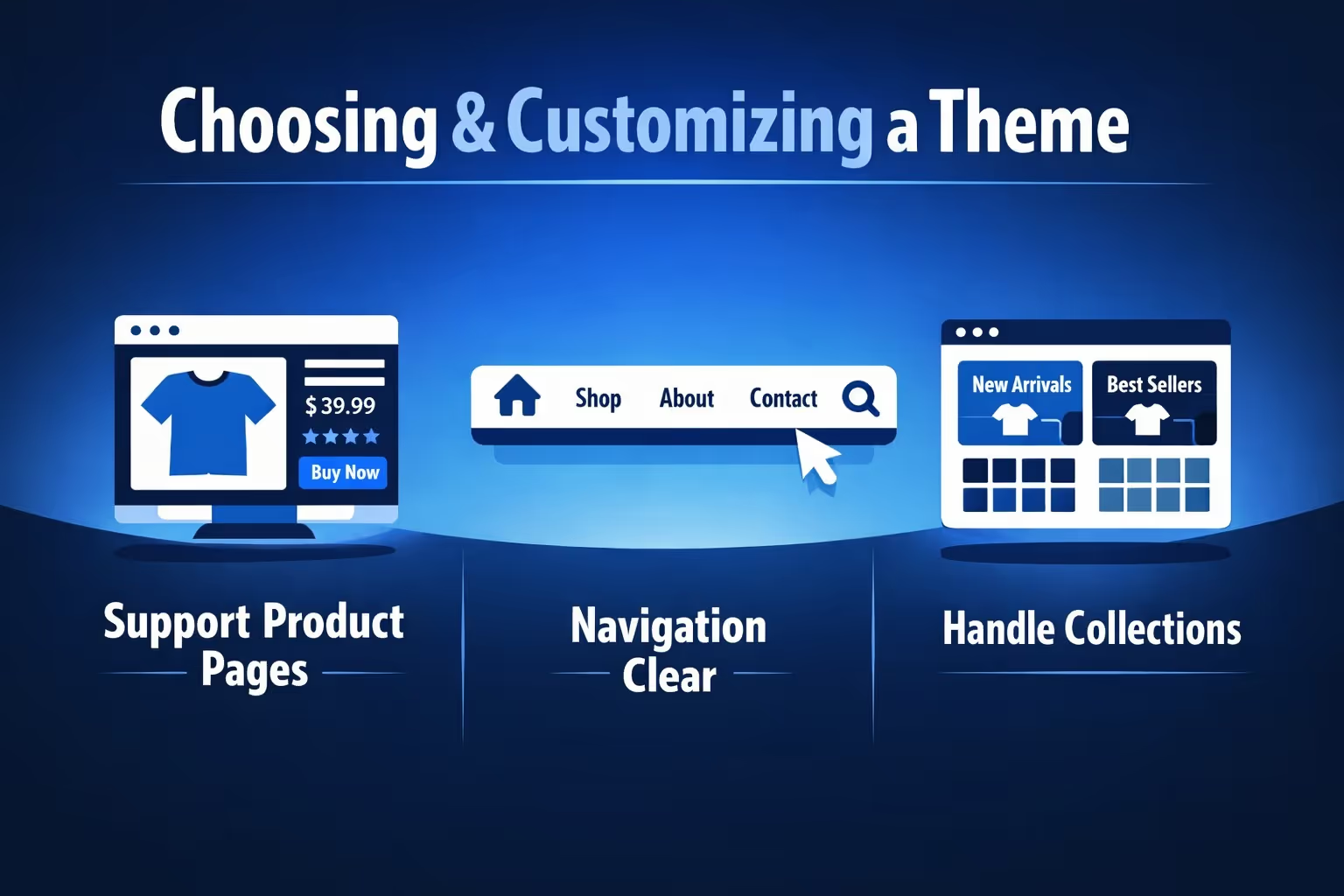
Themes control how your store looks and feels. Shopify provides free and paid themes through its theme store.
When choosing a theme, ignore demo content. Focus on structure.
Ask yourself:
Customization happens inside the theme editor. You can change text, images, layout sections, colors, and fonts without code. It is tempting to tweak everything at once. Resist that.
Start simple. Make sure your homepage explains what you sell within a few seconds. Make product pages readable. Save deeper design work for later, once you have traffic and feedback.
Payments are configured in Settings under Payments.
Shopify Payments is the simplest option if it is available in your country. It lets you accept cards and popular payment methods without extra transaction fees from Shopify.
You can also connect third-party gateways or offer manual payment methods such as bank transfer or cash on delivery.
Test payments before launch. Shopify allows test orders so you can walk through checkout without charging real cards. This step catches many small but costly mistakes.
Shipping settings often get postponed, then rushed at the last minute. That is risky.
Shipping affects:
Shopify lets you set shipping zones, rates, and delivery methods. You can offer flat rates, calculated rates, or free shipping.
If you plan to offer free shipping, build the cost into your product prices. Customers rarely object to slightly higher prices with free shipping, but they do abandon carts over unexpected fees.
If you ship internationally, pay attention to duties and taxes. Shopify provides tools, but responsibility still falls on you to understand what applies.
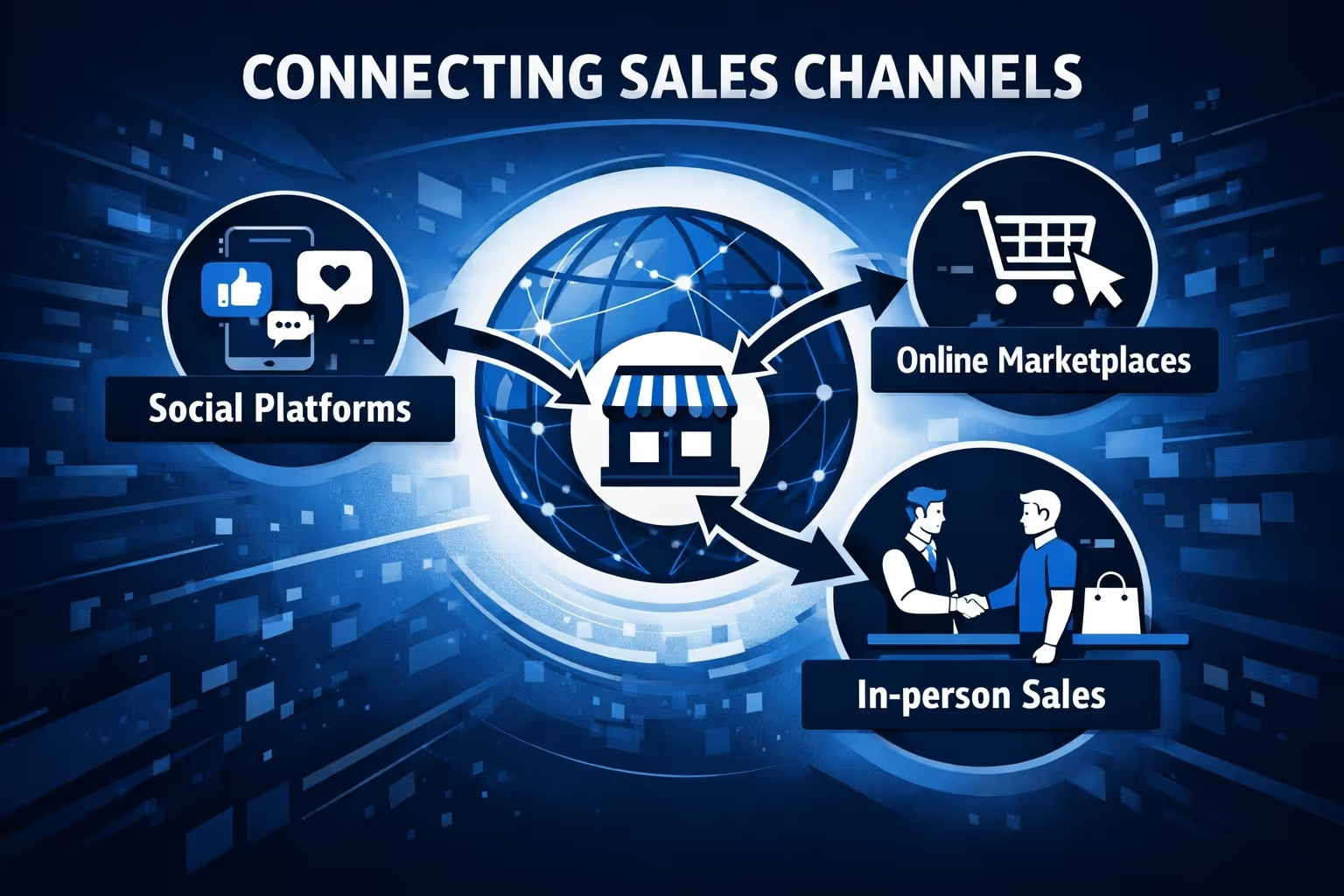
Your online store is the core of your Shopify setup, but it does not have to be the only place you sell. Shopify lets you connect additional sales channels so products, inventory, and orders stay in sync.
Platforms like Instagram, Facebook, TikTok, and YouTube allow customers to discover and buy products without leaving the app. These channels work well for visually driven products and impulse purchases. They also shorten the path from content to checkout, which can lift conversion when used carefully.
Marketplaces such as Amazon, Etsy, Walmart, or eBay give you access to existing demand. Customers are already searching there, which reduces the effort needed to attract traffic. The tradeoff is lower control over branding, higher fees, and stricter rules. Many store owners use marketplaces as an acquisition channel, then focus on growing their own site over time.
If you sell at a physical location, pop-up shop, or event, Shopify POS keeps online and offline inventory connected. Sales made in person update your stock automatically, and customer profiles stay unified. This setup avoids double counting inventory and gives a clearer picture of overall performance.
Every new channel adds operational complexity. More orders, more customer messages, and more fulfillment scenarios. Start with the channel your customers already use most. Once your core store runs smoothly, expanding to additional channels becomes much easier to manage.
Shopify includes several built-in marketing tools that are easy to miss, especially when third-party apps promise faster results. You can create email campaigns, recover abandoned carts automatically, generate discount codes, and see where your traffic is coming from. These features are already connected to your store data, which makes them reliable and simple to use without extra setup.
They are not designed to be flashy, and that is their strength. Before investing in paid ads or complex marketing stacks, it is worth learning how these tools work together. Understanding how customers arrive at your store, what they view, and where they drop off gives you far more leverage than running campaigns without context.
Before going live, walk through your store as if you were a customer seeing it for the first time. Check how navigation works on mobile, read through product pages, and move through the full checkout flow. Pay attention to confirmation emails as well. These details shape trust and confidence more than most people expect.
Place test orders using Shopify’s test mode and try different payment options and discount codes. If anything feels confusing or awkward, fix it before real customers encounter it. Shopify password-protects new stores by default, so removing that password is the final step that makes your store publicly accessible.
Launching is not the finish line. It is the starting point. Once real visitors arrive, focus on learning from their behavior. Gather feedback, improve product pages, clarify your messaging, and test small changes over time.
Avoid chasing every new feature or update. Shopify evolves constantly, but your store benefits more from steady improvements than from frequent rebuilds. Progress usually comes from refining what already works, not from starting over.
A few patterns show up again and again, especially during the first weeks of using Shopify.
None of these mistakes are fatal. Most store owners make at least one of them. Spotting them early simply saves time, money, and a lot of unnecessary frustration.
Shopify is powerful because it stays out of your way. That freedom can feel uncomfortable at first. There is no single right path, no perfect setup.
The goal is not to build a flawless store on day one. The goal is to build a store you understand and can improve over time.
If you use Shopify thoughtfully, it scales with you. From a simple idea to something much bigger. One clear step at a time.


