The Best AI-Powered Ads Managers for Smarter Campaigns
Discover the top AI-driven ads managers that simplify and optimize your digital marketing campaigns. Unlock smarter, more effective advertising today.
Jan 6, 2026



Setting up payments is one of those steps that feels simple on the surface, but can quickly get messy if you rush it. Shopify Payments removes a lot of friction by letting you accept card payments directly inside Shopify, without signing up for separate gateways or juggling extra dashboards.
That said, the setup still matters. Eligibility rules, business details, bank accounts, and security checks all play a role. Miss something early, and you might run into delays later when orders are already coming in. This guide walks through how Shopify Payments works and how to set it up properly, so you can start accepting payments with fewer surprises.
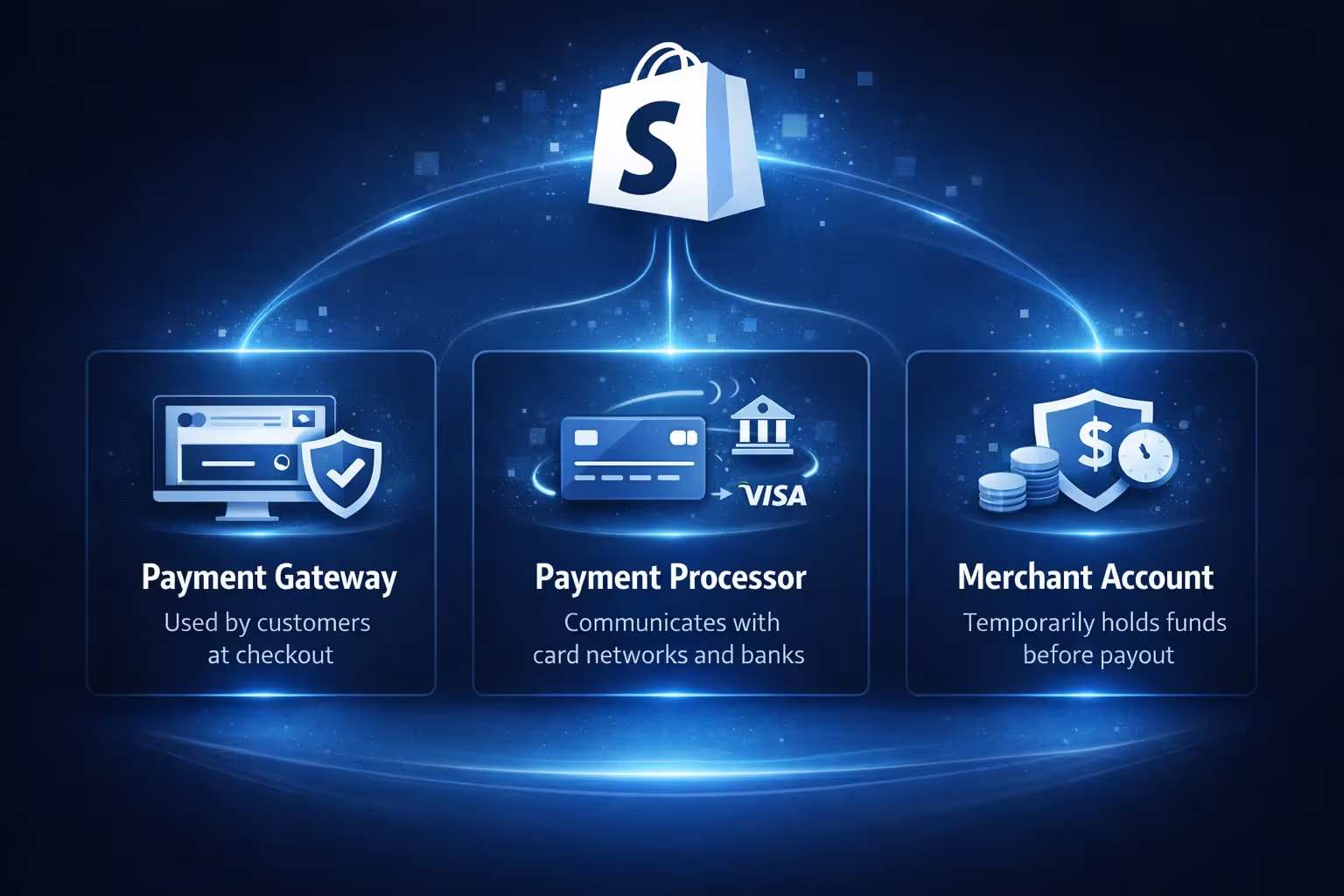
Shopify Payments is Shopify’s built-in payment processor. When you use it, Shopify handles three things at once:
In other words, you do not need Stripe, PayPal, or another provider to accept card payments if Shopify Payments is available in your country. Everything runs through your Shopify admin.
For customers, this means a smoother checkout experience. For store owners, it means fewer accounts, fewer integrations, and less bookkeeping friction.
That said, Shopify Payments is not available everywhere, and it comes with rules that do not exist when using third-party gateways. Understanding those rules early saves time later.
Before you open the Payments section in Shopify, it is worth confirming that you are actually eligible. Many setup issues start here.
Shopify Payments is only available in specific countries and regions. Your store must be based in one of those supported locations, and your bank account must be located in the same country as your store.
Eligibility also depends on what you sell. Some product categories are restricted or prohibited due to financial regulations and risk policies. This can include certain digital goods, financial services, adult content, and high-risk supplements. Even if Shopify allows you to create a store, Shopify Payments may still be unavailable for your business type.
If Shopify Payments is not available, you can still accept payments using third-party gateways, but the setup and fee structure will be different.
One non-negotiable requirement for Shopify Payments is two-step authentication.
Before Shopify allows you to activate payments, your admin account must have two-step authentication enabled. This is not optional. Shopify enforces this to protect financial data, payout details, and customer payment information.
Disabling two-step authentication later is technically possible, but it puts your account at risk and may affect your ability to continue using Shopify Payments. From a practical standpoint, it is better to treat this as permanent.
Shopify may also require identity verification depending on your country. This can include uploading a government-issued ID or completing a proof of liveness check using your phone or webcam. These checks are standard and tied to banking regulations, not Shopify preference.
Many merchants focus on accepting payments and forget about payouts until the first sale happens. That is a mistake.
With Shopify Payments, funds from customer transactions do not go directly to your bank account. They first appear in your Shopify Payments balance, then get paid out according to your payout schedule.
Payout timing depends on your country. In some regions, payouts happen daily. In others, they are weekly or take several business days to process. Weekends and holidays can also affect timing.
There is usually a minimum payout threshold. Very small amounts may be held and rolled into the next payout instead of being transferred immediately.
Understanding this flow helps with cash planning, especially in the early days when sales volume is inconsistent.

Once eligibility and security are in place, the actual setup process is straightforward if you move carefully.
Your store currency should be set before activating Shopify Payments. While your bank account can sometimes use a different currency, changing store currency later can be complicated and may require support intervention.
In your Shopify admin, go to Settings, then General, and check the store defaults section. Confirm that the currency matches how you plan to operate.
This is especially important for international stores or businesses planning to sell across borders.
Navigate to Settings, then Payments in your Shopify admin. If Shopify Payments is available for your store, it will appear as an option at the top of the page.
Select Shopify Payments to begin setup. Shopify will prompt you to enter business and banking information.
This step causes more delays than any other.
Shopify asks for legal business information, not marketing copy. Business name, registration number, tax ID, and address must match official records exactly. Even small mismatches can trigger verification requests.
You will also need to select your business type, such as individual, registered business, or non-profit. Choose the option that accurately reflects your legal structure, not what sounds best.
An account representative must also be specified. This person should be someone with authority over the business, such as an owner or director. Their identity may be verified as part of the process.
Your bank account must be located in the same country as your store. Shopify Payments does not support cross-border payouts.
Double-check account numbers and routing details. Incorrect information can delay payouts or cause failed transfers.
In some countries, Shopify may deposit a small test amount to confirm the account. Follow any verification instructions promptly to avoid delays.
After submitting details, Shopify reviews your application. This usually takes one to three business days, but it can take longer if additional documentation is required.
During this time, you can continue setting up your store, but you should avoid launching paid traffic until payments are fully approved.
If Shopify requests documents, respond quickly and provide clear, readable files. Delays often happen when documents are incomplete or unclear.
Once Shopify Payments is active, you can choose which payment methods to offer at checkout.
At a minimum, you should enable credit and debit cards. Shopify Payments also supports digital wallets such as Apple Pay and Google Pay in supported regions. These can significantly reduce friction, especially on mobile.
Buy now, pay later options may also be available, depending on your location. These can increase conversion rates for higher-priced items, but they come with higher fees. It is often smart to enable them later, once margins are stable.
Avoid overwhelming customers with too many options. A focused set of familiar methods usually performs better than a long list.
Shopify includes a test mode that lets you simulate transactions without real money changing hands. Use it.
In the Payments section, enable test mode and run a few test orders. Check that:
Testing takes only a few minutes and can prevent embarrassing issues on launch day.
Remember to turn off test mode before going live.

Understanding Shopify Payments fees upfront helps avoid surprises later. The structure is simple, but the impact on margins becomes more noticeable as sales grow.
Shopify Payments charges a transaction fee for every successful sale. This fee is made up of two parts: a percentage of the order value and a fixed amount per transaction. The exact rate depends on your Shopify plan and the type of card the customer uses.
Premium cards and certain international cards usually cost more to process than standard domestic cards. This is normal across the payments industry, not something unique to Shopify.
One of the main advantages of Shopify Payments is that Shopify does not charge additional transaction fees on top of the processing fee. When you use third-party gateways, Shopify often adds its own fee per transaction unless you are on a higher-tier plan.
With Shopify Payments, what you see in the fee breakdown is the full cost. This keeps accounting cleaner and makes margins easier to track.
Even small percentages add up over time. If fees are treated as an afterthought, they quietly eat into profit. It is better to factor them into your pricing from the beginning rather than trying to adjust later.
This is especially important for low-margin products or stores with high order volumes. A small miscalculation per order can become a serious issue at scale.
If you sell to customers outside your home country, additional fees may apply. International cards often come with higher processing costs, and currency conversion adds another layer of expense.
Before expanding globally, review Shopify’s fee structure for international transactions and multi-currency payouts. Knowing these costs in advance helps you price products realistically and avoid surprises once international orders start coming in.
Shopify Payments is convenient, but it is not always the best choice.
If your business operates in an unsupported country, sells restricted products, or requires specialized payment flows, you may need a third-party gateway.
Some merchants also prefer to use PayPal or Stripe alongside Shopify Payments to give customers more choice or to support specific regions.
Shopify allows you to combine multiple payment providers, but be aware that using external gateways may introduce extra fees and reconciliation work.

Most Shopify Payments issues fall into a few predictable categories. Knowing them in advance makes them easy to avoid.
Before opening your store to customers, run through this quick checklist:
This final review takes less than half an hour and can save days of stress later.

Once Shopify Payments is live, the real question changes. It is no longer can customers pay, but which ads actually bring in buyers worth paying for. This is where we come in.
At Extuitive, we help Shopify brands forecast ad performance before launch, not after budgets are already spent. Instead of testing blindly, we predict which creatives are likely to win and which ones will quietly drain spend. Our AI models are trained on real campaign outcomes and validated against live results, so forecasts reflect how ads perform in the real world, not in isolation.
We built Extuitive for teams that move fast and need certainty. By analyzing creatives at scale, we let you test ideas before they go live, compare predicted CTR and ROAS against your historical benchmarks, and focus spend where it actually converts. That means fewer failed experiments, cleaner data, and more confidence when scaling traffic into a checkout powered by Shopify Payments.
For brands running paid acquisition, payments and ads are inseparable. A smooth checkout only matters if the right people reach it. Our prediction engine helps make sure that happens by aligning targeting, creative, and spend around outcomes you can act on, not guesses you hope will work.
If you want to stop testing losers and start launching ads with intent, we built Extuitive for exactly that.
Shopify Payments removes a lot of complexity, but it is not something to rush through. Treating setup as a careful process rather than a checkbox makes a real difference once sales start coming in.
If you take the time to enter accurate information, understand payouts, and test properly, Shopify Payments does exactly what it promises. It lets you focus on running your store instead of managing payment infrastructure.
Payments should feel boring once they are live. That is usually a sign you set them up right.


