Best-Selling Products on Shopify What Actually Sells and Why It Works
A realistic look at the best-selling products on Shopify, why they sell, and what store owners can learn from them before jumping into trends.
Jan 3, 2026



Selling on Shopify sounds simple, right? Pick a product, make a store, wait for the sales to roll in. But once you’re in it, the process can feel more like “Where do I even start?” than “I got this.”
This guide strips it all down to what actually matters. You’ll get real steps, smart strategies, and a few shortcuts that make launching your store feel way less overwhelming – whether you’re just testing an idea or building something serious.
Shopify is an all-in-one platform that lets anyone create an online store, sell products, and manage day-to-day operations without needing to code or hire a developer. Whether you're selling T-shirts, digital downloads, or imported kitchen gadgets, Shopify gives you the infrastructure to run everything from product listings to payment processing.
The platform works on a subscription model. You choose a plan, set up your store, and then handle the creative and strategic side, like branding, pricing, and marketing, while Shopify takes care of the technical setup in the background.
Think of it like renting a fully functional shopfront on the internet. You’re in control of what goes on the shelves, how the place looks, and how people find you but you don’t have to build the foundation yourself.
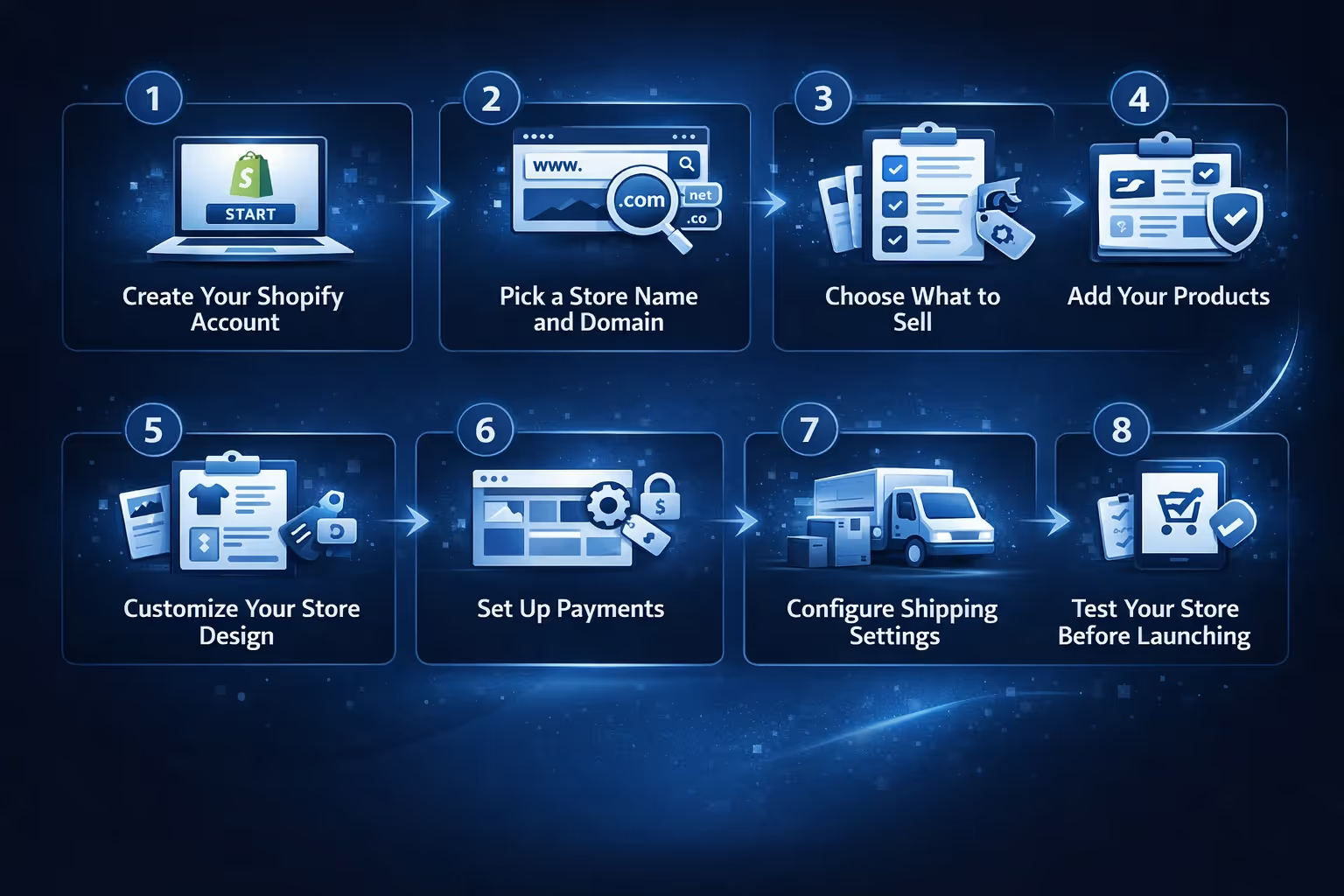
Getting started with Shopify doesn’t require a tech background or a business degree. What it does require is a bit of structure. Below, we’ve laid out the process in clear, straightforward steps so you don’t waste time guessing what comes next. Whether you’re launching your first store or rebuilding something that never quite clicked, this is the place to slow down, focus, and get it right from the start.
It starts with a free trial. Go to shopify.com, click “Start free trial,” and walk through the onboarding prompts. You’ll be asked a few basic questions about your store – what you plan to sell, whether you're already selling elsewhere, etc. – but you can skip most of them if you’re not ready.
Once your account is live, you’ll be dropped into the Shopify admin. This is your control room for everything – products, payments, shipping, design, and analytics.
You’ll need a name that makes sense for what you're selling, is easy to remember, and ideally has an available domain (your web address). Shopify gives you a free .myshopify.com URL, but buying a custom domain (like yourstorename.com) helps you look more legitimate and builds trust right away. You can buy a domain directly from Shopify or connect one from services.
You don’t need a groundbreaking product. You need a clear one.
There are five common approaches to selling on Shopify:
Pick something that either solves a problem, fits a specific niche, or already has buyer interest. If you're stuck, look at bestsellers on Etsy, Amazon, or TikTok to spark ideas.
In your Shopify dashboard, go to Products > Add product. Fill out the basics: name, description, pricing, inventory, and shipping details.
Keep in mind:
You can group similar products into collections (like "Best Sellers" or "Summer Gear") to make browsing easier.
Go to Online Store > Themes and choose one that fits your vibe. Shopify has several free themes that are clean, mobile-friendly, and work great for most sellers. Premium themes offer more customization if you need it, but don’t overthink it at the start.
Add your logo, change the color palette to match your brand, and update the homepage layout to focus on your main products or collections.
Also, build out key pages:
Go to Settings > Payments and enable Shopify Payments if it’s available in your country. Shopify Payments supports major card payments and digital wallets like Apple Pay and Google Pay; options like Buy Now, Pay Later may be available depending on your region and Shopify plan. If Shopify Payments isn’t available, you can use PayPal or Stripe, but note that Shopify charges extra transaction fees when using third-party providers.
Make sure your bank details are accurate so you get paid without delay.
Next, go to Settings > Shipping and delivery. Here you can:
Tip: If you’re doing dropshipping or POD, your supplier will likely provide recommended settings. Don’t guess – double check before going live.
Run a full test order. Yes, seriously.
Pretend you’re the customer:
This is where most hidden problems show up, and it’s easier to fix them now than after people start buying.
Once you're confident everything works, hit the “Remove password” button under Online Store > Preferences. Now your site is live to the public.
From here, it’s all about visibility.
.avif)
Getting your store live is only half the equation. Here’s what makes it actually perform.
Trying to master SEO, TikTok, Instagram, Pinterest, and email marketing all at once will burn you out. Pick one channel where your target customer already hangs out and go all-in for the first 30-60 days.
Not sure where to start?
Track what works before expanding to new channels.
Even if you're not ready to send newsletters, collect emails with a simple pop-up or discount code. Email gives you a direct line to customers and lets you follow up with:
Use Shopify Email or third-party apps to automate the basics.
Small tweaks make a big difference:
You don’t need fancy copywriting, just be honest and clear.
Shopify’s App Store has tools for everything: reviews, upsells, SEO, email, bundles, subscriptions, you name it.
Start with:
Add others as needed. Too many apps can slow your site or complicate your workflow.

If you're running a Shopify store, chances are you’ve already faced the not-so-fun part of advertising: spending money to test ideas you’re not even sure will work. That’s exactly why we built Extuitive.
We help you skip the guesswork by letting you test and validate your ads before you spend a cent on traffic. Our AI agents are built using behavioral models from real consumers. So instead of throwing money at a few random Facebook audiences, we let you create, test, and launch ads with a clear read on which ones are most likely to convert.
It works in three steps: connect your Shopify store, let us generate ad creatives and predict purchase intent, then launch what’s already been validated. No more running blind A/B tests or hoping a boosted post catches. Whether you're just getting started or trying to scale, we’re here to help your ads actually make sense and perform like they should.
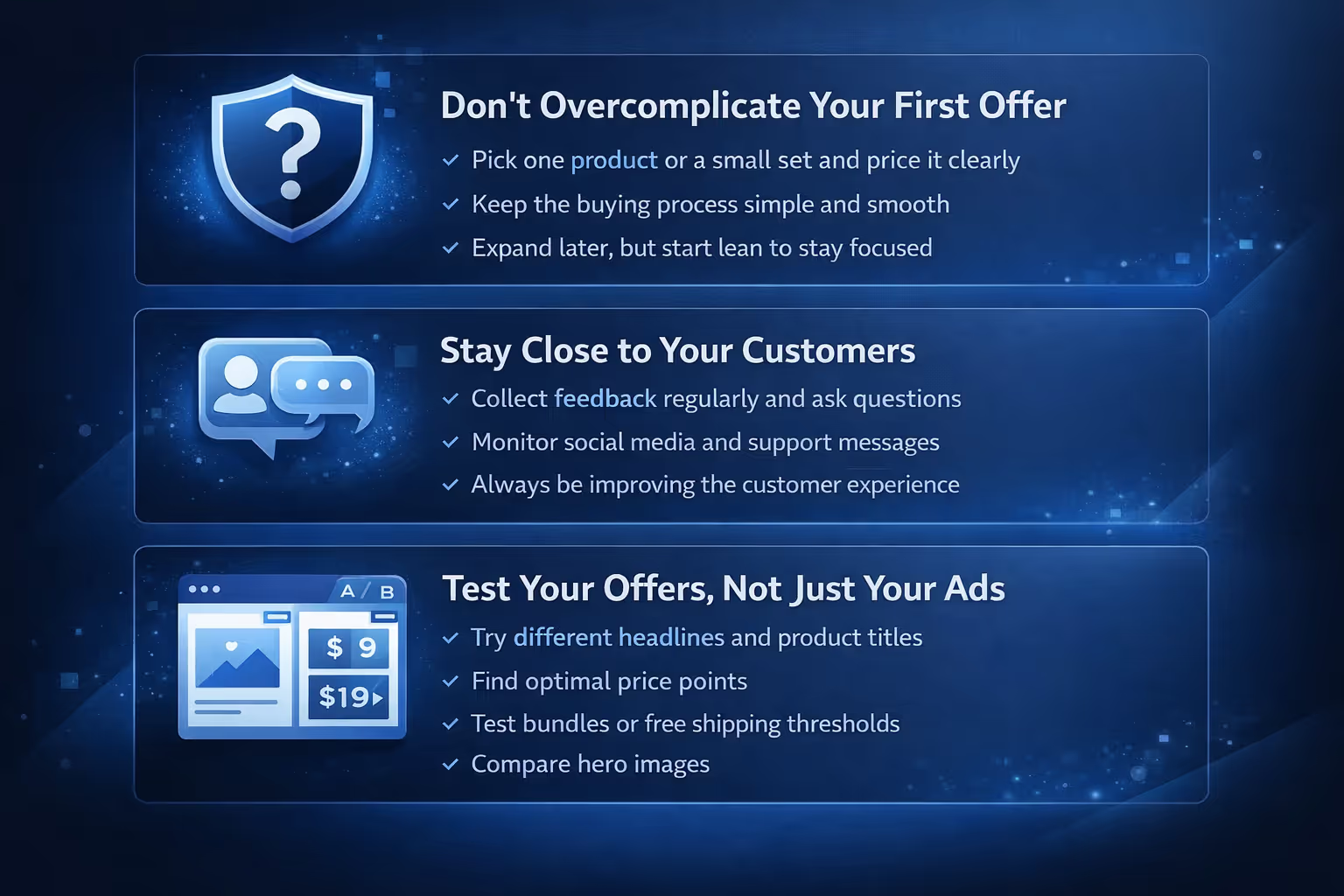
Once your store is live, it’s easy to get caught up in tweaking colors or chasing traffic. But there are a few low-key moves that don’t get talked about enough and they can quietly make or break your momentum. These tips won’t take much time, but they can save you from bigger headaches down the road.
When you’re just starting out, it’s easy to overthink your product lineup – variations, bundles, upsells, subscription options, the works. But the simpler your first offer, the easier it is to test, promote, and understand what’s working.
Pick one product (or a small set), price it clearly, and make sure the shopping experience is smooth from start to finish. You can always build out more later, but starting lean keeps you focused and lets you gather real feedback faster. Too many moving parts early on just creates noise.
One of the biggest advantages of running your own Shopify store is that you control the customer relationship. Don’t treat it like a one-time transaction. Follow up. Ask for feedback. Watch what people are saying on social or in support tickets.
The more you understand how people experience your store, from product expectations to shipping delays, the faster you can improve. And that kind of small, steady adjustment is what turns a decent store into a strong one.
Running ads without testing the offer is a fast way to waste money. Try A/B testing:
Sometimes it’s not the product – it’s how you're presenting it.
Shopify gives you the framework. Your job is to build the experience.
Selling online isn’t magic. It’s a sequence of small, thoughtful decisions – done consistently, with your customer in mind. Whether you're just starting out or already made a few sales and want to grow, the most reliable path is usually the least flashy one.
Start simple. Stay focused. And iterate as you go.
If you’re serious about selling, Shopify makes it possible. But you’re the one who makes it work.


