How Much Is Shopify Plus: The Real Cost
Wondering how much Shopify Plus really costs? This guide explains base pricing, variable fees, and what businesses usually pay.
Jan 26, 2026



There are moments when keeping a store open makes less sense than stepping back for a bit. Maybe sales are seasonal. Maybe you’re reworking products, fixing supply issues, or just need room to breathe without shutting everything down. Shopify allows for that, but only if you use the right option and understand what actually happens behind the scenes.
Pausing a Shopify store is not the same as closing it. You still keep access to your admin, your products, and your data, but customers cannot check out. This guide explains how pausing works, when it makes sense, and what to expect so you don’t accidentally lock yourself into something you didn’t plan for.
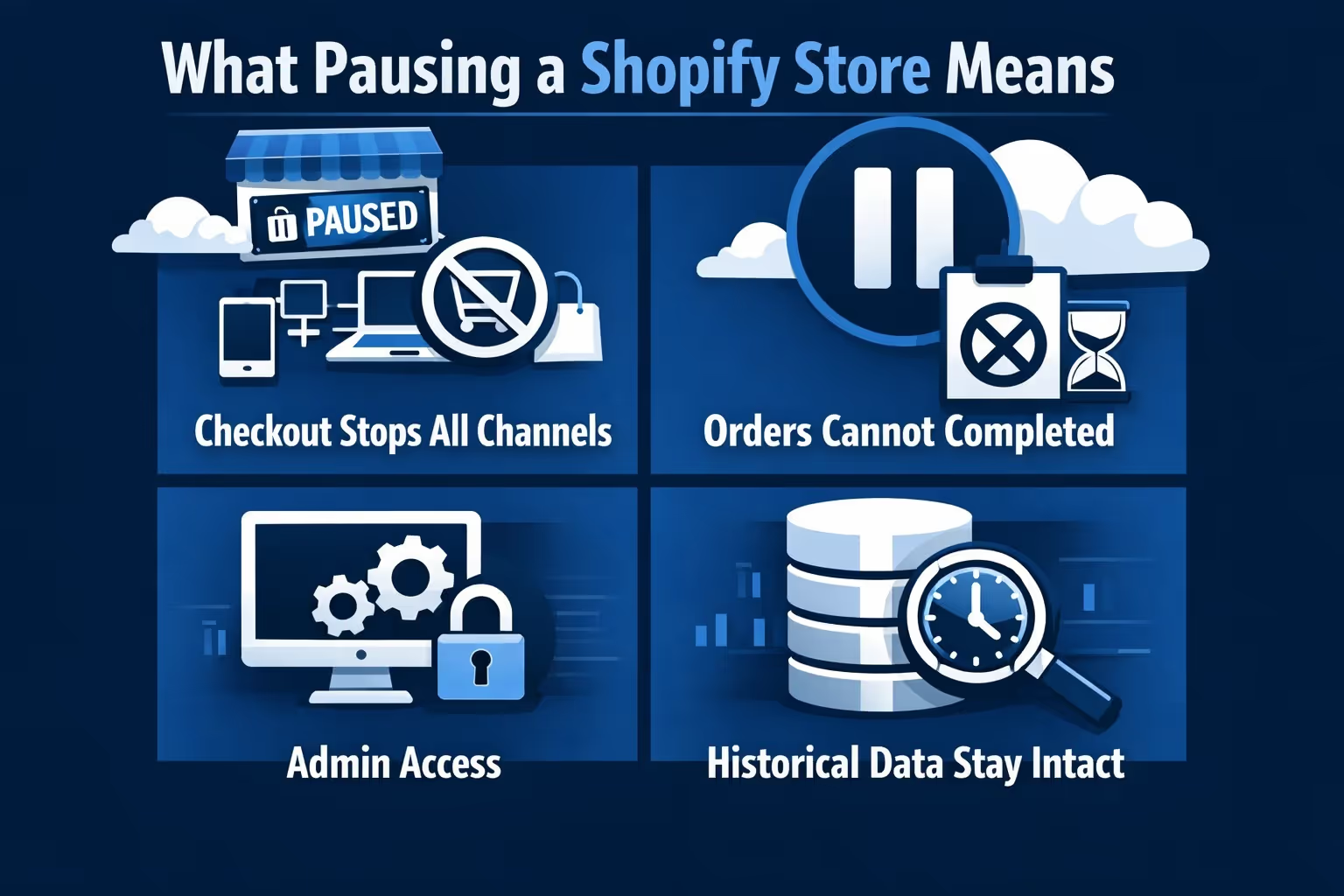
Pausing a Shopify store does not shut it down or erase anything. Instead, it disables checkout while keeping your admin, products, and settings available. Customers cannot complete purchases, but you can still log in, make edits, and prepare for whatever comes next.
Shopify handles this through the Pause and Build plan. It is a specific subscription state, not a temporary toggle. This distinction matters because pausing changes how payments, apps, and sales channels behave across your entire store.
Once the store is paused:
Think of it as keeping the workshop open while locking the front door.
Pausing works best when you need breathing room, not a clean exit. It suits seasonal businesses, inventory shortages, supplier delays, rebrands, or short operational breaks where you still want access to your store. During a pause, you can fix issues, reorganize products, or plan the next phase without worrying about incoming orders or customer expectations.
Pausing is not ideal if you plan to stop operating for a long period, want to remove all costs, or need checkout access for even a small group of customers. It also cannot be used on Shopify Plus stores, which makes it unavailable for some larger businesses regardless of intent.
If your goal is to step away indefinitely or fully reset your store, canceling the subscription is usually the cleaner option. It avoids ongoing fees and removes the need to maintain a paused setup that you may not return to for a long time.
If you want, I can apply the same subheading structure to other sections for consistency.

When a Shopify store is paused, the pressure to react disappears, but the opportunity to prepare quietly becomes much bigger. That is exactly where we fit in. At Extuitive, we help Shopify brands use downtime to validate ideas, test ad concepts, and sharpen messaging before a single dollar goes back into paid traffic.
Instead of guessing what will work after reopening, we let you test first. Our AI agents simulate real consumer behavior using over 150,000 representative personas, allowing us to predict purchase intent, engagement, and performance before ads ever go live. That means when your store comes back online, you are not experimenting in public. You are launching with confidence.
We connect directly to your Shopify store, generate ad creatives tailored to your products, validate them against real-world behavioral models, and prepare campaigns that are ready to launch the moment checkout is reactivated. For paused stores, this approach saves time, reduces wasted spend, and removes the usual trial-and-error cycle that slows down relaunches.
In short, we help Shopify merchants turn a pause into preparation, not downtime. When you are ready to reopen, your ads are already tested, your messaging is clear, and your next move is backed by data instead of assumptions.
Not every Shopify store can pause immediately. Shopify enforces a few clear conditions, and if any are missing, the option simply will not appear.
To use the Pause and Build plan:
When the pause option is missing, it is usually due to one of these requirements, not a system error. Checking them upfront saves time and frustration.
This is where most misunderstandings happen.
While your store is paused, you still have access to the parts of Shopify needed for planning and preparation. You can edit products, update pricing, work on your theme, and review basic performance data. Your admin remains fully functional for behind-the-scenes work.
At the same time, selling tools are turned off. Checkout is disabled everywhere. Discounts, gift cards, abandoned checkout recovery, and sales channel publishing all stop working. Third-party integrations tied to active selling also become inactive.
Apps deserve special attention. They stay installed, and many continue billing unless you cancel them manually. Shopify does not pause apps automatically, so reviewing subscriptions before pausing is critical.
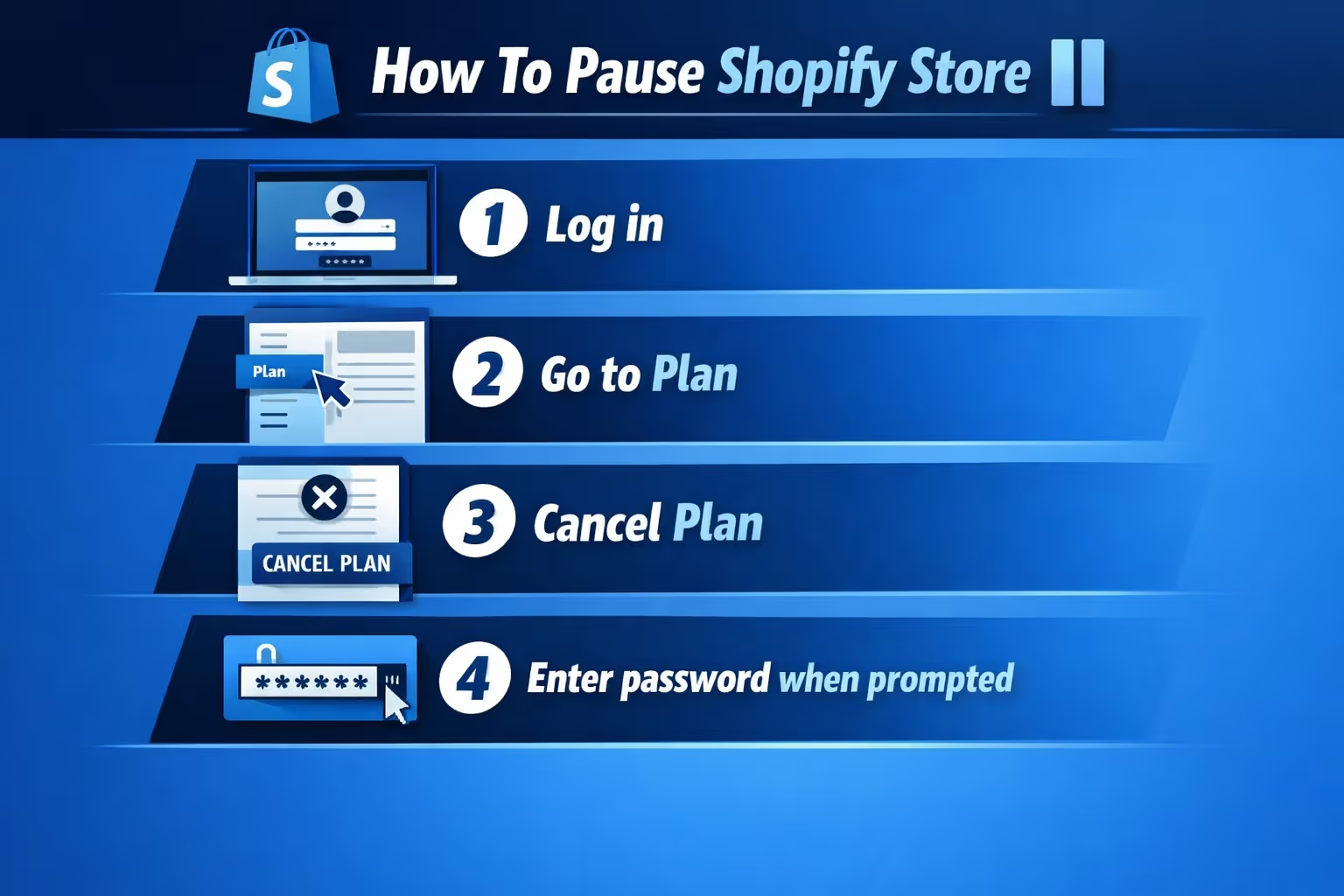
The actual process takes only a few minutes, but it should not be rushed.
Once confirmed, checkout is disabled immediately and your store switches to a reduced monthly cost.
Before completing the process, pause marketing campaigns, review app subscriptions, and double-check payment settings. These small steps prevent unnecessary charges and confusion while the store is inactive.
Unless you take extra steps, customers can still access your storefront. They can browse products, read descriptions, and click around, but they cannot complete a purchase.
This can be frustrating if the store looks open but checkout fails. To avoid that experience, it helps to adjust how your store appears during the pause. You can hide purchase buttons, add clear messaging explaining the situation, or protect the store with a password.
If you want to fully block public access, password protection is the cleanest approach. If you want visibility without sales, a clear notice usually works better.
A short pause rarely causes serious SEO damage. Search engines understand temporary downtime. Problems usually appear when a store stays paused for a long time without clear signals.
If search traffic matters to you, consider keeping informational pages or blog content accessible. Avoid broken links on important URLs and monitor indexing through Google Search Console.
Pausing does not automatically remove your site from search results, but inactive product pages over time can weaken visibility if not managed thoughtfully.
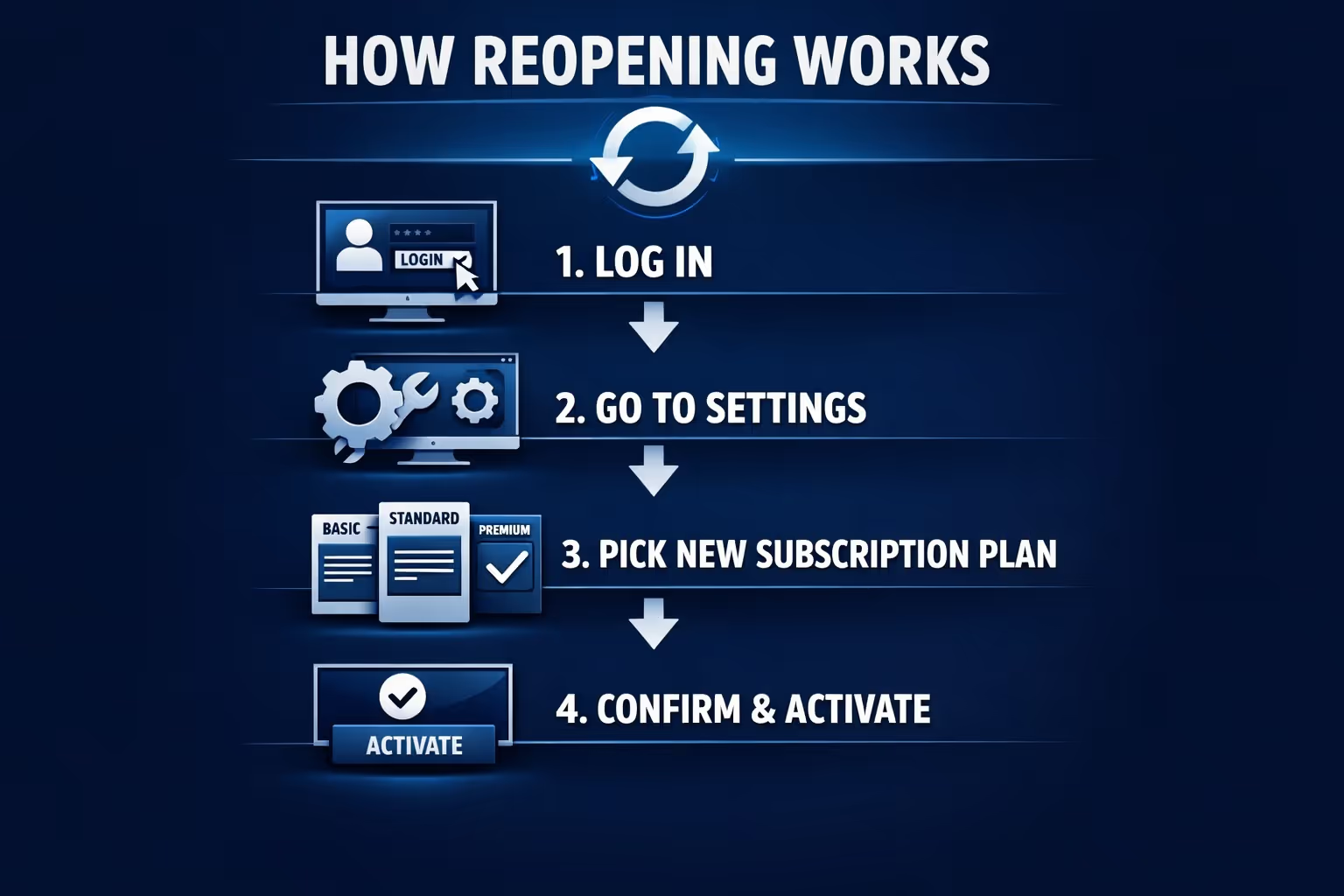
Unpausing is not instant by default. Shopify requires you to choose a new plan before checkout becomes active again. Your previous plan does not resume automatically.
To reopen:
After reopening, test everything before announcing your return. Check checkout flow, payment methods, shipping rules, apps, and theme changes. Some integrations may need reconnecting, especially ad platforms and analytics tools.
Pausing is not always the best solution.
If you want more control, consider alternatives like password protection, which blocks public access without changing your plan. You can also hide specific products or collections while keeping the rest of the store live.
For very short breaks, simple banners or announcements can communicate downtime without disabling checkout at all. These options often preserve SEO and reduce setup work later.
Pausing a Shopify store is a practical option when used with intention. It gives you space to regroup without tearing everything down, but it also changes how your store behaves in ways that deserve attention.
The right approach depends on how long you plan to pause, how visible you want your store to remain, and whether selling access matters during the break. Treat pausing as a strategic decision, not a quick fix, and restarting later will feel controlled instead of chaotic.


