What Are the Best Alternatives to Shopify in 2026?
Looking for Shopify alternatives? Compare top platforms for design flexibility, eCommerce tools, pricing, and control in this updated 2026 guide.
Feb 10, 2026



Adding your Instagram feed to your Shopify store isn’t just about making things look good. It’s about giving visitors a reason to trust you. When they see real posts from real people using your products, it hits differently than polished product shots ever could.
The best part? You don’t need to know how to code, hire a developer, or spend hours figuring it out. Whether you're launching a new store or just trying to make your product pages work harder, there are a few simple ways to drop in your feed and let your social content do some heavy lifting.
This guide breaks it all down – what tools to use, where to place your feed, and how to set it up so it actually supports your goals (not just adds noise).
Your Shopify store is where the transaction happens, but Instagram is often where the decision starts. Shoppers scroll, browse, and compare before they click "Add to Cart." And in that space between discovery and purchase, your Instagram feed can play a surprisingly powerful role.
By embedding your feed directly onto your storefront, you’re doing more than filling white space. You’re building trust through real visuals, showing off your community, and adding a layer of authenticity you just can’t fake. It’s one thing to say your product is good. It’s another to show someone actually using it, enjoying it, sharing it.
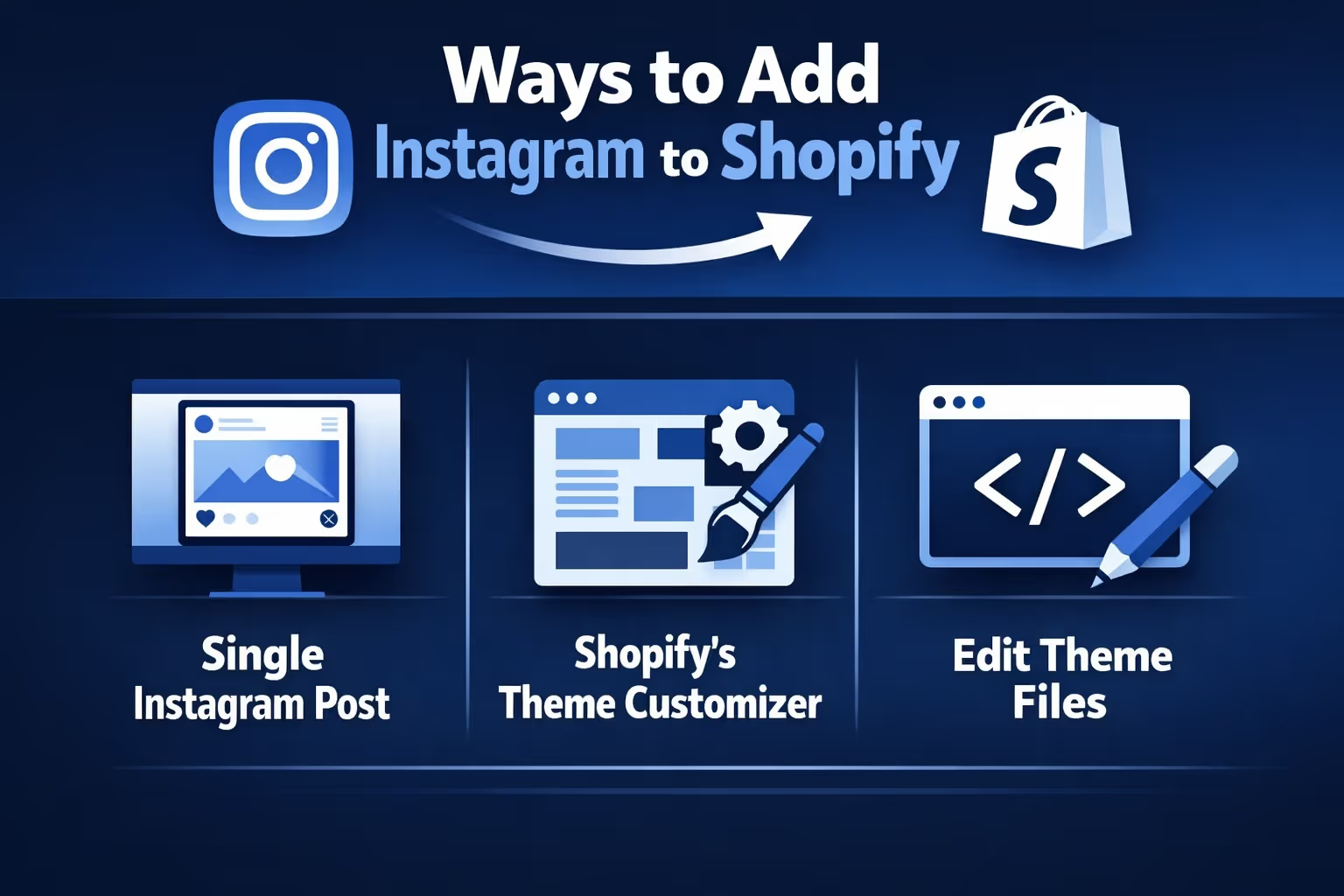
There are three practical ways to embed Instagram content on a Shopify website. Each one serves a slightly different purpose, and none of them are wrong. The best option depends on whether you want speed, flexibility, or consistency across your store.
This is the simplest method and the easiest place to start.
Instagram allows you to embed individual public posts directly onto a website. This works well when you want to highlight a specific piece of content rather than display a full feed.
Once published, the Instagram post will appear exactly as it does on Instagram, including captions and interactions.
This method makes the most sense when you’re looking to spotlight a standout customer photo or a specific testimonial that really speaks to your brand. It also works well if you’re running a short-term campaign or a seasonal promo where you want to showcase just one timely post. The key advantage here is control – you get to decide exactly which post shows up and when.
That said, there are a few trade-offs. You can only embed one post at a time, so it’s not ideal if you’re trying to show a feed or keep things fresh. The content won’t update on its own, which means you’ll have to go in and manually swap it out if you want to keep things current. Plus, the design options are pretty limited, so you may need to get creative with how it fits into your overall layout.
This method is best used intentionally. A single, well-chosen post placed near a product description or testimonial section can be more effective than a crowded feed.
If you want more presence than a single post but still want to avoid editing code files, Shopify’s visual theme editor gives you another option. It doesn’t include a native Instagram feed option, but you can still embed individual posts using a Custom HTML or Liquid block.
This approach allows you to place Instagram embeds into specific sections of your site using built-in customization tools.
You can repeat this process on different pages if needed.
This approach works well because it gives you visual control over where your Instagram content shows up, without having to mess around with any backend files. You can move things around, try different placements, and see what clicks – all without breaking anything. It’s especially useful on homepages and landing pages where layout matters and visual elements help drive engagement.
Some of the best spots for this are just below your main hero banner, on collection pages where you want to offer visual inspiration, or on your About page to add a more personal, brand-focused touch. But there are a few things to keep in mind. You’ll still have to update the content manually when you want to change what’s displayed. If you embed too many posts or feeds, it could start to slow down your page. And always check how it looks on mobile – what works on desktop doesn’t always translate perfectly to smaller screens.
This method is a good balance between ease and flexibility. It works especially well for stores that want Instagram content to support the brand story without dominating the shopping experience.
For store owners who want a more structured and reusable setup, editing Shopify theme files is the most flexible option.
This method lets you create a dedicated section for Instagram content that can be reused across multiple pages.
You can manually include this section in multiple templates, or modify your layout files to show it site-wide.
This method is powerful because it keeps your theme tidy and makes it easier to manage where and how your Instagram content shows up across the site. With consistent placement built right into your layout, updates down the line become much more straightforward. It’s a solid choice for stores that have lots of product pages or for merchants who want Instagram content to appear throughout the site without having to manage it page by page.
It works especially well if your team is comfortable tweaking code just a bit, since small theme edits are required. That said, it's smart to back up your theme before making changes. Also, be sure to test how everything looks on both desktop and mobile. And try not to go overboard – loading too many embeds on a single page can slow things down.
This approach takes a little more effort upfront but pays off in long-term consistency.
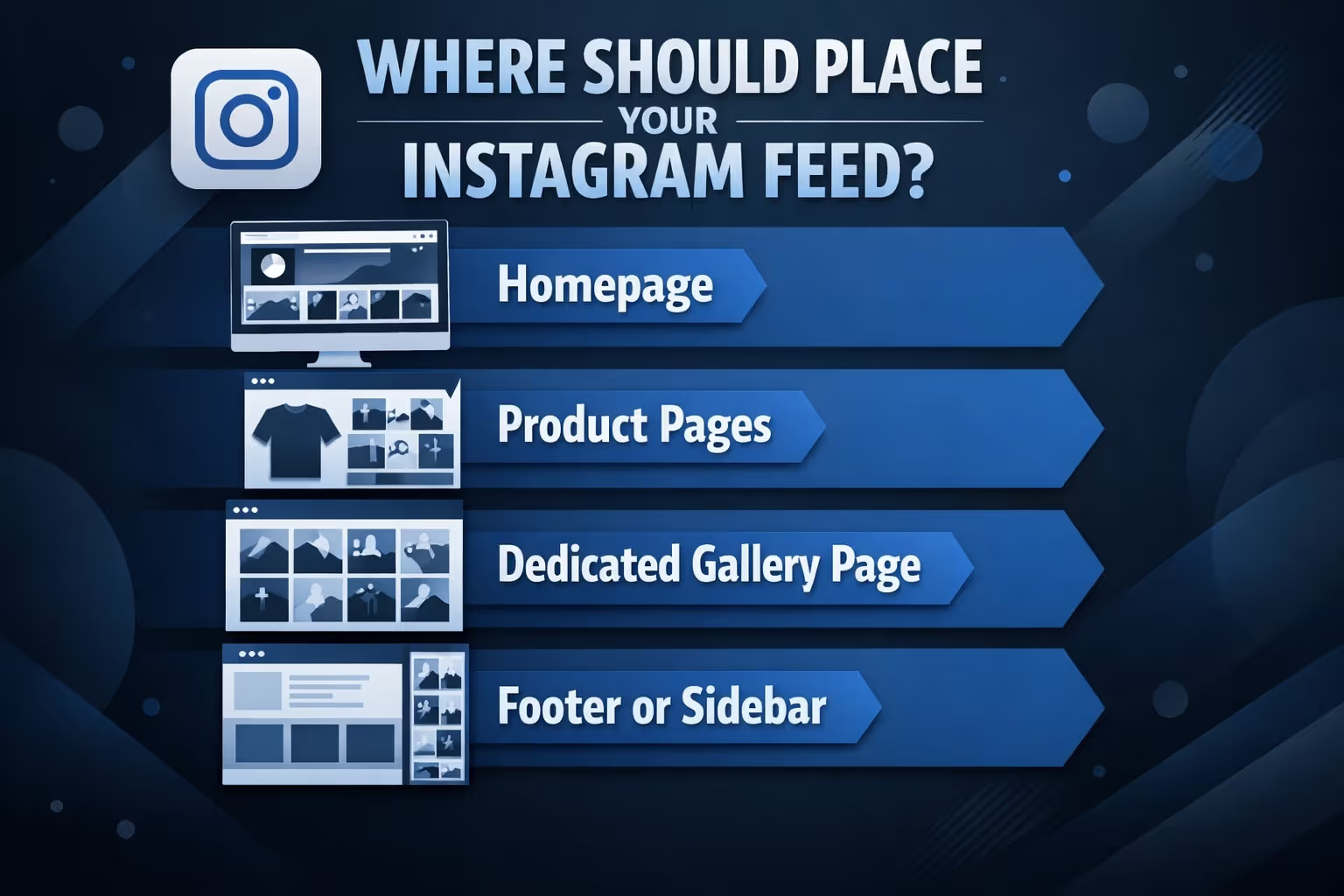
Adding the feed is only half the job. Where you place it can make or break how useful it actually is. Here’s what I’ve found works well, based on dozens of real-world Shopify layouts.
Your homepage is your first impression. By placing a short, scrollable Instagram feed below the hero section or just above the footer, you’re giving visitors a peek behind the curtain. They’ll see real people using your product or interacting with your brand.
Best for: Lifestyle products, food & beverage, fashion, home goods
Adding customer photos or influencer content right next to your product description is incredibly persuasive. It shows that the item is not just for sale – it’s already in the world, being used, loved, and talked about.
Best for: Products with visual appeal or emotional value (beauty, apparel, wellness)
Create a stand-alone “Community” or “Instagram Gallery” page. This gives you room to curate a full visual story without interrupting the flow of your shopping pages. You can highlight campaigns, contests, or feature customer testimonials.
Best for: Brands with an active social following or regular UGC
If you want to keep things subtle, adding a small Instagram strip to your footer or a sidebar widget gives people something to explore without demanding attention. It can also be a nice way to fill white space or add movement to otherwise static areas.
Best for: Stores with minimalist design or information-heavy layouts
Not all Instagram feeds are created equal. Just dropping one in the middle of your page doesn’t guarantee it’ll help. Here’s how to make it count:

We know a strong Instagram feed helps build trust. But what happens when you're ready to turn that trust into clicks, and those clicks into actual conversions? That’s where we come in.
At Extuitive, we help Shopify brands create, validate, and launch high-performing ads in minutes. You already have a visual brand presence through your Instagram content. We help you take that content, connect it to the right audience, and test what actually converts before spending a single dollar on ad spend.
By connecting your Shopify store to our platform, you can generate ad creatives, predict purchase intent, and launch ads backed by real data, not guesses. Our AI agents are modeled after real consumer profiles, so the insights you're working with reflect how actual buyers behave. You’ve done the work to build your Instagram presence and embed it into your storefront. We take that momentum and help you scale it into real performance. If your visuals are getting attention, we’ll help turn that attention into results.
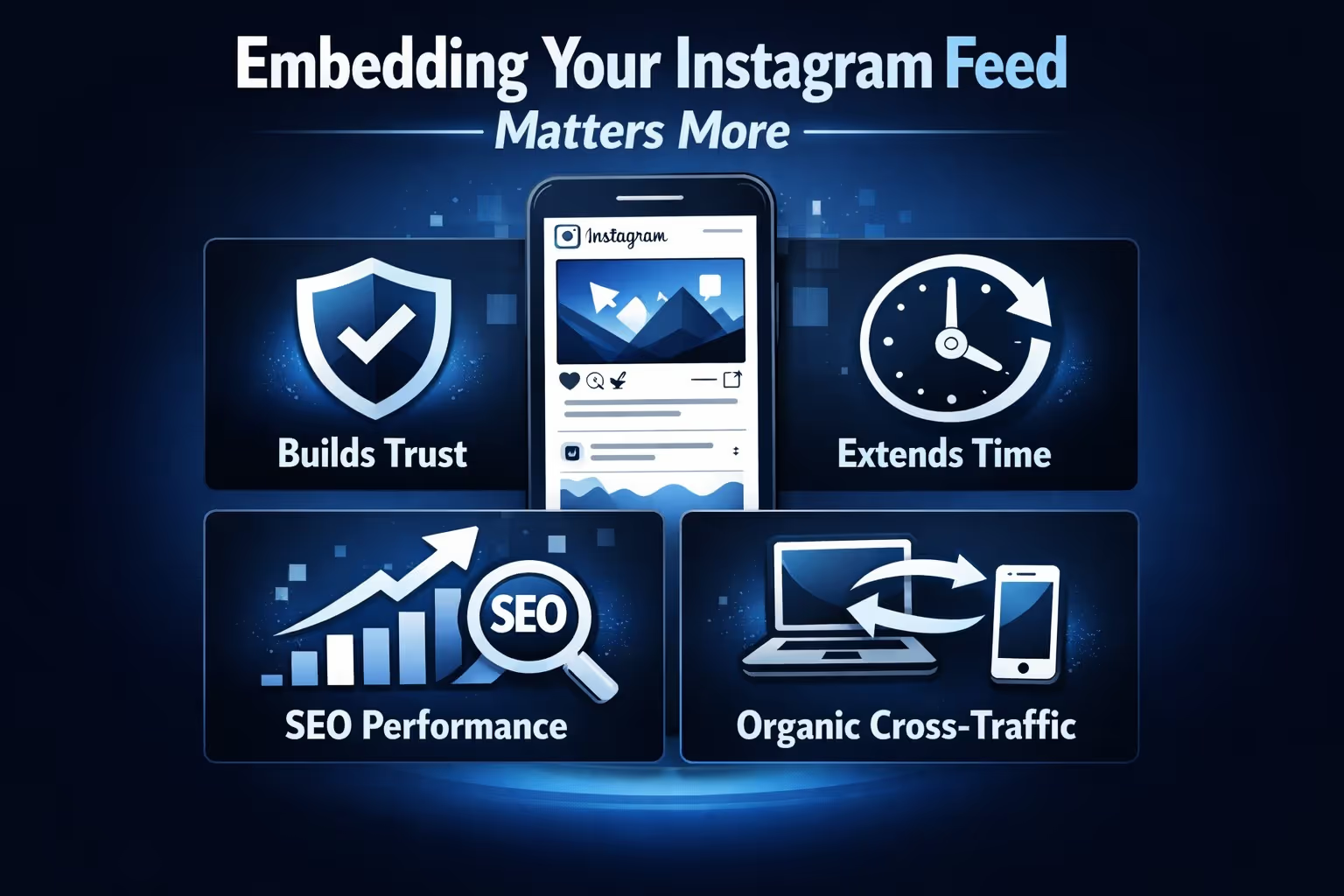
Let’s be honest: we all skim. When someone lands on your product page or homepage, they decide within a few seconds whether they’ll stick around. A static image might not hold them, but a dynamic feed showing recent posts, customer photos, or social buzz? That’s a hook.
Here’s what embedding your feed actually does for your store:
User-generated content is the modern version of word-of-mouth. Seeing someone post about your product on Instagram is way more convincing than any headline or product bullet.
Visual content keeps people scrolling longer. That extra 15-30 seconds on a product page could be the difference between a bounce and a conversion.
While Instagram embeds aren’t crawlable and don’t directly affect SEO, they can help improve user engagement, which may correlate with better site performance over time.
An embedded feed acts like a live link back to your social presence. It reminds people you’re active and gives them another way to connect, follow, and share.
Maybe someone lands on your site for one item, but they scroll through your feed and discover something else. That’s free, passive upselling without annoying popups or banners.
Even well-designed stores make a few predictable mistakes with Instagram embeds:
Less is usually more. A smaller, intentional feed placed well beats a large gallery added everywhere.
Embedding your Instagram feed is one of those small things that can make a big impact. Done right, it bridges the gap between your store and your social voice. It brings in personality, validation, and visual interest – all without a single line of copy.
But the real value isn’t just in adding content. It’s in showing that your brand is alive. That people are using your product. That there's a real-world story unfolding behind your storefront.
And for a shopper who’s still on the fence, that can be all they need to feel confident enough to buy.
So yes, add your feed. But do it with purpose. Curate it like it’s part of your brand, because it is. And treat every post like a quiet nudge toward conversion, because sometimes that’s all it takes.


