Trending Dropshipping Products 2026: What's Selling Now
Discover the most profitable dropshipping products for 2026 based on real search data. Find high-margin winners in tech, home, wellness & more.
Apr 14, 2026



Deleting a Shopify account sounds simple, but there’s more behind that final click than most guides admit. It’s not just about turning off a subscription. Your store data, custom domain, apps, billing, and even future access all come into play. Miss one step, and you might run into surprises later.
This article walks through how deleting a Shopify account actually works today. Not in a dramatic way. Just the practical reality. What Shopify deletes, what it keeps, and what you should handle yourself before you close the door. If you’re sure you’re done with your store, this helps you finish cleanly and move on without loose ends.
One of the biggest sources of confusion is language. Shopify itself rarely uses the word “delete” in the way most people expect.
When you cancel your Shopify plan, you are deactivating the store. The admin access is locked, billing stops, and the storefront goes offline. However, Shopify does not immediately erase everything. Store data is retained for up to two years in case you change your mind and reactivate.
This is important because there is no big red button labeled “delete everything now.” Instead, deletion happens in layers:
Understanding this distinction helps you avoid false assumptions. You are not instantly wiping history from Shopify’s systems. You are closing access and stopping activity, while Shopify keeps a backup window by default.

If you are close to deleting your Shopify account because ads did not perform, traction stalled, or nothing seemed to click, pause for a moment. In many cases, the store itself is not the problem. The real issue is that key decisions were made without enough signal.
We built Extuitive for exactly this moment. Before you shut everything down, you can use our platform to validate ads, creatives, messaging, and pricing with over 150,000 AI consumer agents trained on real behavioral data. Instead of guessing or burning more budget, you see what actually resonates before committing.
Sometimes that clarity is enough to turn things around. Sometimes it simply confirms that moving on is the right call. Either way, you make the decision with confidence, not frustration. Trying Extuitive first costs far less than starting over, and it might be the step that saves your store and your business.
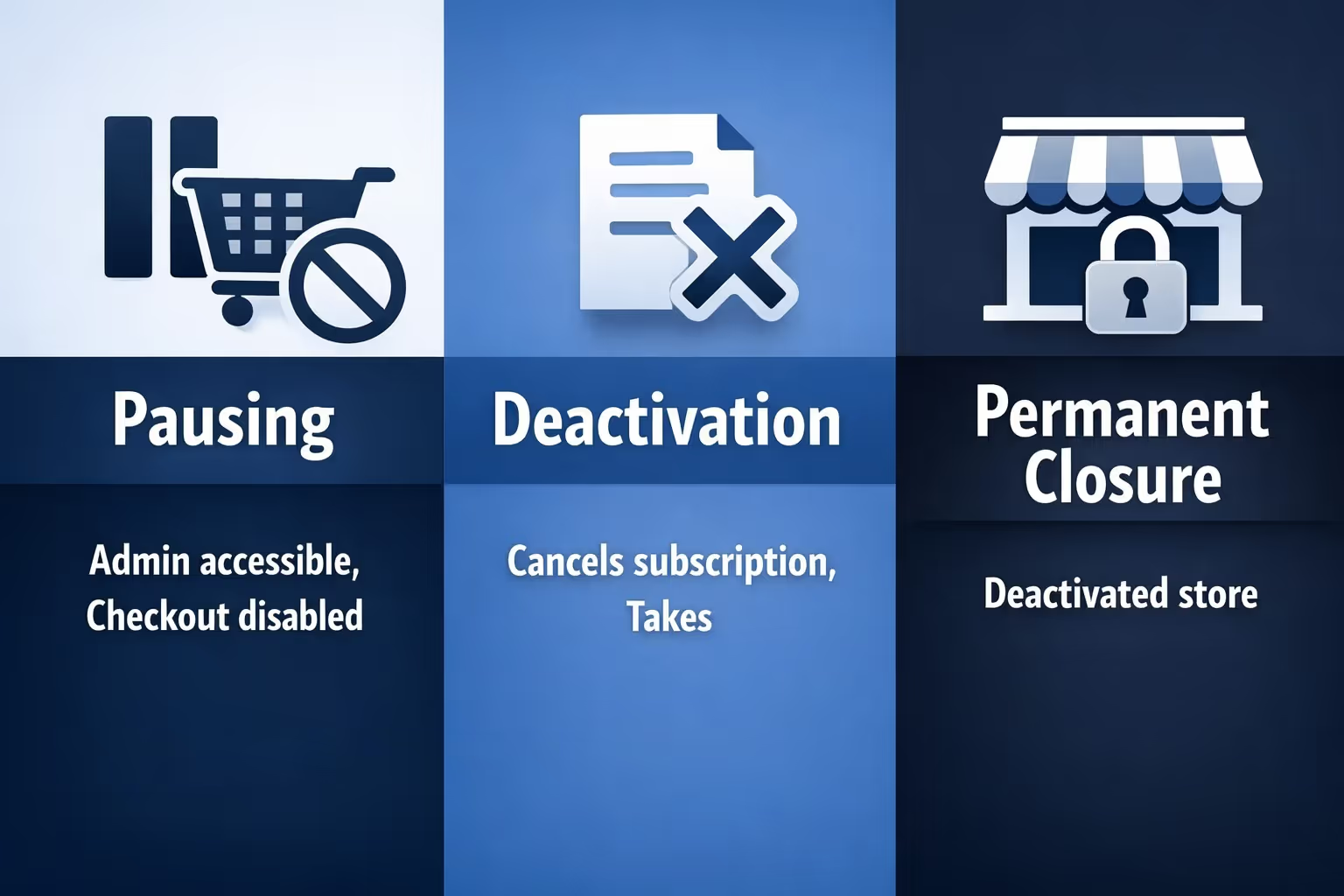
Pausing keeps your Shopify admin accessible, but checkout is disabled. Customers cannot place orders, but your store data, settings, and apps stay intact. This option works well if you are taking a break, rethinking your offer, or planning changes without pressure. Billing is reduced, not fully removed.
Deactivation cancels your subscription and takes the storefront offline. You lose admin access once the current billing cycle ends. Shopify keeps your store data for a limited time, which means you can reactivate later by selecting a new plan. This is the standard choice when you are done selling but want a safety net.
Permanent closure happens when a deactivated store passes Shopify’s data retention period or when you request earlier deletion of stored data. At that point, recovery is no longer possible. Store history, customer records, and settings are gone.
If there is even a small chance you may need order records, customer lists, or store settings later, deactivation is the safer path. It gives you time and flexibility without ongoing charges, while keeping the door open if plans change.
Deleting a Shopify account is irreversible in practical terms, even if data technically exists for a while. Before proceeding, take a moment to answer these questions honestly.
If any of these are still unresolved, deletion should wait. Closing a store does not freeze the real world. Payments, disputes, and renewals can continue after access is gone.
Before you even think about clicking “Cancel plan,” clean up the money side.
Start by reviewing your Shopify bills. This includes subscription fees, transaction fees, Shopify Payments payouts that are still pending, and app charges that may not be handled by Shopify directly.
If Shopify Payments is enabled, check whether there are payouts still in transit. These usually continue after deactivation, but it is easier to monitor them while you still have admin access.
Third-party apps deserve special attention. Many apps bill independently. Deleting the store does not automatically cancel those subscriptions. Log into each app if needed and cancel from their own dashboards.
This step alone prevents the most common post-deletion frustration: being charged for a store you thought was gone.

Once admin access is gone, exporting data becomes difficult or impossible. Shopify gives you tools to export most critical data, but only while the store is active.
At minimum, export:
CSV exports are not pretty, but they are reliable. Save them somewhere safe and label them clearly. Six months from now, you will not remember which file contains what unless you name it properly.
If you bought a paid theme, download a copy. Themes are licensed per store, but having the files gives you flexibility if you later work with Shopify Support on a license transfer.
This is not busywork. It is insurance.
Domains cause more long-term issues than almost anything else.
If you bought your domain through Shopify, you can transfer it to another registrar before deactivation. If you bought it elsewhere, you must remove it from your Shopify store manually.
Failing to do this can lock the domain in an awkward state where you cannot easily use it elsewhere.
Also pay attention to auto-renewal. Domain registrars love quiet renewals. Turn them off if you do not plan to keep the domain.
One detail many guides skip: Shopify enforces HTTP Strict Transport Security on connected domains. That policy stays active for 90 days after deactivation. If you move the domain to a platform that does not support HTTPS, visitors may see browser warnings during that period.
This does not break the domain, but it surprises people who were not expecting it.
Deactivating a store does not end your responsibilities overnight.
Unfulfilled orders still exist. Refunds may still be required. Gift cards remain a legal obligation in many regions.
Chargebacks deserve special caution. Cardholders can initiate them after the store is closed. Once admin access is gone, you cannot submit additional evidence through Shopify. That alone is a reason to wait until transaction risk has passed.
If your store handled subscriptions, preorders, or delayed fulfillment, resolve those before closing. Shopify will not do it for you.
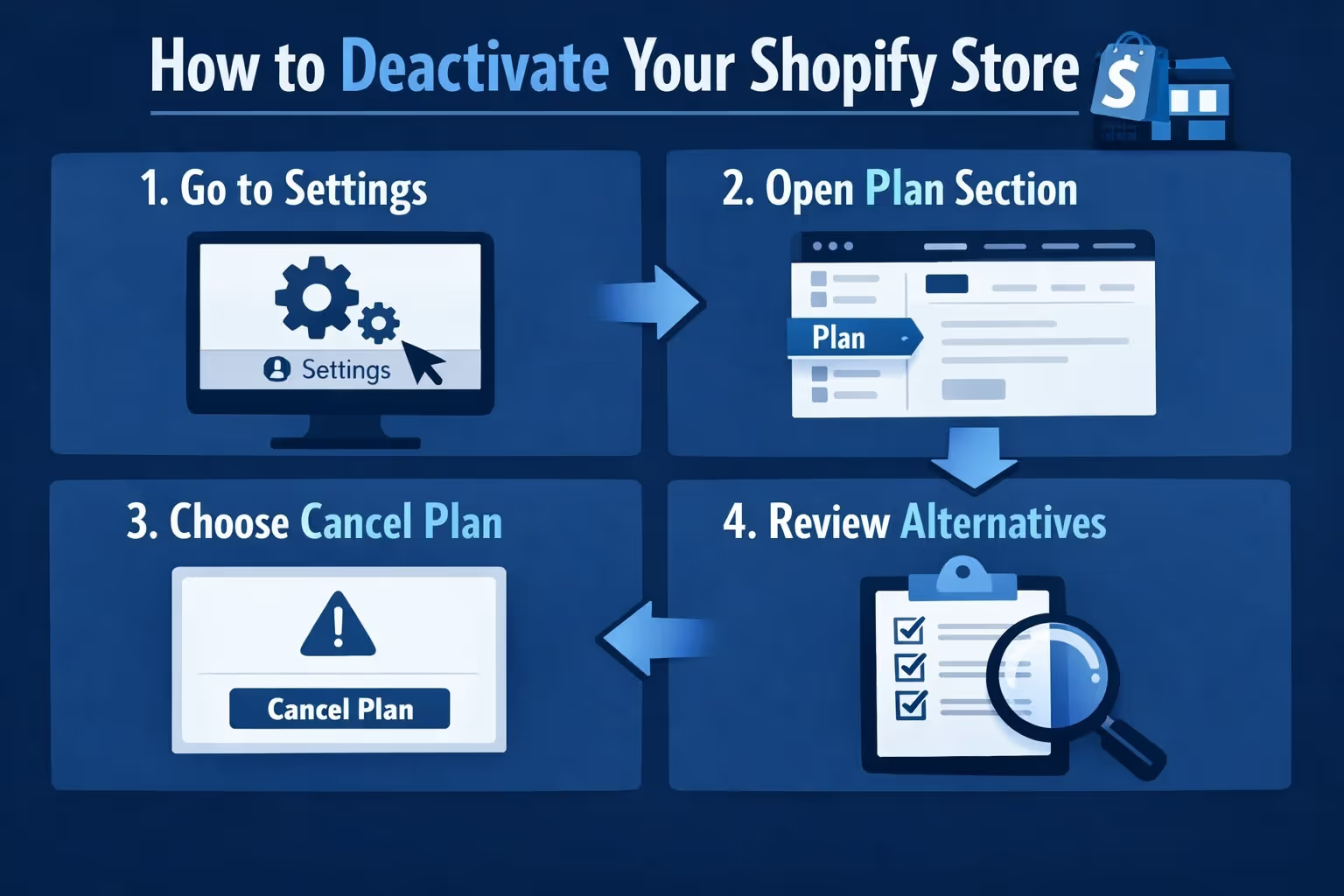
Once you have settled billing, backed up your data, and disconnected anything that should not stay attached to the store, the actual deactivation process is fairly simple. Shopify does not hide it, but it does make sure you confirm the decision carefully.
From your Shopify admin, follow these steps:
If your store is on the Shopify Plus plan, deactivation cannot be completed directly in the admin. In that case, you need to contact Shopify Plus Support and request the cancellation through them.
After you confirm the cancellation, the store does not shut down immediately. It stays active until the end of your current billing cycle. Once that date passes, the storefront goes offline and admin access is locked.
Shopify will send a confirmation email when the process is complete. Keep this message. It serves as proof of cancellation and is useful if any billing or access questions come up later.
After deactivation, Shopify retains store data for up to two years. This includes products, customers, and orders.
During this time, you can reactivate the store by logging in, selecting a new plan, and adding a valid payment method.
If two years pass without reactivation, Shopify may permanently delete the data.
This retention window exists to protect store owners, not to trap them. But you should not rely on it as a permanent archive.
If you want customer personal information removed earlier than Shopify’s standard retention period, you can request that separately. This usually comes up when you are cleaning up for privacy reasons, or when you are certain the store is not coming back and you do not want Shopify holding customer records longer than necessary.
Just treat this as a one-way move. Once customer data is deleted, you cannot restore it later, even if you reactivate the store. That can affect your ability to look up past customer details, verify order history tied to a person, or handle questions that rely on old records. If there is any chance you will need those details for support, compliance, or bookkeeping, export what you need first and then proceed carefully.
If you change your mind, reactivating a deactivated Shopify store is usually straightforward, as long as you are still within Shopify’s retention window. You log in with the store owner account, and Shopify will guide you through reopening, selecting a plan, and adding a valid payment method.
In most cases, the store comes back in a familiar state. Products, settings, and historical data typically reappear, which is exactly why deactivation is often the safer choice compared to pushing for immediate deletion. That said, anything you removed manually while closing down, like third-party apps, custom domain connections, or external integrations, will not automatically reconnect. Plan on spending a little time re-linking those pieces if you reopen.
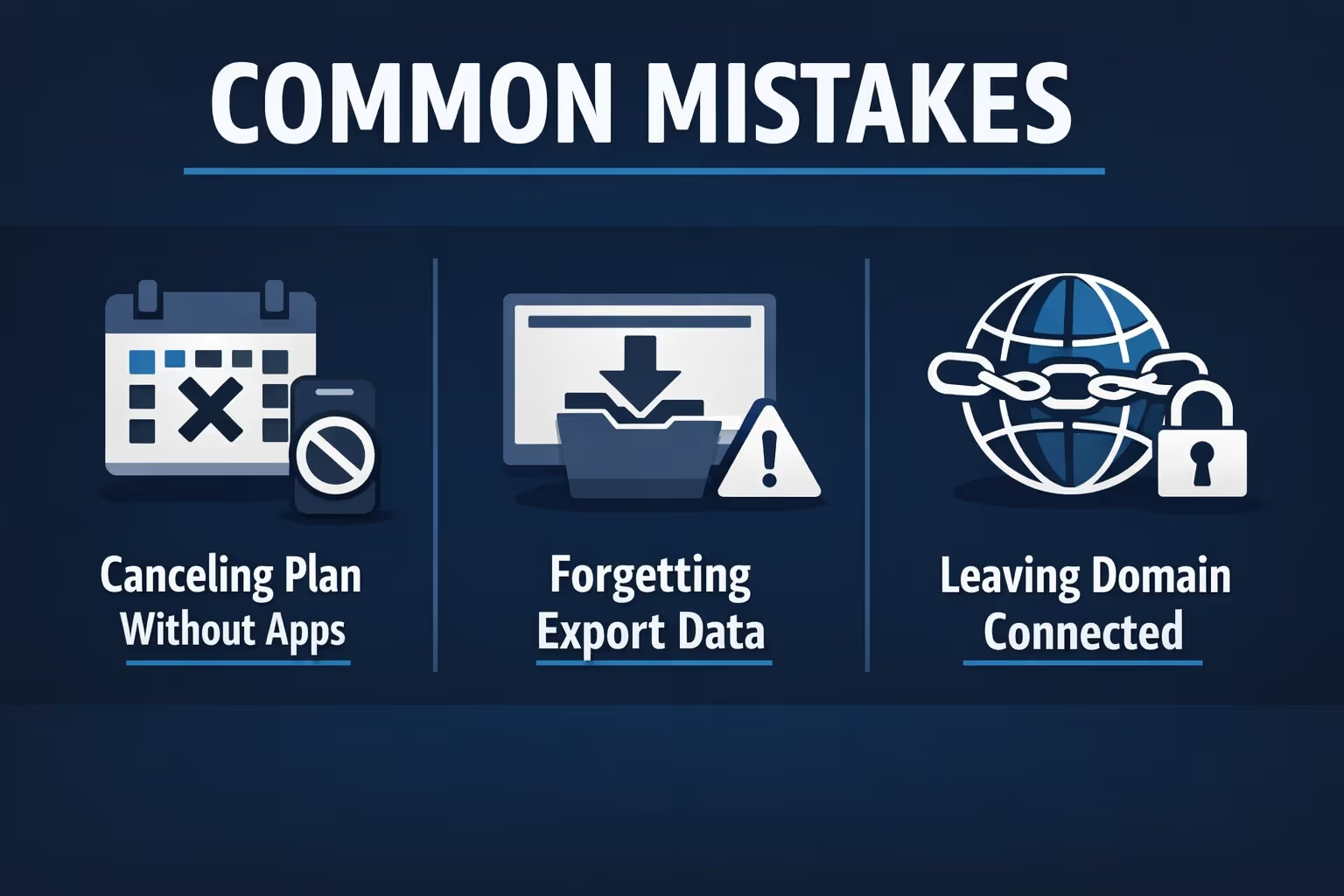
Most issues people face after closing a Shopify store come from small steps that were skipped, not from the deletion process itself. These mistakes are easy to make because nothing breaks immediately. The problems show up later.
Many Shopify apps bill separately from your Shopify subscription. Deactivating the store does not automatically stop those charges. If an app has its own billing system, it may continue charging your card until you cancel it directly inside the app or through the provider’s website.
Once admin access is locked, exporting products, orders, or customer data becomes difficult or impossible. People often assume they can log back in later just to grab a file. That is not always true. If you think you might need records for accounting, taxes, or reference, export them before canceling.
Domains are a common source of frustration. If a custom domain is still attached to a Shopify store when it is deactivated, using that domain elsewhere can become complicated. Always remove or transfer the domain first, and double-check auto-renewal settings to avoid unexpected charges.
Chargebacks and payment disputes can be opened weeks after a transaction. Once your store is deactivated, you may no longer be able to submit evidence or respond through the Shopify admin. Closing too early can leave you defenseless in those situations.
Many people think deleting a Shopify account instantly erases everything. In reality, Shopify retains store data for a period of time, and some obligations continue even after closure. Misunderstanding this can lead to confusion about what still exists and what access you no longer have.
None of these are dramatic errors. They are small oversights that slowly turn into support tickets, billing questions, and long email threads you did not expect to be dealing with after the store was closed.
Deleting a Shopify account is not hard, but doing it well takes a bit of discipline. The platform gives you the tools, but it assumes you know what you are giving up.
The goal is not just to close a store. It is to leave without unfinished business, surprise charges, or lost assets.
If you take the time to handle billing, data, domains, and obligations first, the final step becomes exactly what it should be. A clean exit.
And that is how you delete a Shopify account without losing control.


