Facebook Ads Optimization: How to Improve Performance Without Guesswork
A practical look at Facebook ads optimization in 2026. What still works, what doesn’t, and how to improve results without wasting budget.
Feb 5, 2026



Selling on Instagram used to be a nice bonus. Now it’s table stakes. If you're running a Shopify store and not yet taking advantage of Instagram Shopping, you're missing out on a direct, high-intent sales channel that your customers already scroll through daily.
Good news? Connecting the two doesn’t take hours of setup or a developer on speed dial. With a few smart steps, you can sync your product catalog, tag items in posts and stories, and start making sales straight from the feed. This guide walks you through the setup plus gives you a few tips to help your Instagram actually convert, not just look pretty.
Instagram Shopping is a feature that allows businesses to showcase and sell products directly within the Instagram app. Instead of directing users to a website via a profile link or ad, it lets you tag specific products inside your posts, stories, or Reels. When someone taps on a tag, they can view product details and head straight to your Shopify store to make a purchase.
The connection with Shopify happens through Meta’s Commerce Manager. Once your account is approved for Instagram Shopping, product information from Shopify is synced automatically into Meta’s catalog system. This means your Instagram feed essentially becomes a storefront, where followers can move from casual browsing to buying with minimal friction. When they tap a tagged product, they’ll be redirected to your Shopify store to complete the purchase. It’s a seamless way to turn visual content into sales, and it works especially well for brands that rely on strong visuals to grab attention.
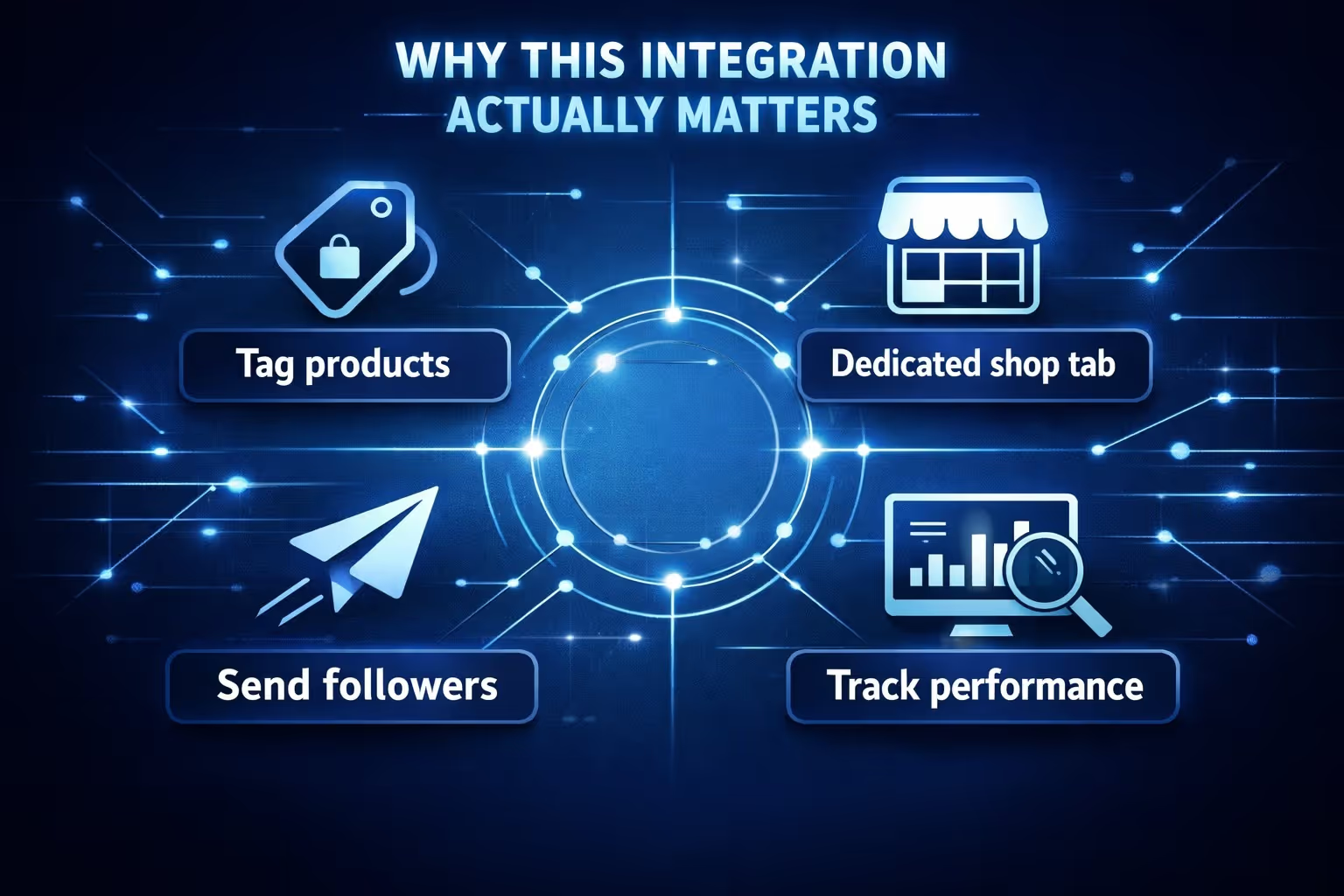
Here’s the thing: people don’t want to click five times to buy your product. They want to see it, like it, and check out – all in one smooth motion. That’s exactly what the Shopify-Instagram setup allows.
When you connect your Shopify store to Instagram, you can:
It’s not just about looking polished on social media. This integration is about converting attention into action without making users jump through hoops.
Don’t skip this part. Before you dive into settings and apps, you’ll want to make sure everything’s in place.
Minimum requirements:
Also, double-check that your business name, contact details, and website URL are consistent across your Shopify store, Facebook page, and Instagram profile. Inconsistencies are one of the main reasons Meta holds up approvals.
This section walks you through the exact steps to get everything working – no fluff, no overcomplication. If your accounts are ready and your store meets the requirements, you’ll be up and running in no time.
Instagram shopping features won’t work unless you’re using a professional account. If you’re still using a personal profile, here’s how to fix that.
To switch to a business account:
This switch gives you access to tools like Insights, ads, product tagging, and links to Facebook’s Commerce Manager.
Even though Facebook and Instagram are separate apps, they operate under Meta’s shared ecosystem. That means your Instagram business account needs to be tied to a Facebook business page.
Here is how to link them. Go to Instagram, choose Settings, press Account, select Linked Accounts, and choose Facebook. Then log in to your Facebook business account. Now, select the page you want to connect and grant necessary permissions.
If you don’t have a Facebook business page yet, create one first and make sure it reflects the same branding and details as your Shopify store.
This is where everything starts to come together.
To begin, log in to your Shopify admin. Go to “Sales Channels” on the left sidebar and click the “+” icon. Select “Facebook & Instagram” from the list and click “Add Sales Channel”. Follow the prompts to log into Facebook and grant permissions.
You’ll be asked to connect your Facebook business assets – your page, Instagram profile, ad account, and product catalog. Shopify will automatically create a catalog in Meta’s Commerce Manager and your products will sync automatically from Shopify to Meta's catalog once the sales channel is connected – no manual addition is necessary.
Approval usually takes a few hours to a couple of days, though it may take longer if there are inconsistencies or if Meta requires manual review.
Once your catalog is synced and approved, you’ll be able to turn on Instagram Shopping.
To enable it:
If your account meets all the requirements, Meta will approve it, and you’ll unlock the ability to tag products in posts and stories.
After approval, tagging is the easy part.
Here’s how to tag products: create a new Instagram post or story, tap “Tag products”, choose the product from your synced Shopify catalog, and place the tag over the image and post.
That’s it. When someone taps the product tag, they’ll go straight to your product page. No awkward link-in-bio workarounds needed.
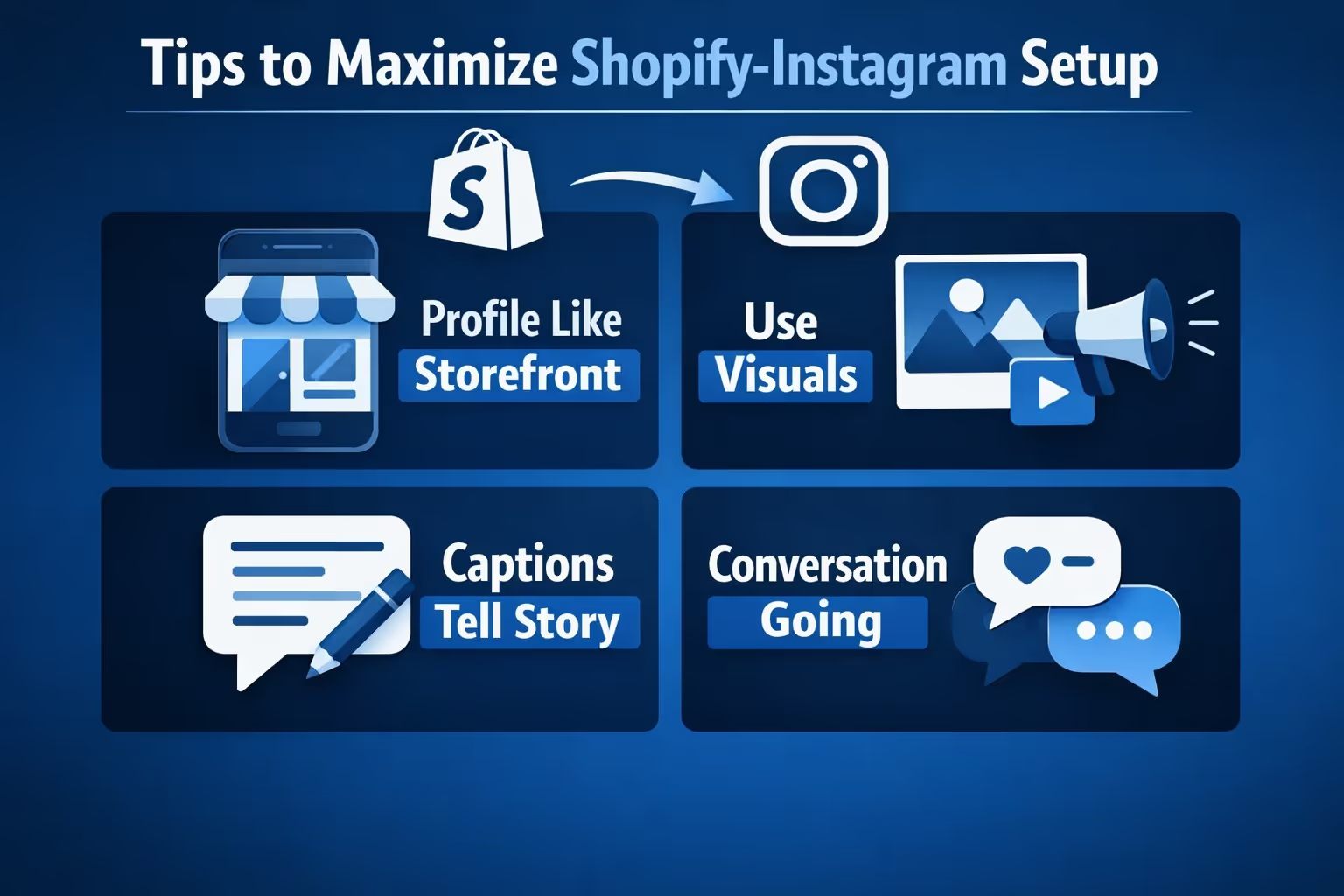
Just connecting Shopify to Instagram isn’t enough on its own. The tools are powerful, but how you use them is what drives real results. Once the tech is set up, here’s how to turn that integration into actual conversions.
Your Instagram profile is your front window. Make it clean, clear, and inviting. Start with a recognizable, branded profile picture. Then write a short but meaningful bio that explains who you are and what people can expect from your page – bonus points if you include a strong call to action. Don’t forget to drop your Shopify store link in the bio or use a link aggregator like Linktree if you have multiple things to promote. If you’ve got bestsellers or current promos, pin those posts or highlights so they’re always front and center.
Instagram’s all about visuals, so bland product shots won’t cut it. Show your products in real-life settings instead of sterile white backgrounds. Highlight the experience of using the product, not just the product itself. If you're selling candles, show them lit during a cozy evening. If you're selling sneakers, show them in motion. Seasonal themes also help keep your content feeling timely and relevant.
Your visuals get attention, but your captions keep people engaged. Don’t just list features – talk about how your product solves something or fits into real life. Tell a quick customer story or walk readers through a relatable situation. And be direct about what you want people to do next, whether that’s “Tap to shop,” “Check the link in bio,” or “Send us a DM.”
Your followers aren’t just viewers – they’re potential customers, and they expect some kind of interaction. Respond to comments and messages like you would in a real store. Repost customer content when you can (always ask first), and use built-in Instagram tools like polls, questions, or countdowns in Stories to create small moments of engagement that build trust over time.

This is where things get serious. Running ads on Instagram is powerful but testing them the old way can eat up your time and budget fast. That’s where we come in. At Extuitive, we’ve built a way for Shopify store owners to create and validate ad campaigns in minutes, not weeks. Instead of spending money on trial-and-error targeting, we use AI agents to predict which creatives will actually convert before you even launch them.
Once you connect your Shopify store, we help you generate ads, test variations across audiences, and launch with confidence. It’s fast, it’s budget-friendly, and it’s built specifically for brands that want to move quickly without compromising on results. Whether you're retargeting visitors or promoting a new product line, we make sure your message reaches the right audience – backed by real-world behavioral data, not guesswork.
If things aren’t syncing or you can’t tag products, here are the usual suspects:
Still stuck? Disconnect and reconnect the Facebook & Instagram channel in Shopify, then re-sync your catalog. Sometimes a clean reset solves it faster than digging through settings.
Connecting Shopify to Instagram isn’t just a tech integration – it’s a strategy upgrade. You’re not just adding a sales channel, you’re meeting your customers where they already spend their time, and removing the friction between “I like that” and “I’ll buy that.”
With Instagram’s native shopping features, product tagging, and visual-first format, Shopify stores can turn scrolls into sales far more effectively than through traditional ads or SEO alone.
Set it up once, then keep optimizing. That’s where the real payoff comes in.


