What Is AI in Digital Marketing? Guide for 2026
Discover what AI means in digital marketing, how it works, key use cases, and why it's reshaping customer engagement and campaign performance in 2026.
Apr 14, 2026



Sometimes it’s just time to hit pause. Maybe your store isn’t working the way you hoped. Maybe you’re pivoting. Or maybe you’re just burned out. Whatever the reason, closing your Shopify store is simple but only if you handle the details the right way.
This guide walks you through what to do before you pull the plug, how to shut things down properly, and what happens after you click “Deactivate.” It’s not complicated, but there are a few spots where people trip up, like forgetting to cancel app charges or losing access to a domain they still need. Let’s make sure you don’t miss anything.
If you’re thinking about closing your Shopify store, chances are it’s not a spur-of-the-moment thing. Maybe your sales have slowed. Maybe you’re switching platforms. Maybe you just need a break. Whatever’s behind the decision, it’s valid.
And you’re not alone. Lots of sellers hit this crossroad at some point. Some return later with a stronger brand, others pivot to something totally different. The important thing is to close things properly, so you’re not stuck with surprise bills, broken domains, or lost data down the line.
Not trying to change your mind here, but Shopify does offer options that might work if you’re not 100% set on shutting down.
Consider these before pulling the plug:
But if you’ve thought it through and you're ready to close up shop, let’s do it right.

Shopify makes it pretty easy to deactivate your store. But there are a few things you should take care of before you click that final button. Miss one, and you could be dealing with some very preventable headaches.
Once your store is closed, you’ll lose access to your admin dashboard unless you reactivate. Export your data now so you have it later.
What to export:
You can download CSVs for most of this directly from your Shopify admin. If you’ve made customizations to your theme, download a copy of your theme files, too.
Closing your store won’t automatically cancel charges from third-party apps. Some are billed separately and can keep charging you even after the store is shut down.
Make sure you uninstall apps from the admin panel,double-check for external subscriptions, and read cancellation instructions on each app’s billing page.
You can’t just ghost your customers. If you’ve got open orders, subscriptions, or pending refunds, wrap those up before you close.
What to do:
If you bought a custom domain through Shopify, you can transfer it to a third-party provider or keep it and point it elsewhere.
If your domain is managed elsewhere, update the DNS settings or remove it from Shopify before deactivation. Also, turn off auto-renewal if you’re done with it.
One more thing: Shopify’s security layer (HSTS) stays on your domain for 90 days after closure. If you point that domain to a non-HTTPS site during that time, browsers might show a security warning.
Once you’ve handled the prep work, here’s how to actually deactivate your store.
How to close your shopify store:
That’s it. You’ll get a confirmation email, and your store will be inaccessible to customers. Your admin will also be locked until you reactivate.
Shopify Plus users need to contact Shopify Support directly to deactivate. It can’t be done through the regular admin.
The store’s closed. So now what? Here’s what you can expect.
Shopify retains your store’s data for up to two years. That means you can reopen it during that time without having to rebuild everything from scratch.
Reactivation is possible any time by logging in and subscribing to a plan again. Your original myshopify.com domain stays locked. You can’t use it for a new store. If you reopen, you’ll regain access to past orders, products, customers, etc.
Once your subscription is canceled, you won’t be charged again. But:
If your billing cycle ends next week, the store won’t close until then. If you’re still in a free trial, deactivation is immediate.
No problem. As long as you’re within the 2-year data retention window, you can reactivate with just a few clicks:
How to reopen your store:
But heads up: if you wait too long, Shopify may delete your data (past the retention period), and you’ll have to start over with a brand new store.
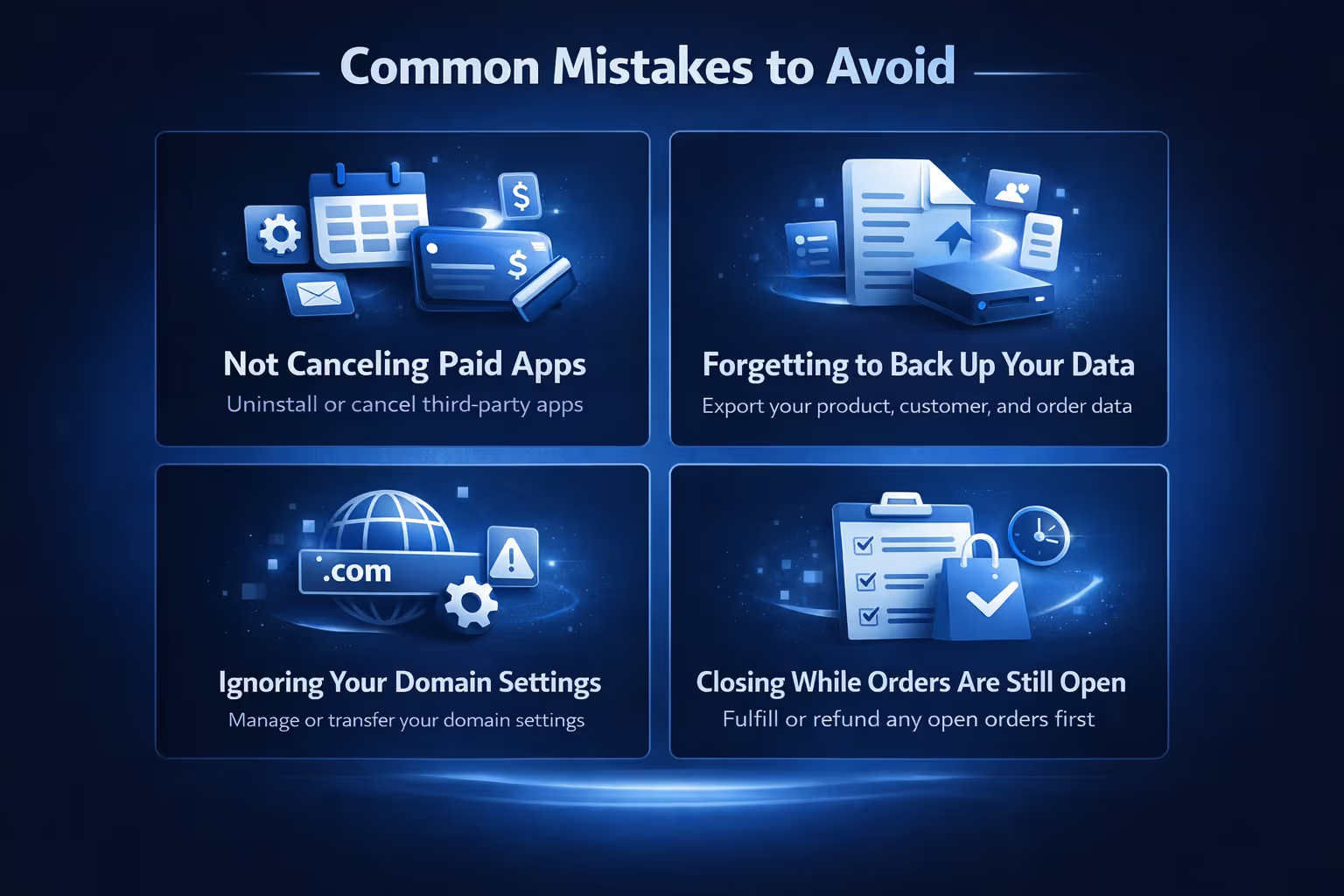
You’d be surprised how many store owners miss these. Avoid them, and you’ll make the whole process much cleaner.
Closing your Shopify store doesn’t automatically stop third-party app charges. If you’ve got paid apps running, some of them may bill you directly, outside of Shopify. Be sure to uninstall them through your admin and double-check any services connected through your store. Otherwise, you might keep paying for something you’re no longer using.
In the rush to close things down, it’s easy to overlook this one. But skipping backups is a big mistake. Even if you think you’ll never need that data again, something might come up, like tax filing, a customer dispute, or launching a future project. Take a few minutes to export your product catalog, customer list, and order history before pulling the plug.
If you bought your domain through Shopify, you’ll need to decide what to do with it before shutting the store. Leaving it unmanaged can create a mess, especially if you’re planning to use it again elsewhere. Transfer it to another provider if you’re keeping it, or make sure auto-renew is turned off if you’re letting it go.
You don’t want to leave buyers hanging. If you’ve got unfulfilled orders, deal with them before closing. Not only is it the right thing to do, it also protects you from chargebacks or complaints that could follow you after your store is gone. Refunds, too, handle them now, not later.
Even after you click “Deactivate,” your store might stay live until your current billing cycle ends. If you’re trying to avoid another monthly charge, make sure to close it right before your renewal date. Otherwise, Shopify will finish out the billing period before shutting it down.

If you’re planning to shut down your store, this might be your last chance to learn from what worked and what didn’t. At Extuitive, we help Shopify merchants validate their ad creative before spending a single dollar on real campaigns. So even if you're wrapping things up now, those insights still matter.
Our platform connects directly with your Shopify store and uses AI agents modeled on real consumer behavior to generate and test ads in minutes. If your store’s been underperforming, the issue might not have been your product or market fit – it might have been the message. With Extuitive, you can analyze how your ads resonated with different customer types, identify weak spots, and take those learnings into your next project or platform.
Closing your Shopify store doesn’t have to mean leaving empty-handed. We make it easy to extract value from your existing campaigns, so you walk away with smarter insights and a clearer direction, whether you’re taking a break or getting ready to launch something new.

Here’s a final run-through before you hit “Deactivate”:
Closing a Shopify store isn’t complicated, but it is final. Even if you plan to return later, handling the details now will save you hours (and headaches) down the road.
Whether you’re done for good or just taking a breather, doing it the right way means you stay in control of your data, your finances, and your brand. And if you come back later? Everything’s still there, ready for you to pick back up.
Just don’t forget to cancel those apps.


