Best Agencies for Social Media Creative Testing
A practical list of agencies that specialize in testing social media creatives, improving ad performance through data, iteration, and real audience signals.
Feb 10, 2026



Shopify makes it easy to start a store, but not everyone decides to keep going after the free trial. Sometimes the timing is off. Sometimes the platform just is not the right fit. Whatever the reason, canceling a Shopify free trial is straightforward if you know where to look and what actually matters.
The confusion usually comes from mixed advice online. Different trial lengths, different rules, different opinions on what happens after you cancel. This guide strips that down to the essentials. No shortcuts, no scare tactics, just a clear explanation of how to cancel your Shopify free trial properly and what to expect once you do.
If you want to stop before being charged and avoid loose ends like app fees or locked domains, a few small details make a big difference.
Before canceling anything, it helps to understand how Shopify treats free trials internally. Many misunderstandings start here, especially when different sources mention different rules or timelines.
A Shopify free trial begins the moment you create an account. It does not wait for you to add products, open the admin dashboard, or start designing the store. The countdown starts at signup. Trial length can vary based on location, promotions, or the specific offer available at the time, which explains why different articles often mention different durations.
During the free trial, Shopify gives you broad access to the platform. You can build out the structure of your store, add products and collections, and experiment with themes and apps. Core settings such as taxes, shipping rules, and sales channels are also available, allowing you to see how everything fits together before committing.
This phase is meant for setup and exploration rather than live selling.
Some features remain restricted until a paid plan is selected. You generally cannot accept live customer orders unless checkout is activated. In-person sales through POS are limited, and certain storefront restrictions stay in place. These limits are intentional and designed to separate store preparation from active selling.
The most important point is simple. Shopify does not charge subscription fees during the free trial unless you actively choose a paid plan. That said, apps follow their own billing rules. Some third-party apps can generate charges even during a trial period, which is why app management becomes important before canceling.
This is where confusion usually starts.
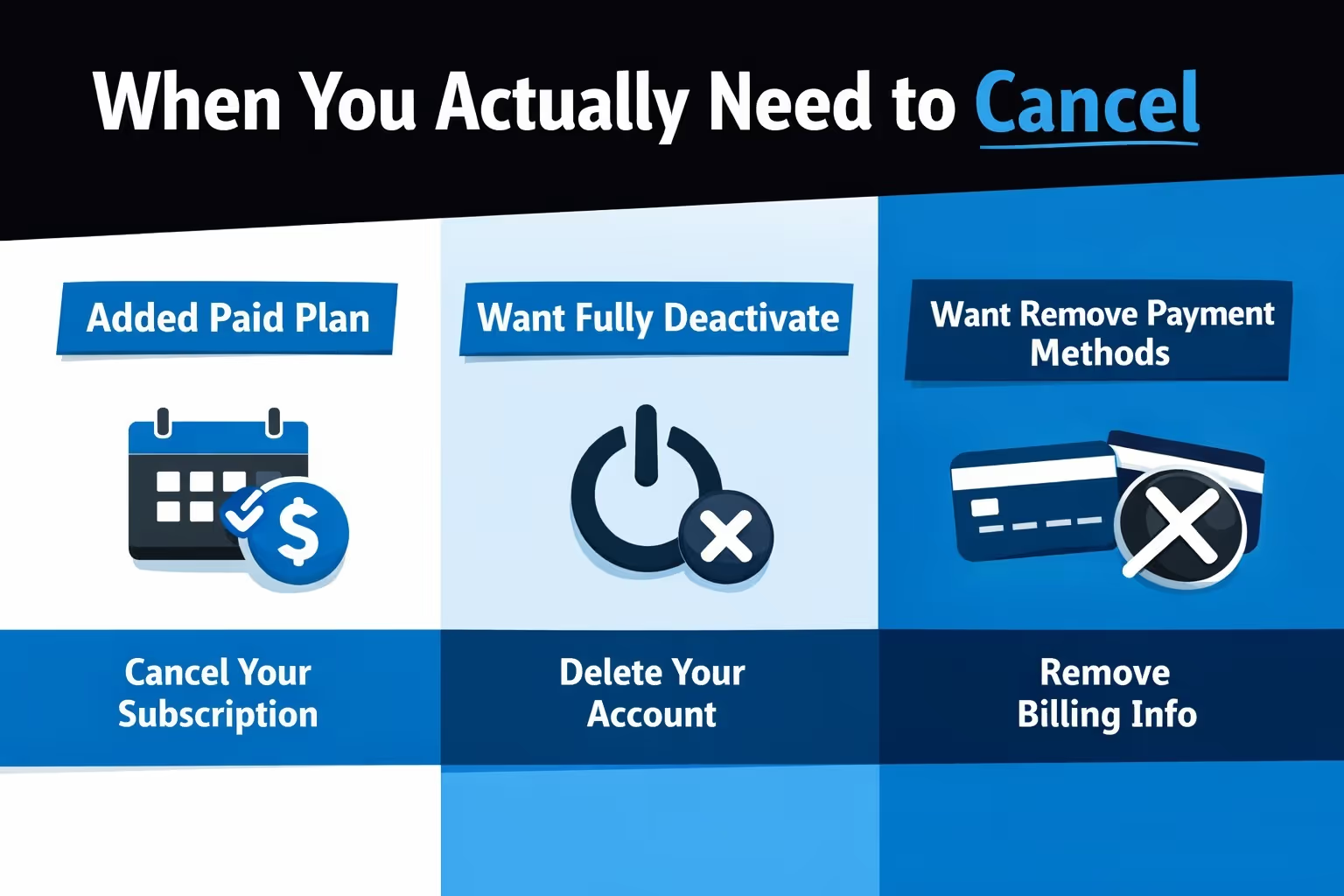
If your free trial ends and you never chose a paid plan, Shopify pauses the store automatically. No charges occur. No manual cancellation is required.
You only need to actively cancel if:
If you did choose a plan, even briefly, Shopify treats the account differently. At that point, manual deactivation becomes necessary to avoid billing.

Sometimes the hesitation is not about the platform. It comes from uncertainty. Not knowing which ads will work, which creatives deserve budget, or whether the next campaign will convert often causes Shopify brands to slow down or pull back before real momentum starts.
At Extuitive, we help Shopify brands move forward with confidence instead of guesswork. Our prediction engine forecasts real-world ad performance before launch using AI models validated against live campaign results. Teams can see which creatives are likely to win and which are likely to underperform, based on their own historical data rather than generic benchmarks.
When decisions are backed by clear performance signals, testing becomes intentional and scaling feels safer. If uncertainty is what is holding things back, we help remove that friction so teams can commit with clarity instead of doubt.
Taking a few minutes here can prevent surprises later. This step is often skipped, then blamed on Shopify, even though most issues come from small details being overlooked.
Open your billing or payment settings and check whether a credit card is attached to the account. If one exists and a paid plan was selected, charges can occur once the trial ends. Removing the card does not always cancel the plan, but it adds an extra layer of protection and helps prevent accidental billing.
Apps can create charges even if the store is paused or canceled. Some bill immediately after installation, while others appear on the next invoice. Before canceling, it is important to uninstall any apps with recurring fees, review their billing cycles, and make sure there are no pending charges. Shopify does not refund third-party app fees, so this step matters.
If you bought a domain through Shopify, it remains tied to the store unless it is transferred or deactivated. Leaving it attached can make it harder to reuse the domain elsewhere later. You can transfer the domain to another registrar, remove it from the store, or deactivate it entirely, depending on your plans.
Shopify keeps store data for a period after cancellation, but relying on that alone is risky. If there is any chance you will need the information later, export products, customers, and orders before canceling. It is a simple step that avoids unnecessary headaches if plans change.
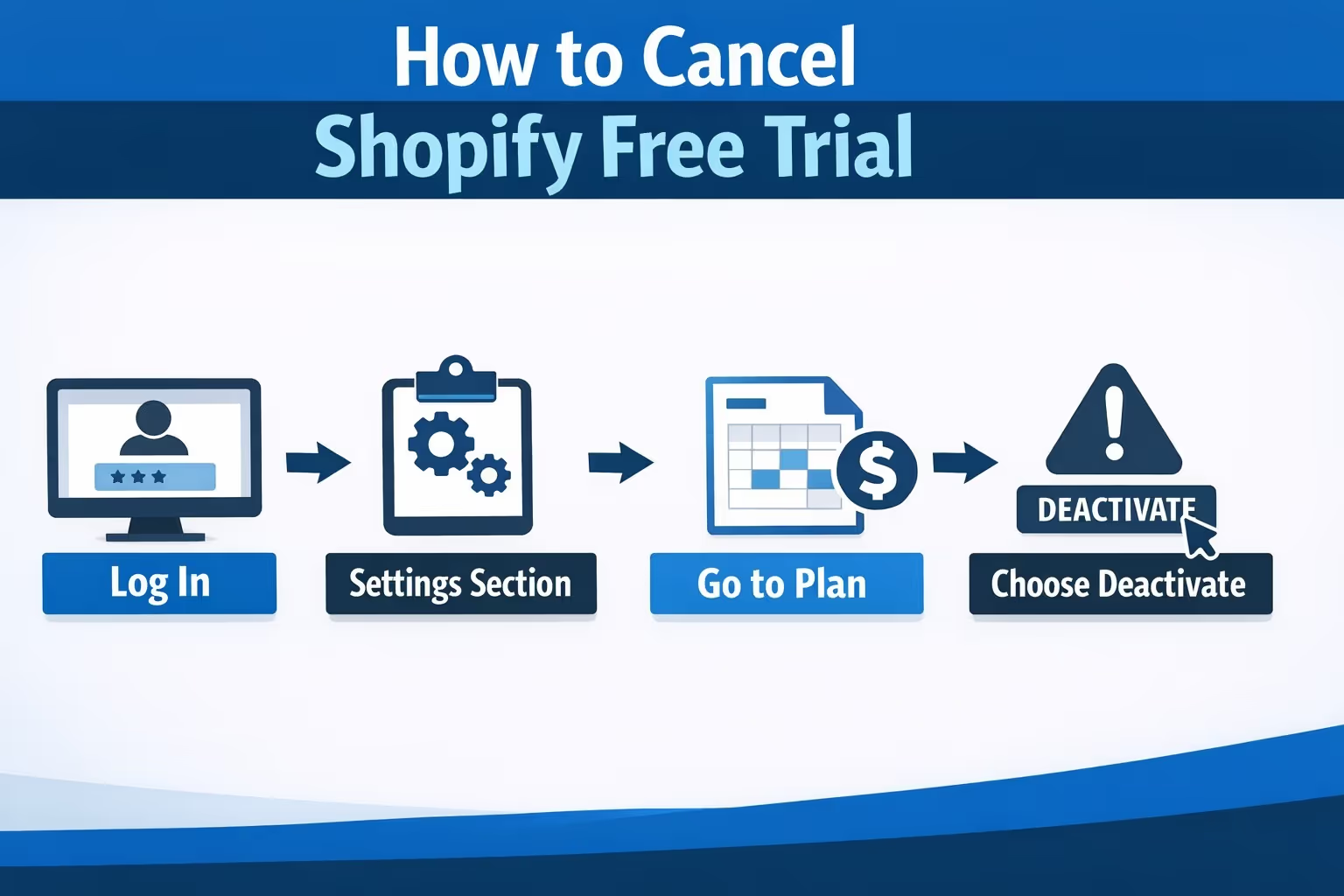
This process applies if you want to actively close the store or if you selected a paid plan during the trial.
Only the store owner can cancel or deactivate a Shopify store. Staff accounts cannot complete this action.
From the Shopify admin dashboard, scroll to the bottom left and click Settings.
Inside Settings, select Plan. This page shows:
What you see here depends on your account state:
Click the relevant option.
Shopify will open a dialog asking you to confirm that you want to deactivate the store. You will be asked to:
This step is informational, not persuasive.
For security reasons, Shopify requires password confirmation. Once entered, click Deactivate now.
That is it. The store is deactivated immediately.
Once the store is deactivated, a few things change right away. Access to the Shopify admin is removed, storefront editing tools are no longer available, and checkout and sales features are disabled. From a visitor’s perspective, the store becomes inaccessible.
Shopify does not delete your data immediately. Store information is retained for a period of time, which allows you to reactivate the store if you change your mind. Because the exact retention window can vary, it is still a good idea to export anything important before canceling.
If you return within that retention period and choose a paid plan, the store can be restored without starting from scratch.
If you cancel correctly before the trial ends and did not choose a paid plan, Shopify does not charge subscription fees. The process is straightforward when no plan has been activated.
Charges can still appear in certain situations. This usually happens if an app billed before the cancellation was completed, if a paid plan was selected and not canceled in time, or if there was an outstanding balance on the account at the moment of deactivation.
Shopify does not issue refunds for unused time once a paid plan has been activated, which is why timing and confirmation matter when canceling.
To cancel the Shopify free trial itself, you need to use a browser. This applies whether you are on desktop or mobile.
If you are on a phone, open a mobile browser, log into your Shopify admin, switch to desktop view, and follow the same cancellation steps used on desktop. The layout is less comfortable on a smaller screen, but this method gives you full access to trial and billing controls.
You can also deactivate your store directly through the Shopify mobile app on iOS and Android by going to Settings, then Plan, and choosing to deactivate the store.
This option closes the store but does not fully replace canceling the free trial if a paid plan was selected. For accounts that never chose a plan, deactivating the store usually results in the store being paused. Because of this difference, using a browser remains the most reliable way to fully control billing and account status.
Not everyone needs a full cancellation. Shopify offers a pause option that can make sense in specific situations, especially when the goal is to step back without fully closing the store.
Pausing is often useful for seasonal businesses, for teams that need more time to prepare, or for anyone who wants to keep access to the admin without actively selling. In this state, the store cannot accept orders, but products, settings, and configurations remain accessible.
This option requires selecting a paid plan first, which is why it does not apply to everyone on a free trial.
Officially, Shopify does not allow trial extensions.
In practice, promotions vary. Some users are offered discounted months after the trial ends, such as low-cost introductory pricing. These offers depend on timing, region, and account history.
Support may provide guidance, but extensions are not guaranteed and should not be relied on.
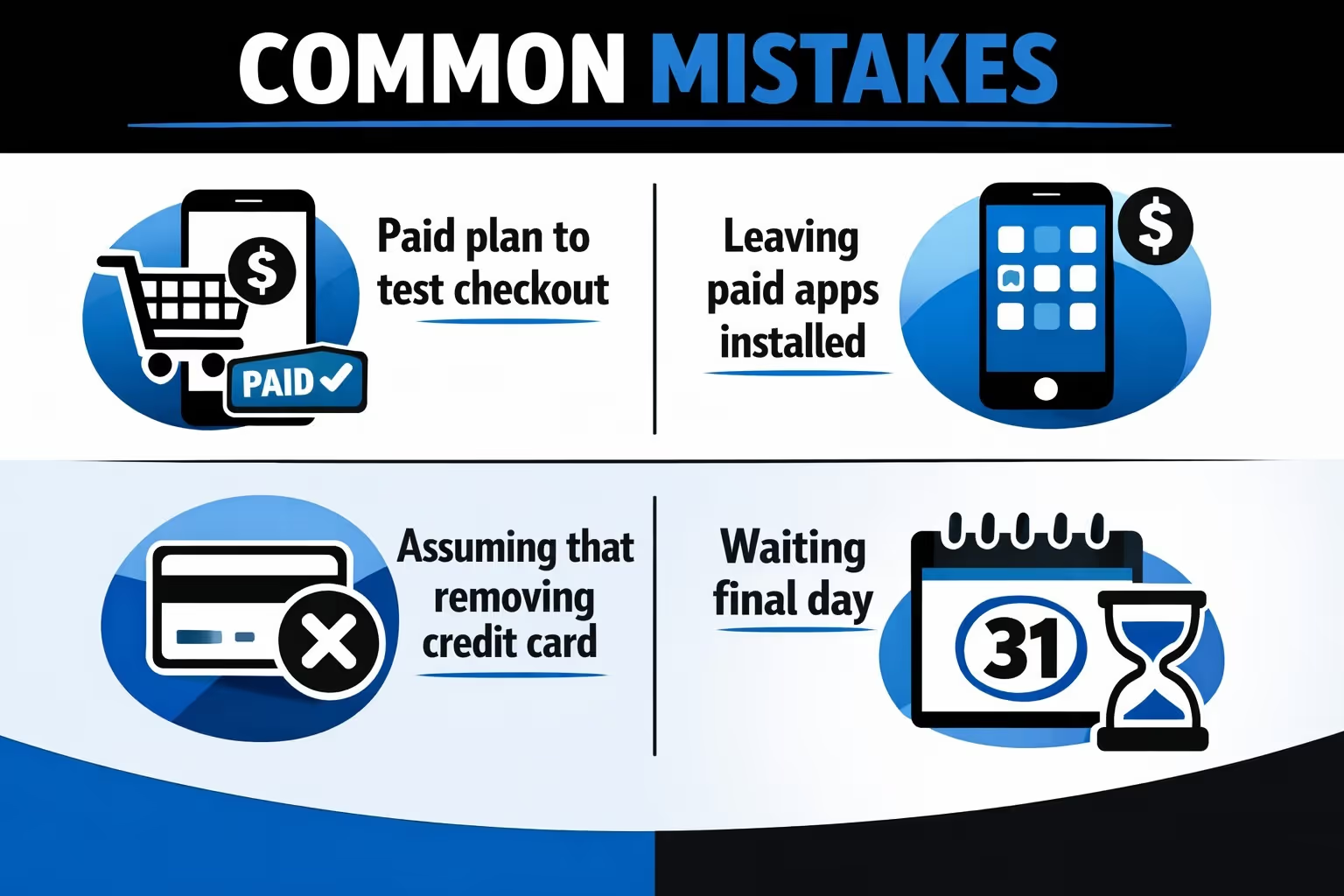
Most unexpected charges do not come from hidden rules or fine print. They usually happen because of small oversights during the trial period, often when things are being tested quickly.
Common mistakes include:
Canceling one or two days before the trial ends avoids most of these issues and leaves room to double-check that everything was closed properly.
Canceling a Shopify free trial is not difficult, but clarity matters. Once you understand when action is required and when it is not, the process becomes straightforward.
Check your plan status. Review apps. Cancel deliberately, not reactively.
A free trial is meant to help you decide, not pressure you into staying. Ending it cleanly is part of using the platform responsibly.


