Does Shopify Have Live Chat? What Store Owners Can Actually Use
Wondering if Shopify has live chat support? Here’s how Shopify chat works, who gets access, and what options are available.
Feb 11, 2026



Adding a domain to Shopify is one of those tasks that sounds more technical than it usually is. Still, it’s also a step where small mistakes can quietly break things, especially if DNS is new territory for you.
Whether you bought your domain through Shopify or already own one from another provider, the goal is the same: make sure customers see your store on a clean, professional web address instead of a default myshopify.com URL. This guide walks through what “adding a domain” actually means, how Shopify handles it behind the scenes, and what to watch for so you don’t lose email, traffic, or time fixing avoidable issues.
No shortcuts, no jargon for the sake of it. Just a clear way to get your domain connected and working the way it should.
Before touching any settings, it helps to clear up a common misunderstanding.
Adding a domain to Shopify does not mean Shopify owns your domain, unless you buy or transfer it there. What it really means is telling the global DNS system that when someone types your domain name into a browser, it should load your Shopify store instead of something else.
Your domain always lives with a registrar. Shopify is not a registrar by default. Shopify is the destination.
So when you add a domain, you are doing one of three things:
Each path works. Each has tradeoffs. Problems usually start when people mix them up.
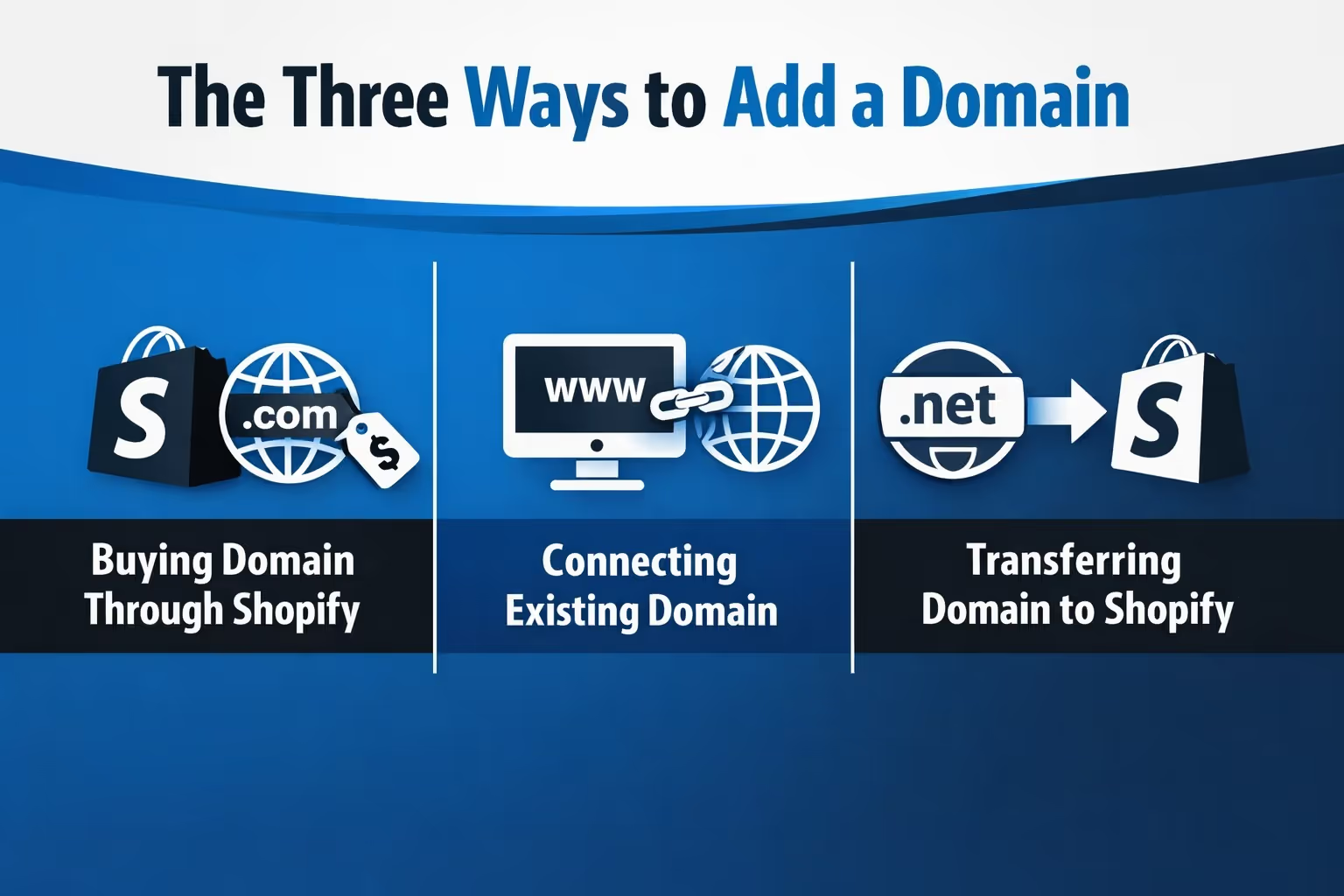
This is the simplest option if you do not already own a domain.
You search for a name inside Shopify, buy it, and Shopify configures everything automatically. DNS, SSL, redirects, and verification are handled in the background. For first-time store owners, this is often the least stressful route.
The downside is control. Advanced DNS changes, custom records, or unusual setups can be more limited compared to some dedicated registrars.
If you value simplicity over flexibility, this option works well.
This is what most established store owners do.
You already own a domain from a registrar like Porkbun or one.com. You keep paying them for the domain. You keep managing it there. You just point it to Shopify.
This method gives you the best balance of control and convenience, but it requires DNS changes. That is where people need to slow down and read carefully.
This moves domain management entirely into Shopify.
After the transfer, Shopify becomes your registrar. You renew the domain through Shopify. DNS lives there. You no longer log in to your old provider for that domain.
This can simplify billing and management, but transfers take time and are not always possible right away. Domains usually need to be older than 60 days, unlocked, and approved by email.
If you already like your current registrar, there is no technical need to transfer.
DNS stands for Domain Name System. In plain terms, it is the phonebook of the internet.
When someone types your domain name into a browser, DNS decides which server should answer. For Shopify stores, that server belongs to Shopify.
To make this work, Shopify requires a few specific DNS records:
That is it. Everything else you might see in DNS is usually unrelated.
Problems happen when people delete records without knowing what they do. Email, for example, relies on MX records. Remove those, and mail stops flowing.
No matter which registrar you use, Shopify always starts the same way.
At this stage, Shopify does not change anything yet. It simply tells you what DNS records it expects to see.
Do not rush past this screen. Take note of what Shopify is asking for. This is your reference point.
Some registrars make this easier by offering one-click Shopify setups.
With Porkbun, you can use their Quick DNS Config feature to connect a domain to Shopify in a few clicks. You select Shopify, confirm the change, and Porkbun replaces your DNS records with Shopify’s required setup.
This is fast and convenient. But there is an important catch.
Quick setups replace existing DNS records. That includes email, subdomains, and anything else attached to the domain.
If your domain is brand new and unused, this is usually fine. If you already use email or other services, it can break things instantly.
Before using any quick connect tool, ask yourself one question:
Is this domain currently used for anything else? If the answer is yes, manual DNS is safer.
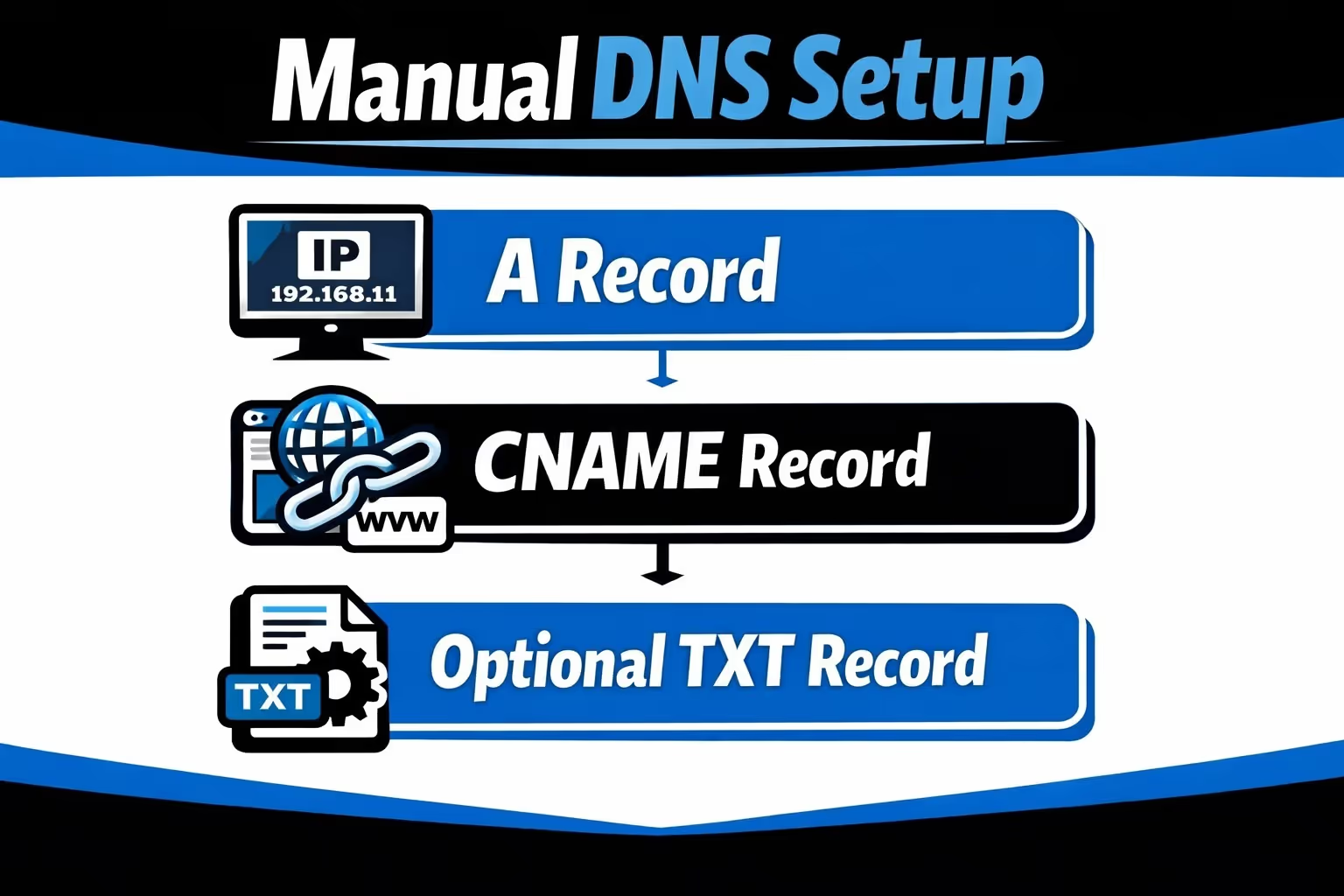
Manual DNS setup sounds scary, but it is usually straightforward.
Here is what Shopify typically requires:
That is all you need.
You do not need to touch MX records. You do not need to delete unrelated records. You do not need to add extra A records.
Less is more.
After DNS is set, Shopify asks you to verify the connection. This is the point where many people start to doubt whether they did something wrong, even when everything is actually fine.
The confusion usually comes from how DNS propagation works. DNS changes do not update everywhere at the same time. Some networks see the new records within minutes, while others may take several hours to catch up. In rare cases, full propagation can take up to 48 hours.
Verification tends to fail when the records are technically correct but have not finished propagating yet. It can also happen if the wrong record was edited, such as changing the www record instead of the root domain. Another common cause is DNSSEC being enabled at the registrar, which Shopify does not support. Simple typos in the domain name or record values can also prevent verification from completing.
If verification does not go through right away, the best move is often to pause and recheck the records calmly rather than making repeated changes. Reapplying the same DNS updates does not speed things up. In most cases, time is the missing piece.
Some registrars enable DNSSEC by default.
DNSSEC adds a layer of security, but Shopify does not support it for custom domains. If DNSSEC is active, your domain may never connect properly.
Before troubleshooting anything else, check whether DNSSEC is enabled and disable it if necessary. Many guides overlook this, but it matters.
You do not have to use your root domain.
You can connect subdomains like:
The process is similar, but the DNS records are created for the subdomain instead of the root domain. This approach is often chosen when the main domain already hosts a different website, or when you want Shopify to manage only a specific part of your online presence. It can also make sense during a gradual migration, where the store is moved in stages rather than all at once.
Shopify supports subdomains well, but the setup still needs attention on both sides. The DNS records must be created correctly at the registrar, and the same subdomain has to be added and verified inside Shopify. When both steps are aligned, the connection is usually smooth and stable.
Once a domain is connected, Shopify lets you choose a primary domain.
This matters for SEO.
Shopify automatically redirects all other domains and variations to the primary one. That includes:
Pick one primary domain and stick to it. Constantly changing it can confuse search engines and dilute signals.
You do not need to buy an SSL certificate separately when using Shopify. Once your domain is correctly connected and verified, Shopify automatically issues a free SSL certificate for you. This covers both the root domain and the www version, ensuring visitors always see a secure connection.
In most cases, the certificate is generated within a few hours after verification, and sometimes even faster. During this window, you might notice a message in your Shopify admin that says “SSL pending.” This usually does not mean anything is broken. It simply indicates that DNS changes are still settling or that Shopify is finishing the certificate setup in the background.
If the “SSL pending” status sticks around longer than expected, it is worth double-checking that your DNS records point only to Shopify and that there are no conflicting records left over from a previous setup. Once DNS is clean and propagation is complete, SSL typically activates on its own without any further action.
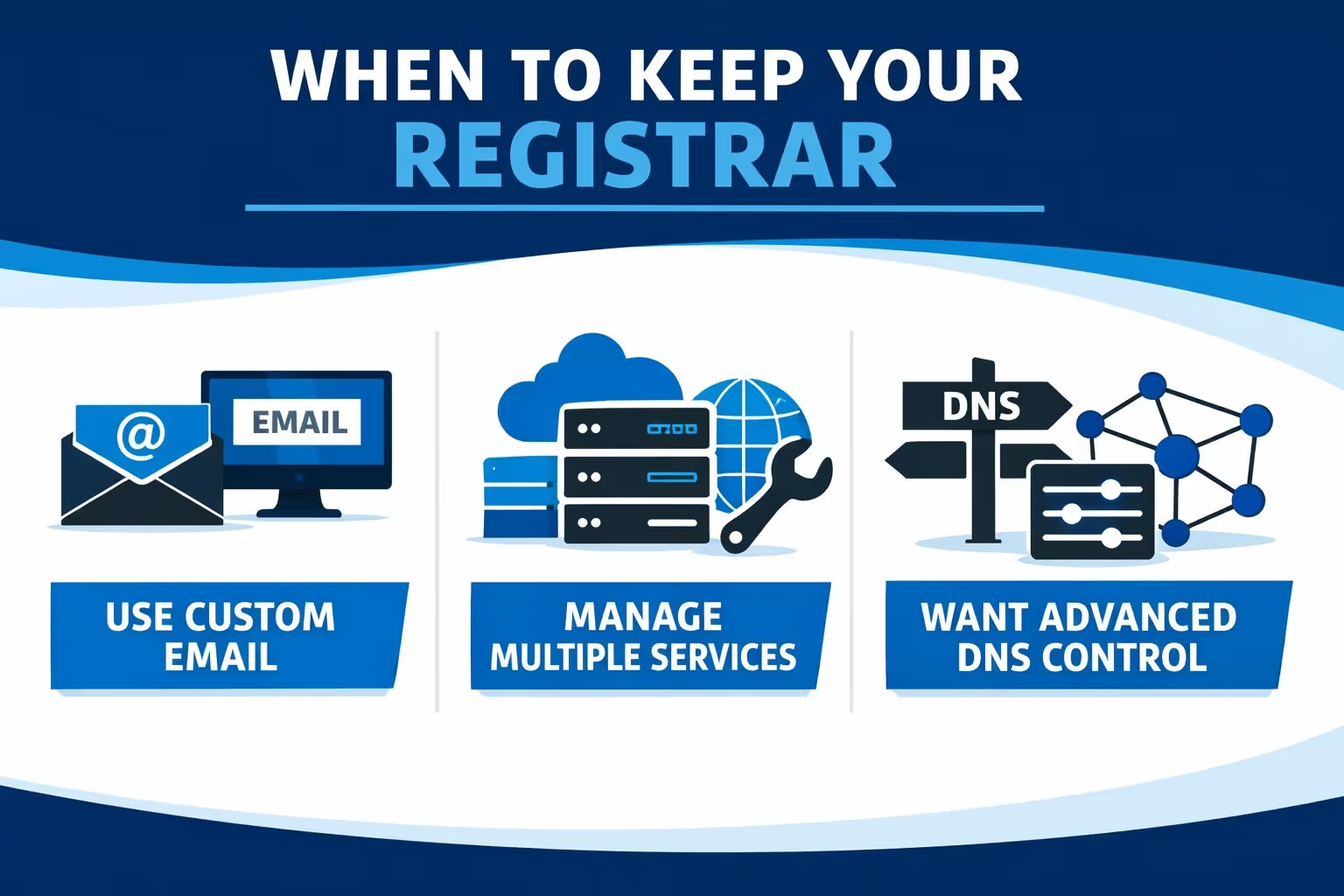
There is no technical requirement to move your domain to Shopify.
Keep your registrar if:
Consider transferring if:
Neither choice affects store performance or SEO when done correctly.

Once your Shopify store is live and your domain is set up, ad spend becomes the next big decision. The risk is not running ads. It’s paying to test creatives that were never going to work.
At Extuitive, we help Shopify brands predict ad performance before launch. Our AI models are trained on real campaign results, so instead of guessing, you see which creatives are likely to outperform your historical average. That makes it easier to stop testing losers and focus budget where it matters.
We analyze ads at scale and forecast expected CTR and ROAS using your own data, not generic benchmarks. That means faster decisions, clearer priorities, and less wasted spend. We also surface audience insights that help teams target the people most likely to convert from day one.
For brands that move fast and need results without burning budget, we turn ad testing into a more predictable, controlled process.
Adding a domain to Shopify is not about clicking the right button. It is about understanding where control lives and making deliberate changes instead of reactive ones.
Once DNS is set correctly and verification is complete, there is usually nothing more to do for years. That is the goal.
If you approach it calmly, read each step, and resist the urge to rush, the process is far less intimidating than it looks.
And once it is done, you get something that matters more than the setup itself: a store that feels real, trustworthy, and ready to grow.


