How to Add Collections on Shopify: Comprehensive Instructions to Follow
Shopify collections are a useful tool for organizing your store's inventory and helping customers find what they’re looking for faster. Whether you’re grouping products by category, season, or promotion, creating collections helps keep your store neat and accessible. In this guide, we'll walk you through how to add collections on Shopify, both manually and automatically, so you can start making your store more user-friendly in no time.
What Are Shopify Collections?
Before we dive into how to add collections, let’s quickly go over what Shopify collections are. Collections are groups of products that share similar characteristics. For example, you might group your products by category (e.g., shoes or shirts), by audience (e.g., men's or women's clothing), or by promotion (e.g., "Holiday Sale" or "Clearance"). Organizing your products into collections helps customers find what they’re looking for quickly, improving their overall shopping experience.
Collections also allow you to feature specific products on your homepage, in menus, or in marketing campaigns. Depending on your needs, you can set collections to be manually curated or automatically updated based on rules.
Why Should You Use Shopify Collections?
Shopify collections offer a variety of benefits, both for store owners and customers. Here are some reasons why using collections can improve your store:
Better navigation: Customers can find products faster by browsing through well-organized categories, which increases the likelihood of completing a purchase.
Enhanced user experience: Collections create a cleaner layout, which makes it easier for customers to shop without feeling overwhelmed by a massive product list.
Targeted marketing: You can create collections based on specific promotions, seasons, or themes, which allows you to launch targeted marketing campaigns.
Increased sales: By grouping products together, you can encourage cross-selling. For example, if you’re selling shoes, you can include socks or shoe polish in the same collection.
Types of Shopify Collections
Shopify allows you to create two types of collections: manual collections and automated collections. Both serve different purposes, so let’s look at how to add them and what each one is best suited for.
Manual Collections
Manual collections are the simpler of the two. With manual collections, you’re responsible for selecting which products to add. You can search for products in your catalog and manually add them to the collection. This gives you full control over what products are included.
Best for:
Curated collections or temporary collections like “Editor’s Picks” or “Holiday Special.”
Small collections that don’t change frequently.
One-time promotions or events where you have a limited selection of items.
How to Create a Manual Collection:
Go to the admin panel: In your Shopify admin, go to Products and then Collections.
Click on ‘Create Collection’: Once on the Collections page, you’ll see a button that says “Create Collection.” Click it to start a new collection.
Set collection details: Enter a title for your collection, such as “Summer Sale” or “Men’s Shoes.”
Choose the manual collection type: Select “Manual” as your collection type.
Add products: Scroll to the “Products” section and either search for the products you want to include or browse your catalog. Click “Add” for each product you want to include in the collection.
Save the collection: Once you’ve added all the products you want, click “Save.”
Automated (Smart) Collections
Automated collections are more dynamic. Instead of manually selecting each product, you set up conditions based on product tags, price, vendor, or other attributes. Shopify then automatically adds products to the collection that meet the specified criteria. Automated collections are ideal for larger stores with lots of products.
Best for:
Large inventories with seasonal or recurring groups (e.g., “New Arrivals,” “Best Sellers”).
Collections that need to be updated regularly without manual effort.
Ongoing categories or promotions, such as “Sale Items” or “Top Products.”
How to Create an Automated Collection:
Go to the admin panel: In Shopify admin, go to Products and then Collections.
Create a new collection: Click on “Create Collection” to start a new collection.
Set the automated collection type: Choose the 'Automated' option to create smart collections. This allows you to set rules, like using product tags or price to add products automatically.
Define collection conditions: Choose the conditions that will automatically add products to your collection. You can base these conditions on product tags, price, vendor, product type, or other attributes.
Choose matching criteria: You can select whether products must match all or any of the conditions. For instance, if you choose "All conditions must be true," only products that meet all the criteria will be added.
Save the collection: Once you’ve set your conditions, click “Save.”
How to Add Collections to Your Shopify Store
Once you’ve created your collections, you’ll want to display them in your store. There are several ways to do this, including adding collections to your homepage, navigation menus, or custom pages.
Adding Collections to the Homepage
You can feature collections directly on your homepage, making them visible to customers as soon as they visit your store.
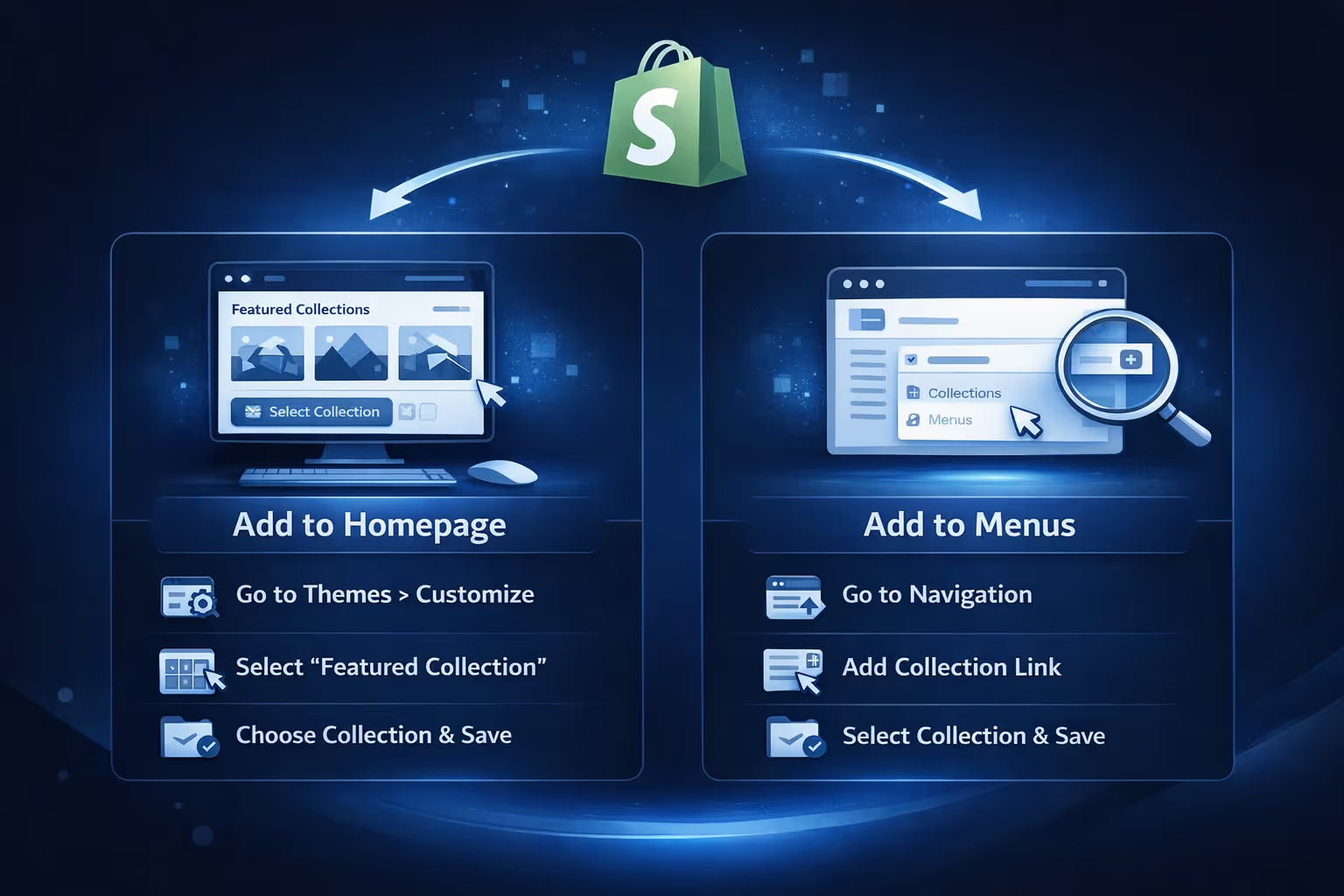
In Shopify admin, go to Online Store and then Themes. Click on “Customize” next to your current theme. In the theme editor, look for an option to add a “Featured Collection” or “Featured Products” section. This option allows you to display collections directly on your homepage. Click on the “Select Collection” button and choose the collection you want to feature. Once you've added the collection, click “Save.”
Adding Collections to Navigation Menus
To help customers easily access collections, you can add links to collections in your store's navigation menus.
In Shopify admin, go to the Online Store and then Navigation. Choose the menu (e.g., Main Menu or Footer Menu) where you want to add the collection link. Click “Add Menu Item,” enter the name of the collection, and select “Collections” as the link type. From the drop-down list, select the collection you want to link to. Click “Save.”
Troubleshooting: What to Do If You Can’t Add Products to a Collection
Sometimes, you may encounter issues when trying to add products to your collections. Here are some common causes and fixes:
Collection Type Issue
If you're unable to add a product to an automated collection, it could be because the product doesn't meet the collection’s set conditions. To resolve this, either adjust the product to meet the conditions or switch the collection to a manual one where you can directly select the items.
Product/Collection Availability
Ensure that both your product and the collection are active on the appropriate sales channels, such as your Online Store. If either the product or the collection is in "draft" mode or not available for the selected channel, it won’t appear.
Theme Issues
Theme issues or cache problems might prevent products from displaying in collections. Try refreshing the page, clearing your cache, or reviewing theme settings to ensure proper syncing.
Exceeding Collection Limits
Shopify has a limit on the number of products that can be added to a collection. If you exceed this limit, some products may not appear in the collection, so be mindful of how many items you're adding.
Best Practices for Shopify Collections
While adding collections to your Shopify store is essential, it's equally important to manage them effectively. Here are some best practices:
Keep collections consistent: Make sure all products in a collection are related to the theme. Mixing random items together can confuse customers.
Avoid clutter: Don’t overload your store with too many collections. Instead, create focused collections that make sense to your audience.
Use high-quality images: Make your collections visually appealing by using clear, high-resolution images that match the collection's theme.
Sort products effectively: Sort products by best-selling, newest, or highest-rated to highlight the most popular items in your collection.
Update regularly: Regularly review and update your collections to keep them fresh. Remove outdated items and add new ones to keep things current.
Enhancing Your Shopify Store's Marketing with Extuitive's Predictive Ad Tools
When it comes to advertising your Shopify store, predicting your ad performance before launching can make all the difference. At Extuitive, we specialize in providing fast, accurate predictions for your ad campaigns. Our AI-driven platform uses models validated against live campaign results, offering insights that help you forecast which ads will work, and which won’t, before you even spend a penny on them.
By leveraging our tools, Shopify store owners can optimize their ad spend with confidence. We offer intelligent audience targeting that ensures your ads reach the right people every time. With a focus on increasing click-through rates (CTR) and return on ad spend (ROAS), our platform empowers you to make data-backed decisions that lead to higher conversions.
Extuitive's ability to scale ad predictions means that whether you're testing a few creatives or analyzing a high volume of ads, we make it easy to test and predict ad performance before going live. This gives you the time and insight you need to adjust your campaigns for the best results, taking the guesswork out of your marketing strategy.
Conclusion
Shopify collections are a powerful way to organize your store, improve navigation, and create targeted marketing opportunities. Whether you prefer to manually select products or let Shopify’s automated system handle it for you, adding collections can help you provide a better shopping experience for your customers. By following the steps and best practices outlined in this guide, you can quickly set up collections that drive sales and improve customer satisfaction.
FAQ
1. What exactly are Shopify collections?
Shopify collections are groups of products that you can organize by category, type, or even promotions. Collections make it easier for customers to navigate your store and find the items they’re looking for quickly. Think of it like a neatly organized shelf where you group similar items together.
2. How do I decide whether to use a manual or automated collection?
Manual collections are best for small, curated collections where you want to hand-pick the products. If you want a more automated approach, then smart collections (automated collections) are the way to go. They allow Shopify to automatically add products based on conditions you set, like product tags, price, or vendor. The choice depends on the size of your inventory and how often your collections need to be updated.
3. Can I feature a collection on my homepage?
Yes, absolutely! You can add a "Featured Collection" to your homepage using Shopify’s theme editor. This is a great way to showcase popular items, seasonal products, or sales directly to your visitors as soon as they land on your site.
4. How can I make sure my collections are easy to find on my site?
Great question! Adding your collections to your store’s navigation menu is key to making them easily accessible. You can also link them directly to your homepage or other custom pages. This makes sure your customers can always find what they need, no matter where they are on your site.
5. What if I add a product to a collection but it doesn't show up?
If a product isn’t appearing in a collection, check if the product meets the conditions for automated collections (like having the right tags or matching the price range). Also, make sure the product is published and available on your online store. Sometimes cache issues or theme glitches can cause syncing problems, so try refreshing your page or clearing your browser cache if things still aren’t working.
6. Can I use collections for marketing purposes?
Yes, definitely! Collections are a great way to organize your products for seasonal promotions, sales events, or holiday-themed campaigns. You can create collections like “Black Friday Deals” or “Summer Essentials,” and then market them through email campaigns or social media. Shopify even lets you track how well these collections perform with its analytics tools.
7. How do I manage my collections as my store grows?
As your store grows, it’s important to keep your collections organized and relevant. Regularly update them, add or remove products as needed, and make sure you’re using clear, high-quality images for each collection. Consider using bulk editing tools to make updates more efficient. Keeping your collections consistent and easy to navigate will help your customers have a better shopping experience, leading to more sales.
How much are you wasting on Meta ads? Connect your ad account. See your ad efficiency.



.avif)