Best Facebook Ads Agencies in London Right Now - Who’s Actually Delivering Results
Discover leading Facebook ads agencies in London that deliver real results. From eCommerce scaling to lead generation, find the best partners for 2026.
Mar 24, 2026



Running ads without proper conversion tracking is like flying blind – you won’t know what’s working, and worse, you might think something is working when it’s not. Google Ads gives you the tools to track real business outcomes, but even a small misstep in setup can throw everything off.
In this guide, we’ll walk through how to check whether your conversions are being tracked properly, what to do if the data looks off, and why tag validation matters more than most advertisers realize. Whether you’re running campaigns yourself or through an agency, these checks are worth doing. Let’s make sure your budget is backing results – not ghosts.
Installing Google Ads tracking is often treated like a one-and-done checklist item. You paste a tag, or link an account, and then move on. But real-world data often tells a messier story:
Validating your setup helps you fix these issues before they skew your data and derail your ad decisions.
When working correctly, conversion tracking gives you visibility into:
But this depends on your tags firing at the right time, collecting the right information, and feeding it back to Google Ads cleanly.
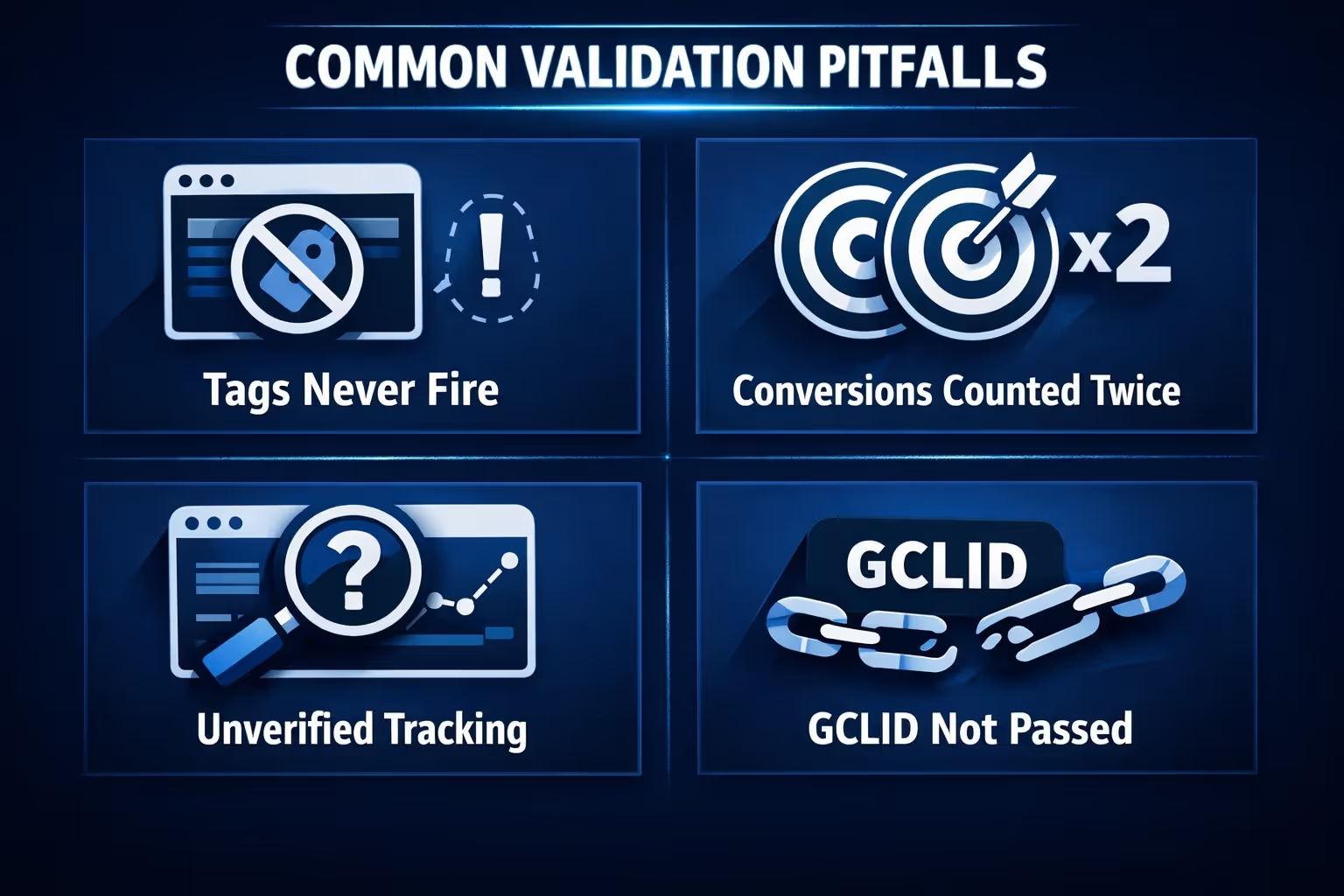
Let’s break down a few real-world issues that cause “silent failures” in conversion tracking:
This happens more often than you’d think. The global site tag might be in place, but the event snippet isn’t. Or maybe it’s on the wrong page. Or conditional triggers in Google Tag Manager (GTM) fail.
If both GA4 and Google Ads track the same action, and you import both, you could be double-counting without realizing it. This makes ROAS look better than it is.
Sometimes the tag is valid but doesn’t trigger often enough for Google to verify it. This leads to the dreaded “Unverified” or “No Recent Conversions” status in your Google Ads dashboard.
If you’re importing CRM or offline data and the Google Click ID (GCLID) isn’t captured properly on the site, those conversions won’t match back to the ad click. That means lost visibility – and no credit for the conversion.
When validating, go beyond "Is the tag installed?" and instead ask:
If you can’t confidently say “yes” to all three, keep reading.
Here’s a reliable workflow that checks all the important pieces – from technical setup to data reflection.
Start with the basics:
For Shopify: Go to Admin > Settings > Checkout > Additional Scripts and look for your GTM or gtag snippet on the order status page.
If you’re using server-side GTM (sGTM), double-check your server container settings and ensure the conversion tag is firing through your configured endpoint.
Go to: Tools & Settings > Measurement > Conversions
Find the conversion action you’re tracking and check the “Status” column:
You can click into the action and check when it was last triggered.
If the status is still unverified after a few days, it’s time to revisit the tag setup.
If your site doesn’t get frequent orders or leads, run a test:
You should also check in Google Analytics 4 (GA4) if you’ve imported events. That way, you can confirm whether the event was registered even if it hasn’t been imported yet.
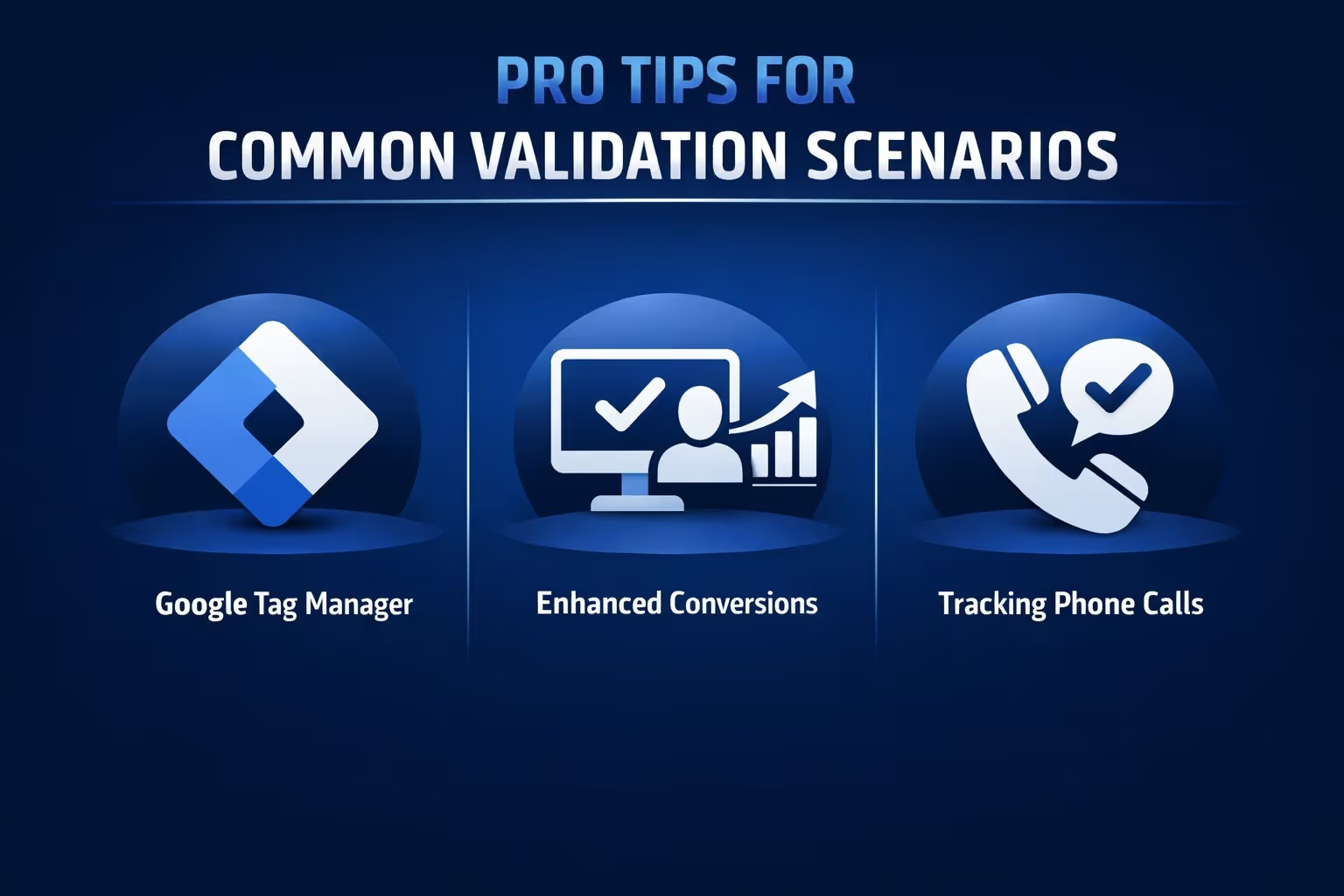
You’ve checked the basics. The tag is installed, the conversions are showing up (mostly), and nothing looks obviously broken. But validation isn’t just about confirming that tracking exists. It’s about making sure it’s accurate, reliable, and actually useful. And depending on how you’re running your campaigns, the setup details can get a bit tricky.
If you’re working with Google Tag Manager, start by using GTM’s Preview mode on your actual conversion page. This gives you a real-time view of whether the tag is firing when and where it’s supposed to. Pay close attention to the event triggers too. They need to match your desired conditions exactly, whether it’s a pageview, form submission, or button click. Another common mistake? Mismatched conversion ID and label. Double-check that these values in your tag match exactly what’s listed in your Google Ads account, or the data won’t connect correctly.
Enhanced conversions rely on first-party data like email addresses or phone numbers submitted by your users. That information must be captured during the conversion process and then hashed using SHA-256 encryption before it’s sent to Google. Of course, make sure you're also collecting proper consent from users where required. Once it’s all in place, use Google’s tag diagnostics tool to confirm that enhanced conversion signals are being sent and received as expected.
Phone call tracking in Google Ads comes in two flavors. The first is calls from the ad itself, like a call extension or call-only ad. In that case, Google handles everything and you don’t need to set up any tags. The second scenario is tracking calls made directly from your website. For that, you’ll need to use GTM to fire a "Calls from Website" tag. You’ll also have to enter your exact business phone number, as it appears on your site, and set up a click trigger to track when people tap that number from a mobile device. It’s a bit more hands-on but gives you valuable data on call-based conversions.
This is a big one. If you’re importing from GA4 and also using native Google Ads tags, make sure you’re not tracking the same conversion twice.
Here’s a quick list to prevent that:
Conversions in Google Ads aren’t always sales. You can define:
The key is deciding which actions matter to your business and validating those, not just the defaults.
Once your conversions are tracking, the next layer is attribution. This is how Google credits different clicks for the conversion.
Your options include:
Why this matters: If you're validating conversions but attribution is off, you might assume the wrong ad is responsible for performance.
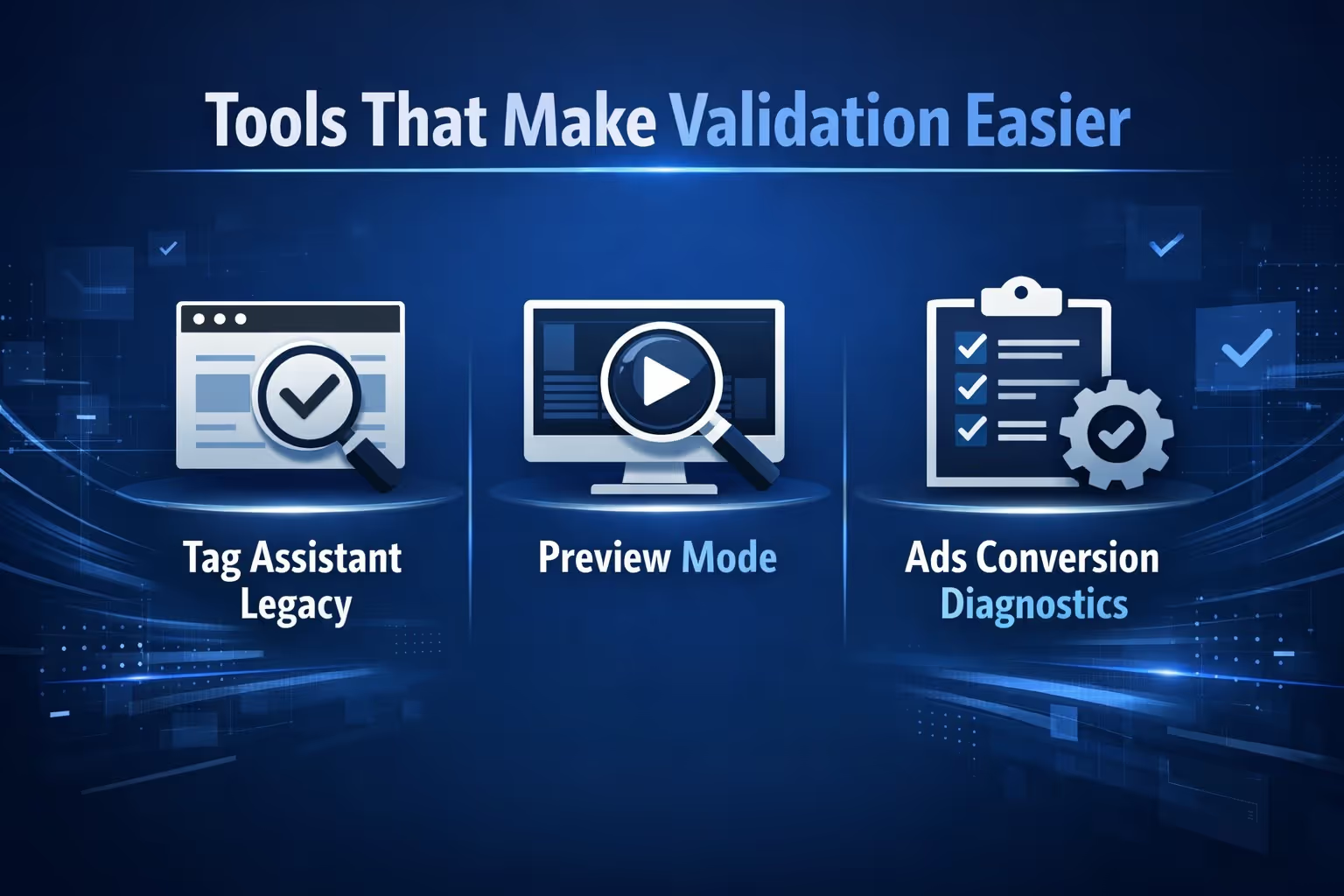
Here are a few tools worth bookmarking:

At Extuitive, we believe that tracking conversions is only half the equation. If you’re feeding weak creative into a perfectly tagged campaign, you’re still wasting budget – just with more accurate reporting. That’s why we built a platform that lets you generate, test, and validate your ad concepts before they ever go live.
Here’s how it works: we connect directly to your Shopify store and generate ads tailored to your actual product data. Then we test those ads using AI agents modeled after real consumer profiles. That gives you fast, predictive feedback on purchase intent – without burning through the budget just to find out what doesn't work.
The best part? Once you're confident in the creative, you're not just launching ads blindly. You're combining data-backed messaging with validated conversion tracking from the start. For teams running paid media at scale, that combo of pre-validation and post-click tracking isn’t just helpful – it's essential. If you’re serious about making every dollar count, we’d love to show you how we do it.
Once you’ve confirmed your tags are firing and conversions are logging in Google Ads, do one more round of checks:
Then – and only then – start pushing spending. Otherwise, you’re optimizing off the wrong data.
Conversion tracking is not a one-click install or a “set and forget” feature. It’s an ongoing process that requires attention, validation, and refinement. Getting it right doesn’t just clean up your data – it gives you the confidence to spend smarter and scale faster.
So don’t just assume everything is working because the tag is there. Go verify it. Run a test. Check the logs. Dig into the actual numbers.
You’d be surprised how often you’ll find something worth fixing.


