Top Shopify Review Apps That Actually Drive Sales
Discover the top Shopify review apps that build trust, showcase customer feedback, and help your store sell more without the usual hassle.
Dec 29, 2025



Running an online store isn’t always a straight line. Maybe sales slow down during the off-season. Maybe you need to step back and regroup. Whatever the reason, it’s normal to ask, “Can I just hit pause for a while?” The good news is Shopify gives you that option but it’s not as simple as flipping a switch. There are trade-offs, limitations, and a few things you’ll want to handle before making the move. This guide breaks it down in plain language, so you know exactly what to expect if you decide to pause your Shopify store. No guesswork, no surprises.
In short, yes, you can pause your Shopify store using the Pause and Build plan. This lets you keep your store online and make edits while checkout is disabled. Customers can still view your site, but they can’t make purchases until you switch back to a full paid plan.
When people ask if they can pause a Shopify store, what they usually mean is: can I stop selling without deleting everything or paying full price?
That’s what Shopify’s Pause and Build plan is designed for. It lets you keep your store online and active, but with checkout turned off. You’re essentially paying a smaller fee to keep things running in the background while you make updates, reorganize, or wait out a quiet stretch.
It’s not the same as closing or deleting your store. You still have access to your Shopify admin, your themes, your products, and most of your settings. You just can’t process any orders.
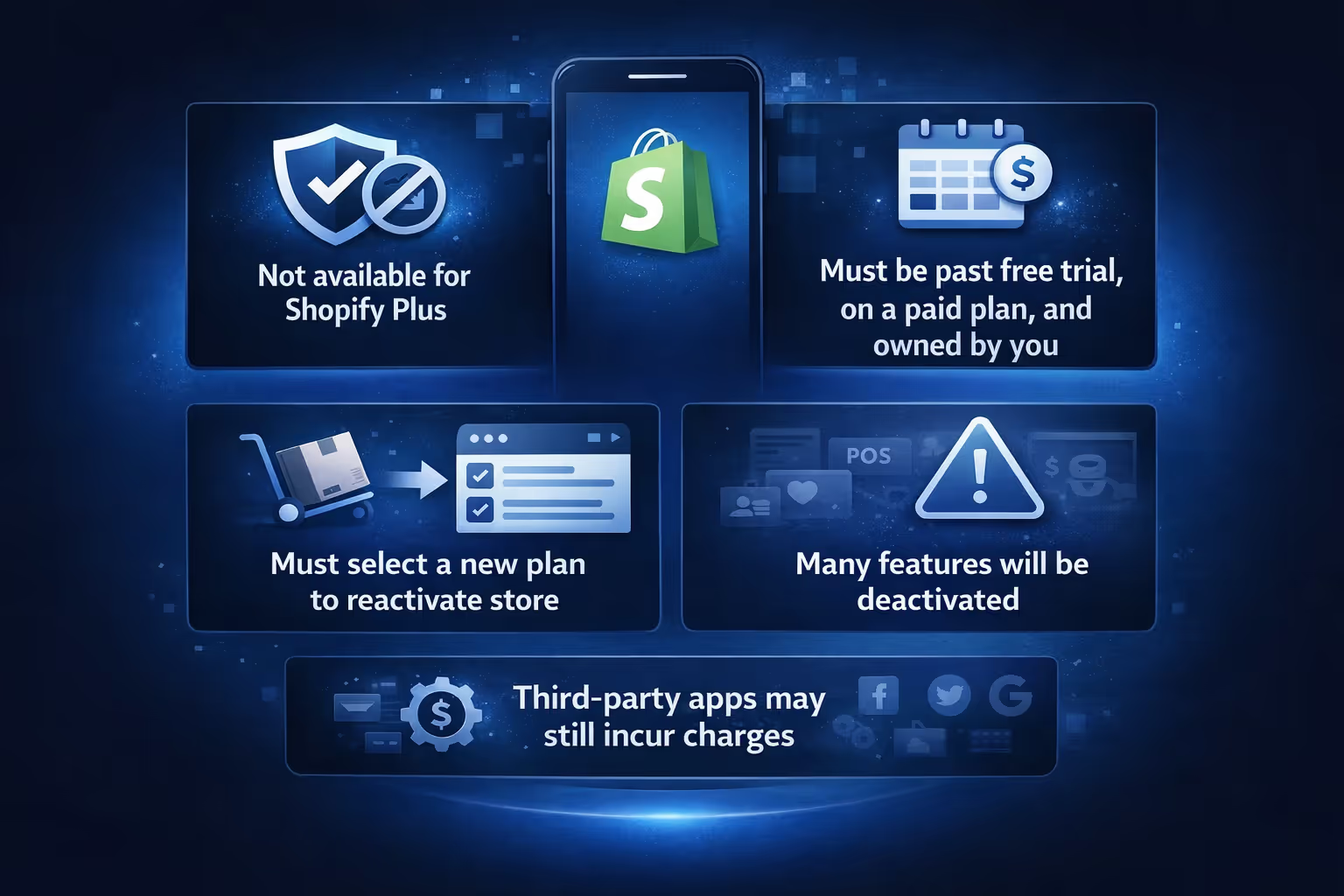
Before you switch to the Pause and Build plan, Shopify lays out a few ground rules. Here’s what you need to be aware of first:
You’ll also want to check any third-party apps you’re using. If they have monthly fees or billing cycles, pausing your store doesn’t pause them. You’ll need to cancel those apps individually to avoid being charged.
Just because the checkout is off doesn’t mean your store is frozen. On the Pause and Build plan, you’re still able to:
Basically, it’s like putting your store in “maintenance mode” but still having full access to work behind the scenes. Customers can view your online store while it is paused, unless you manually enable password protection in your store preferences.
This depends on your goal.
If you still want people to view your products and browse your catalog, it might be fine to leave the store public. Just be aware that they won’t be able to make purchases, even if they try.
On the other hand, if you don’t want visitors to see anything while your store is paused, Shopify gives you the option to add a password page. This is easy to set up and lets you add a message like “We’ll be back soon” or “Store under maintenance.”
To enable the password page, go to Online Store > Preferences, scroll to Password protection, check the box, and add your custom message.
This keeps your store secure and sets expectations for visitors during the pause period.

Pausing makes sense in a few specific situations. Canceling or closing your store is a bigger decision that wipes more cleanly. You’d only want to cancel entirely if you’re truly done with the business.
Here’s when Pause and Build is usually a better fit.
If your business runs on a seasonal calendar, there’s no need to tear everything down each year. Pausing lets you keep your site intact during the off-season so you’re not rebuilding from scratch when things pick back up.
Maybe life’s just busy, or you need a few months to focus elsewhere. Instead of closing your store, the Pause and Build plan lets you step away without losing your setup.
Whether you're reworking your product line or overhauling your design, pausing gives you room to focus without pressure. Your store stays online and editable, but sales are temporarily turned off.
If you're out of stock or waiting on a supply chain fix, there’s no point in leaving your store open for orders you can’t fulfill. Pausing keeps things clean while you sort out the backend.
And you’re only paying a reduced subscription cost to hold your spot, which can be more manageable than a full monthly plan.
If you’ve decided that Pause and Build makes sense, here’s how to activate it. The steps are a little different depending on whether you’re using desktop or mobile.
Once you’ve confirmed, your store will remain online but inactive for sales, and your new lower-rate subscription will begin.
One of the most overlooked parts of pausing a store is app billing.
Just because your store is paused doesn’t mean your apps pause too. If you’ve got any apps with monthly fees, those charges will continue unless you cancel them.
So before switching to Pause and Build, take a few minutes to:
This step alone can save you a lot of surprise charges and cleanup when you return.
When you’re ready to start selling again, reopening is simple. But here’s the catch: your old plan won’t be restored automatically. You’ll need to pick a new one.
To reopen, log in as the store owner, go to Settings > Plan, click Pick a plan, choose the one that fits your needs, review, and click Start plan.
If you had your store password-protected while paused, now’s the time to remove it. Just head back to Online Store > Preferences and disable the password.
Once you’re back on a paid plan, checkout and all your sales features will return.

If you’re using the Pause and Build plan to regroup before launching stronger campaigns, that’s where we can help. At Extuitive, we work with Shopify brands that need to predict performance before they go live. When you're rebuilding your store or coming back after a break, you want to know what’s actually going to convert. That’s what we’re built for.
Our platform lets you forecast ad performance before launch, not after your budget’s already gone. You can test creatives, analyze variations at scale, and see which ones are likely to win – all before spending a cent on traffic. It’s fast, accurate, and tuned for real-world results. If you’re hitting pause now, it might be the right time to start planning your next move smarter.
We’ve seen a lot of brands come back stronger just by being more intentional with their relaunch. Predictive insights give you the edge before your ads even go live. No guessing, no wasted spend. Just a clear idea of what works and why, so when you unpause, you do not just live again, you're sharper.

Here’s a quick recap if you’re getting ready to pause your Shopify store:
Yes, you can pause your Shopify store, and it doesn’t have to mean losing everything. The Pause and Build plan gives you breathing room without shutting things down completely. You can still update products, work on your branding, or plan a relaunch, all while keeping your data and setup intact.
Just make sure you understand the limits. It’s not free, and it doesn’t freeze all activity like apps. But if you’re in a seasonal lull or need a reset, it can be a smart middle ground between paying full price and starting from scratch.
If you’re leaning toward a pause, plan ahead, stay organized, and use that downtime to set yourself up for a stronger return.


